CPUNo. 0412
A background app has kept a core busy for 12 minutes.
SyncHelper usually idles. Today it's working five times harder than normal.
Quit SyncHelper. One core back.
FIXED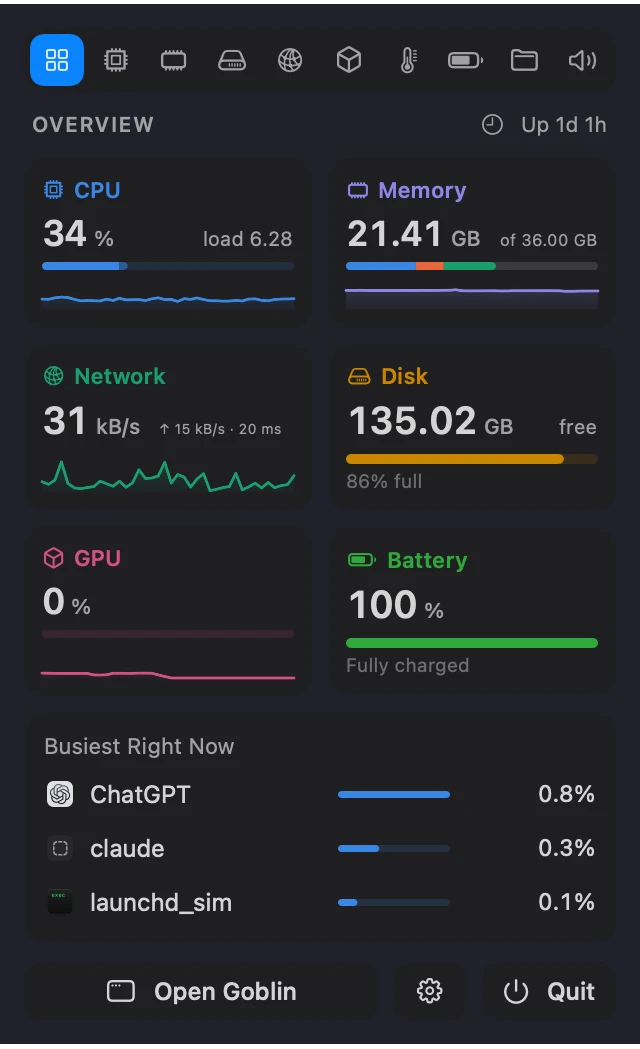
Goblin lives in your menu bar and keeps an eye on everything your Mac is doing: processor, memory, disk, network, graphics, heat and battery. When something's wrong, he tells you what, in plain words. When all is well, he naps.
Free · Version 1.0.6 · 25.6 MB
macOS 15 or later · Apple silicon and Intel
Signed and notarized by Apple
The Overview shows six readings at once, where your memory and power go, and anything worth a look. Goblin walks the gaps between the cards, and goes to see whatever spikes.
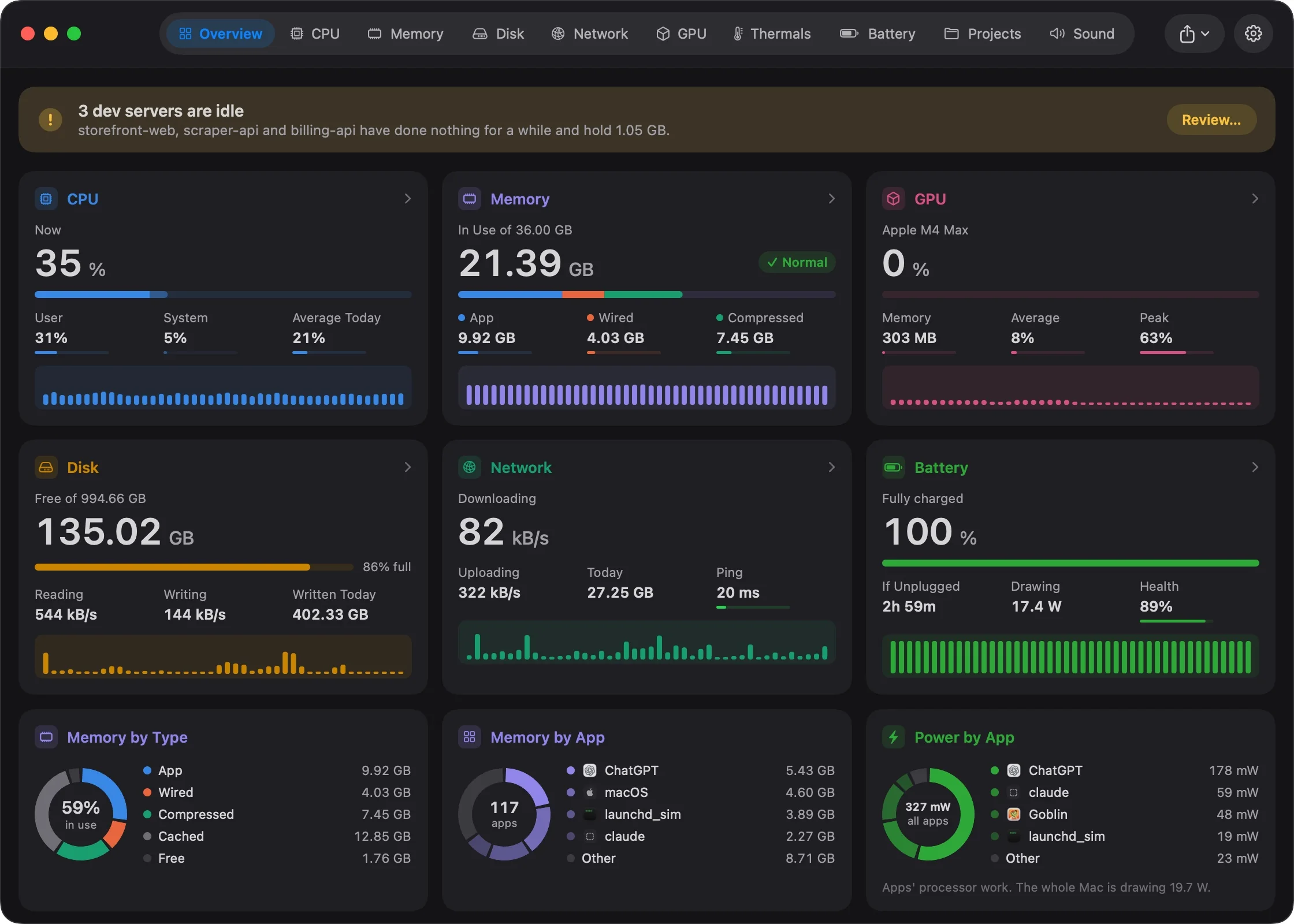
These are the kinds of things Goblin notices on a real Mac. Send him in and watch.
A background app has kept a core busy for 12 minutes.
SyncHelper usually idles. Today it's working five times harder than normal.
Quit SyncHelper. One core back.
FIXED3 dev servers are idle and holding 1.05 GB.
storefront-web, scraper-api and billing-api haven't done anything since yesterday.
Stopped 3 servers. Ports 3000, 4000 and 8080 are free.
FIXEDYour disk is 87% full.
14.2 GB of old installers and disk images are sitting in Downloads.
Moved 14.2 GB to the Trash. Disk is 86% full.
FIXEDGoblin leaves alone the apps you're working in, including tools running in your terminal. When a background app keeps a core pinned for ten minutes, or works far harder than it usually does, he tells you, with the process responsible and a way to quit it.
macOS's own chores, like Spotlight indexing or Photos analysing your library, are explained instead of flagged.
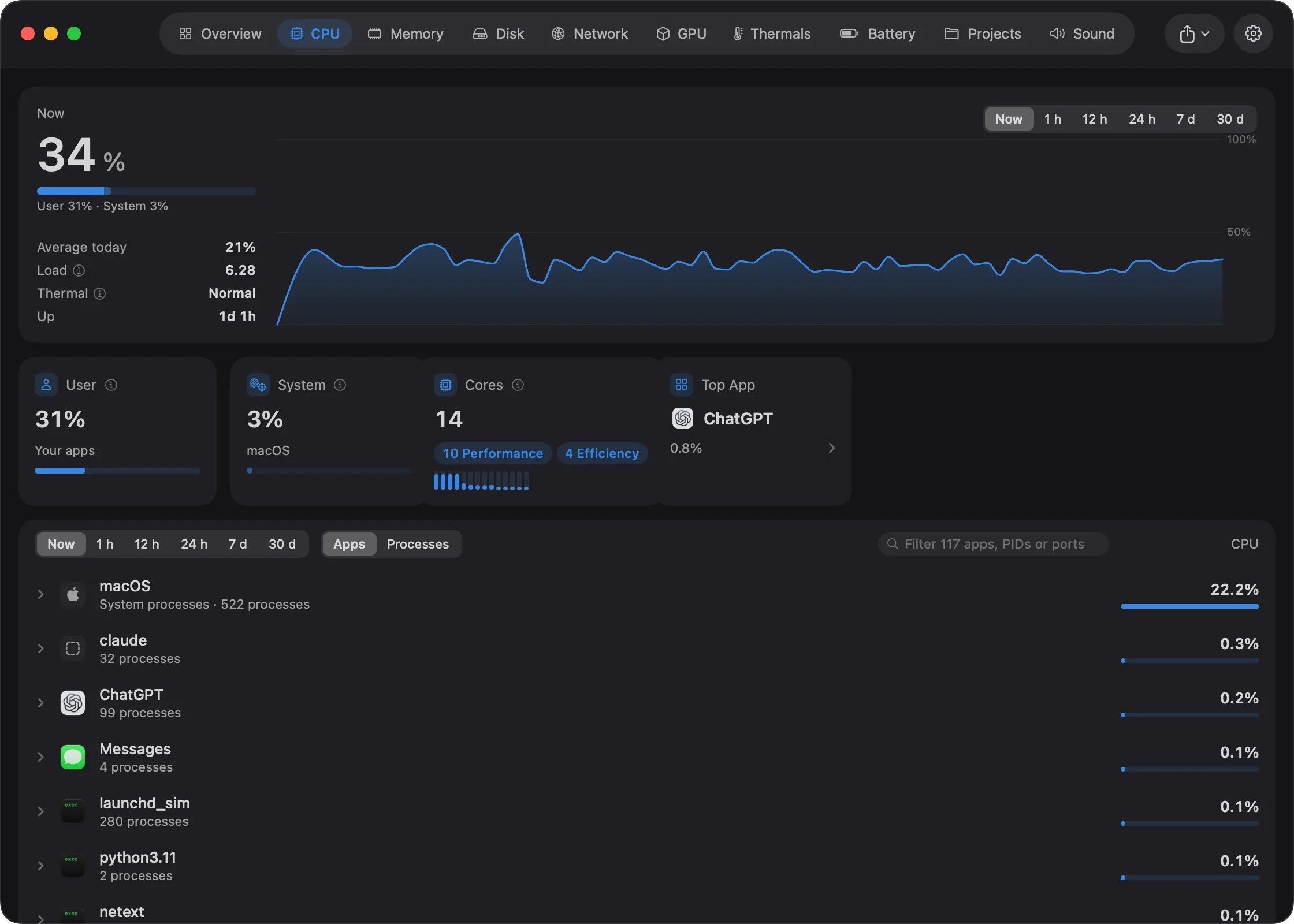
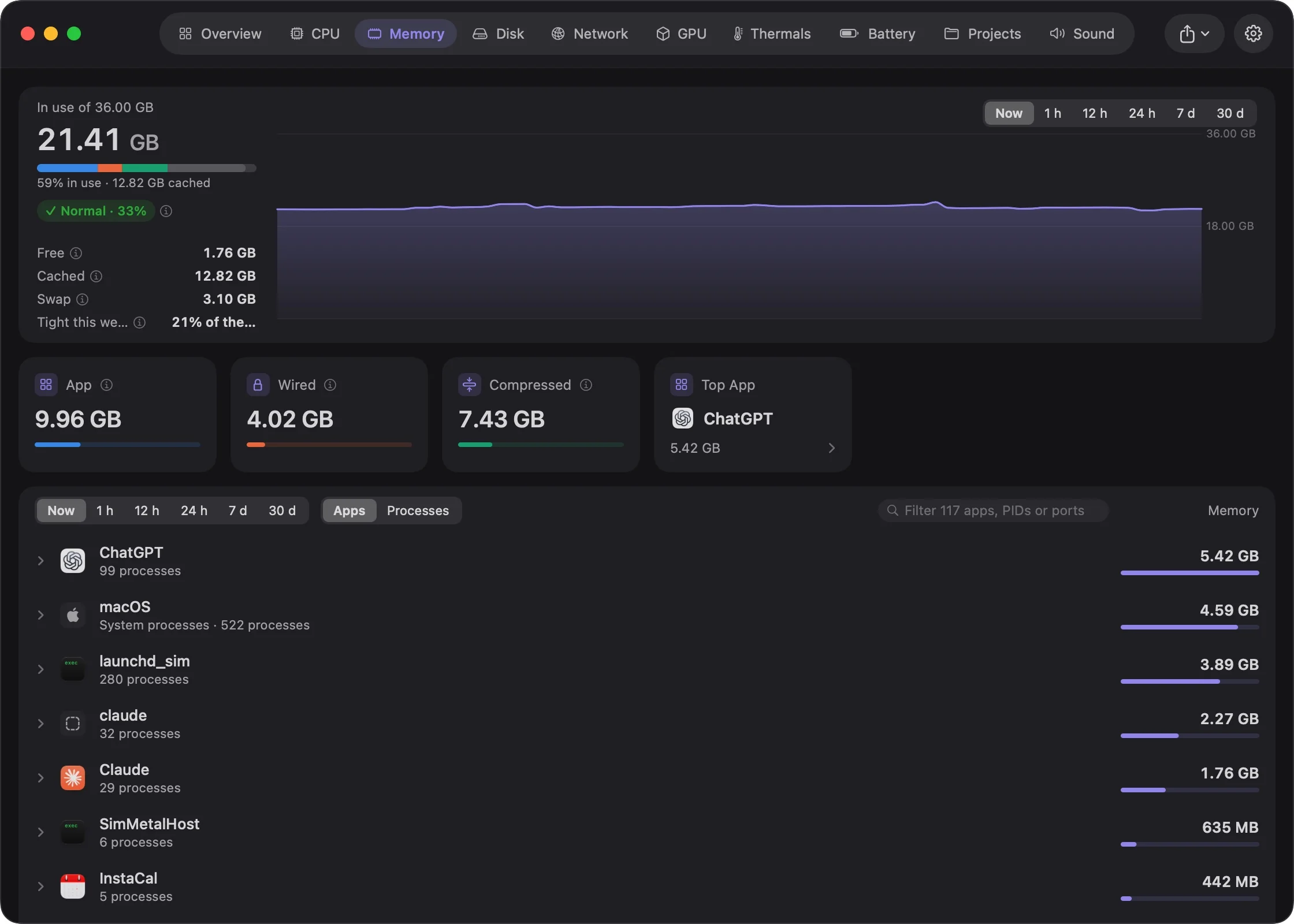
Helpers are counted under the app that started them, so a browser is one row instead of forty. Switch to Processes when you want every one of them.
Point at a name for the full story: what it is, what it's using, who signed it and the ports it listens on. When something misbehaves, its logs and crash reports are a click away.
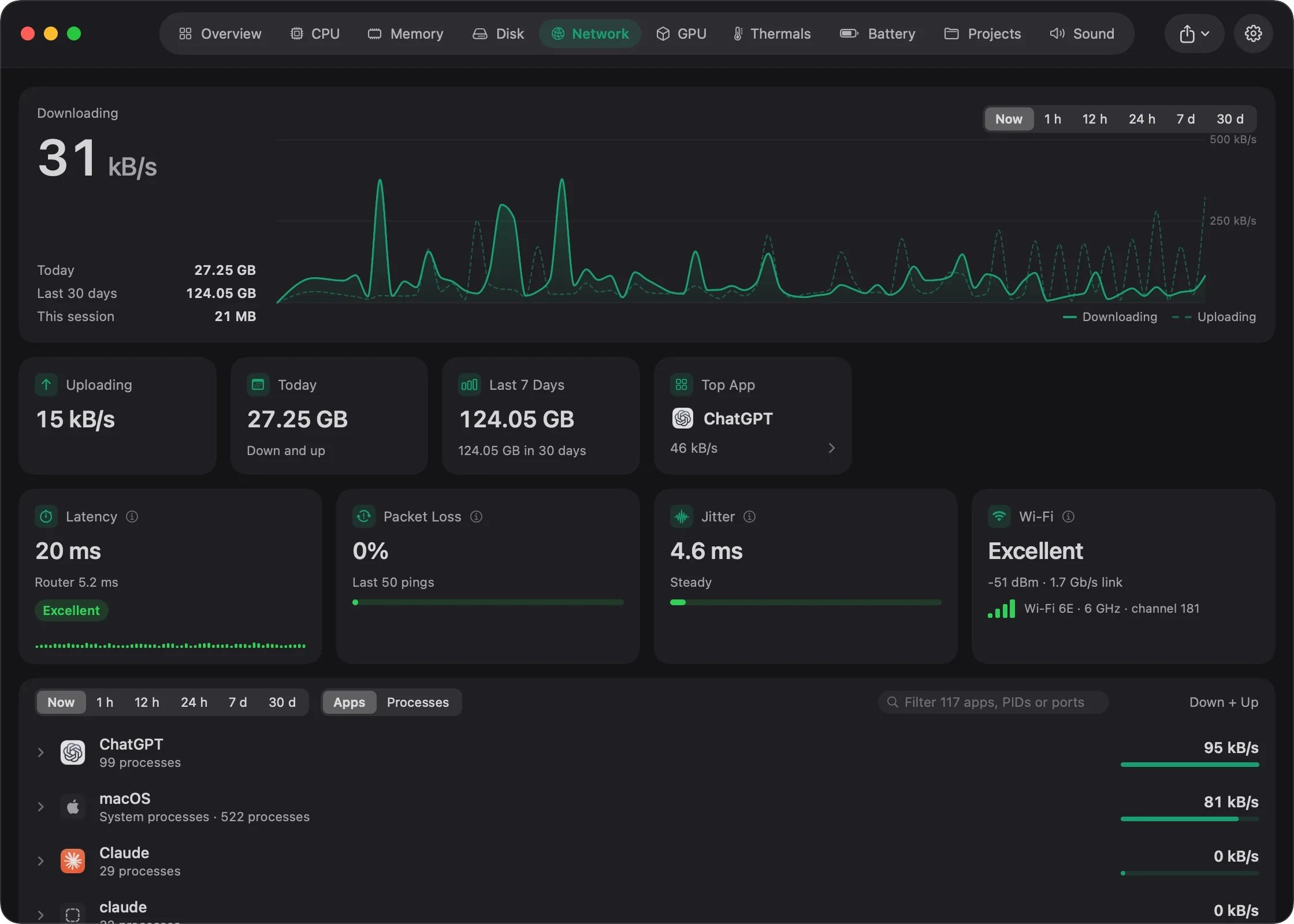
Latency to your router and to the internet, packet loss, jitter and Wi-Fi signal, each with a plain verdict. When something's off, Goblin says whether it's the Wi-Fi or the connection itself.
He only measures while you're looking, one small ping a second.
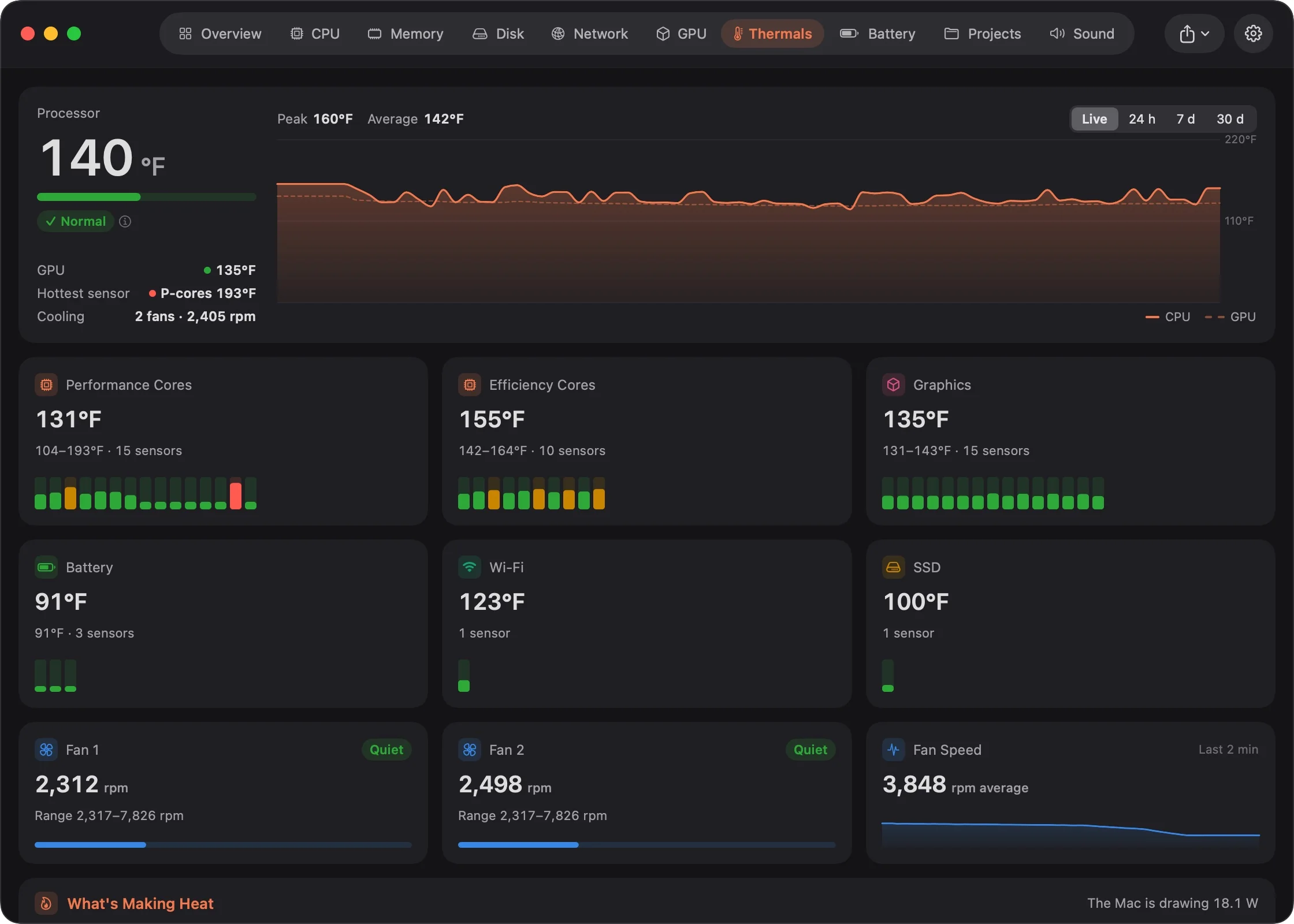
Performance cores, efficiency cores, graphics, SSD and battery, each with its range, alongside fan speeds and whether macOS is slowing the Mac down to cool it.
And the apps making the heat, so you know what to close.
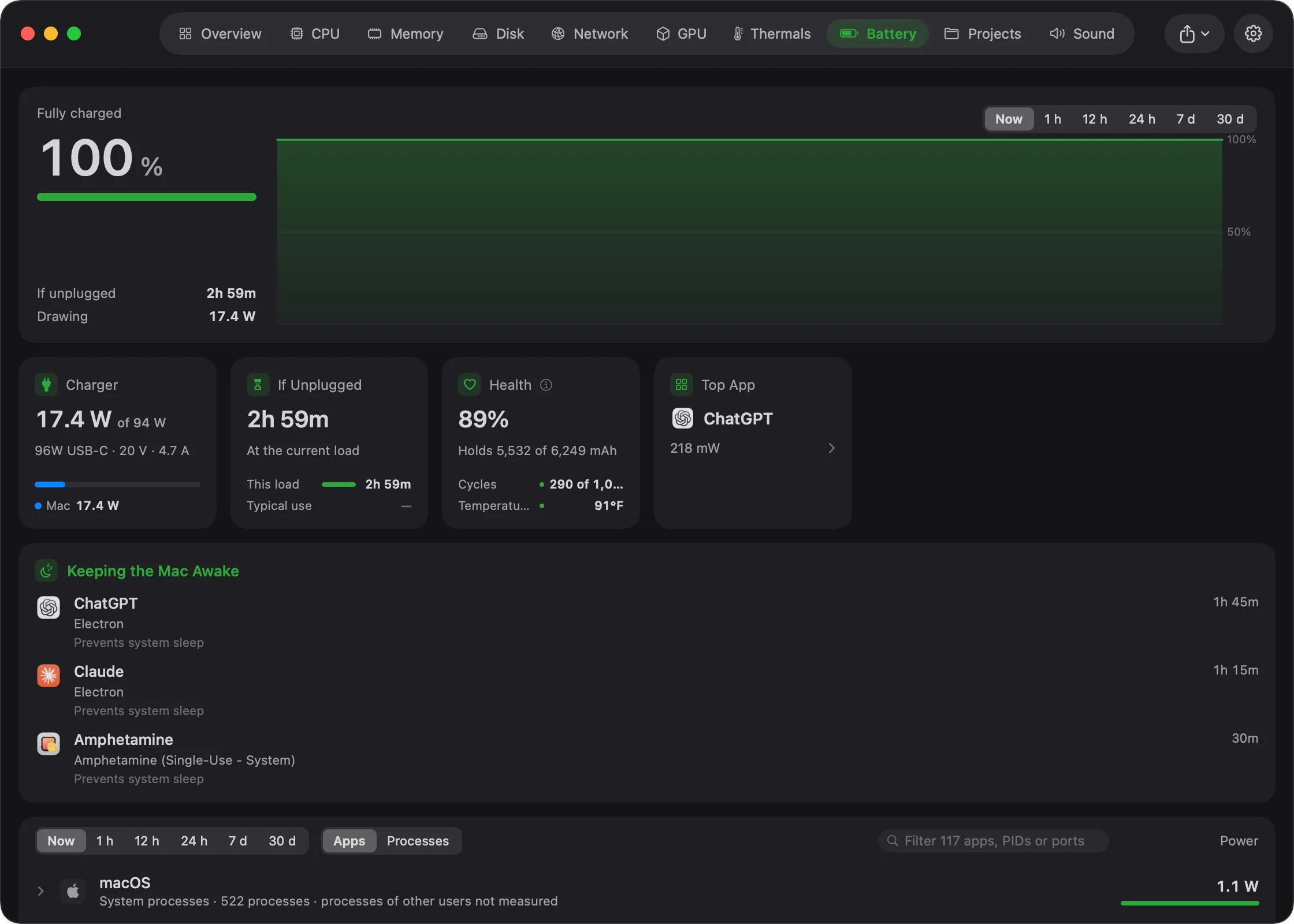
Power draw for the whole Mac and for each app, time left at the rate you're going, battery health and cycles, and what the charger is delivering while you're plugged in.
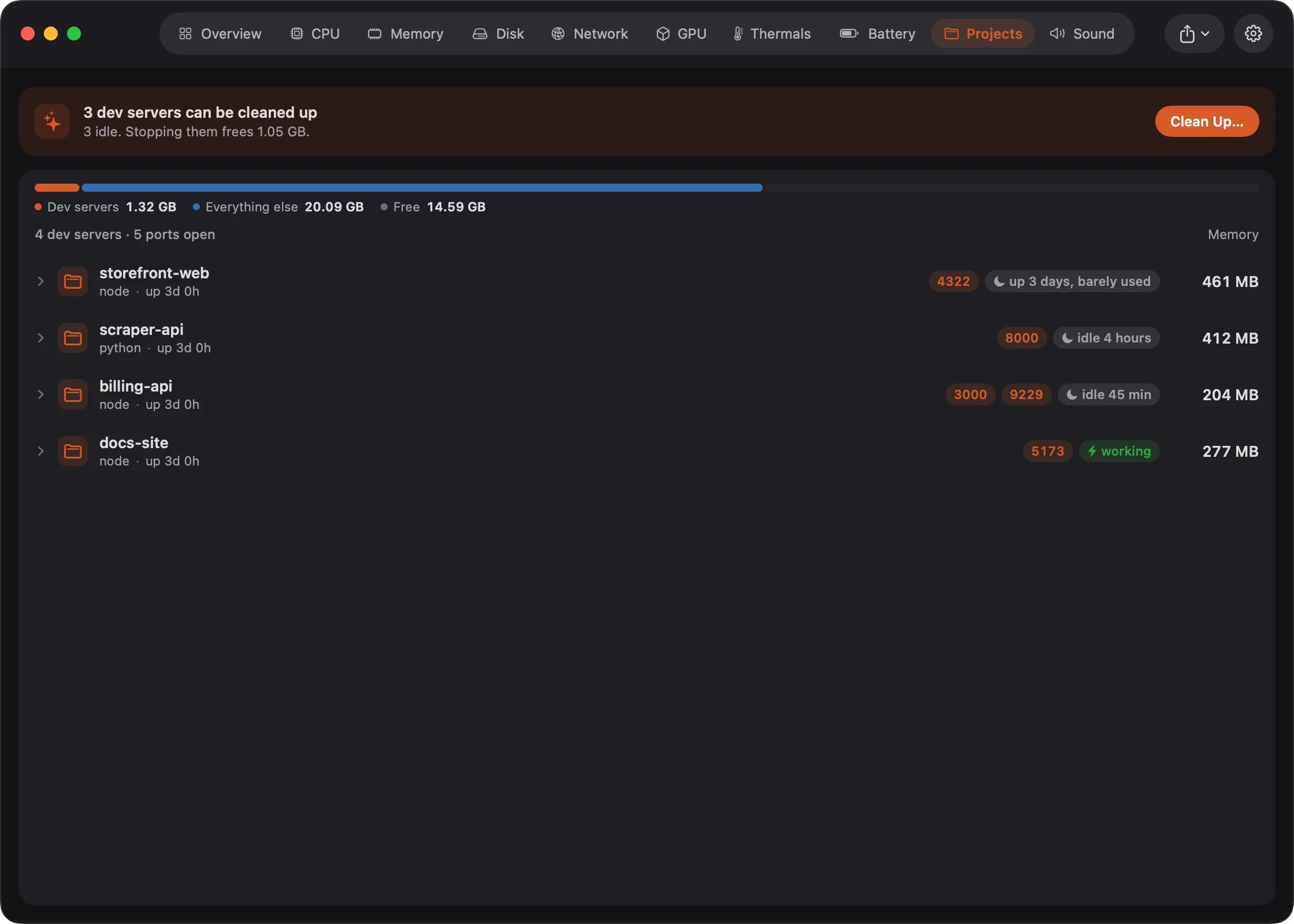
Everything running inside a project folder, grouped by project with the ports it listens on. Servers that have sat idle for a while are flagged, and one click stops them and frees their ports.
Docker containers get a tab of their own.
Storage Explorer draws each disk as rings: click a folder to step inside, a file to see where it lives. It reads several disks at once, including Dropbox, Google Drive, OneDrive and Box.
Files rounds up big files, old downloads and installers. Cleanup finds caches and logs you can lose. Applications shows every app with the files it scattered around.
Before anything goes in the Trash, Goblin checks it again: protected apps, shared files, and anything that changed since he looked.
Three looks for your Dock. Change them any time in Settings.



With nothing of Goblin on screen, he reads only what the menu bar shows and checks the rest every half minute, so he never becomes the thing slowing your Mac down. A window you can't see isn't redrawn.
And when there's nothing to fix, he takes a nap.
Yes. Goblin is a free download with no ads, no account and no in-app purchases.
Any Mac with macOS 15 Sequoia or later, Apple silicon or Intel. It's signed and notarized by Apple and keeps itself up to date.
Activity Monitor lists processes. Goblin groups helpers under the app that started them, explains what's going on in plain words, and only speaks up when something needs you: a background app stuck at full speed, memory running short, a disk filling up, a dev server left running. It also shows every temperature sensor and fan, how good your network connection is, what's draining the battery, and where your disk space went, all from the menu bar.
No. There's no analytics or tracking. Goblin goes online only to check for updates, to ping your router and 1.1.1.1 while you're looking at network quality, and to scan cloud storage accounts you choose to connect.
Goblin moves what you pick to the Trash, and checks every item again first: protected apps, shared files, and anything that changed since the scan. Nothing is removed until you confirm it, and permanent deletion is a separate, explicit choice.
Yes. Right-click him and choose Turn Off Goblin, or switch off Animated Goblin in Settings › General. He only appears on the Overview, pauses whenever he's out of sight, and stays still when Reduce Motion is on.
Quit Goblin from its menu bar panel, then drag it from Applications to the Trash.