 Goblin
AI apps such as Claude, Claude Code, Cursor and Codex can talk to other apps through MCP, the Model Context Protocol. Goblin includes an MCP server, so you can ask your assistant things like "why is my fan so loud?", "what used the battery this afternoon?" or "which dev servers are running?" and it answers from Goblin's readings.
Most of what Goblin offers an assistant only reads. Some things change something: starting and stopping Keep Awake, adding or pinning clipboard items, and extracting or creating archives. Looking at your screen is a separate permission, too. Keep Awake, the clipboard, archives and the screen each have a switch of their own, off until you turn it on.
Turn it on#
Everything is on the AI Assistants card at the bottom of Settings›Projects. (Some of Goblin's messages call it "Settings › AI Assistants"; there's no pane by that name. It's this card.)
- Right-click Goblin's menu bar item and choose Settings… (⌘,).
- Click Projects in the sidebar and scroll to the AI Assistants card at the bottom.
- Switch on Let AI assistants ask about this Mac.
- Add Goblin to your AI app; see the next section.
Then ask the assistant something about your Mac, such as "What's slowing my Mac down right now?". It answers using Goblin's tools; most AI apps show a line such as get_vitals while they work.
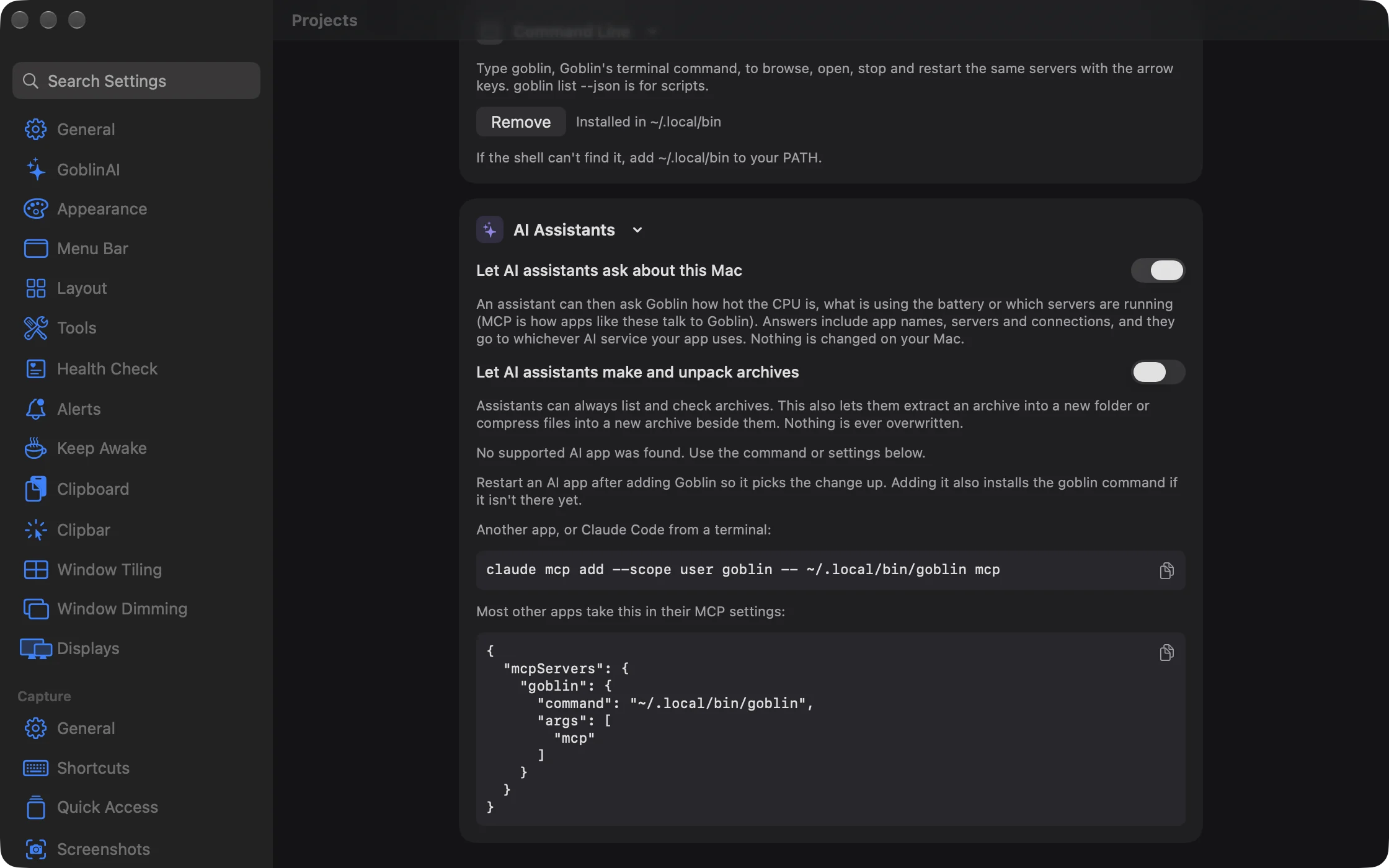
| Setting | What it does | Default |
|---|---|---|
| Let AI assistants ask about this Mac | Lets connected AI apps use Goblin's tools. Off, every question gets the answer that access is off. | Off |
| Let AI assistants make and unpack archives | Lets assistants extract an archive into a new folder or compress files into a new archive beside them. They can always list and check archives. Nothing is ever overwritten. | Off |
Goblin checks this switch on every question, so turning it on or off takes effect at once, with no need to restart your AI app.
What leaves your Mac: the answers include app names, dev servers and network connections (and, once you allow it, clipboard items), and your AI app sends them to whichever AI service it uses. Goblin itself doesn't send anything anywhere; it only answers the app that asked.
Add Goblin to your AI app#
- In Settings›Projects, scroll to the AI Assistants card.
- Find your AI app in the list under the switches. The card lists the ones it finds on your Mac.
- Click Add beside it. The status changes to Added.
- Quit your AI app and open it again so it picks up the change.
- Make sure Let AI assistants ask about this Mac is on.
Adding doesn't switch that on for you. If the card says "No supported AI app was found. Use the command or settings below.", set it up by hand (next section). The buttons mean:
| Status | Button | What it means |
|---|---|---|
| – | Add | Goblin isn't set up in this app yet. |
| Added | Remove | Goblin is set up. |
| Set up differently | Update, Remove | There's a Goblin entry, but not the one Goblin would write. Update replaces it. |
| Settings file can't be edited here | – | The app's settings file is in a form Goblin can't safely change. Set it up by hand (below). |
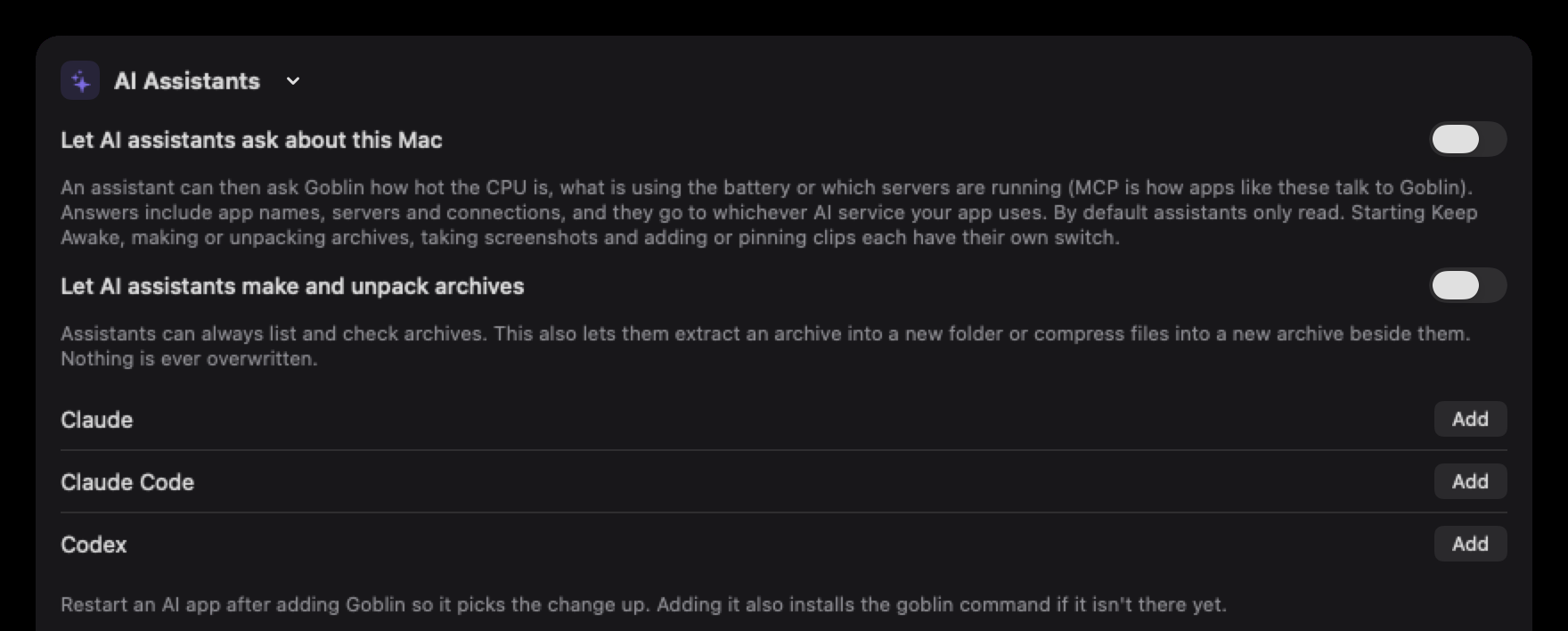
After you click Add, restart the AI app so it picks up the change. Adding Goblin also installs the goblin command if it isn't there yet, because that's what the AI app runs. It doesn't turn on the switch above; do that too.
When Goblin edits an app's settings file, it changes only the goblin entry and keeps everything else, comments included. The first time, it saves a copy of the original next to it, ending in .goblin-backup.
If no supported app is found, the card says "No supported AI app was found. Use the command or settings below."
Setting it up by hand#
The card's own Add button does all of this for you. Set it up by hand if you use another app, or if the card can't edit the settings file.
Use the full path to the command, with your own user name in place of you. Many apps start the command directly rather than through a shell, and may not read ~ as your home folder. To find your full path, type this in Terminal:
echo ~/.local/bin/goblinThis prints something like /Users/you/.local/bin/goblin. Use what it prints. The card's own copy buttons hold the same text for Claude Code and for other apps. Setting it up by hand needs the goblin command installed.
Claude (desktop app)#
- Open
~/Library/Application Support/Claude/claude_desktop_config.jsonin a text editor. - Add this, then save. If the file already has an
mcpServerssection, add only thegoblinentry inside it. - Quit and reopen Claude.
{
  "mcpServers": {
    "goblin": {
      "command": "/Users/you/.local/bin/goblin",
      "args": ["mcp"]
    }
  }
}
Claude now lists Goblin's tools. Ask it "What's my Mac's CPU temperature?" to try it.
Claude Code#
Run this in Terminal (here the shell expands ~ for you):
claude mcp add --scope user goblin -- ~/.local/bin/goblin mcpThis adds Goblin to Claude Code and prints a line saying it was added. --scope user makes Goblin available in every project. To check, run claude mcp list. To remove it:
claude mcp remove --scope user goblinThis is the same command the card's Add button runs; if Goblin can't find Claude Code's claude command, it shows an error and asks you to run it yourself.
Cursor#
Add the same mcpServers entry as for Claude (above) to ~/.cursor/mcp.json, save, then quit and reopen Cursor.
Codex#
Add this table to ~/.codex/config.toml, save, then quit and reopen Codex:
[mcp_servers.goblin]
command = "/Users/you/.local/bin/goblin"
args = ["mcp"]
Other apps#
Most MCP apps take the same mcpServers JSON as Claude. The server is the command goblin mcp, and it talks over standard input and output. If you run goblin mcp in Terminal yourself, it waits for messages from an AI app; press ⌃C to stop it.
What an assistant can ask#
There are 34 tools. Each one says what it does, and AI apps show its name when they use it.
Right now#
These read the Mac directly, so they work even when the Goblin app isn't open.
| Tool | What it answers | Changes anything? |
|---|---|---|
get_vitals | Processor, memory, swap and memory pressure, disk space and activity, network speed, GPU, battery, processor temperature, how strained the Mac is, the number of processes and the uptime. | No |
get_sensors | Every temperature by part, fan speeds, power draw, voltages, currents and clock speeds. | No |
top_apps | The busiest apps right now by CPU, memory, power, disk, network or GPU, macOS's own processes optional. | No |
get_battery | Charge, charging state, time left, health, cycle count, condition, temperature, power draw and charger wattage, and Bluetooth devices' batteries. | No |
drive_health | Each drive's S.M.A.R.T. status and SSD wear. | No |
sleep_blockers | What's keeping the Mac or its screen awake, and since when. | No |
list_dev_servers | Running dev servers, the same as goblin list --json. | No |
Over time#
These read the 30-day history the Goblin app records while it runs. Each takes a period such as 1h, 24h, 7d or 30d, or a start and end time. If Goblin has never run, there's no history yet.
| Tool | What it answers | Changes anything? |
|---|---|---|
get_history | One Mac-wide reading over time, such as CPU, memory, GPU, temperatures, fan, battery, power, memory pressure, swap, disk or network: lowest, highest, average and latest, with a series of points. | No |
top_apps_over_time | The apps that used the most CPU, memory, power, disk, network or GPU over a period. | No |
app_history | One app's use over time. The app can be named by name, bundle ID or path. | No |
recent_alerts | The alerts Goblin raised, optionally of one kind (busy or stuck apps, memory, disk, network, full disks, failing drives, battery, heat, connection drops and others). | No |
Network and firewall#
| Tool | What it answers | Changes anything? |
|---|---|---|
firewall_status | Whether the firewall is installed and running, its mode and profile, and counts of rules, blocklists and connections seen and denied. | No |
recent_connections | The newest connections the firewall saw, optionally for one app or only denied ones. Needs the firewall on. | No |
network_traffic_summary | How much each app downloaded and uploaded over a period, up to 30 days. Needs the firewall to have been on while Goblin ran. | No |
network_info | The current connection: interface, IP addresses, router, and Wi-Fi signal, noise, speed, channel and band. It doesn't look up your public IP address. | No |
Keep Awake#
New in 1.1: Keep Awake, and these three tools.
| Tool | What it does | Changes anything? |
|---|---|---|
keep_awake_status | Whether a Keep Awake session is running, what kind, until when, and its options. Also says whether assistants may start and stop sessions. | No |
keep_awake_start | Starts a session for a length (for, like 90m) or until a time (until, like 18:30), with the screen on or allowed to sleep, and an optional label. Replaces a session that's running. It can't turn on closed-lid mode. | Yes |
keep_awake_stop | Ends the session, whoever started it. | Yes |
Let an assistant start and stop Keep Awake#
- Open Settings›Keep Awake and scroll to AI Assistants.
- Switch on Let AI assistants start and stop sessions.
- Ask the assistant: "Keep my Mac awake for 2 hours". It starts a session, which appears in the Keep Awake card.
Starting and stopping need that second switch: Let AI assistants start and stop sessions in Settings › Keep Awake › AI Assistants. It's off by default. Until you turn it on, the assistant is told it isn't allowed, and can still ask whether a session is running. Goblin needs to be running or able to start, because these tools work through goblin://awake links.
Clipboard#
New in 1.1: The clipboard, and these seven tools.
These let an assistant search and read your clipboard history and pinboards, save text to it, and pin items.
Let an assistant use the clipboard#
- Open Settings›Clipboard and find the MCP & AI tools section.
- Switch on Enable MCP.
- Ask the assistant: "Find the link I copied from Safari yesterday".
They need a second switch: Enable MCP in Settings › Clipboard › MCP & AI tools, off by default. It's a setting for each Mac and never syncs. Until you turn it on, the assistant is told that clipboard access is off and asked to have you turn it on.
| Tool | What it does | Changes anything? |
|---|---|---|
clipboard_search | Searches History and pinboards by text, a link's address or title, file names, text in images, image descriptions and the app it came from. Takes plain phrases ("links from Safari yesterday") and the search terms the strip uses (kind:image, app:safari, board:work, after:3d, -draft …). Newest first; limit 1 to 50, 10 by default. | No |
clipboard_recent | The newest items, optionally of one kind: text, link, image, file or color. limit 1 to 50, 10 by default. | No |
clipboard_item | One item by its id: its full text, up to 8,000 characters, and what Goblin recognised in it. | No |
clipboard_pinboards | Your pinboards: name, color and how many items each holds. | No |
clipboard_pinboard_items | The items in one pinboard (its name or id), in your order. limit 1 to 50, 20 by default. | No |
clipboard_add_text | Saves text as a new item in History, or straight into an existing pinboard. Up to 100,000 characters. It doesn't change what's on the clipboard right now. | Yes |
clipboard_pin | Pins an existing item (id) to an existing pinboard. The item stays in History too. | Yes |
An assistant never gets passwords and other secrets Goblin detected, anything in the clipboard Trash, or anything in a locked pinboard, and it can't add to or pin into a locked pinboard. Like the other tools, these read Goblin's files directly, so they work even when the Goblin app isn't open.
Archives#
New: Coming in the next update. Assistants can look inside archives and, if you allow it, extract and create them.
These work on any archive format Goblin opens; see Archives. Paths must be full paths. If an archive needs a password, the tool says so and the assistant asks you for it.
| Tool | What it does | Changes anything? |
|---|---|---|
archive_list | Lists what's inside an archive without extracting it: the format, the number of entries, packed and expanded sizes, whether anything is encrypted, and each entry's path, size and date. folder lists just one folder's direct children; limit is 500 by default, up to 5,000. | No |
archive_info | Describes an archive: format, volumes of a split archive, file and folder counts, sizes, encryption, the archive's own comment and any warning Goblin noticed. | No |
archive_test | Checks an archive's integrity by reading every entry and verifying it. Writes nothing. Can take as long as extracting would. | No |
archive_formats | The formats Goblin can open and the ones it can create. | No |
archive_extract | Unpacks an archive, or just the entries you name, into a new folder beside it, or into destination. A name already there is kept and the new one gets a number. | Yes |
archive_compress | Makes a zip, 7z, tar, tar.gz, tar.bz2, tar.xz, gz, bz2 or xz archive from paths, saved beside the first item. Only zip and 7z take a password. Leaves out .DS_Store and similar unless you say otherwise. | Yes |
Let an assistant make and unpack archives#
- Open Settings›Projects and scroll to the AI Assistants card.
- Switch on Let AI assistants make and unpack archives.
Extracting and compressing need this switch. Until you turn it on, the assistant is told it isn't allowed, and can still list and check archives.
Your screen#
New: Coming in the next update. Assistants can see your screen, only when you allow it.
| Tool | What it does | Changes anything? |
|---|---|---|
take_screenshot | Takes a screenshot of the display the pointer is on and gives it back as a picture, scaled so its longest side is at most 1,920 pixels. Goblin's own windows are left out, and nothing is added to your clipboard history or Quick Access. | No |
read_screen_text | Reads the text on the display the pointer is on and gives it back as plain text. Nothing is saved. | No |
list_recent_captures | Lists your latest screenshots, scrolling captures, recordings, GIFs and text captures: kind, file path, whether the file still exists, when, and the text for text captures. Only the list, never the pictures. limit is 10 by default; kind narrows it. | No |
take_screenshot and read_screen_text need Let AI assistants see the screen in Capture's menu bar settings; see Automating capture. It's off by default. They ask the running Goblin to look, so Goblin must be running and have the Screen Recording permission, and they stop with a message if Goblin doesn't answer within 30 seconds. What's on your screen is the most private thing Goblin can show an AI. Your AI app should ask you before it calls these two.
If it doesn't work#
- The assistant says access is off. Turn on Let AI assistants ask about this Mac in Settings › Projects.
- The assistant says clipboard access is off. Turn on Enable MCP in Settings › Clipboard as well. Both switches have to be on.
- The app doesn't list Goblin's tools. Restart the AI app after adding Goblin. If you set it up by hand, check the command is the full path, not one starting with
~. - History tools say there's no history. History builds up while the Goblin app runs. Open Goblin and leave it in the menu bar.
- Connection tools say the extension isn't reachable. They need the firewall turned on.