 Goblin
 watches for things worth telling you about: an app grinding away in the background, a disk filling up, a battery running low. Settings › Alerts is where you choose which of these Goblin looks for, at what thresholds, and whether they reach you as macOS notifications. It also holds the colors for graphs and warnings.
Every alert (apart from Memory is running low, which opens a dropdown) appears in Worth a Look on the Overview and is kept in 30 days of history. Only some are also sent as notifications; the table in Which alerts become notifications lists them. How alerts look and what you can do with them is in Health and alerts.
Apps that stop responding aren't alerts: they never appear in Worth a Look, history or notifications. Goblin offers to force quit them in a dropdown from its menu bar item instead, switched on in the last card.
Choose which alerts you get#
- Open Settings›Alerts. (Press ⌘,, then click Alerts.)
- To control alerts about apps, find the Watch for apps that misbehave card. Use the switch in its header to turn all five app rules on or off. Use the switch at the right of a rule to turn just that rule on or off.
- To control alerts about your Mac, find the Watch your Mac card and use the switch beside each rule, such as The battery is running low or The Trash is getting big.
- The change applies at once. A rule that is off is dimmed.
Alerts that are off don't appear in Worth a Look or history, and aren't sent as notifications. Several rules are off until you turn them on: A connected drive is almost full, A drive is connected, The network connection drops and My IP address changes.
Change when an alert goes off#
- Open Settings›Alerts.
- Find the rule. Its sentence has numbers in it, such as "Over 0.8 cores for 10 min".
- Click the small arrows beside a number to raise or lower it. The picture beside the rule and the example notification lower down change as you go.
The tables below give each rule's default and range. A rule has to be on for its numbers to change; a rule that's off dims its sentence.
Watch for apps that misbehave#
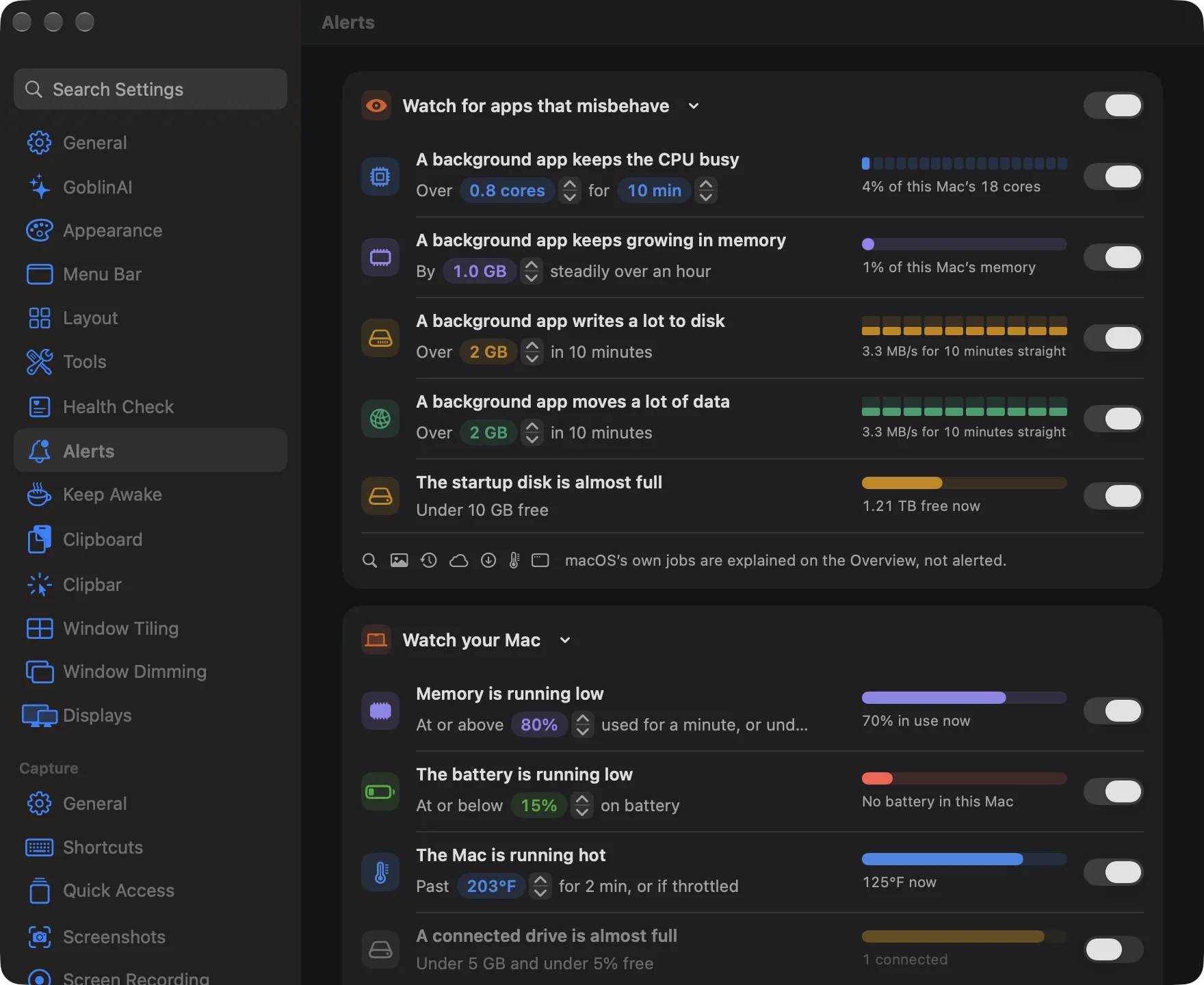
The switch in this card's header, Watch for apps that misbehave, turns on the five rules below. It's on by default. While it's off, the rules are greyed out, and so is the notification card further down.
Each rule has a switch on the right, a sentence with numbers you can change with the small arrows, and a picture of what that threshold means on your Mac. Pointing at a rule shows its example notification further down the page.
| Rule | Sentence | Default | Range |
|---|---|---|---|
| A background app keeps the CPU busy | Over [cores] for [min] | On; 0.8 cores for 10 min | 0.2–8.0 cores in steps of 0.1; 2–60 min |
| A background app keeps growing in memory | By [GB] steadily over an hour | On; 1.0 GB | 0.5–16 GB in steps of 0.5 |
| A background app writes a lot to disk | Over [GB] in 10 minutes | On; 2 GB | 1–100 GB |
| A background app moves a lot of data | Over [GB] in 10 minutes | On; 2 GB | 1–100 GB |
| The startup disk is almost full | Under 10 GB free | On | fixed |
A core is one processor core working flat out, so 0.8 cores is 80% of one core. The picture beside the CPU rule turns that into a share of your whole Mac.
How Goblin decides an app is misbehaving#
Goblin only alerts about apps working in the background. An app you've used recently is working for you, so it's left alone.
- CPU. The app has averaged more than the threshold over that many minutes, never dropping below half of it, and you haven't used it in that time or the 5 minutes before. Goblin also compares the app with its own usual level over the past 7 days: it has to be at least 3 times its usual and at least half a core above it. When one process holds one core steadily full, the alert says the app may be stuck and sends a notification. Otherwise it says the app is busy in the background and is listed in Worth a Look without a notification.
- Memory. The app has grown steadily for an hour (rising in at least three quarters of the minutes and at its peak now), you haven't touched it in that hour, and it holds at least 8% of your Mac's memory. It sends a notification only when the app holds 12% or more.
- Disk writes and network data. The app has passed the amount in 10 minutes and you haven't used it for 15 minutes. Network counts data sent and received together. Either one sends a notification only when the app has passed 5 times the amount, for example 10 GB with the default 2 GB.
- The startup disk is almost full uses a fixed number, under 10 GB free, and repeats at most every 12 hours. These are separate from the disk numbers in Health Check.
Each app gets at most one alert of each kind an hour. macOS's own background jobs (Spotlight, Photos, Backup, iCloud, software updates, heat management and the display) are never alerted about. They're explained on the Overview instead, and their icons sit under a line at the bottom of this card.
What this switch also turns off#
Turning off Watch for apps that misbehave turns off more than the five rules:
- The startup disk is almost full stops, even though it isn't about an app.
- Failing or worn drives. Goblin alerts when a drive reports that it is failing (repeated daily) or wearing out (repeated weekly), with "Back it up now." These have no switch of their own and only run while this switch is on.
- Leaking dev servers. The Memory Leaks alerts in Projects settings only run while this switch is on.
The alerts in Watch your Mac below keep working either way.
Watch your Mac#
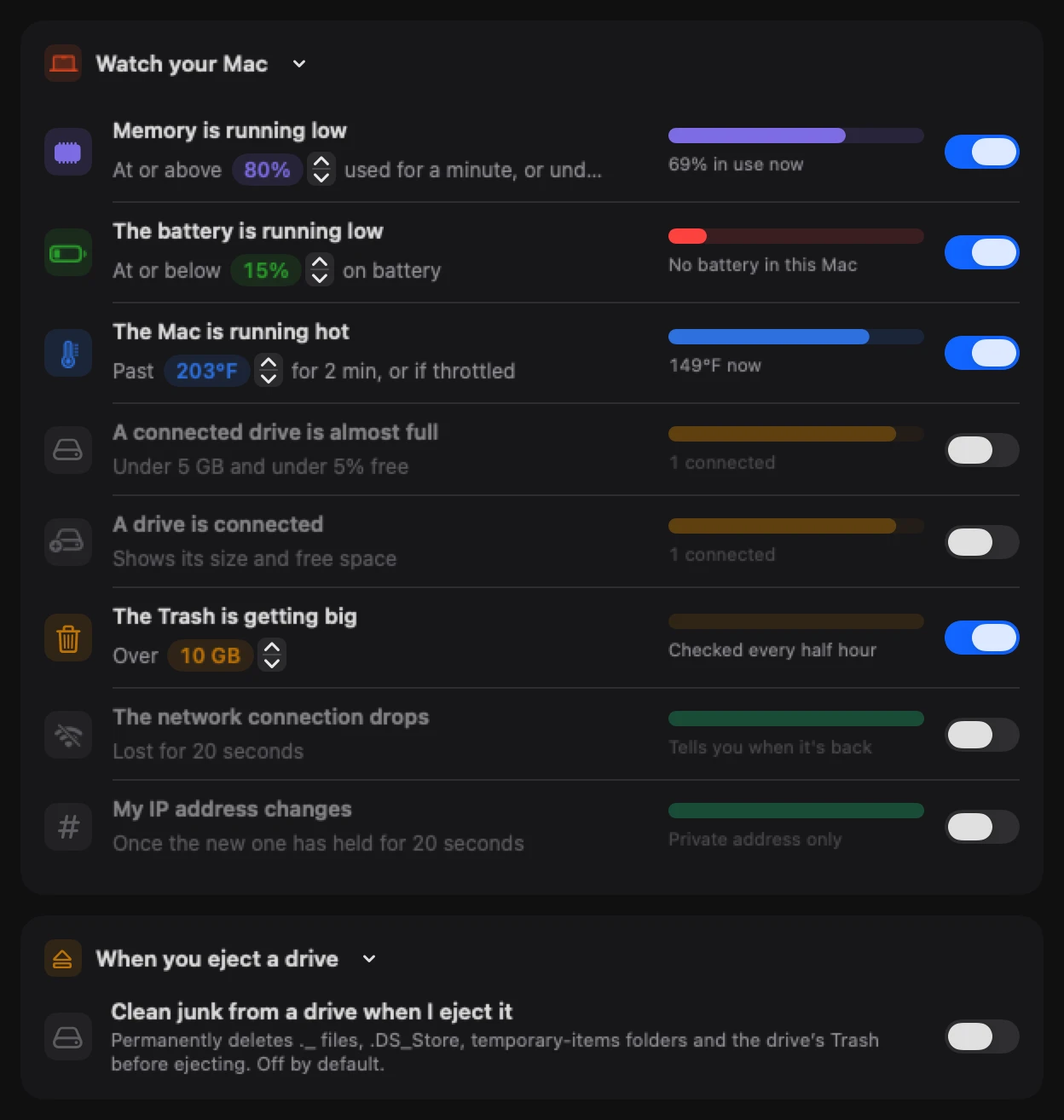
These rules are about the Mac itself. Each has its own switch.
| Rule | Sentence | Default | Range |
|---|---|---|---|
| Memory is running low | At or above [%] used for a minute, or under pressure | On; 80% | 60–95% in steps of 5 |
| The battery is running low | At or below [%] on battery | On; 15% | 5–50% in steps of 5 |
| The Mac is running hot | Past [temperature] for 2 min, or if throttled | On; 95 °C (203 °F) | 70–105 °C in steps of 5 |
| A connected drive is almost full | Under 5 GB and under 5% free | Off | fixed |
| A drive is connected | Shows its size and free space | Off | — |
| The Trash is getting big | Over [GB] | On; 10 GB | 1–100 GB |
| The network connection drops | Lost for 20 seconds | Off | — |
| My IP address changes | Once the new one has held for 20 seconds | Off | — |
New: Coming in the next update. The Memory is running low rule and its Heavy memory usage dropdown.
- Memory is running low isn't an alert in Worth a Look or a notification. It opens the Heavy memory usage dropdown under Goblin's menu bar item, listing the apps using the most memory with a Quit button for each. The rule's caption shows how much memory is in use now, the same share as MEM in the menu bar, and its picture is a gauge that turns red once usage reaches your limit. The dropdown appears when memory in use stays at or above your limit for a minute, or macOS reports memory pressure for a minute. It shows once per episode and no more than once every 30 minutes. What it lists and its Ignore menu are in Alert dropdowns.
- Low battery alerts once each time the battery runs down. It's ready again once you plug in or the charge climbs more than 5 points above your level, and waits at least 2 hours between alerts.
- Running hot alerts after 2 minutes in a row at or above the temperature, or while macOS is slowing the processor to cool it. It names the busiest app if that app uses at least half a core, and waits an hour before alerting again. The temperature shows in the unit chosen in General.
- A connected drive is almost full covers every drive except the startup disk, and repeats at most every 12 hours per drive.
- A drive is connected tells you when you plug in an external drive, with its size and free space. Drives already connected when Goblin starts don't count.
- The Trash is getting big measures your Trash at most every 30 minutes and alerts at most once a day while it stays over. Goblin never empties the Trash without asking. The same moment, a dropdown drops from Goblin's menu bar item offering to empty it, unless you turn off Show a dropdown when the Trash is getting big in the last card. The notification's Empty Trash… button opens that dropdown at its red Confirm. See Alert dropdowns.
- The network connection drops alerts after 20 seconds without a connection, and again with Back online when it returns.
- My IP address changes alerts when your Mac's local address changes, or its public address if Show my public IP address is on in General, and the new one has held for 20 seconds. The public address itself is never written into the alert; it's on the Network tab. With this on, Goblin reads your addresses even while its windows are closed.
Clean junk from a drive when I eject it#
New: Coming in the next update. Eject cleanup has a card of its own in Alerts.
The separate When you eject a drive card in Settings›Alerts holds this action. Its Clean junk from a drive when I eject it switch is off by default. When you eject a writable external drive, Goblin permanently deletes the clutter macOS leaves on it: .DS_Store files, the drive's Trash, temporary-items folders, and ._ files. The ._ files are only removed on drives formatted for Windows (FAT, exFAT or NTFS), and only when they really are macOS's leftover files. It works within a short time limit and never holds up the eject. Nothing goes to the Trash, so anything in the drive's Trash is gone for good. See External drives.
Turn alert notifications off#
- Open Settings›Alerts and find the notification card, which has the Send a notification switch.
- Click Send a notification so it is off.
Alerts still appear in Worth a Look and in history. They just don't reach you as macOS notifications. Turn the switch back on to get them again.
Send a test notification#
- Open Settings›Alerts and find the Send a notification card.
- Click Send a Test Notification.
- A notification titled "Alerts are working" appears. The first time, macOS asks whether Goblin may send notifications. Click Allow.
If nothing appears, the card says Notifications are turned off for Goblin. Turn them on in System Settings, under Notifications. Click Open Notification Settings, find Goblin in the list and allow notifications, then try the test again.
Notifications#
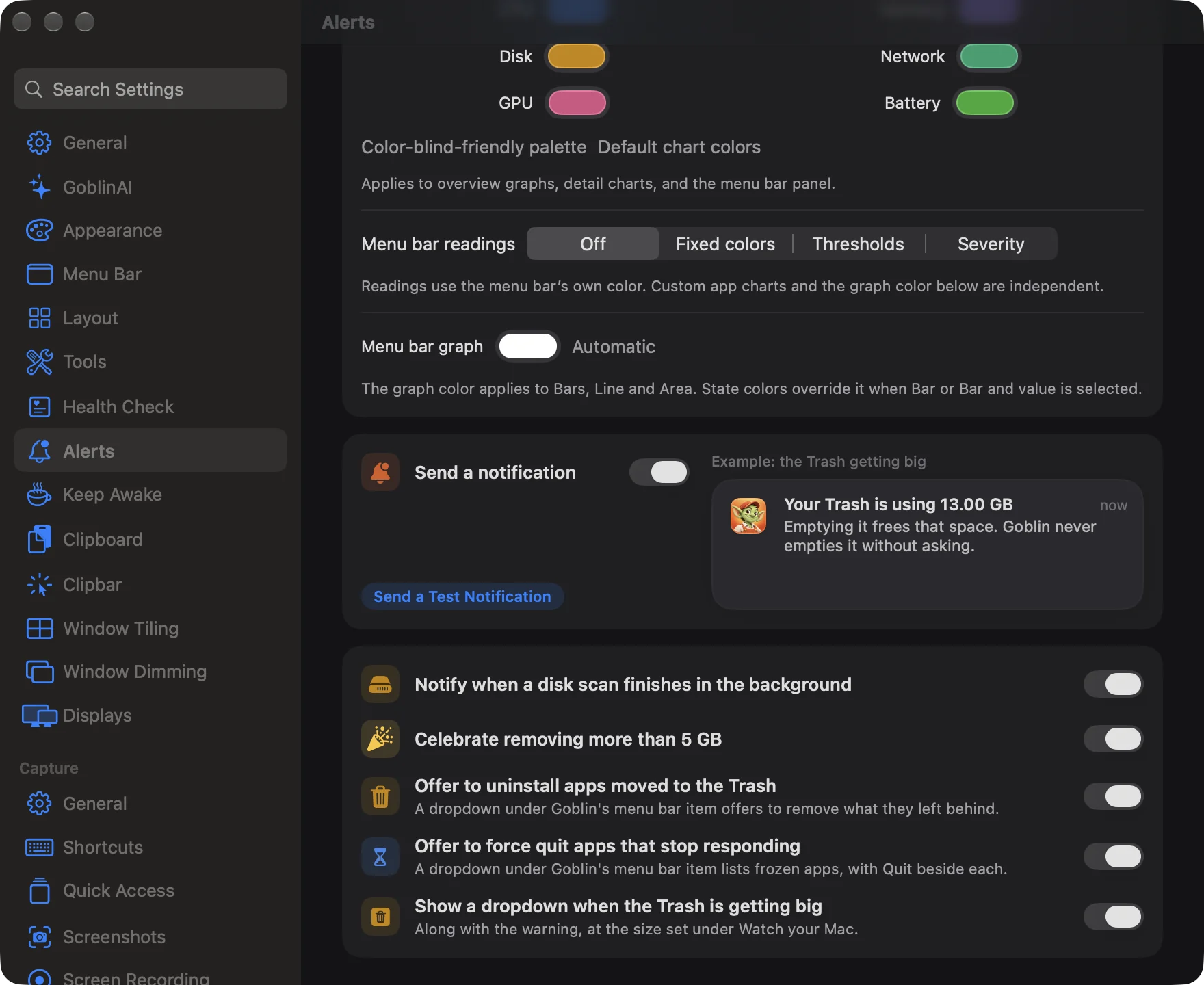
| Setting | What it does | Default |
|---|---|---|
| Send a notification | Sends alerts as macOS notifications as well as listing them in Worth a Look. Off, alerts still appear in Worth a Look and history. | On (the Welcome window's Send a notification when an app misbehaves box sets it too) |
| Send a Test Notification | Sends "Alerts are working". The first time, macOS asks whether Goblin may send notifications. | — |
If macOS gives another reason for not showing the test, the card says what it was.
On the right is an example of the notification for the rule you last pointed at or changed, using your thresholds and the names of apps on your Mac. It's dimmed while Send a notification is off.
Note: This card is greyed out while Watch for apps that misbehave is off, but Send a notification still decides whether the Watch your Mac alerts send notifications. To change it, turn Watch for apps that misbehave on for a moment.
Send a notification covers every alert notification: app alerts, the Watch your Mac alerts, failing drives, leaking dev servers, and the "Cleaned up" notice when Goblin stops idle dev servers by itself. It doesn't cover the storage notifications at the bottom of the page.
Which alerts become notifications#
| Alert | Sent as a notification? |
|---|---|
| An app may be stuck (CPU) | Yes |
| An app is busy in the background (CPU) | Never. Listed in Worth a Look only |
| An app keeps growing in memory | Only when it holds 12% or more of memory |
| An app writes a lot to disk, or moves a lot of data | Only at 5 times your threshold |
| Startup disk almost full | Yes |
| A drive failing or wearing out | Yes |
| A dev server leaking memory | Yes, with Details, Stop and Snooze buttons |
| Memory is running low | Never. It opens a dropdown from the menu bar item instead |
| Every other Watch your Mac alert | Yes |
The example banner shows every rule as a notification, including the CPU alert, even when that kind would only be listed.
Stop alerts about one app#
- Open the Overview and find the alert in Worth a Look.
- Click the … at the end of its row and choose Don't Alert About followed by the app's name. (For one of macOS's own jobs, the item reads Don't Mention the job's name Again.)
The row goes away and Goblin stops alerting about that app. You can also turn off the Alert me when the app misbehaves switch in the app's details.
To bring alerts back:
- Open Settings›Alerts and find the Muted Apps card.
- Click Alert Again beside the app.
Muted Apps#
This card appears once you've muted at least one app, and lists each one by name (macOS jobs show as, for example, "Spotlight (macOS)"). Muted apps get no alerts at all. Muting is for apps, macOS jobs and dev servers. To stop alerts about the battery, heat, drives, the Trash or the network, switch that rule off instead.
Choose graph and warning colors#
The Graph Colors and Thresholds card sets the colors of Goblin's charts and of the numbers in the menu bar. It sits in Settings › Alerts and in Settings › Menu Bar. It is one setting shown in two places.
To change a chart's color:
- Open Settings›Alerts and find Graph Colors and Thresholds.
- Under App charts, click the color beside CPU, Memory, Disk, Network, GPU or Battery.
- Pick a color in the macOS color panel.
For a set that's easier to tell apart, click Color-blind-friendly palette. Default chart colors puts them back. These colors apply to the Overview graphs, the detail charts and the menu bar panel.
To color the numbers in the menu bar:
- Under Menu bar readings, choose Off, Fixed colors, Thresholds or Severity.
- With Thresholds or Severity, set where each color starts using the arrows beside Warning, Critical (and Elevated with Severity). The preview strip shows Normal, Warning and Critical (and Elevated) examples.
- Choose what changes color: Bar and value, Bar or Value.
| Mode | What it does |
|---|---|
| Off | Readings use the menu bar's own color. Custom chart colors and the graph color are separate. |
| Fixed colors | Each reading stays in a color you choose, whatever the load. Pick them under Choose a color for each reading. Reset reading colors puts them back. |
| Thresholds | Readings turn your Warning and Critical colors at the levels below. The switch Use each reading's color below thresholds keeps a different color for each reading while it's normal. |
| Severity | Green, then yellow, orange and red as the level rises. Network speed, disk activity, fan speed, power and server count stay neutral, because higher doesn't mean worse. |
| Reading | Warning from | Critical from | Elevated from (Severity only) | Range |
|---|---|---|---|---|
| CPU, Memory, GPU, Disk Used | 70% | 90% | 50% | 1–100% |
| Temperatures | 70 °C | 90 °C | 60 °C | 20–120 °C |
| Battery | at or below 30% | at or below 15% | at or below 50% | 1–99% |
- Temperature thresholds are always in °C, whatever unit you chose in General.
- A charging battery stays in the normal color.
- The steppers keep Warning and Critical from crossing.
- Colors change at these levels straight away. The notification rules above still decide when alerts are sent.
- Menu bar graph has its own color and an Automatic button. It applies to the Bars, Line and Area graphs. State colors override it when Bar or Bar and value is chosen.
- Color the menu bar icon when the Mac is under strain (with Thresholds or Severity) tints the icon with the most serious level, even in the Icon style. Reset state colors puts the Normal, Warning and Critical colors back.
Turn off the storage and dropdown offers#
- Open Settings›Alerts and scroll to the last card.
- Click the switch beside the offer you don't want: Offer to uninstall apps moved to the Trash, Offer to force quit apps that stop responding, Show a dropdown when the Trash is getting big, Notify when a disk scan finishes in the background or Celebrate removing more than 5 GB.
Storage notifications#
The last card holds settings for disk scans and removals.
| Setting | What it does | Default |
|---|---|---|
| Notify when a disk scan finishes in the background | When a Storage Explorer scan that took 10 seconds or more finishes while you're in another app, Goblin sends "Scan finished" with the drive, the time it took and its size. Clicking it opens the Disk tab. | On |
| Celebrate removing more than 5 GB | Shows a small celebration in Storage Explorer when one removal frees 5 GB or more. | On |
| Offer to uninstall apps moved to the Trash | When you drag an app to the Trash, a dropdown under Goblin's menu bar item offers to remove what it left behind. | On |
| Offer to force quit apps that stop responding | A dropdown under Goblin's menu bar item lists frozen apps, with Quit beside each. | On |
| Show a dropdown when the Trash is getting big | Along with the warning, at the size set under Watch your Mac. | On |
New in 1.1: Offer to uninstall apps moved to the Trash, Offer to force quit apps that stop responding and Show a dropdown when the Trash is getting big.
Notify when a disk scan finishes in the background works on its own: the Send a notification switch above doesn't affect it.
Offer to uninstall apps moved to the Trash watches your Applications folders and, with Full Disk Access, the Trash. If Goblin's item isn't in the menu bar, a spell panel or a notification makes the offer instead. See Uninstall from Finder. When you've told the dropdown to ignore some apps, a line says how many are ignored (point at it to see which), with an Ask Again button that clears the list so Goblin offers again next time.
Offer to force quit apps that stop responding and Show a dropdown when the Trash is getting big don't depend on Watch for apps that misbehave or Send a notification. The Trash dropdown does need The Trash is getting big on in Watch your Mac, since it comes with that warning. Both stay on this Mac when you sync settings with iCloud. What the dropdowns show and do is in Alert dropdowns.
New: Coming in the next update. When you've told the Heavy memory usage dropdown never to list some apps, this card says how many apps are left out of it (point at the line to see which), with a List Again button that brings them back.
Once you've removed something with Goblin, the card ends with how much you've cleared in total and since when.