 Goblin
A locked pinboard keeps its clips encrypted with a key that only Touch ID or your Mac's password releases. Until you open it, you see that the clips are there but not what they are. Use one for things you want to keep but not have on show: account numbers, addresses, private notes, recovery codes. Its clips stay out of history, search and every tool that reads your clipboard from outside Goblin, even while it's open.
To lock a pinboard, your Mac needs Touch ID or a login password.
Lock a pinboard#
- Right-click the pinboard: its tab in the strip, its chip in the menu bar panel's Clipboard tab, or its row in the sidebar of the Clipboard page in Goblin's window.
- Choose Lock with Touch ID….
- Confirm with Touch ID or your Mac's password.
When it worked, the pinboard's tab shows a padlock and its cards blur. Goblin makes a new key for the pinboard, encrypts every clip in it, including ones you deleted from it that are still in the Trash, and closes it straight away. If something goes wrong you see "Goblin couldn't lock “Private”." and "Nothing was changed." Cancelling the prompt leaves the pinboard as it was.
Lock with Touch ID… isn't offered for a smart pinboard (it's a saved search and holds no clips of its own) or a shared pinboard. To lock a pinboard you share, stop sharing it first. See Sync.
Unlock a pinboard#
- Open the strip with ⇧⌘V and click the locked pinboard's tab.
- Click Unlock. (Clicking a locked card, or right-clicking it and choosing Unlock with Touch ID…, does the same.)
- Confirm with Touch ID or your Mac's password.
The cards come into focus. The same Unlock button is on the locked pinboard in the menu bar panel and in the inspector on the Clipboard page, and you can right-click the pinboard and choose Unlock.
A pinboard you open stays open until it locks again. Its key is held in memory only, and Goblin decrypts clips in memory as you look at them; it never writes them back unencrypted.
If a pinboard was locked on another Mac and its key hasn't synced to this one yet, you see "“Private” can't be opened on this Mac yet." Open Goblin on the other Mac, let it sync, and try again. "Goblin couldn't unlock “Private”." with "The key on this Mac doesn't open it." means the key here doesn't match.
What you see while it's locked#
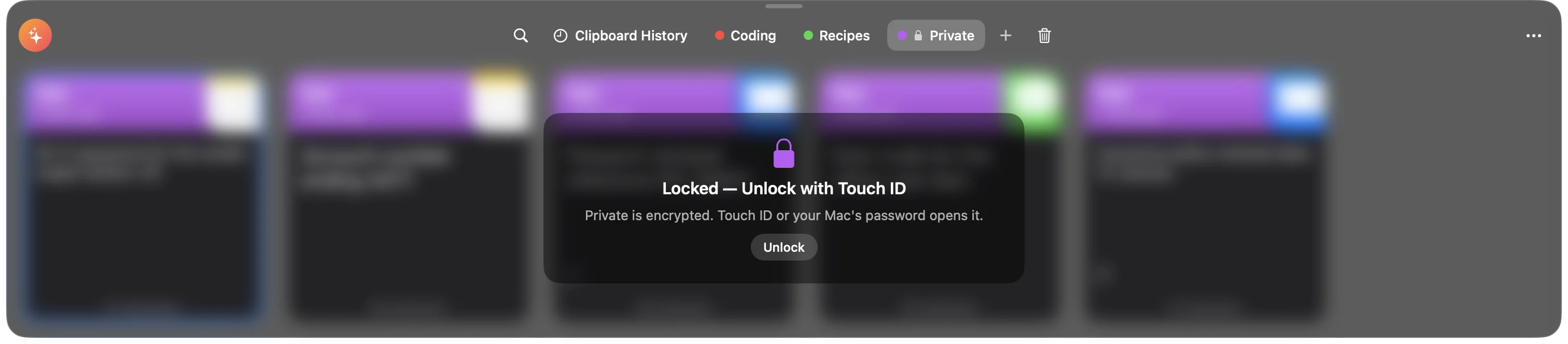
- In the strip, the pinboard's cards are blurred behind a lock in the pinboard's color, with Locked — Unlock with Touch ID, "Private is encrypted. Touch ID or your Mac's password opens it." and an Unlock button.
- In the menu bar panel, the pinboard's chip shows a lock, and the list shows Locked, the same line and Unlock. Its rows read "Locked" and "Unlock with Touch ID".
- In Goblin's window (the Clipboard tab), the sidebar shows a lock in the pinboard's color (open while unlocked) and no count while it's closed. The inspector says "This clip is in a locked pinboard. Touch ID or your Mac’s password opens it."
- A locked clip seen anywhere else, such as in the Trash, is a grey blurred card titled Locked, with no app icon.
You can't paste, edit, preview, Quick Look, transform, combine, float or add to the Copy Queue a locked clip, and its snippet trigger doesn't expand, until you open the pinboard.
While it's open#
You use the pinboard's clips like any others, with a few differences that keep them private:
- They still never appear in History, in ordinary search, or in Suggestions. To search them, type
is:lockedin the search box: it lists the clips of the locked pinboards that are open right now. Words you type don't match their contents, because they're never in the search index. See Search. - When you copy or paste one, Goblin marks the clipboard confidential and for this Mac only, so other clipboard managers skip it and it doesn't reach your other devices through Universal Clipboard.
- Moving clips into or out of a locked pinboard asks you to open it first. A clip you pin into it is encrypted; a clip you move out of it is decrypted and stored like the rest of your clipboard.
When it locks again#
Open pinboards lock again by themselves.
Change when pinboards lock again#
- Open Settings›Clipboard and scroll to the Locked pinboards section.
- Choose a time under Lock again after.
- Switch Lock when the strip closes on or off.
| Setting | What it does | Default |
|---|---|---|
| Lock again after | Locks an open pinboard after this long without activity in the strip or menu bar panel: 1 minute, 5 minutes, 15 minutes or 1 hour. | 5 minutes |
| Lock when the strip closes | Locks every open pinboard when you close the strip, close the menu bar panel, or leave the Clipboard tab of Goblin's window. Off: closing them counts as activity instead. | On |
Whatever these say, every open pinboard locks when your Mac goes to sleep or the screen locks, and when you quit Goblin. Both settings sync to your other Macs when you sync Goblin's settings.
Lock a pinboard again now#
- Right-click the open pinboard.
- Choose Lock Now.
Its key leaves memory at once, and the pinboard closes.
Remove the lock#
- Right-click the pinboard and choose Remove Lock….
- Goblin asks "Remove the lock from “Private”?" Click Remove Lock.
- Confirm with Touch ID if the pinboard is closed.
Its clips are decrypted, stored like the rest of your clipboard, and show up in history and search again. The pinboard's key is then deleted.
What other tools can see#
A locked pinboard's clips are never given to anything outside Goblin, whether the pinboard is open or not. The pinboard itself is listed, so you know it exists, but not how many clips it holds.
| Where | What it gets |
|---|---|
The goblin clip command | The pinboard is listed as "locked", with no count. Its clips show as "Locked", with no text. Listing or adding to the pinboard fails with "the pinboard "Private" is locked. Its clips can only be opened in Goblin, with Touch ID or your password." Copying or pinning one of its clips fails with "that item is in a locked pinboard. Unlock it in Goblin to use it there." See The goblin command. |
AI assistants (goblin mcp) | The pinboard is listed as locked, with no count. Its clips are left out of every answer; asking for one gets "That clip is in a locked pinboard. Its content is never shared with AI assistants." See AI assistants. |
| Shortcuts and Siri | Its clips are never offered, found or counted. Adding text to the pinboard fails. See Shortcuts. |
| Spotlight | Its clips are never added. |
goblin:// links | A link to one of its clips opens History instead. |
| Exporting pinboards | Locked pinboards are left out, open or not, and the export says how many. See Import and export. |
| Sharing | A locked pinboard can't be shared. Choosing Share Pinboard… offers Remove Lock and Share, which decrypts it so the people you invite can read it. |
| iCloud sync | The pinboard and its clips sync still encrypted. Its key syncs too (see below). |
How it's protected#
- Each locked pinboard has its own random 256-bit key, kept in this Mac's Keychain so that reading it needs Touch ID or your password. Every clip's contents (text, title, link, file names, text read from images, descriptions, previews and the copied data) are sealed with AES-GCM under that key.
- What stays readable in Goblin's database is each clip's kind, size, dates, the app it came from, and which pinboard it's in and where.
- When you lock a pinboard, Goblin overwrites the unencrypted copies and clears them from its search index, so none are left behind in the file.
- Encrypting your history leaves locked clips alone; they're already encrypted with their own key.
- Deleting a locked pinboard for good (emptying it from the Trash) deletes its key too.
With iCloud sync on, the pinboard's key travels to your other Macs inside iCloud's end-to-end encrypted data, and each Mac stores it in its own Keychain, behind Touch ID or that Mac's password. That's what lets you open the pinboard everywhere. It also means the lock protects the pinboard on each Mac; it isn't an extra layer on top of iCloud: anyone who could read your end-to-end encrypted iCloud data could open it. See Sync.