 Goblin
Settings›Clipboard holds every option for Goblin's clipboard history, the strip and everything around them. This page goes through the pane from top to bottom. To start using the clipboard, see The clipboard strip.
Most of these settings can follow you to your other Macs with the Clipboard and Shortcuts categories in Settings › iCloud Sync. The ones that never do are noted below.
Turn the clipboard on or off#
- Open Settings›Clipboard.
- Turn on the Clipboard switch at the top.
- A sheet asks Turn on Clipboard? and explains what Goblin will keep. Click Turn On.
- Press ⇧⌘V to open the strip. Anything you copy from now on is saved.
To turn it off, switch Clipboard off. That takes effect at once, with no question.
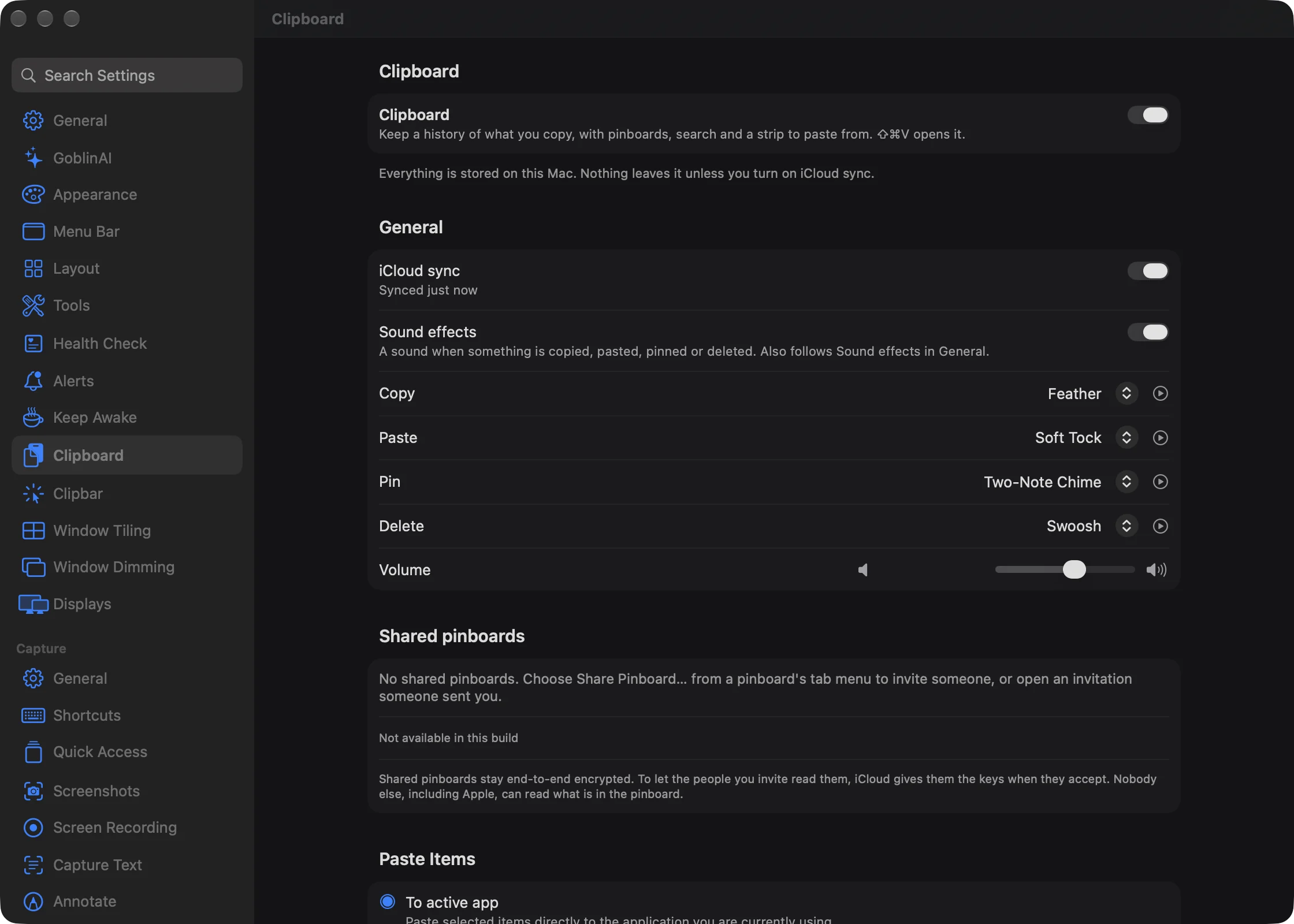
| Setting | What it does | Default |
|---|---|---|
| Clipboard | Keeps a history of what you copy, with pinboards, search and the strip to paste from. | Off |
While it's off, Goblin doesn't read the clipboard, ask for any permission or take any shortcut, and the settings below wait until it's on. This switch is per Mac: it never syncs.
There's no separate "open at login" for the clipboard. It runs inside Goblin, so Goblin's own Open at login in Settings › General starts it.
General#
| Setting | What it does | Default |
|---|---|---|
| iCloud sync | Syncs your history and pinboards between your Macs through iCloud, end-to-end encrypted. A status line beside it shows how sync is going. | Off |
| Sound effects | Plays a short sound when something is copied, pasted, pinned or deleted. | On |
| Copy | The sound for a new copy joining the history. | Feather |
| Paste | The sound for pasting or copying a clip from Goblin. | Soft Tock |
| Pin | The sound for pinning clips to a pinboard. | Two-Note Chime |
| Delete | The sound for moving clips to the Trash. | Swoosh |
| Volume | How loud the clipboard's sounds are, from 5% to 100%. | 60% |
Turning on iCloud sync asks Turn on iCloud sync? first; turning it off happens at once. The same switch is in Settings › iCloud Sync. It never syncs itself, so each Mac decides. See Syncing clips between Macs.
Change the clipboard sounds#
- In Settings›Clipboard›General, make sure Sound effects is on. The four pickers and Volume appear beneath it.
- Open the picker for the moment you want to change: Copy, Paste, Pin or Delete.
- Choose a sound, or None for silence. The sound plays as you choose it. The ▶︎ button beside the picker plays it again.
- Drag Volume to change how loud they all are. Letting go plays the Copy sound at the new level.
To turn every clipboard sound off, switch Sound effects off.
Each picker offers None and 20 sounds in three groups:
- Airy: Feather, Airy Flick, Rising Swish, Chirp Swish, Goblin Flick, Swoosh, Goblin Chirp
- Knocks: Soft Tock, Thump, Goblin Drop, Wood Block
- Chimes and Clicks: Plip, Bubble Pop, Glass Tick, Paper Snap, Marimba, Coin Clink, Soft Click, Two-Note Chime, Gentle Blip
A clipboard sound plays only when all three switches are on: Sound effects here, Sound effects in Settings › General, and Play user interface sound effects in macOS's Sound settings. The ▶︎ previews play whatever the switches say. A quick burst of the same action, such as pinning ten clips at once, makes one sound.
The Paste sound also plays for Pick Color and Screenshot to History, and when you paste from the Copy Queue, with Quick Paste, from a template or a transform. Text expansion has its own quiet sound, set under Snippets below.
Shared pinboards#
This section lists every pinboard you've shared and every one shared with you, each with its color, its name and Shared by you, or who shared it and whether it's view only or you can add and delete.
| Control | What it does |
|---|---|
| Manage… | For a pinboard you shared: opens its Share Pinboard window. |
| Leave | For someone else's pinboard: removes it from your Macs straight away, without asking. |
With nothing shared it says how to start: choose Share Pinboard… from a pinboard's tab menu, or open an invitation someone sent you. Below the list are a status line for shared pinboards and the three most recent changes. See Shared pinboards.
Paste Items#
Choose where a chosen clip goes#
- In Settings›Clipboard, find the Paste Items section.
- Choose To active app to paste a clip straight into the app you are using when you pick it, or To clipboard to only put it on the clipboard so you can paste it yourself with ⌘V.
- If a red ! appears with Allow Accessibility…, click that button and allow Goblin in System Settings. Until you do, clips are only copied.
| Setting | What it does | Default |
|---|---|---|
| To active app | Choosing a clip pastes it straight into the app you're using. | Selected |
| To clipboard | Choosing a clip only puts it on the clipboard, for you to paste yourself. | — |
| Always paste as Plain Text | Drops formatting from everything you paste from Goblin. | Off |
Pasting into another app needs Accessibility access. With To active app chosen and no access yet, a red ! appears with Allow Accessibility…; until you allow it, clips are only copied. See The clipboard strip.
Keep History#
Change how long history is kept#
- In Settings›Clipboard, find the Keep History section.
- Drag the slider, or click a label under it: Day, Week, Month, Year or Forever.
- If the new setting is shorter than the old one and some clips are older than it, Goblin asks Delete older items? and says how many. Click the Delete … Items button (it shows the count) to go ahead, or Cancel to keep the old setting. Those clips are deleted for good.
Change how long the Trash keeps clips#
Open the Empty Trash automatically menu in the same section and choose After 7 days, After 30 days, After 60 days, After 90 days or Never.
Erase the history#
- In the Keep History section, click Erase History….
- Read the question, then click Erase History. Every clip that isn't in a pinboard moves to the Trash, and the pinboards stay as they are.
To bring clips back, open the Trash in the strip and choose Put Back before it empties.
| Setting | What it does | Default |
|---|---|---|
| Keep History | How long history clips are kept, counted from when you last used them: Day, Week, Month, Year or Forever. | Month |
| Empty Trash automatically | How long deleted clips wait in the Trash: After 7 days, After 30 days, After 60 days, After 90 days or Never. | After 30 days |
| Erase History… | Moves every clip that isn't in a pinboard to the Trash. | — |
Clips in pinboards are never removed by Keep History. Shortening it asks Delete older items? and says how many clips go; those are deleted for good, not moved to the Trash. Clips that age out, and secrets when their time is up, skip the Trash too. Erase History… asks first; erased clips can be put back from the Trash until it empties. See Pinboards and the Trash.
Moving Pinboards#
| Setting | What it does |
|---|---|
| Import button for the app you're moving from | Appears when Goblin finds another clipboard manager's data on your Mac. Brings your pinboards, and your history if you choose, over from it. |
| Export… | Saves every pinboard to a folder of ordinary files. |
| Import… | Reads pinboards back in from such a folder. |
See Importing and exporting pinboards.
Intelligence#
| Setting | What it does | Default |
|---|---|---|
| Intelligent Clipboard | Suggests what you're about to paste, based on what you're working on. Everything stays on your Mac. | Off |
| Allow Screen Access | Lets Intelligent Clipboard read the window you're pasting into, only when you open Goblin, to make better suggestions. | Off |
Allow Screen Access needs Screen Recording permission; turning it on walks you through it. If the permission is missing, a red ! and Set Up… appear. It's per Mac and never syncs. See Apple Intelligence and suggestions.
Spotlight#
To find clips from Spotlight, open Settings›Clipboard, find the Spotlight section and turn on Find clips in Spotlight. Turn it off to remove everything Goblin added.
| Setting | What it does | Default |
|---|---|---|
| Find clips in Spotlight | Adds your clips to Spotlight on this Mac, so you can find them there. Secrets, locked pinboards and the Trash are never added. | Off |
Turning it off removes everything Goblin added. While Encrypt clipboard history on this Mac is on, nothing is added. Per Mac. See Clipboard privacy.
MCP & AI tools#
| Setting | What it does | Default |
|---|---|---|
| Enable MCP | Lets AI apps connected to Goblin search and read your clips and pinboards, add text clips and pin clips. Secrets, the Trash and locked pinboards are never shared. | Off |
This works together with Let AI assistants ask about this Mac in the AI Assistants card of Settings › Projects: both must be on. Per Mac. See AI assistants.
Privacy#
New: Coming in the next update. Timed per-app retention and permanent quit clearing offer This Mac Only or All My Macs while clipboard sync is on.
These are covered in full in Clipboard privacy.
| Setting | What it does | Default |
|---|---|---|
| Show During Screen Sharing | Lets the strip and Goblin's other clipboard panels show up when you share or record your screen. Off keeps them out. | On |
| Generate Link Previews | Fetches a title and picture for copied web links, and a map for copied addresses. Fetching can trigger one-time or tracking links. | On |
| Ignore confidential content | Skips copies that the app marks as confidential, such as passwords from a password manager. | On |
| Ignore transient content | Skips temporary data that apps put on the clipboard for a moment. | On |
| Detect secrets | Recognises one-time codes, card numbers, signed links, private keys, API keys and tokens: they're masked, never synced and never sent to AI. API keys and tokens are deleted after an hour. | On |
| Delete codes, cards, signed links and private keys after | How long those secrets are kept: 30 seconds, 2 minutes or 1 hour. Greyed out while Detect secrets is off. | 30 seconds |
| Capture screenshots | Adds the screenshots you take to history. | Off |
| Presentation mode automatically | Turns presentation mode on while Keynote or PowerPoint is presenting, your screen is being shared, or your displays are mirrored: nothing is copied into history and clip contents are hidden. | On |
| Clear history when Goblin quits | Never, Move to the Trash or Delete for good. Pinned clips stay. Permanent clearing offers This Mac Only or All My Macs while clipboard sync is on. | Never; This Mac Only |
Encryption#
| Setting | What it does | Default |
|---|---|---|
| Encrypt clipboard history on this Mac | Stores every clip encrypted, with a key kept in this Mac's Keychain. | Off |
A line below shows progress while Goblin encrypts or decrypts your history, then On: history is encrypted. It costs a moment at startup and a little memory; the note beside the switch gives the figures. Clips still sync to iCloud, which encrypts them itself. Per Mac. See Clipboard privacy.
Locked pinboards#
| Setting | What it does | Default |
|---|---|---|
| Lock again after | How long an unlocked pinboard stays open: 1 minute, 5 minutes, 15 minutes or 1 hour. | 5 minutes |
| Lock when the strip closes | Asks for Touch ID again each time you open the strip. | On |
Sleep and locking the screen always lock them. See Locked pinboards.
Apps#
A rule for each app whose copies you want treated differently. Each row has a picker:
| Choice | What it does |
|---|---|
| Don't save | Copies from this app are never kept. |
| Keep 1 hour, Keep 1 day, Keep 1 week | This app's history clips are deleted after that long, instead of following Keep History. |
| Default | Follows Keep History. |
Click + to add an app, from Choose Application… or from a short list of apps already in your history; new rows start as Don't save. Select a row and click − to remove it. Out of the box, Keychain Access, Passwords, 1Password and Bitwarden are set to Don't save. See Clipboard privacy.
With clipboard iCloud sync on, choosing a Keep time asks whether its deletions should apply to This Mac Only (the default) or All My Macs. Each timed rule also has a scope picker. All-Macs deletions wait safely while offline and sync on reconnect; pinned clips stay. See Clipboard privacy.
Shortcuts#
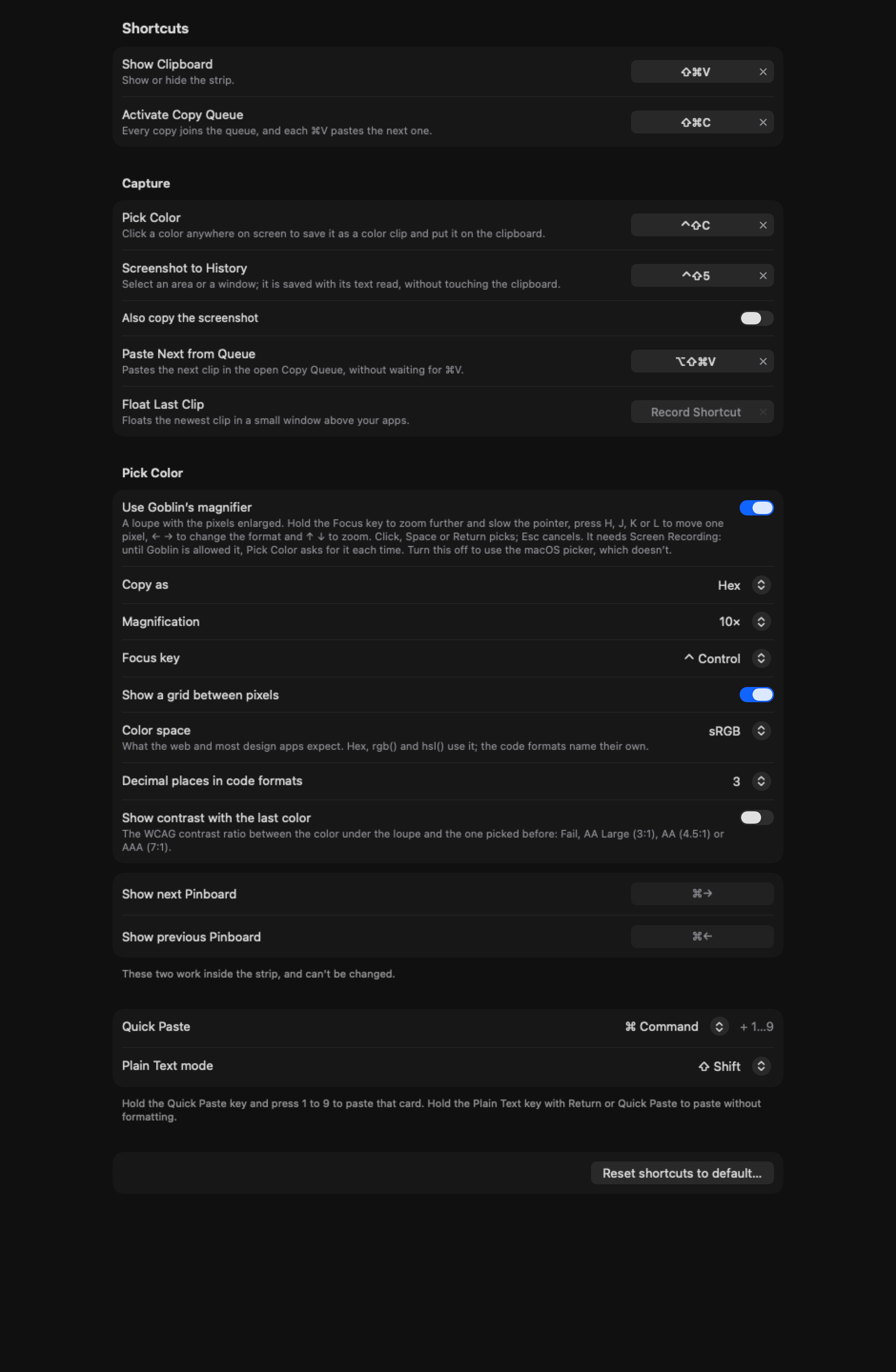
Change a shortcut#
- Open Settings›Clipboard and scroll to the Shortcuts section.
- Click the shortcut you want to change, such as Show Clipboard. It waits for a key combination.
- Press the new combination. It must include ⌘, ⌃ or ⌥.
Esc cancels and leaves the old one. Delete or the × beside it turns the shortcut off. If another app already holds the combination, Goblin says In use by another app. The global shortcuts only work while Clipboard is on.
| Shortcut | What it does | Default |
|---|---|---|
| Show Clipboard | Shows or hides the strip. | ⇧⌘V |
| Activate Copy Queue | Starts the Copy Queue: every copy joins the queue, and each ⌘V pastes the next one. | ⇧⌘C |
If another clipboard manager is running, it may hold the same two shortcuts. Goblin then names it and tells you to quit it or choose other combinations.
Capture#
| Shortcut | What it does | Default |
|---|---|---|
| Pick Color | Click a color anywhere on screen to save it as a color clip and put it on the clipboard. | ⌃⇧C |
| Screenshot to History | Select an area or a window; it's saved to history with its text read, without touching the clipboard. | ⌃⇧5 |
| Also copy the screenshot | Puts the screenshot on the clipboard too. | Off |
| Paste Next from Queue | Pastes the next clip in the open Copy Queue, without waiting for ⌘V. | ⌥⇧⌘V |
| Float Last Clip | Floats the newest clip in a small window above your apps. | None |
If two actions share a combination, only one of them works; their notes turn red and Goblin asks you to choose different ones. See Paste tools.
In the strip#
To change which key you hold for Quick Paste or Plain Text mode, open Settings›Clipboard›Shortcuts and pick a key from the Quick Paste or Plain Text mode menu. Hold the Quick Paste key and press 1 to 9 to paste that card.
| Shortcut | What it does | Default |
|---|---|---|
| Show next Pinboard | Moves to the next tab in the strip. | ⌘→ |
| Show previous Pinboard | Moves to the previous tab. | ⌘← |
| Quick Paste | The key you hold while pressing 1 to 9 to paste that card: ⌘ Command, ⌃ Control or ⌥ Option. | ⌘ Command |
| Plain Text mode | The key you hold with Return or Quick Paste to paste without formatting: ⌘ Command, ⇧ Shift, ⌃ Control or ⌥ Option. | ⇧ Shift |
The two pinboard keys can't be changed. Quick Paste and Plain Text mode need different keys; if they match, Goblin warns you in red.
Reset the shortcuts#
- At the bottom of the Shortcuts section, click Reset shortcuts to default….
- Click Reset Shortcuts to confirm.
Every shortcut in this section goes back as it came: the two main shortcuts, the Quick Paste and Plain Text keys, and the four Capture shortcuts, with Float Last Clip off again.
Pick Color's magnifier#
Under the Capture shortcuts, the Pick Color section sets how the color picker looks and what it writes (its magnifier, Copy as format, Magnification, Focus key, grid, Color space, decimal places and contrast line). Every option is described in Paste tools.
Transform, Colors and Combine#
| Setting | What it does | Default |
|---|---|---|
| Default color format | The format a color card shows first, and the one ticked in Copy as: Hex, Hex with Alpha, rgb(), rgba(), hsl(), hsla(), oklch(), oklab(), or code: SwiftUI Color, NSColor, UIColor, CGColor, Display P3 (CSS), Display P3 (SwiftUI). | Hex |
| Combine text with | What goes between clips when you combine them: New Line, Blank Line, Space, Comma or Tab. | New Line |
⌥⌘T opens Transform, ⌘J combines the selected clips into one, and ⌘D floats a clip above your other windows. See Transforms and color formats.
Snippets#
| Setting | What it does | Default |
|---|---|---|
| Text expansion | Type a clip's trigger, such as ;thx, in any app and it turns into the clip. Needs Accessibility. Per Mac. | Off |
| Prefix | What every trigger starts with, so ordinary words never expand. Empty means no prefix. | ; |
| Expand | Immediately, or After a space, Tab or Return. | Immediately |
| Match case | A trigger only expands when typed with the same capitals. | On |
| Keep the space, Tab or Return that ends a trigger | Keeps the key that ended the trigger after the expanded text. Only matters with After a space, Tab or Return. | On |
| Play a sound when a snippet expands | A quiet sound of its own, separate from the clipboard sounds above. | Off |
| Work | Everywhere except these apps, or Only in these apps, with the list of apps below it. | Everywhere except these apps |
In Everywhere except these apps mode, Terminal-like apps you have installed each get an Allow in switch, off by default. The Triggers list at the bottom shows every clip with a trigger, where you can change one, remove it, or give it its own expand, case and delimiter settings. See Snippets.
Ask the Goblin to change a setting#
The Goblin can change some of these for you. Click Talk to Goblin in the main window toolbar and type a request:
| Request | What it does |
|---|---|
Read Clipboard Privacy Settings | Reports history length, Trash and quit policy, encryption, iCloud sync and snippets. |
Review Clipboard History Retention week | Prepares Keep History for a day, week, month, year or forever. |
Review Clipboard iCloud Sync on | Prepares turning iCloud sync on or off. |
Review Reset Clipboard Shortcuts | Prepares what Reset shortcuts to default… does. |
Review Clipboard Trash and Quit Policy with the Trash days and quit choice | Prepares Empty Trash automatically and Clear history when Goblin quits. You can also say it in plain words, such as "empty clipboard trash after 30 days". |
Asking never changes anything on its own. A review window opens in Goblin and lists exactly what will change; nothing happens until you confirm, and Cancel closes it. Changing your history or settings while a review is open cancels it. Keys, passwords and clip contents are never part of these requests. The privacy requests are covered in Clipboard privacy.