 Goblin
A preset is a whole menu bar look saved under a name: the style, the figures, the colors, the graph and the rest. Use presets to try a different look without losing the one you have, or to keep one setup for your desk and another for working on battery. You can have presets switch by themselves when you unplug or connect a display.
Everything here is in Settings›Menu Bar, in the Presets and Situations cards. To open them, click the gear at the bottom of Goblin's panel (or right-click the item and choose Settings…), then click Menu Bar in the sidebar and scroll down.
The built-in presets#
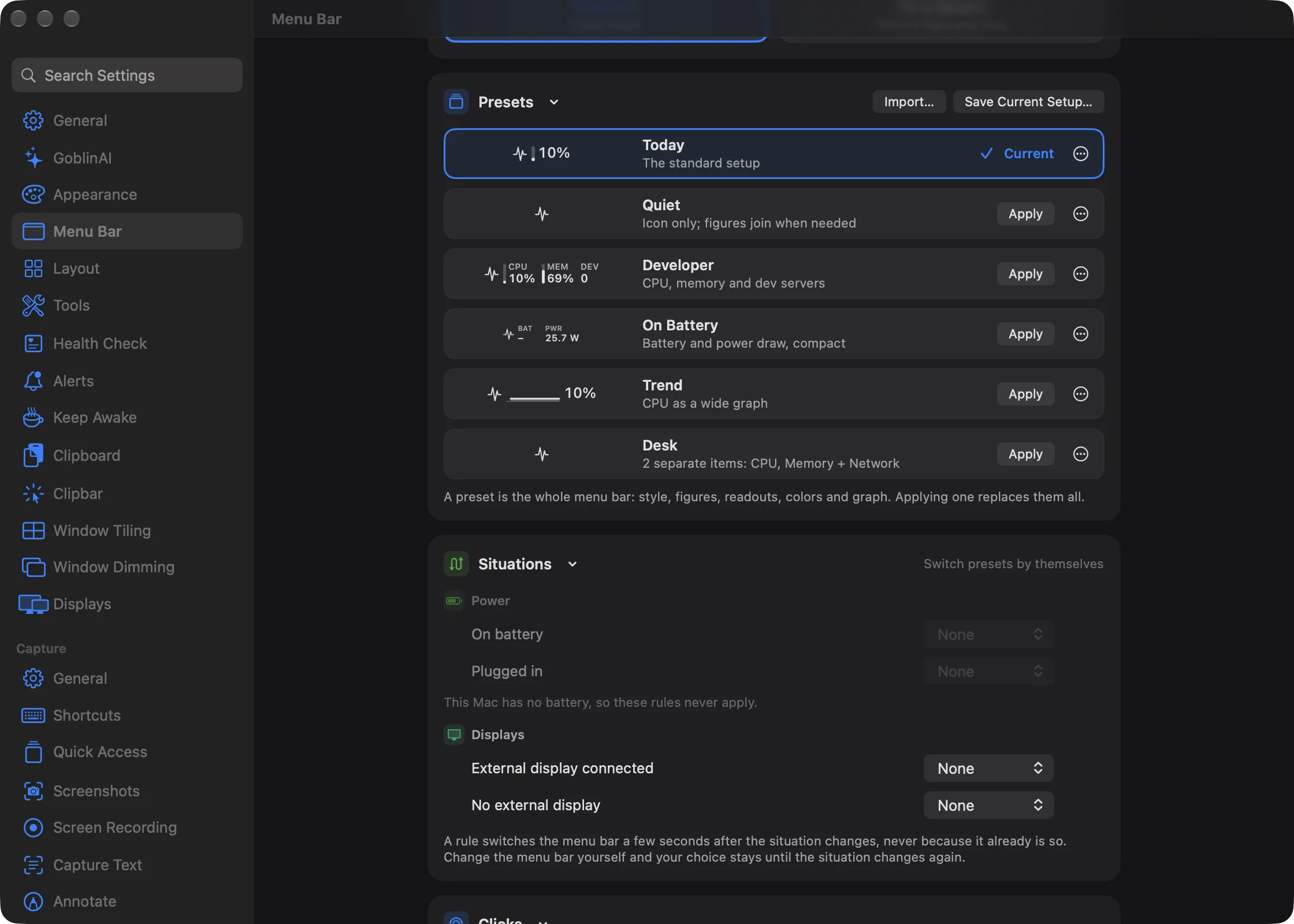
Goblin comes with five presets. You can apply and export them, but not rename or delete them.
| Preset | Summary in the list | What it sets |
|---|---|---|
| Today | "The standard setup" | Goblin's factory setup: Figure style showing CPU, the Pulse icon (shown), and Memory, Network, CPU Temp, Battery and Dev Servers set to Auto. |
| Quiet | "Icon only; figures join when needed" | Icon style, with all eight automatic figures set to Auto. |
| Developer | "CPU, memory and dev servers" | Stacked style with CPU, Memory and Dev Servers. Network, CPU Temp and Battery set to Auto. |
| On Battery | "Battery and power draw, compact" | Stacked style with Battery and Power, Compact menu bar size on. Memory, CPU Temp and Dev Servers set to Auto. |
| Trend | "CPU as a wide graph" | Graph style showing CPU, with Width set to Wide and Shape set to Area. |
Every built-in starts from the factory setup, so anything not listed above is at its standard value: reading colors off, standard thresholds, no labels or decimals.
The built-ins describe a single item. Applying one turns separate items off, but keeps your list of items for when you turn them back on.
Apply a preset#
- Open Settings›Menu Bar and scroll to the Presets card.
- Find the preset you want. Each row shows a preview of that setup, its name and a one-line summary.
- Click Apply. The card confirms it, for example "Applied “Quiet”.", and the item changes at once.
The preset that matches your menu bar now shows Current with a tick instead of Apply. Applying a preset replaces your whole menu bar look at once.
Note: A fresh copy of Goblin starts with Show icon off, but Today has it on. On a new Mac, Today doesn't read Current until you turn Show icon on, and applying it turns the icon on.
What a preset holds#
A preset holds everything about how the item looks:
- the style, the figure or stacked figures, and Most figures at once;
- which figures are set to Auto, and their thresholds;
- the Readouts choices, the icon and whether it shows, and the warning sign;
- Graph Colors and Thresholds (the colors of the menu bar readings and of Goblin's charts), Labels and Precision and Graph;
- your separate items, if you saved with them on.
It doesn't hold the Clicks choice, your extra keyboard shortcuts, the Dropdown extras, the firewall cues, the panel's color theme or Keep Awake. Those stay as they are when you switch.
Save your own#
- Set the menu bar the way you like.
- In the Presets card, click Save Current Setup… at the top.
- Type a name and click Save. The card says "Saved “Desk”."
Your presets are listed after the built-ins, with the summary "Your setup", or a list of items for one with separate items, such as "2 separate items: CPU, Memory + GPU".
- You can keep up to 40 presets of your own. At 40, Save Current Setup… is greyed out until you delete one.
- A name is one line of up to 40 characters. If it's already taken, Goblin adds a number, such as "Desk 2".
Rename, export or delete a preset#
- In the Presets card, click the … button at the end of the preset's row.
- Choose one:
- Rename…, for your own presets. Type the new name and click Rename.
- Export…, to save the preset as a file (see below). This works for built-in presets too.
- Delete…, for your own presets. Goblin asks first, and any situation rule that switches to that preset is cleared too.
Switch by situation#
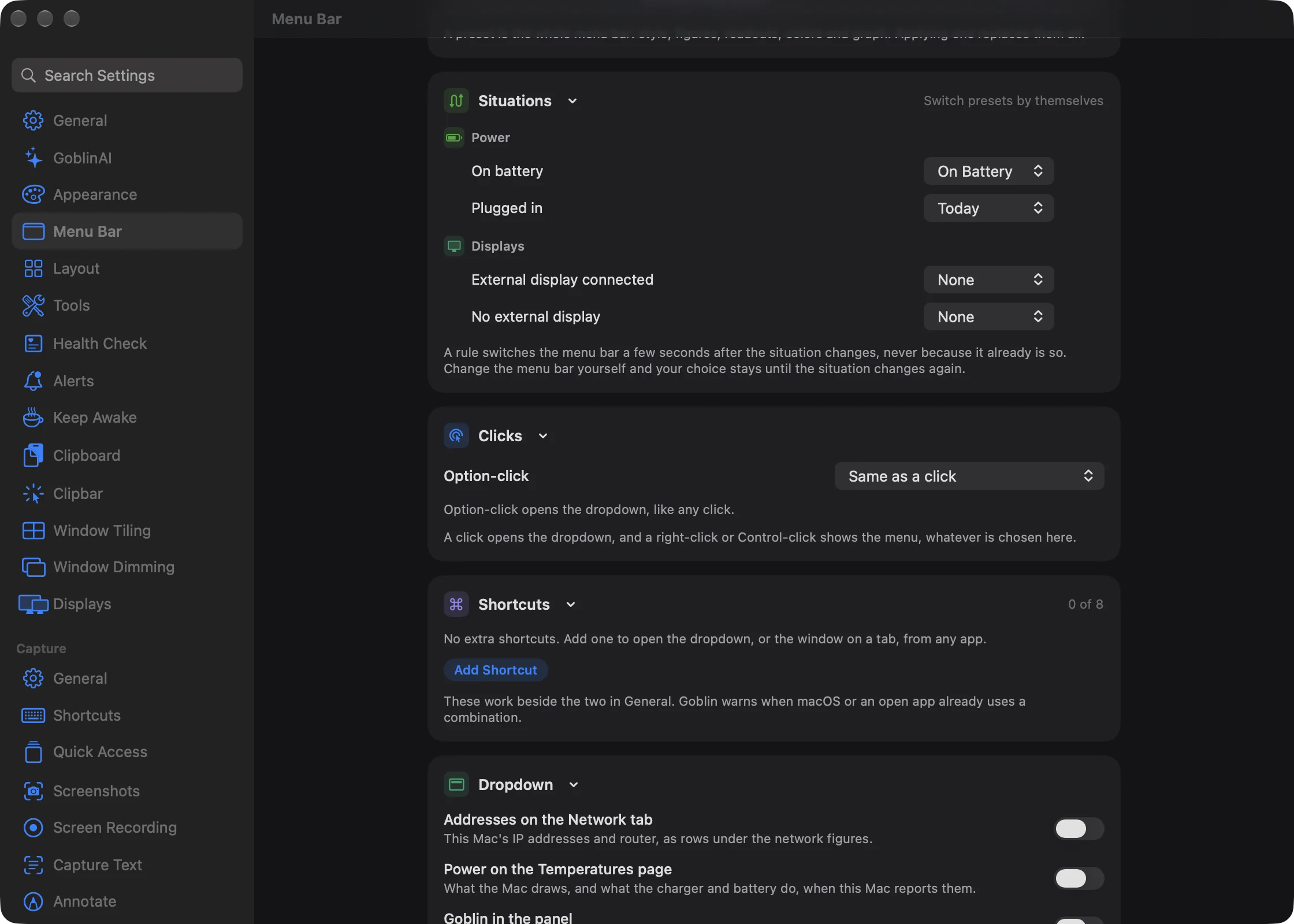
The Situations card switches presets by themselves when your Mac's situation changes. Each rule is a menu: pick None (the default) or any preset.
To set one up:
- Open Settings›Menu Bar and scroll to the Situations card.
- Find the rule, such as On battery.
- Open its menu and choose the preset to switch to.
- To stop a rule, choose None.
| Group | Rule | When it applies |
|---|---|---|
| Power | On battery | The Mac starts running on its battery. |
| Power | Plugged in | The Mac is connected to power. |
| Displays | External display connected | Any screen other than the built-in one is connected. |
| Displays | No external display | The last external screen is disconnected. |
How the rules behave:
- A rule acts only when the situation changes, never because it already is so. Opening Goblin while on battery doesn't switch anything.
- The new situation has to last 5 seconds first, so a loose cable doesn't flip your menu bar back and forth.
- If you change the menu bar yourself, your choice stays until the situation changes again. A change you make while a switch is waiting cancels that switch.
- If power and displays change at the same moment, the display rule wins.
- When a rule switches, a short message says so, for example "Menu bar: On Battery".
- On a Mac without a battery the Power rules are greyed out, with the note "This Mac has no battery, so these rules never apply."
- If you delete a preset a rule points at, that rule goes back to None.
Share presets as files#
To export a preset:
- Click the … button on the preset's row and choose Export….
- Choose where to save it and click Save. The file is named after the preset, such as
Desk.goblinmenubar.
It holds only the menu bar choices, nothing else about your Mac. Send it to another Mac, or keep it as a backup.
To import one:
- Click Import… at the top of the Presets card.
- Choose a
.goblinmenubarfile (or a.jsonone) and click Open. - The preset is added to your list, and the card says "Imported “Desk”. Apply it when you want it." Importing never changes your menu bar until you click Apply.
When importing:
- Files over 100 KB are refused.
- Settings Goblin doesn't recognise are skipped, figures it doesn't know are dropped, and numbers outside the allowed ranges are brought within them.
- A preset with a name you already use gets a number added. One without a name is called "Imported Setup".
- A file made by a newer version of Goblin asks you to update Goblin first.
If a file can't be imported, an alert titled Couldn't Import says why, such as "The file is damaged, or isn't a Goblin menu bar setup." If you already have 40 presets, it says "You can keep 40 of your own. Delete one first."
The file format#
For the curious: a preset file is plain JSON with three keys. name is the preset's name, version is 1, and setup holds the choices: style, metric, stacked, autoFigures, compact, memoryPressure, upload, showsIcon, icon, warnOnStrain, and the groups pool (most figures at once), auto (thresholds), appearance (colors, labels and precision), graph and items (separate items). You can open one in any text editor.
Exact preset tasks#
List Menu Bar Presets returns current IDs. Use Apply Menu Bar Preset ID or Save Menu Bar Preset Desk; replace ID with a listed ID. Rename Menu Bar Preset ID | New name and Delete Menu Bar Preset ID accept user presets only. Set Menu Bar Situation Rule onBattery | ID also accepts onPower, externalDisplay and noExternalDisplay; use none instead of an ID to clear a rule. Import Menu Bar Preset /absolute/path/preset.json validates the native preset file. Undo Menu Bar Task restores the affected configuration only if it has not changed elsewhere. Preset deletion also removes situation rules referring to it.
“Read Menu Bar Action Shortcuts” returns the exact native extra shortcut JSON. “Set Menu Bar Action Shortcuts <JSON array>” accepts native id/key/modifiers/action rows; [] removes all extras. Native action choices, clashes and registration are validated, and registration failure restores prior bindings. “Undo Menu Bar Task” restores the unchanged proposed shortcut array without overwriting unrelated settings.