 Goblin
Dragging an app to the Trash leaves its caches, settings, saved state and background helpers behind. The Applications section uninstalls an app properly: the app and the files it keeps on your Mac, its background services, its Dock icon and its login item. You see every file before anything goes.
How to uninstall an app#
- Click Disk in the main window's tab bar, then Applications in the sidebar (under Apps). It scans the first time you open it; press Scan to look again. Goblin looks in
/Applications,~/Applicationsand/System/Applications, including folders inside them, and measures each app. - Find the app. Type its name in Find an app, or use the filter, store and sort controls (see Finding an app).
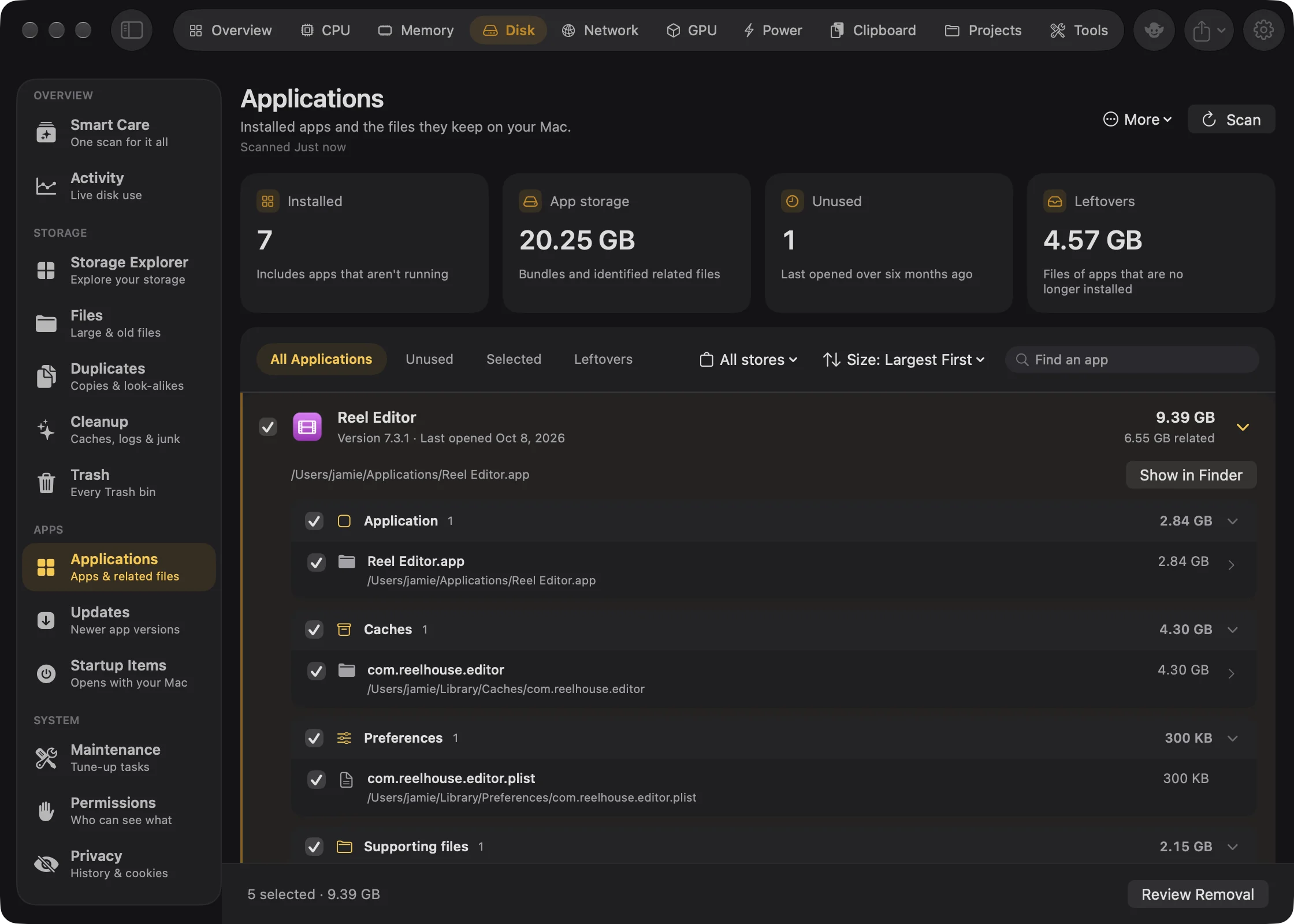
- Tick the checkbox beside the app. Goblin also ticks every related file that is confidently its own. Click the chevron to look at them, and untick any you want to keep.
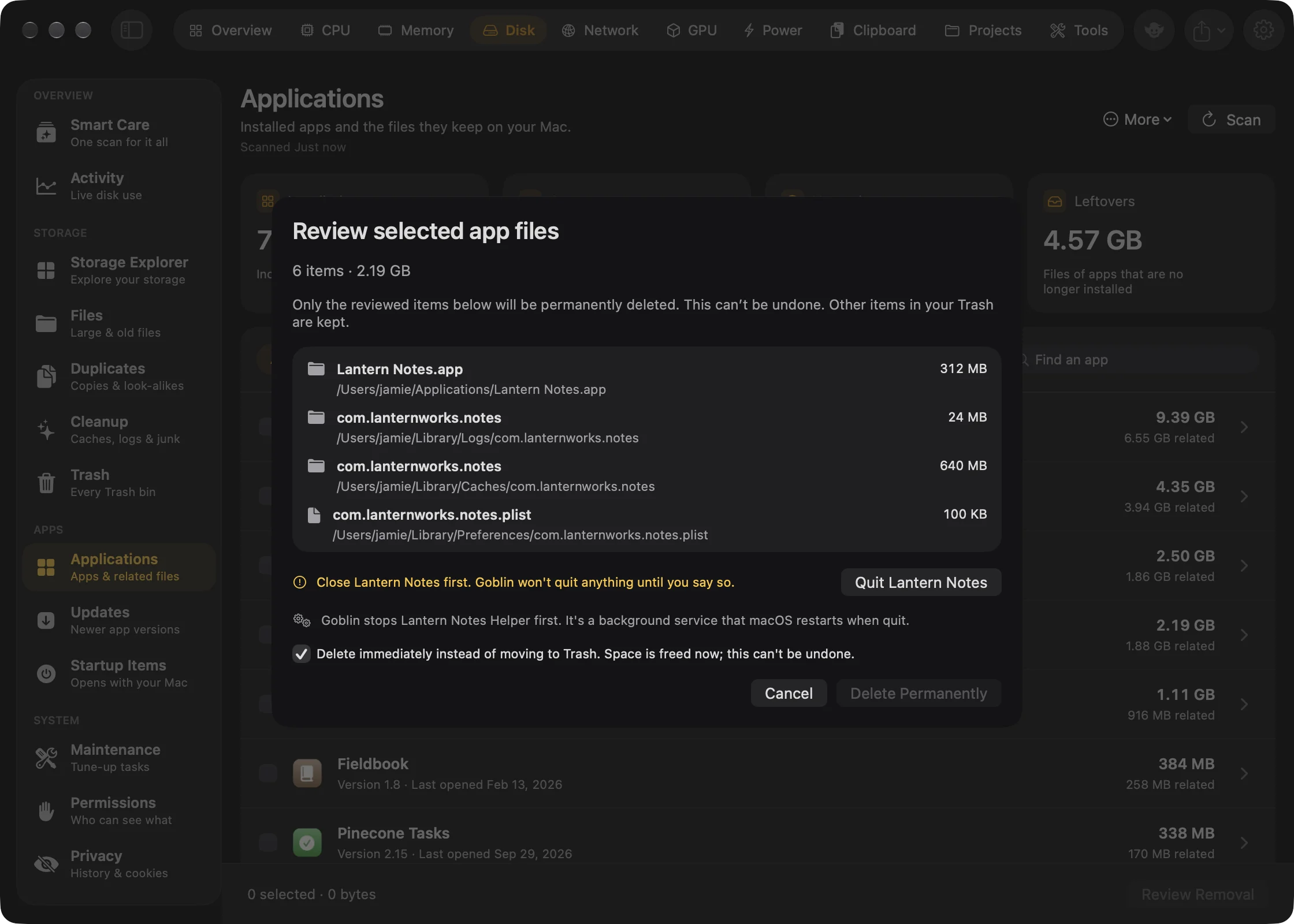
- Press Review Removal at the bottom. The review, Review selected app files, lists every path.
- If the review says "Close <app> first", press Quit <app> (or Quit Them) and wait for the app to close.
- Press Delete Permanently. To keep everything recoverable instead, untick Delete immediately first; the button then reads Move to Trash. See Permanent or recoverable removal.
- If macOS asks for your password, enter it. Goblin asks once.
When it worked, the Goblin zaps each item, the app leaves the list, and a status card says what happened. The removal is added to Removal History.
Warning: An uninstall from Applications deletes the app and its files for good by default, because it ticks Delete immediately for you. Untick it in the review sheet to move everything to the Trash instead.
The summary cards#
- Installed: how many apps, including ones that aren't running.
- App storage: the apps plus the related files Goblin identified. A ≥ sign means some couldn't be measured fully.
- Unused: apps last opened over six months ago.
- Leftovers: files of apps that are no longer installed. See Leftovers.
Finding an app#
| Control | Choices |
|---|---|
| Filter | All Applications, Unused (last opened over 180 days ago), Selected (the apps you've ticked), Leftovers |
| Store | All stores, App Store, Setapp, Other |
| Sort | Name: A to Z, Name: Z to A, Size: Largest First (the default), Size: Smallest First, Least Used |
| Find an app | Matches the app's name and the path of any of its related files |
The filter is the row of words at the top of the list. Store and Sort are the two menus beside the search box.
Find apps you haven't used#
- Open Disk›Applications.
- Click Unused in the filter row. It shows apps last opened over 180 days ago.
- To put the least used first, open the sort menu and choose Least Used.
"Last opened" comes from Spotlight. Apps whose last-opened date Spotlight doesn't know are never called unused, and Least Used puts them last. Changing the filter clears what you've ticked. Goblin remembers your sort.
Each row shows the app's icon, name, version, when it was last opened, its total size, and how much of that is related files. Right-click a row for Show in Finder or Ignore App, which hides the app and its leftovers from this section (see Ignore lists).
Choosing what to remove#
Tick an app and Goblin ticks the app plus every related file that is confidently its own. Untick the app to drop all of them. Click the chevron to see the files, grouped by kind: Application, App containers, Shared containers, Caches, Preferences, Saved state, Supporting files, Logs, Installer & background files and Shared with same-vendor apps. Each group has its own checkbox, and so does each file.
When you're ready, press Review Removal (steps are under How to uninstall an app). The review lists every path. Goblin reads each app's full file list at this point, so you may see "Reading files…" for a moment.
What counts as an app's files#
Goblin matches files to an app by its identifier (like com.vendor.App) and its name, and settles ownership across every installed app, so a file only belongs to one.
- Its own files, ticked automatically. Its cache, preferences, saved state, Application Support and Logs folders named for its identifier, and other files in your Library or the shared
/Librarynamed for it. Folders named exactly after the app also count, when no other installed app has that name. - Deeper in the system. Goblin also looks through cookies, web data, launch agents and daemons, privileged helper tools, extensions, plug-ins, frameworks, audio plug-ins, autosave files and your temporary folders. Background jobs are matched by their label, by a program inside the app, or by the app they say they belong to. Files an installer package put on your Mac are found through its receipt. The helpers, login items and extensions built into an app count as its own too.
- Name matches, never ticked automatically. Files that only share the app's name or product name are labelled Matched by name — not ticked automatically, with a note that ownership isn't confirmed. Check each before you tick it.
- The app's own folder. If an app sits alone in its own folder in
/Applications, that folder is offered under Installer & background files. It's never ticked automatically, and choosing it removes the app too. - Only install and app-data locations. When Goblin works out an app's folder from an installer receipt or a background job's program, it only takes folders in places apps install to or keep data in:
/Library,/Applications,/opt,/usr/local,/Users/Shared,~/Libraryand~/Applications. A folder elsewhere in your home, such as Documents or.ssh, is never treated as an app's just because a job mentions a file in it. Folders many apps share, such as~/Library/Containers,Group Containers,Saved Application State,~/Applicationsand Homebrew's and MacPorts' folders, are never treated as one app's either. - Review only. App containers and shared group containers are listed so you can look at them in Finder, but Goblin doesn't remove them. A file two installed copies of the same app both claim is review only as well.
The footnote under the list sums it up: files matched only by name start unticked, and shared files stay for review.
Files shared with a vendor's other apps#
A company folder (in Application Support, say) may hold files for several of its apps. Goblin lists it under Shared with same-vendor apps, as review only: "Shared with other <Vendor> apps — review in Finder before removing anything". It isn't counted in the app's size, and it disappears from the list when Goblin finds something more specific inside it.
Apps Goblin won't remove#
Some apps show a lock and can't be ticked. Their files are still listed so you can look.
- Apple application — manage through macOS: apps inside
/Systemor from Apple. - Goblin is managing this scan: the copy of Goblin that's running.
- Helper app — manage through its parent application: background helpers and apps tucked inside other apps.
An app Goblin couldn't measure fully can't be ticked either.
Apps with their own uninstaller#
If an app ships an uninstaller next to it, the expanded row says "This app ships its own uninstaller. Removing only the app can leave background services behind." Open Uninstaller runs it. This is a warning only: you can still remove the app with Goblin.
What happens when you confirm#
Open apps. Goblin never quits anything without asking. If an app you chose, or a helper inside it, is running, the review says "Close <app> first" and the button stays disabled. Quit <app> (or Quit Them) asks the apps to quit as if you chose Quit in each, so unsaved work prompts as usual. Goblin waits up to 10 seconds and nothing is force-quit.
Background helpers. Goblin finds every background job whose program lives inside an app you're removing, in /Library/LaunchDaemons, /Library/LaunchAgents, ~/Library/LaunchAgents and the app itself, and stops them first. The review says "Goblin stops <names> first." Your own background agents stop without a password. System-wide services stop as part of the administrator step below, before any file is deleted.
System extensions. Network filters, drivers and other system extensions can only be uninstalled by macOS, and macOS only does that when Finder moves the app to the Trash. So Goblin asks Finder to do it first, then removes the rest. The review explains this. macOS may ask for your password, and once for permission to let Goblin control Finder. Restart your Mac afterwards to finish. If macOS still lists the extension after a restart, turn it off in System Settings›General›Login Items & Extensions. If you cancel or Finder can't move the app, nothing of that app is touched. If Goblin isn't allowed to control Finder, allow it under System Settings›Privacy & Security›Automation and try again.
Order. Related files go first, then the app. If a related file can't be moved, Goblin keeps the app too, so you're not left with half an app: "Kept <app> because one of its related files couldn't be moved."
Files that belong to the system. Files the app installed for every user can't go to the Trash. Goblin puts all of them into one administrator step, so you're asked for your password once, and deletes them for good. Vendor folders left empty are tidied away.
New in 1.1: With Goblin's helper allowed under System Tasks in Settings › General, this step runs without the password prompt, though the review still mentions your password.
Tidying up after. Goblin also:
- takes removed apps out of the Dock ("Its Dock icon is removed too");
- unregisters the apps and the extensions inside them with macOS, so they don't linger in Login Items & Extensions;
- deletes the app's Open at Login entry if it had one. macOS may ask once whether Goblin may control System Events to do this.
The removal is added to Removal History. While it runs, the Goblin zaps each item with his sword (see After a removal).
Apps already in the Trash#
New in 1.1: Uninstall apps you've already dragged to the Trash, with everything they left behind.
When you move an app to the Trash, Goblin can offer to finish the job from a dropdown under its menu bar item (see Uninstall from Finder). Uninstall opens this section with a review titled Uninstall <app> (or Uninstall N apps). It holds:
- the app itself, marked Already in the Trash · deleted permanently, since it's in the Trash already;
- the same related files ticking the app here would tick, including files that belong to the system;
- for an app you deleted outright, the files in your Library named for its identifier.
An app in the Trash that belongs to the system (some installers set it up that way) joins the single password step.
If the app still has a system extension installed, Goblin first puts it back in the folder it came from (or /Applications), has Finder move it to the Trash again so macOS removes the extension, then deletes it with the rest. Goblin never replaces an app that's there: if the name is taken, it puts the app back as "<Name> 2.app" up to "<Name> 9.app". Restart afterwards to finish.
If Goblin is already removing something else, it says "Goblin is in the middle of another removal. Choose Uninstall again once it's done."
Coming from Finder or a notification#
When you arrive from Finder's Uninstall with Goblin or a notification, a card at the top may explain a problem, for example "Goblin couldn't find <name> in your applications. It may be ignored, or already removed." Close it with its button.
The More menu#
The More button (⋯) holds Ignored Items… and Removal History… (see The More menu), plus two switches for apps deleted outside Goblin.
Turn off the uninstall offer#
- In Disk›Applications, click More (⋯).
- Untick Offer to remove files when an app is deleted or moved to the Trash.
Untick Play Goblin's spell when an app is deleted in Finder instead to keep the offer but lose the farewell card. The same switch is in Settings › Alerts.
| Setting | What it does | Default |
|---|---|---|
| Offer to remove files when an app is deleted or moved to the Trash | Watches for apps deleted in Finder and offers to remove what they left. | On |
| Play Goblin's spell when an app is deleted in Finder | Shows Goblin's farewell card when that happens. Greyed out while the switch above is off. | On |
If Goblin can't read your Trash, an Allow Full Disk Access to see the Trash… button appears here. See Uninstall from Finder.
From the app inspector#
When you inspect an app elsewhere in Goblin, its Storage card has Measure Storage. It shows the app's size and its related files, Show Files lists them the same way, and Review Removal opens the same review for that app. See Pointing at an app.
Permanent or recoverable removal#
App uninstall reviews default to Delete Permanently. The review explicitly warns that this cannot be undone, and lists the app and related files selected for deletion. Untick Delete immediately to move them to Trash instead. Goblin never empties unrelated items from your Trash during an uninstall.
For an app with a protected system extension, Finder first moves that app to Trash so macOS can accept removal. Once macOS accepts, Goblin deletes that app from Trash when permanent removal is selected. Any required restart is reported. If macOS keeps the extension, Goblin leaves that app in Trash and explains what remains.
Prepare an uninstall with Goblin#
Ask “Scan Installed Applications”, then “List Scanned Applications”. “Review Uninstall Application Exact App Name” accepts one exact unique name or the full scanned app path. Goblin materializes the selected app files, checks their scan identities and opens the native removal review. It leaves ambiguous name matches and shared vendor files out of the automatic selection. Review the exact files and confirm in Storage. Nothing is removed by preparing the review.
“List Storage Removal History” returns removal record IDs. “Review Restore Removed Item UUID” selects that record’s current Trash item in Finder. Use Finder’s Put Back to restore it; Goblin does not claim restoration completed. Items permanently deleted have no restore target.