 Goblin
Maintenance gathers a handful of tune-up tasks macOS can do but doesn't put in one place. Each fixes a specific problem, like a site that won't load or a search that misses files. Nothing runs until you tick it and confirm, and Goblin asks for your password once for everything that needs it.
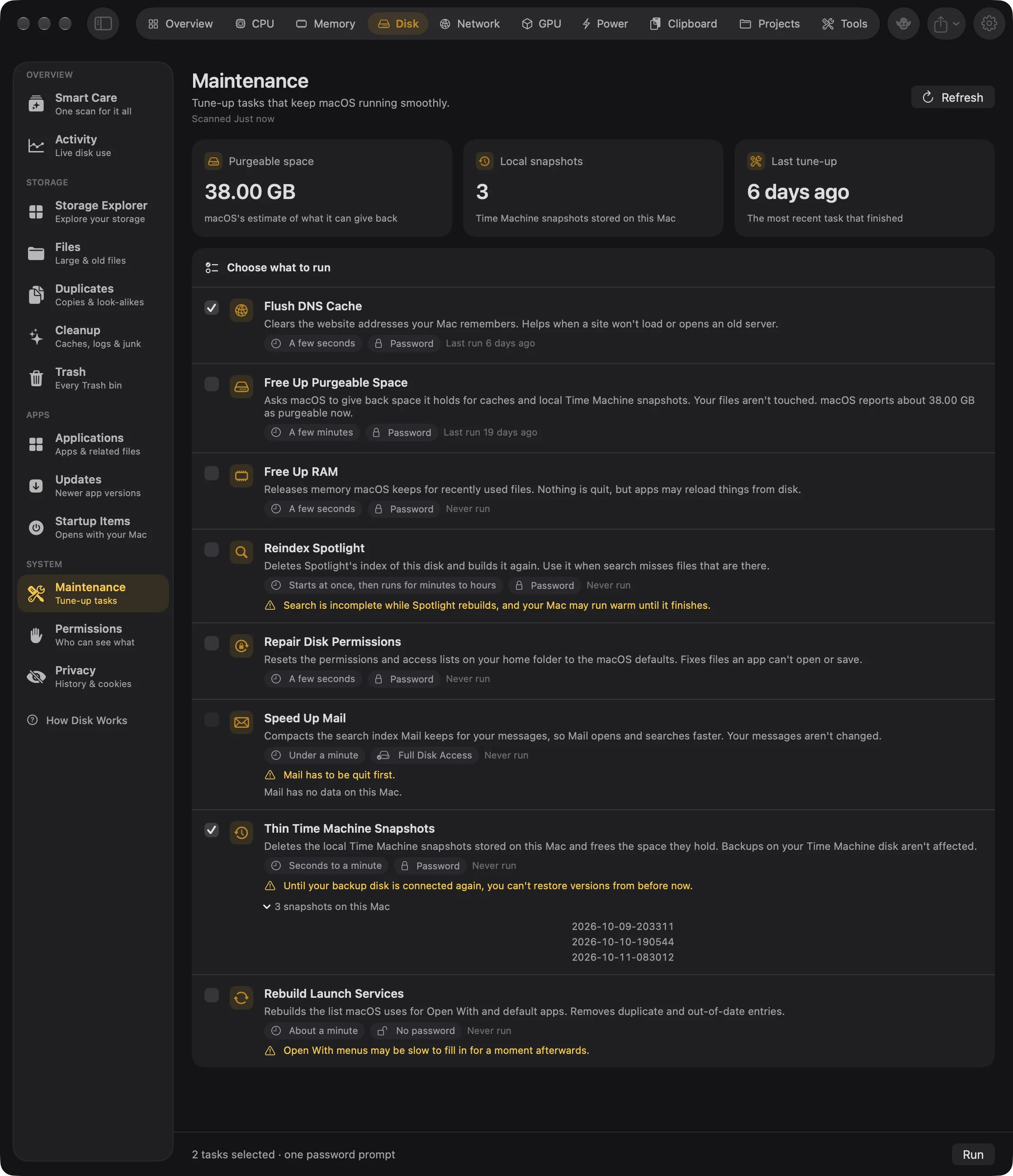
Run maintenance tasks#
- Open the Disk tab in the main window.
- In the sidebar, under System, choose Maintenance. The cards at the top fill in when Goblin first opens the page. Press Refresh to read them again.
- Tick the tasks you want. Nothing is ticked to start with. Each row says what the task does, how long it takes, and whether it needs your password or Full Disk Access.
- Read the amber caution on any row that has one.
- Press Run in the footer. The footer shows how many tasks you chose, and "one password prompt" if any of them needs your password.
- Read the confirmation, which lists the tasks and their cautions, and press Run again. (Cancel backs out.)
- If macOS asks for your password, enter it. It's asked once for all the tasks that need it. If you cancel, nothing changes.
Each row then shows how it went, such as "Cleared the DNS cache." or "Spotlight is rebuilding its index in the background." Tasks that worked are unticked, the cards refresh, and Last tune-up updates.
All the tasks that need administrator rights run together in one go. Each runs on its own, so one that fails doesn't stop the others: the failed row shows the last lines it printed. Then Speed Up Mail and Rebuild Launch Services run as you.
New in 1.1: With Goblin's helper allowed under System Tasks in Settings › General, the password prompt is skipped, though the footer and confirmation still mention it.
New in 1.1: A sound plays when tasks finish: a sparkle when Free Up RAM worked, otherwise a chime. Turn Sound effects off in Settings › General for silence.
The summary cards#
- Purgeable space: how much space macOS estimates it can give back.
- Local snapshots: how many Time Machine snapshots are stored on this Mac.
- Last tune-up: when the most recent task finished, or "Never".
Pick the task that fits the problem#
| If this is happening | Run | Takes | Needs |
|---|---|---|---|
| A website won't load, or opens an old server | Flush DNS Cache | A few seconds | Password |
| You need free space and macOS is holding a lot as purgeable | Free Up Purgeable Space | A few minutes | Password |
| The Mac feels sluggish because memory is tight | Free Up RAM | A few seconds | Password |
| Spotlight search misses files that are there | Reindex Spotlight | Starts at once, then runs for minutes to hours | Password |
| An app can't open or save files in your home folder | Repair Disk Permissions | A few seconds | Password |
| Mail is slow to open or search | Speed Up Mail | Under a minute | Full Disk Access, no password |
| You want back the space local Time Machine snapshots hold | Thin Time Machine Snapshots | Seconds to a minute | Password |
| Open With lists duplicates or old apps | Rebuild Launch Services | About a minute | No password |
What each task does#
Each task shows when it last ran successfully, or "Never run".
| Task | What it does |
|---|---|
| Flush DNS Cache | Clears the website addresses your Mac remembers. (dscacheutil -flushcache, then restarts mDNSResponder) |
| Free Up Purgeable Space | Asks macOS to give back space it holds for caches and local Time Machine snapshots. Your files aren't touched. The row also shows how much macOS reports as purgeable. (tmutil thinlocalsnapshots) |
| Free Up RAM | Releases memory macOS keeps for recently used files. Nothing is quit, but apps may reload things from disk. (purge) |
| Reindex Spotlight | Deletes Spotlight's index of this disk and builds it again. (mdutil -E /) |
| Repair Disk Permissions | Resets the permissions and access lists on your home folder to the macOS defaults. (diskutil resetUserPermissions) |
| Speed Up Mail | Compacts the search index Mail keeps for your messages, so Mail opens and searches faster. Your messages aren't changed. |
| Thin Time Machine Snapshots | Deletes the local Time Machine snapshots stored on this Mac and frees the space they hold. Backups on your Time Machine disk aren't affected. (tmutil deletelocalsnapshots) |
| Rebuild Launch Services | Rebuilds the list macOS uses for Open With and default apps, removing duplicate and out-of-date entries. (lsregister) |
Cautions#
Some tasks come with a caution, shown in amber on the row and again before they run:
- Reindex Spotlight: search is incomplete while Spotlight rebuilds, and your Mac may run warm until it finishes.
- Speed Up Mail: Mail has to be quit first. The row says "Mail is open now. Quit it before you run this." while it is, and shows how big Mail's index is. Without Full Disk Access it offers Full Disk Access Settings. It needs room on disk for a second copy of the index while it works.
- Thin Time Machine Snapshots: until your backup disk is connected again, you can't restore versions from before now. Open the row's list ("N snapshots on this Mac") to see each snapshot's date.
- Rebuild Launch Services: Open With menus may be slow to fill in for a moment afterwards.
A task that has nothing to do can't be ticked: "There are no local snapshots on this Mac.", or "Mail has no data on this Mac."
When Goblin suggests a task#
The Maintenance page itself doesn't recommend anything. Smart Care does, and ticks these for you when they apply:
| Task | Suggested when |
|---|---|
| Flush DNS Cache | Goblin has never flushed the DNS cache on this Mac. |
| Free Up Purgeable Space | macOS reports more than 10 GB as purgeable. |
| Speed Up Mail | Mail's search index is over 500 MB. |
| Thin Time Machine Snapshots | There are local snapshots on this Mac. |
New in 1.1: Smart Care also suggests Free Up RAM when macOS is short of memory.