 Goblin
The Battery page of the Power tab tells you what your battery is doing right now, how long it will last, how worn it is, and how much your charger is really delivering. It also ranks the apps that use the most power. Use it when you want to know why the battery drains fast, whether the charger is keeping up, or whether it's time to get the battery looked at. On a Mac without a battery the page shows power use instead; see Desktop Macs below.
Open the Battery page#
- Click Power in the tab bar of the main window, or press ⌘7.
- If the switcher at the top of the tab doesn't already show Battery chosen, click Battery.
You'll see the large charge card with its chart. The switcher's other two pages are Temperatures & Fans (see Thermals) and Keep Awake (see Find out why your Mac won't sleep below). Goblin remembers the page you were on. On a Mac without a battery the first page is called Power.
New: Coming in the next update. Battery and Thermals used to be tabs of their own. Both are now pages of the Power tab, together with Keep Awake. Anything that remembered the old Thermals tab opens Temperatures & Fans instead.
From top to bottom the page shows a large charge card with a chart, a row of four cards, your Bluetooth devices' batteries, and the apps using the most power.
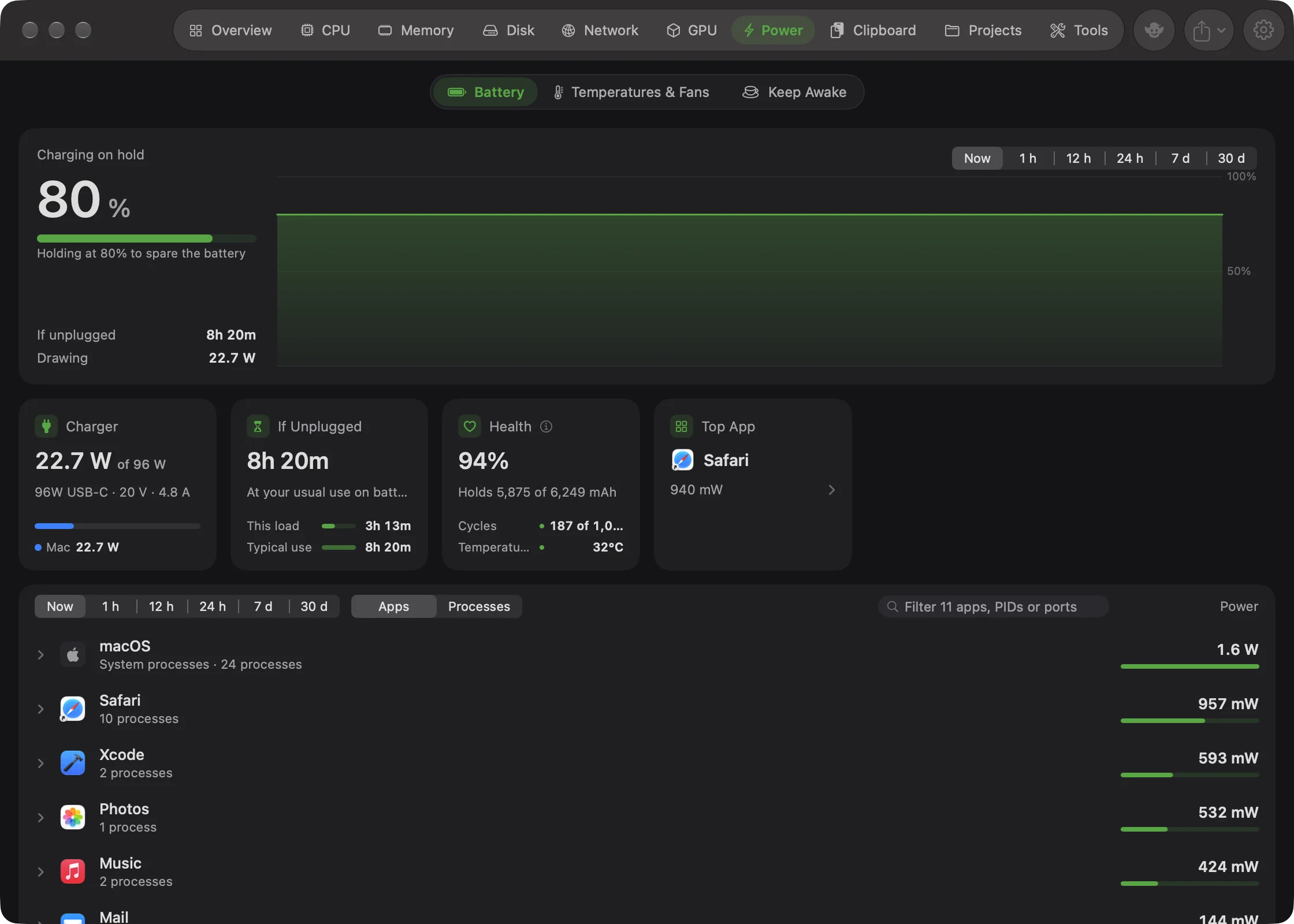
What the battery is doing#
Goblin works out one of these states every reading, and shows it as the caption of the big charge card:
| Caption | What it means |
|---|---|
| On battery | The Mac is running from its battery. |
| Charging | The charger is filling the battery. |
| Fully charged / Charged | macOS says it's full, or the charge is 95% or more. |
| Charging on hold | Plugged in and above 50%, but macOS is holding the level, usually because of Optimized Charging or a charge limit. The note reads, for example, "Holding at 80% to spare the battery". |
| Charging paused | macOS has paused charging until the battery's temperature is right ("Waiting on the battery's temperature"). |
| Not charging | Plugged in but not charging. Either the charger can't keep up and the battery is draining, or the power source can't charge at all ("Runs the Mac but can't charge"). |
A chip next to the figure warns you when something needs attention:
- Service recommended (red) when macOS reports a battery health problem, or the battery reports a permanent failure.
- Charger too weak (amber) when you're plugged in but still losing charge, or the adapter reports it can't supply enough power. It can also appear when the charger is running at 90% or more of its rating with nothing left over for the battery, even if the level is steady.
- Slow charger (amber) while charging, when macOS says the charger is charging slowly.
The charge card#
The big figure is the charge level. The gauge is green, turns orange at 20% and red at 10%. Under the gauge a note says when the battery will be empty ("Empty around 3:45 PM at this rate") or full ("Full around 3:45 PM").
The rows beside it change with the state:
| State | Rows |
|---|---|
| On battery | At this rate (or Time left when only macOS's estimate is available), Typical use, Drawing |
| Charging | Until full, Charging at (watts going into the battery), Drawing |
| Not charging, losing charge | Time left (or If unplugged), Charger gives, Drawing |
| Charged, on hold, paused | If unplugged, Drawing |
Drawing is what the whole Mac uses. While plugged in, it counts what the charger sends to the Mac plus what tops up the battery, so it matches the Charger card.
The chart shows the charge level. To look further back, click a time in the range picker above the chart. It switches between Now (the last 5 minutes), 1 h, 12 h, 24 h, 7 d and 30 d. Past ranges come from Goblin's history, which it records while it runs; until there's some, the chart says "No history yet. Goblin records while it runs." The same picker sits above the app list at the bottom, and the two move together.
The card row#
Under the charge card sit four cards: the charger (or power draw), time left, health, and the top app.
See what your charger is delivering#
- Plug the charger in.
- Open the Battery page (the Power tab, or ⌘7).
- Look at the Charger card, the first in the row.
It shows the watts the charger is delivering now out of its rating ("58.5 W of 96 W"), and under it the charger's name and the voltage and current it agreed with the Mac, such as "96W USB-C · 20 V · 4.7 A". A bar splits the charger's capacity into what runs the Mac and what charges the battery, with a legend like "Mac 30.1 W · Battery 28.4 W" and how much is spare. If the battery has to help out a weak charger, the legend says "Battery adds 8.4 W" in amber. An At its limit chip appears when the charger is delivering 90% or more of its rating. Hover the card for the whole story in words.
On battery the card becomes Power Draw: what the whole Mac draws now, a line of recent readings, and a note like "Usually 9.8 W on battery" once Goblin has some history.
See how long the battery will last#
- Open the Battery page (Power tab, ⌘7).
- Read the note under the gauge on the charge card ("Empty around 3:45 PM at this rate").
- For more, look at the second card in the row and hover it to see every estimate side by side, macOS's included.
That card is one of three, depending on the state:
- Time Left, when you're losing charge. It uses the drain over the last 5 minutes ("At the last 5 minutes' rate"), or macOS's estimate when that isn't available yet. Two bars compare At this rate with Typical use.
- Until Full, while charging. It shows the time to full, the clock time it will be full, the watts going into the battery, and Full lasts: how long a full charge lasts at your usual use.
- If Unplugged, the rest of the time. It estimates how long the battery would last if you unplugged now, from your usual use, or from the current load when there isn't enough history. Bars compare This load with Typical use.
The card's name tells you which estimate you're looking at. How each one is worked out is explained next.
How the estimates work#
- At this rate divides the charge left by the average battery drain over the last 5 minutes. The battery itself only updates its current about once a minute, so right after you unplug, or when the load changes, the card reads "Measuring the drain…" for a moment and then catches up.
- Typical use looks at the last 14 days of history (30 days if 14 isn't enough) for stretches where you were on battery and the charge was falling, and works out how many percent an hour you usually use. It needs at least about 20 minutes and 3% of unplugged use recorded while Goblin was running. Until then it shows "—" and the card says "Needs a little time on battery".
- This load estimates from the watts the Mac is drawing now and the battery's capacity.
- Any estimate under a minute or over 99 hours shows as "—".
Check your battery's health#
- Open the Battery page (Power tab, ⌘7).
- Find the Health card, third in the row.
- Read the percentage: the battery's maximum capacity compared with when it was new.
- Click the ⓘ button for what the figure means.
The Health card shows the battery's maximum capacity compared with when it was new, rounded the same way System Settings shows it, and the charge it holds now ("Holds 4,624 of 5,103 mAh"). Below:
- Cycles: how many charge cycles the battery has done, out of what it's rated for ("312 of 1,000"). The bar turns orange at 80% of the rating and red once it reaches it.
- Temperature: the battery's temperature. Green below 38 °C, orange from 38 °C, red from 45 °C.
The chip reads Normal unless macOS recommends servicing the battery, when it reads Service. Goblin doesn't apply a health threshold of its own, so a battery at 75% can still show Normal. The ⓘ button explains that below 80% a battery will need replacing sooner.
Top App#
The app drawing the most power right now, or on average over a past range. Click it to open the App Inspector.
Find out why your Mac won't sleep#
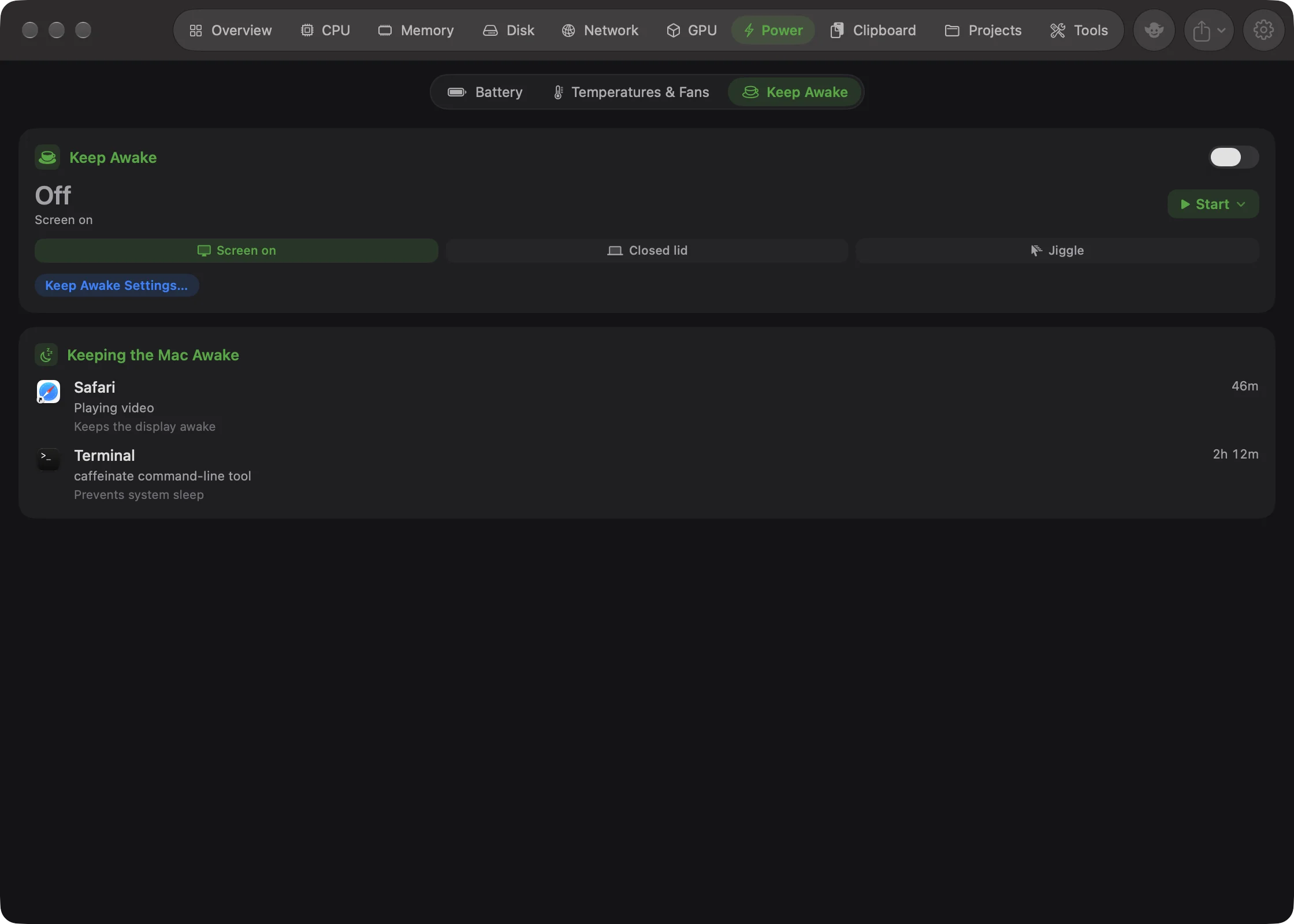
- Click Power in the tab bar, or press ⌘7.
- In the switcher at the top, click Keep Awake.
- Find the Keeping the Mac Awake card, below the Keep Awake card.
Note: Before the Power tab, this list sat on the Battery page. It's now on the Keep Awake page, next to the card that starts and stops Keep Awake sessions.
The card lists every app or process that is stopping your Mac from sleeping right now, oldest first. Each row shows:
- the app's name, which you can click to open the App Inspector, or "Process" and a number when Goblin can't match it to an app;
- the reason the app gave macOS when it asked to keep the Mac awake;
- whether it Keeps the display awake or Prevents system sleep;
- how long it has held the Mac awake, when macOS says.
When nothing is holding it, the card says "No apps are preventing sleep." Goblin's own Keep Awake sessions show here too. The list refreshes every 5 seconds while you're looking at it. There's no button to release a hold from here: quit the app if you want it to stop. To keep the Mac awake on purpose, use the Keep Awake card above the list; see Keep Awake basics.
See your AirPods and other Bluetooth batteries#
- Connect the device to your Mac.
- Open the Battery page (Power tab, ⌘7).
- Look for the Devices card, below the card row.
AirPods, a Magic Mouse, keyboard or trackpad that report their battery are listed, with separate bars for Left, Right and Case on earbuds. The card isn't on the page when no device reports a battery. Goblin reads these every 2 minutes while you're looking, and every 10 minutes otherwise.
Find out which apps use the most power#
- Open the Battery page (Power tab, ⌘7).
- Scroll to the app list at the bottom, which ranks apps by power, in watts.
- Pick a time with the range picker if you want a past hour, day, week or month instead of right now.
- Click an app's name for its details, or its ⓘ button.
The list works like the lists on the other tabs: switch between Apps and Processes, filter by name, PID or port, and expand an app to see its processes. See the CPU page for everything the list can do. Some processes that run as other users can't be measured; their apps say "processes of other users not measured".
On Intel Macs a note says "Per-app power is an experimental estimate from CPU activity on Intel Macs." and estimated figures start with "≈".
Desktop Macs#
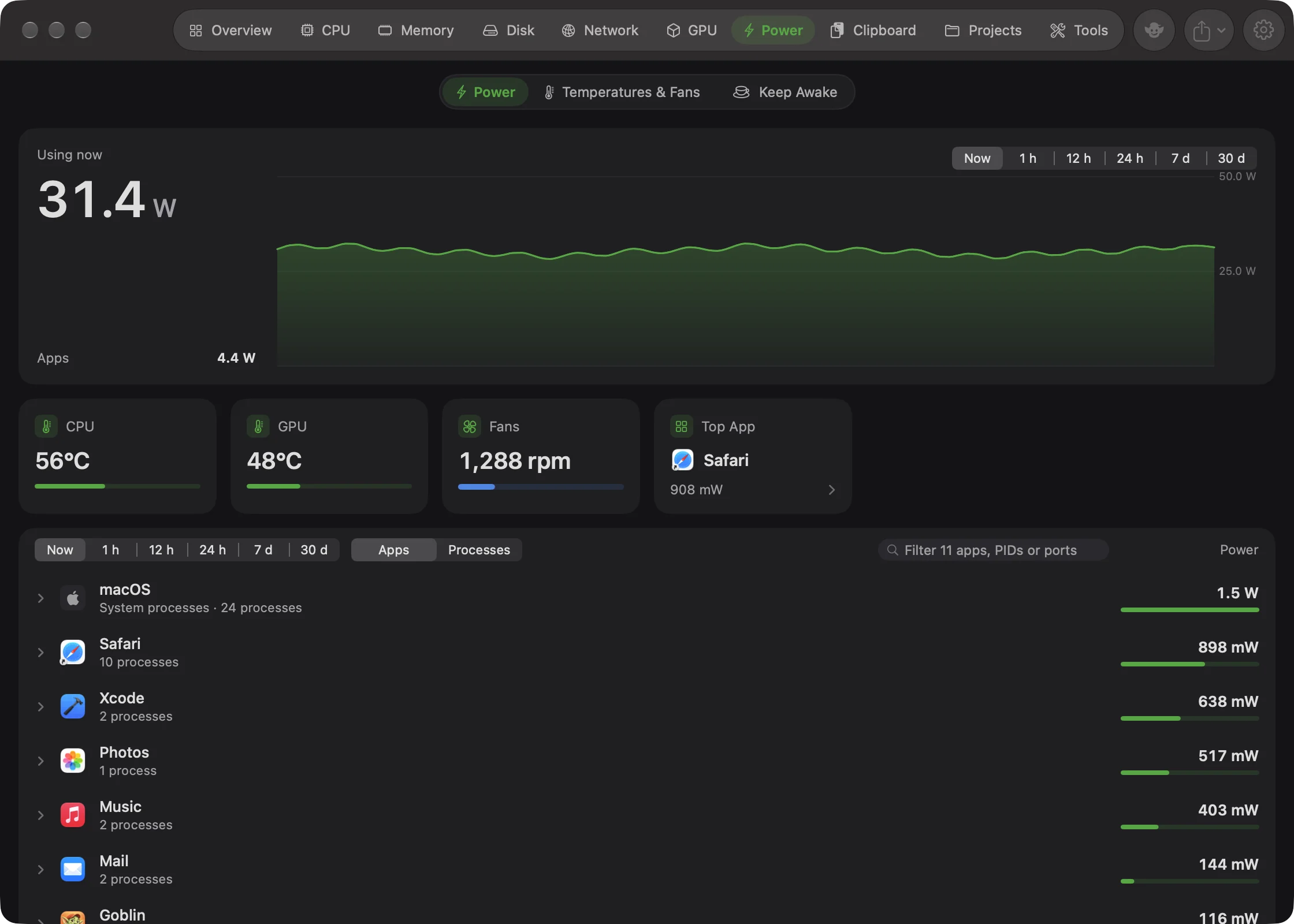
A Mac mini, iMac, Mac Studio or Mac Pro still has the Power tab, whose first page (also called Power) shows power use instead of a battery:
- The big card reads Using now, in watts, for the whole Mac, with a row for the total of all Apps. The chart shows power over time.
- The card row has CPU and GPU temperatures, Fans (the first fan's speed, or "Off") and Top App.
- Devices and the app list work as above. Temperatures & Fans and Keep Awake are still the other two pages.
There are no Charger, Time or Health cards. Elsewhere, the same figures are called Power: on the Overview card, the menu bar panel's tile and the Layout settings.
In the menu bar panel#
The panel's Power tab, on its battery page, shows the charge, the state in a few words ("Charging · full in 1h 04m", "On hold at 80%"), any warning chip, and a chart of the last 6 hours. Below it:
- on battery, Typical use and Drawing;
- plugged in, the Charger (with its flow bar), then Time left or If unplugged;
- Health, with the cycle count;
- one row per Bluetooth device.
Then come the Keep Awake card and the top apps by power. On a desktop Mac the tab shows Using now in watts, and its tile is called Power.
Get a low battery alert#
Goblin can tell you when the battery runs low: by default at 15% on battery, at most once per discharge.
- Open Settings (⌘,) and click Alerts.
- In the Watch your Mac card, find The battery is running low and turn it on.
- Use the Percent stepper to choose the level, from 5% to 50% in steps of 5.
More about this alert is on Alerts settings. The health banner on the Overview also warns when less than 30 minutes are left; see Health and alerts.