 Goblin
Most people uninstall a Mac app by dragging it to the Trash. That leaves its support files behind. Goblin meets you there: you can start an uninstall from Finder's right-click menu, and when you drag an app to the Trash, the Goblin sees it go and offers to clear what it left.
Uninstall an app from Finder#
- In Finder, open your Applications folder (or the one in your home folder).
- Click the app once to select it. Select only one app: the menu item doesn't appear for several.
- Right-click it and choose Uninstall with Goblin.
- Goblin opens Disk›Applications, scans if it needs to, and switches to the Selected filter with the app and its own files ticked. The app's row is open so you can see them.
- Check the list, then press Review Removal when you're ready. See Uninstalling apps.
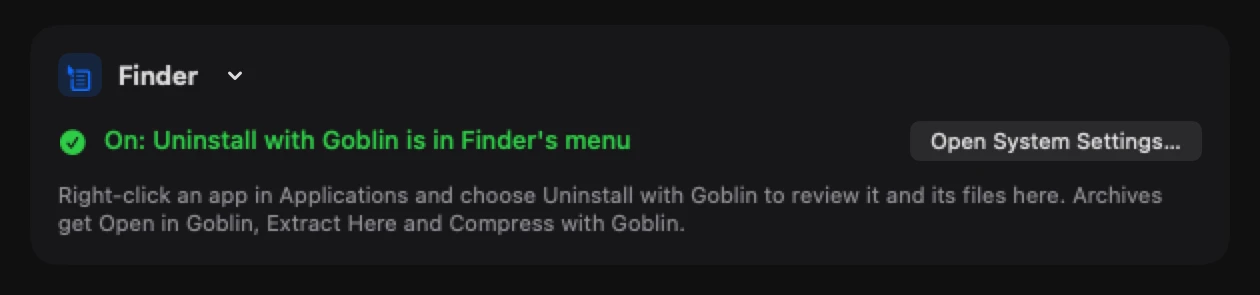
The Finder menu item itself never removes anything; it only opens Goblin. Nothing goes until you confirm in the review.
If you don't see the menu item#
Goblin's Finder extension may be off. Open System Settings›General›Login Items & Extensions, find the extensions for Finder (or for Goblin), and make sure Goblin's is on. Then right-click the app again.
When you drag an app to the Trash#
Goblin watches your Applications folders and your Trash. When an app leaves, it counts the files in your Library named for it and lets you know. What you see depends on your settings, in this order:
- The uninstall dropdown under Goblin's menu bar item, when the app is in the Trash, or you deleted it outright and it left files.
- Otherwise, Goblin's farewell card, if Play Goblin's spell when an app is deleted in Finder is on.
- Otherwise, a notification, if the app left files: "Remove <app>'s files too?". Click it to open the app's leftovers with its exact matches ticked.
Goblin doesn't react to Apple's apps, to the copy of Goblin that's running, to apps Goblin is removing itself (or removed in the last 2 minutes), or to apps you told it to ignore. It also stays quiet when an app update swaps one copy for another, and when another installed copy still uses the same identifier.
Let Goblin see your Trash#
Watching the Applications folders needs no special access. Watching your Trash needs Full Disk Access. Without it, Goblin can still tell an app has gone, but not that it went to the Trash, so the card says the app was "removed".
- Open Disk›Applications.
- Click More (⋯) at the top, then Allow Full Disk Access to see the Trash…. (This item only appears while Goblin can't read your Trash.)
- In System Settings›Privacy & Security›Full Disk Access, turn Goblin on.
Goblin picks it up the next time it comes forward, without a restart. See Full Disk Access.
Uninstall applications correctly#
New in 1.1: A dropdown under Goblin's menu bar item offers to finish uninstalling apps you drag to the Trash.
When you move an app to the Trash, or delete one that leaves files behind, a dropdown hangs from Goblin's menu bar item: Uninstall applications correctly · "Remove trashed applications along with all related leftovers." It doesn't take focus, so whatever you were doing carries on.
- Drag the app to the Trash. The dropdown appears under Goblin's menu bar item.
- Check the rows. Each app has its icon, its name as Finder shows it (like "Example.app"), and how many leftovers Goblin found.
- Press Uninstall. Goblin opens its review of these apps and the files they left behind, in Disk›Applications.
- Check the list and confirm. Nothing is removed until you do.
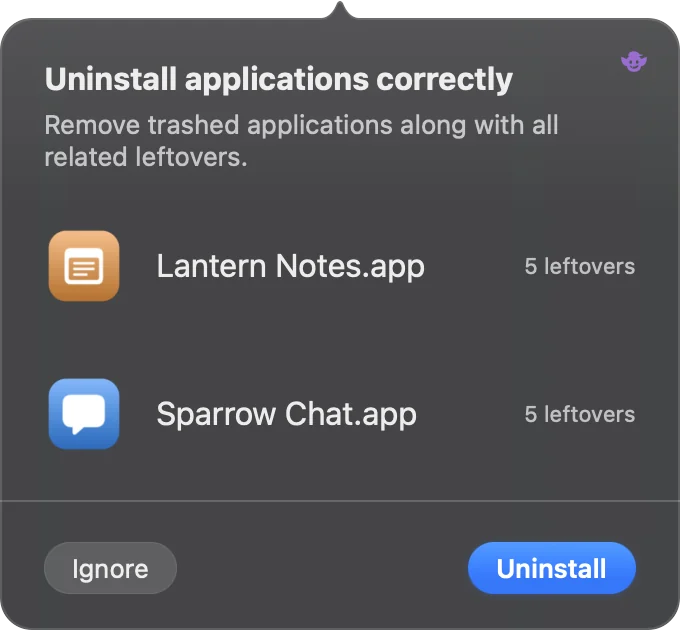
Apps in the Trash are deleted from it for good, together with their related files. Apps with a system extension are handled so macOS removes the extension too. See Apps already in the Trash.
To skip it, press Ignore. The dropdown closes and Goblin won't ask about these apps again (to undo that, see Ask about ignored apps again). Clicking anywhere else closes the dropdown without ignoring anything.
Apps you trash one after another join the same list; after five rows it scrolls. Goblin keeps the list for 8 seconds, so if you trash another app straight away, the dropdown comes back with all of them.
The dropdown needs Goblin's menu bar item to be visible. If it's hidden (behind the notch, say), the farewell card or the notification stands in.
New in 1.1: Two more dropdowns drop from Goblin's menu bar item in the same style: one offers to force quit apps that stop responding, the other to empty a big Trash. See Alert dropdowns.
Those two work a little differently from this one. Only one of them shows at a time (a newer one sets the other aside), and when Goblin's item isn't in the menu bar they hang from the right end of the menu bar instead of giving way to a card or notification. The uninstall dropdown is separate from both.
The farewell card and the sword zap#
The farewell card is a small dark card in the bottom-right corner of your screen. It never takes focus, and it shows on every Space. The Goblin raises his sword, a magic bolt arcs to the app's icon, a rune circle locks on, and the icon crumbles to dust, with a chime. Apps that leave within a moment of each other share one card.
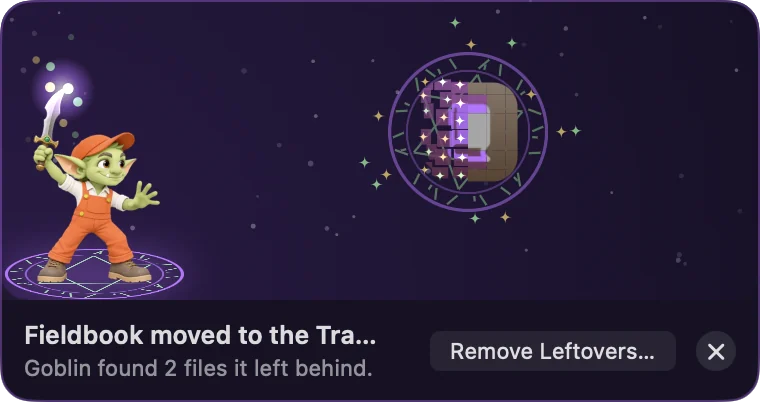
The card's title says what happened:
- <app> moved to the Trash
- <app> deleted, when you used Finder's Delete Immediately
- <app> removed, when Goblin couldn't see your Trash
For several apps it reads "N apps moved to the Trash", and so on. Below the title, "Goblin found N files it left behind." or "Nothing left behind."
The card stays for at least 5 seconds, longer while the pointer is on it. Close it with its ✕. With Reduce Motion on, there's no animation.
Remove leftovers from the farewell card#
When the card says Goblin found files:
- Press Remove Leftovers… on the card. With several apps it reads Review Leftovers… and opens the one that left the most.
- Goblin opens Disk›Applications›Leftovers with that app's exact matches ticked.
- Press Review Removal, check the list and confirm. See Leftovers.
The same sword zap plays in Goblin's own review sheet whenever you remove files (see After a removal).
New in 1.1: The chime follows Sound effects in Settings › General, and stays silent when macOS's Play user interface sound effects is off.
Turn off the farewell card#
To keep the offers but lose the animation:
- Open Disk›Applications.
- Click More (⋯) at the top.
- Turn off Play Goblin's spell when an app is deleted in Finder.
You get a notification instead when an app left files. The dropdown still appears when the menu bar item is visible.
Turn off the offers#
To stop Goblin reacting when you delete apps at all, use either of these (they are the same switch):
- Disk›Applications, More (⋯), turn off Offer to remove files when an app is deleted or moved to the Trash.
- Settings›Alerts, near the bottom, turn off Offer to uninstall apps moved to the Trash.
Turning either off stops all of it: the dropdown, the farewell card and the notification. Play Goblin's spell when an app is deleted in Finder is greyed out while the offers are off.
Ask about ignored apps again#
When you press Ignore on the uninstall dropdown, Goblin remembers that app. To undo that for every app:
- Open Settings›Alerts and scroll to Offer to uninstall apps moved to the Trash.
- Under it, find "N apps are ignored when they're moved to the Trash." (Hover the line to see which apps.)
- Press Ask Again.
The line and button only appear while at least one app is ignored.
Settings in one place#
| Setting | Where | What it does | Default |
|---|---|---|---|
| Offer to remove files when an app is deleted or moved to the Trash | Disk›Applications›More | Watches for apps you delete in Finder and offers to remove what they left: the dropdown, the farewell card or the notification. | On |
| Play Goblin's spell when an app is deleted in Finder | Disk›Applications›More | Shows the farewell card with the sword zap. Turn it off to get a notification instead (when the app left files). Greyed out while the switch above is off. | On |
| Offer to uninstall apps moved to the Trash | Settings›Alerts | The same switch as the first row, under another name. | On |
| Ask Again | Settings›Alerts | Appears with "N apps are ignored when they're moved to the Trash." Clears the list of apps you chose Ignore for. | None |