 Goblin
 watches your Mac all the time it runs, but it only speaks up when something is worth your attention. It does this in three places:
- The health check looks at the Mac as a whole, right now: memory, processor, disk space, battery, heat, the connection. Problems show in the status banner at the top of the Overview, and in the Mac health line.
- Alerts are about something that happened: an app busy in the background for ten minutes, a Trash that grew past 10 GB, a drive plugged in. They collect in Worth a Look on the Overview, and the important ones also arrive as notifications.
- macOS's own jobs, such as Spotlight indexing, are explained in Worth a Look rather than flagged as problems.
Goblin is cautious about what it calls a problem. Figures that swing from second to second have to last a while before they count, an app you're working in is never treated as misbehaving, and only the clearest cases interrupt you with a notification.
The Mac health line#
New in 1.1: The Mac health line, the Smart Care button and Settings›Health Check.
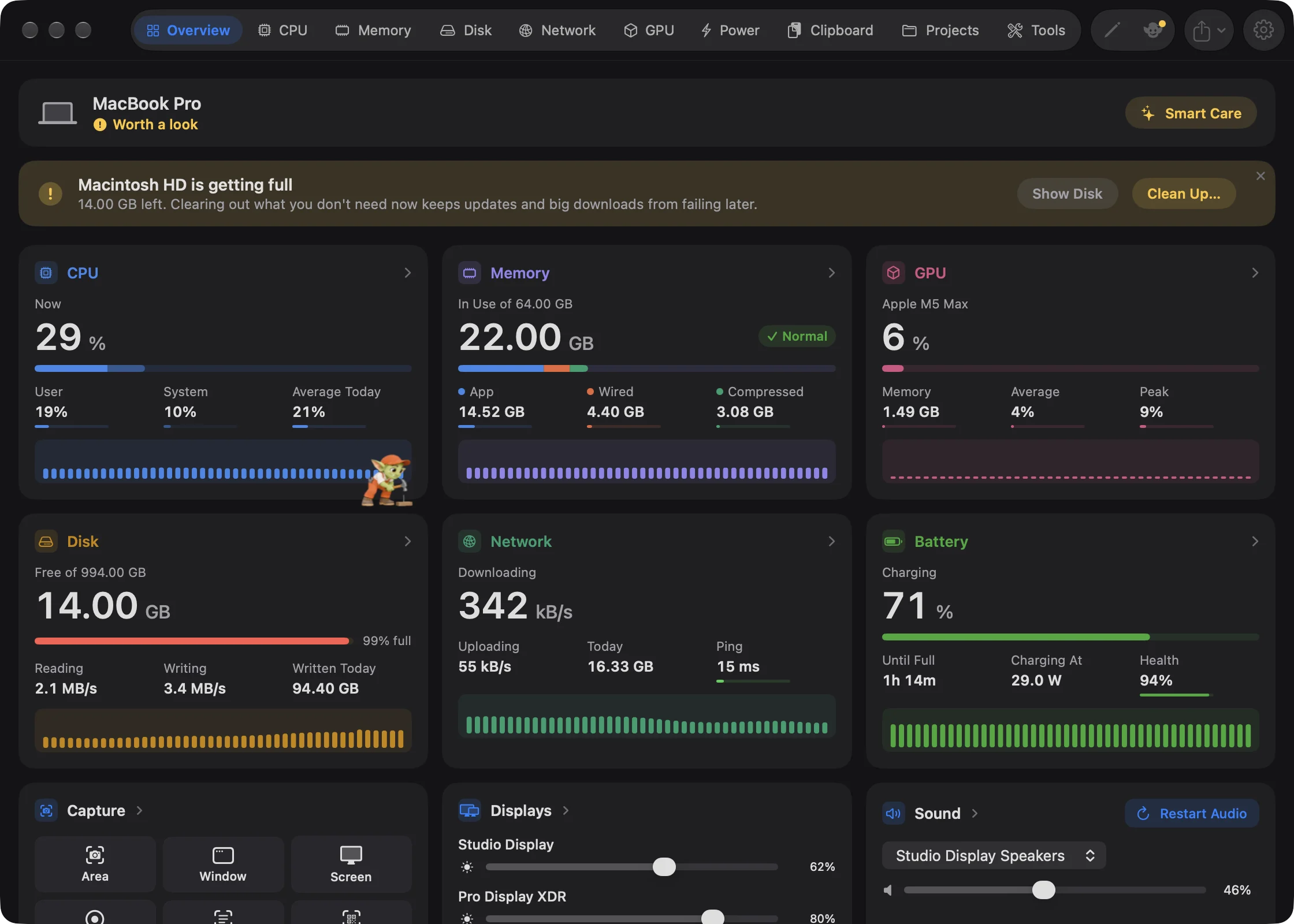
The line at the top of the Overview shows an icon for your kind of Mac, its name (such as "Mac Studio") and a verdict:
| Verdict | Color | Means |
|---|---|---|
| Healthy | Green | The health check found nothing. |
| Worth a look | Amber | The most pressing problem is a notice. |
| Needs attention | Red | The most pressing problem is a warning. |
| Checking… | Grey | Goblin hasn't taken its first reading yet. |
The Smart Care button opens Disk›Smart Care. While the verdict isn't Healthy, the button takes the verdict's color and starts a Smart Care scan as it opens, so the fixes are waiting for you. It also scans if Smart Care has never run. See Smart Care.
A smaller version of the line sits at the top of the menu bar panel.
Hide the Mac health line#
- Open Settings (⌘,) and click Health Check.
- In the Health Check card, switch off **Show "Mac name: Healthy" on the main window's Overview, or Show it in the menu bar panel**, or both.
To switch the whole health check off, turn off the Health check switch at the top right of the same card. With the health check off, Goblin shows no health line and no status banner; alerts in Worth a Look carry on as before.
What the health check looks for#
Each row below is a problem the status banner can show. Warnings are red and listed first; notices are amber. The buttons are described on the Overview page.
| Problem | Level | When it shows | Buttons |
|---|---|---|---|
| Memory is running out | Warning | macOS reports memory pressure as critical. Names the biggest app you aren't using if it holds at least 8% of memory. | Quit app… or Show Memory |
| Your Mac is hot and slowing itself down | Warning | macOS is slowing the processor down to cool it. | Quit the busiest app you aren't using (if it's using a whole core), or Show CPU |
| The processor is working flat out | Warning, or a notice when it's an app you're using | Processor use averages 90% or more over the last 90 readings (a minute and a half with the window open, longer otherwise). | Quit app…, Show app or Show CPU |
| Disk is almost full | Warning | The startup disk has less than 10 GB free. | Clean Up…, Show Disk |
| Battery is low: time left | Warning | On battery with less than 20 minutes left, by macOS's estimate. | Quit the app drawing the most power, or Show Battery |
| Memory is tight | Notice | macOS reports memory pressure as elevated. | Show Memory |
| The connection is unsteady | Notice | After at least 20 pings, 10% or more of the last 50 are lost on the way to the internet, or replies take longer than 250 ms. | Show Network |
| Disk is getting full | Notice | Less than 20 GB free. Not shown while "almost full" is. | Clean Up…, Show Disk |
| The graphics chip is working flat out | Notice | Graphics use averages 90% or more over the last 90 readings. | Show GPU |
| Memory is n% in use | Notice, off by default | Pressure is normal but memory in use passes the share you chose. | Show Memory |
| n dev servers are idle | Notice | A dev server has done nothing for a while. See Projects. | Stop It… / Stop Them… |
| The newest alert | Warning if an app may be stuck, otherwise a notice | The newest alert in Worth a Look is less than 30 minutes old. | Quit, Show app, Empty Trash… or Show tab |
| macOS is leaning on swap | Notice | Swap is over a quarter of your memory while memory pressure isn't normal. | Show Memory |
The "unsteady connection" check needs Check connection quality on in Settings › General, and only has readings while Goblin's window or panel is on screen. Its detail says where the trouble starts. If the router itself is losing 5% or more, or answering slower than 100 ms, it points at the Wi-Fi; otherwise it points at the internet connection beyond the router.
New in 1.1: Every number above can be changed, and every check left out, in Settings › Health Check. The numbers in the table are the defaults. Until then they are fixed.
Change when the health check speaks up#
- Open Settings (⌘,) and click Health Check.
- In the What Counts as Healthy card, find the check you want, such as Memory, Processor or Startup disk space.
- Use the stepper on its row to change the number, or tick or untick a "Worth a look" level that can be switched off on its own.
- To stop a check altogether, turn off the switch at the right of its row.
Reset to Defaults, at the top of the card, puts the numbers back. It keeps your choices for where the health line shows.
Why the banner stays calm#
A problem has to last before the banner mentions it: 10 seconds for memory running out, heat, and a busy processor or graphics chip; 20 seconds for an unsteady connection; 2 minutes for tight memory, memory in use and swap. Disk space, battery, idle servers and alerts show at once.
Once the cause goes away, problems that swing (memory, heat, processor, graphics, swap, the connection) stay for a minute more, so a brief dip doesn't make the banner flicker. A full disk, idle servers and alerts go the moment they're fixed. When several problems are showing, they keep a fixed order, with the most serious first.
Alerts#
Every alert lands in Worth a Look on the Overview and is saved in Goblin's history. Alerts marked as notifying below also arrive as macOS notifications, while Send a notification is on in Settings › Alerts. Clicking a notification opens the tab it's about.
Turn alert notifications off or on#
- Open Settings (⌘,) and click Alerts.
- Find the Send a notification switch and turn it off or on. Send a Test Notification next to it shows you what an alert looks like.
With it off, alerts still appear in Worth a Look; only the macOS notifications stop.
Turn off one kind of alert#
- Open Settings (⌘,) and click Alerts.
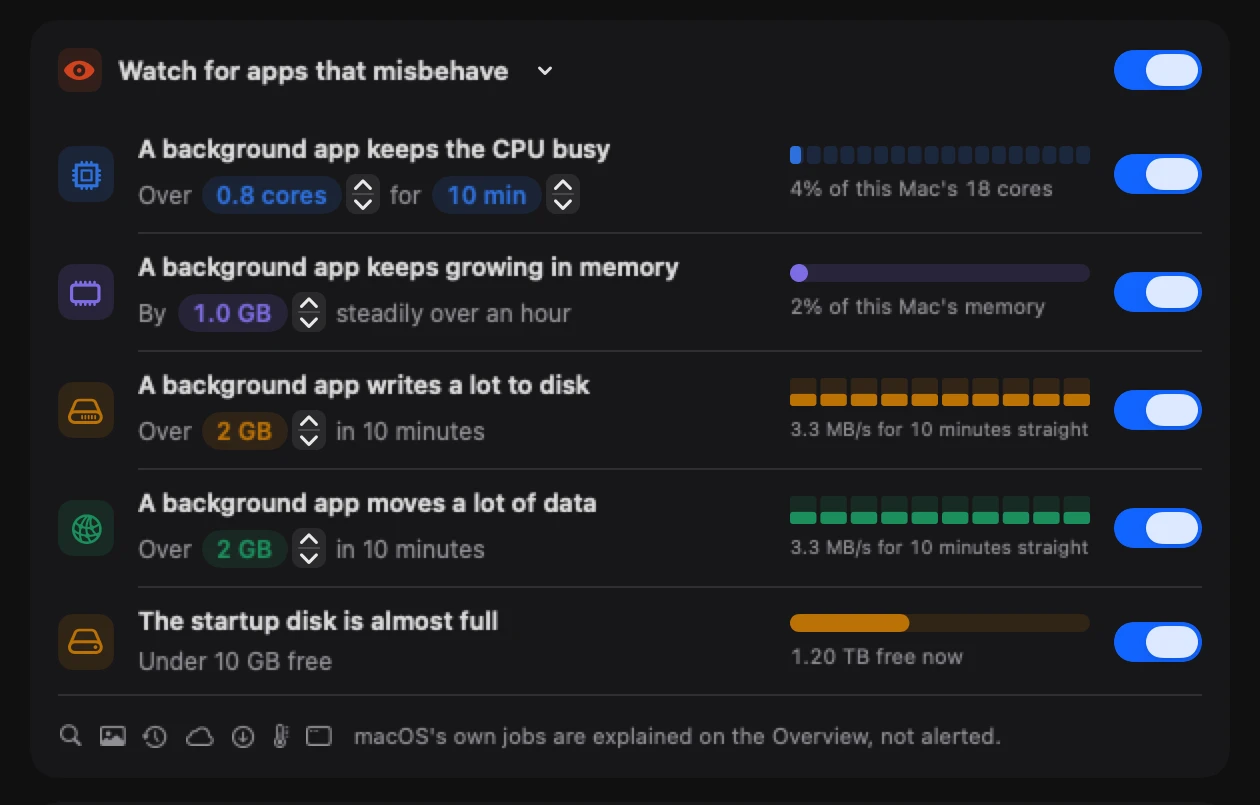
- Find the rule in the Watch for apps that misbehave card (for apps) or the Watch your Mac card (for the battery, heat, drives, the Trash and the network).
- Switch it off.
The thresholds in the tables below are the defaults. Each rule's number is a stepper on its row. The thresholds in the tables are the defaults, and the ranges are what Settings › Alerts lets you choose.
Apps that misbehave#
These alerts need Watch for apps that misbehave on (it is by default). Goblin checks each app once a minute, using its average over the minute. It leaves Goblin and muted apps out, and raises each kind of alert about the same app at most once an hour.
"Not using it" means the app wasn't in front, and neither was the Terminal or editor a command-line tool runs in.
| Alert | When | Notification |
|---|---|---|
| App is busy in the background | It averaged more than 0.8 of a core (80% of one core) for 10 minutes, never dropped below half that in any minute, and you didn't use it in that time or the 5 minutes before. If Goblin knows the app's usual level from the past week, it must also be at least 3 times its usual, and at least half a core above it. You can set 0.2–8 cores and 2–60 minutes. | No, listed only |
| Process may be stuck | As above, but one process held almost exactly one core (0.85 to 1.2 cores) every minute, barely changing, in an app that normally uses less than half a core. That's how a task caught in a loop looks. | Yes |
| App keeps growing while you're not using it | Over an hour you didn't use it, it grew by 1 GB or more in a steady climb (rising in at least three minutes out of four, and still near its peak), and it now holds at least 8% of the Mac's memory. You can set 0.5–16 GB. | Only if it holds 12% or more of memory |
| App wrote amount in 10 min | It wrote 2 GB or more in 10 minutes and you hadn't used it for 15 minutes. You can set 1–100 GB. | Only at 5 times the limit (10 GB by default) |
| App moved amount in 10 min | It sent and received 2 GB or more in 10 minutes and you hadn't used it for 15 minutes. You can set 1–100 GB. | Only at 5 times the limit |
| Disk is almost full | The startup disk has less than 10 GB free. A fixed number. At most every 12 hours. | Yes |
| Drive is reporting that it is failing / Drive is wearing out | A drive's own health check reports a problem. Repeats daily for a failing drive, weekly for a worn one. See Drive Health. | Yes |
| Server is using memory / Server is leaking memory | A dev server passes the limits in Settings › Projects › Memory Leaks. See Projects. | Yes, with Details, Stop and Snooze buttons |
An app that stops responding altogether (the spinning beachball) isn't one of these alerts. It never appears in Worth a Look; Goblin offers to force quit it in a dropdown from the menu bar instead.
How busy an app is reads the way you chose in Settings›General›App CPU: as a share of the whole Mac ("6% of this Mac's processing power (0.8 cores)") or per core ("80% CPU").
The startup-disk alert and the health check's "almost full" problem use the same default numbers, but they're separate. Changing the disk numbers in Settings › Health Check doesn't change this alert.
Your Mac#
These are in the Watch your Mac card and don't depend on the app switch. Each has its own switch.
| Alert | Default | When | Notification |
|---|---|---|---|
| Battery is at n% | On, 15% (5–50%) | On battery at or below the level. Once per time on battery: it can come again after you plug in or the charge rises 5 points above the level, and at most every 2 hours. | Yes |
| Your Mac is running hot | On, 95 °C (70–105 °C) | The processor is at or above the temperature, or macOS is slowing it down to cool it, at two checks a minute apart. At most once an hour. Names the busiest app if it's using half a core or more. | Yes |
| Drive is almost full | Off | A connected drive (not the startup disk) has less than 5 GB and less than 5% free. At most every 12 hours per drive. The notification of an external drive offers Clean junk from it. | Yes |
| Drive connected | Off | An external drive is plugged in. Says its size and free space. Drives already connected when Goblin starts don't count. | Yes |
| Your Trash is using size | On, 2 GB (1–100 GB) | Your Trash is over the size. Goblin measures it at most every half hour, and alerts at most once a day while it stays over. Goblin never empties it without asking. The same moment, a dropdown offers to empty it, unless you turned that off in Settings › Alerts. The notification's Empty Trash… button opens that dropdown at its red Confirm. | Yes |
| The network connection dropped, then Back online | Off | No network connection for 20 seconds, and again when it returns, with how long it was gone. | Yes |
| Your IP address changed | Off | Your Mac's address changes and the new one holds for 20 seconds. At most once a minute. | Yes |
The same card has Clean junk from a drive when I eject it, which isn't an alert. It's described in External drives.
The IP-change alert compares your Mac's IPv4 addresses and its IPv6 network (so macOS's daily change of private IPv6 address doesn't count). With Show my public IP address on, it watches your public address too, but never writes that address into the alert, because alerts are kept in history and can show on the lock screen. Going offline isn't a change. More on addresses is in Network activity.
When you ask#
Tell me when it's done, in an app's details, sends app has gone quiet once its CPU stays under 3% for a minute, or app has quit. It's always a notification. See App Inspector.
Alerts that clear themselves#
Up to 30 alerts are kept in Worth a Look. Some leave on their own once they no longer apply:
- a low-battery alert, once the Mac is plugged in;
- a running-hot alert, after 30 minutes;
- an alert about a busy, stuck or growing app or a leaking dev server, once it quits;
- a dropped-connection alert, once Back online arrives;
- an IP-change alert, when a newer one arrives.
macOS's own jobs are explained, not flagged#
macOS runs big jobs of its own, and you can't quit them. When one of them is clearly what's keeping the Mac busy, Goblin says what it is in Worth a Look instead of raising an alert. That happens when the job averaged at least one whole core for 10 minutes, never less than half a core in any of those minutes, and the whole Mac averaged at least 50% busy over the same time. It is never a notification.
| Job | Processes | What Worth a Look says |
|---|---|---|
| Spotlight | mds, mds_stores, mdworker, corespotlightd, mdsync | Spotlight is indexing |
| Photos analysis | photoanalysisd, mediaanalysisd, photolibraryd | Photos is analysing your library |
| Time Machine | backupd, backupd-helper | Time Machine is backing up |
| iCloud | cloudd, bird, fileproviderd, nsurlsessiond | iCloud is syncing |
| Software Update | softwareupdated, installd, system_installd, mobileassetd | macOS is preparing an update |
| Cooling | kernel_task | Your Mac is cooling itself |
| WindowServer | WindowServer | Drawing the screen is heavy work right now |
Each comes with a sentence on what the job is doing and how much of the Mac it used. These explanations follow the A background app keeps the CPU busy rule: with that rule or Watch for apps that misbehave off, they don't appear.
Muting an app#
To stop hearing about one app:
- Open the Overview (⌘1) and find the alert in Worth a Look.
- Click the … at the right of its row.
- Choose Don't Alert About app.
Or switch off Alert me when app misbehaves in the app's details (App Inspector).
For one of macOS's jobs, the menu item reads Don't Mention job Again. The menu item also removes the alert and its repeats from Worth a Look. A muted app gets no app alerts, and a muted dev server no leak alerts.
Muting is for apps, macOS jobs and dev servers. To stop alerts about the battery, heat, drives, the Trash or the network, switch that rule off in Settings › Alerts instead.
Hear about a muted app again#
- Open Settings (⌘,) and click Alerts.
- Scroll to the Muted Apps card. It lists every muted app, with macOS jobs shown as, for example, "Spotlight (macOS)".
- Click Alert Again beside the app.
The card only appears once something is muted.
One switch does more than its name says#
Note: Turning off Watch for apps that misbehave also stops four things that aren't about a single app: the startup disk is almost full alert, alerts about a failing or worn drive, dev server memory alerts, and the explanations of macOS's own jobs. The alerts in Watch your Mac keep working.
While that switch is off, the Send a notification card is greyed out, but it still decides whether the Watch your Mac alerts arrive as notifications. If you want to change it, turn Watch for apps that misbehave on first, change it, then turn it off again.
The App problems and a full Trash check in Settings › Health Check is how alerts reach the status banner. Leaving it out keeps alerts in Worth a Look but out of the banner.