 Goblin
Transforms change a clip's text as you paste it: make it upper case, sort its lines, pretty-print JSON, take the tracking out of a link, or turn it into a string you can drop into code. Copy as does the same for colors, writing one in any of 14 formats from hex to SwiftUI. Neither changes the original clip.
Transform a clip#
- Put the cursor where the text should go, in any app.
- Open the strip with ⇧⌘V and select the clip.
- Right-click it and choose Transform, or press ⌥⌘T.
- Open a group, such as Case, and choose a transform, such as UPPERCASE.
- The strip closes and the changed text is pasted into your app.
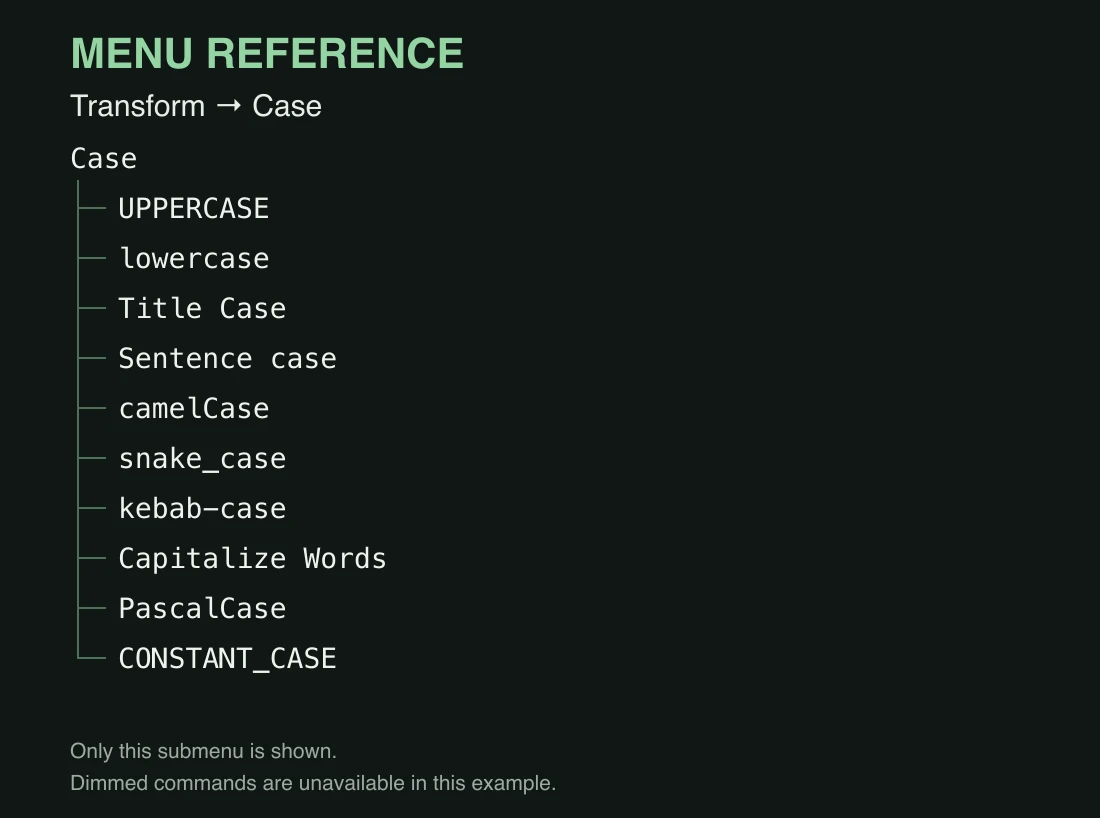
Other places to open the same menu:
- Right-click a card in Goblin's window or in the menu bar panel's Clipboard tab. Select one clip first; the menu appears for one clip at a time.
- Click Transform in the inspector on the Clipboard tab of Goblin's window, beside Copy as and Float.
- Press ⌥⌘T in the strip or Goblin's window to open it at the pointer for the selected clip. Goblin beeps if nothing, or more than one clip, is selected, or if the clip can't be transformed.
Transforms work on text and links that aren't secret, aren't in a locked pinboard and aren't in the Trash. Color clips get Copy as instead. A color copied as text, such as #FF8800, gets both.
Paste the result or keep it#
Picking a transform from the menu applies it and pastes: the strip or panel closes, the result goes on the clipboard (it doesn't become a new clip in your history) and Goblin pastes it into your app. That last step needs Paste Items set to To active app and Accessibility allowed; otherwise the result is left on the clipboard for you to paste.
Save the result as a new clip#
- Right-click the clip and choose Transform.
- At the bottom, open Save as New Clip. It holds the same groups again.
- Choose a transform.
The result becomes a new clip at the top of your history, and Goblin shows it selected. The original is untouched.
If a transform doesn't fit the text, such as Minify JSON on something that isn't JSON or Base64 Decode on something that isn't Base64, Goblin beeps and nothing changes.
Every transform#
The Transform menu has 16 groups and 76 transforms.
New: Coming in the next update. The Transform menu grows from 27 to 76 transforms, in 9 new groups: Lines & Lists, Wrap & Toggle, Markdown, CriticMarkup, Fun & Ciphers, Chinese & Width, Developer, Extract & Count and Insert. Case, Whitespace & Lines, JSON and Links gain a few more. The same transforms are in Clipbar.
Some of them report on the text instead of rewriting it: Validate JSON, Unicode Inspector, Extract URLs, Extract Email Addresses, Extract Phone Numbers and Sum Numbers. A report doesn't replace what you selected. In Clipbar, a report offers only Copy and Collect.
Case#
| Transform | What it does | Example |
|---|---|---|
| UPPERCASE | Every letter upper case. | Hello world → HELLO WORLD |
| lowercase | Every letter lower case. | Hello World → hello world |
| Title Case | Capitalises each word, line by line. Small words (a, an, the, and, but, or, for, nor, on, at, to, by, of, in, with, vs) stay lower case unless they start or end the line. Words with capitals inside, such as iPhone, GitHub or NASA, are left as written. Each part of a hyphenated word is capitalised. | the lord of the rings → The Lord of the Rings |
| Sentence case | Lower case, then a capital at the start, at each new line and after ., ! or ?. A lone "i" becomes "I". | HELLO THERE. how are you? → Hello there. How are you? |
| camelCase | Joins the words of each line, each after the first capitalised. | user first name → userFirstName |
| snake_case | Joins the words of each line with _, lower case. | HTTPServer Error → http_server_error |
| kebab-case | Joins the words of each line with -, lower case. | Hello World → hello-world |
| Capitalize Words | Capitalizes the first letter of every word and leaves the rest of each word as written. | the lord OF the rings → The Lord OF The Rings |
| PascalCase | Joins the words of each line, every one capitalized. | user first name → UserFirstName |
| CONSTANT_CASE | Joins the words of each line with _, upper case. | user first name → USER_FIRST_NAME |
For the camelCase to CONSTANT_CASE ones, words are split at spaces and punctuation, where a lower-case letter meets a capital (fooBar) and where a run of capitals ends (HTTPServer is "HTTP" and "Server").
Whitespace & Lines#
| Transform | What it does |
|---|---|
| Trim Whitespace | Removes spaces and tabs from both ends of every line, and blank lines at the start and end. |
| Collapse to One Line | Turns every run of spaces, tabs and line breaks into one space. |
| Remove Blank Lines | Drops lines that are empty or only spaces. |
| Sort Lines | Sorts lines A to Z, ignoring case and reading numbers as numbers: file2 comes before file10. |
| Sort and Remove Duplicates | Sorts, and keeps one of each line that appears more than once. |
| Reverse Lines | Puts the last line first. |
| Remove Spaces | Removes every space and tab, and keeps the line breaks. |
A line break at the very end of the text is kept.
Lines & Lists#
| Transform | What it does |
|---|---|
| Clean Lines | Trims each line and drops the empty ones. |
| Join Lines | Joins the lines into one, with a single space between them. Each line is trimmed and empty lines are skipped. |
| Comma List ↔ Lines | Several lines become one comma-separated line (a, b, c). A single line is split at its commas into one item per line. |
| Shuffle Lines | Puts the lines in a random order. With at least two different lines, the order always changes. |
| Outdent | Removes the indentation that every non-blank line shares. |
Wrap & Toggle#
These switch on and off: run one on text it has already changed and it undoes itself.
| Transform | What it does | Example |
|---|---|---|
| Wrap in Quotes | Puts the text in double quotes, or takes them off if it's already wrapped. | hello ↔ "hello" |
| Wrap in Parentheses | The same with ( and ). | hello ↔ (hello) |
| Spaces ↔ Underscores | Turns spaces into _. If the text has no spaces, turns _ back into spaces. | my file name ↔ my_file_name |
| Spaces ↔ Hyphens | The same with -. | my file name ↔ my-file-name |
| Slugify | Makes a web-address-friendly name, line by line: lower case, accents dropped, anything that isn't a letter or digit becomes one hyphen, and apostrophes just vanish. | Crème brûlée's Recipe! → creme-brulees-recipe |
| Clean Em Dashes | Replaces each em dash with what the sentence would have used: a period before a capital letter, otherwise a comma. At the start or end of a line the dash just goes. | I left — and he stayed → I left, and he stayed |
JSON#
| Transform | What it does |
|---|---|
| Pretty-Print JSON | Indents JSON with two spaces per level, one item per line. |
| Minify JSON | Removes every space and line break that JSON doesn't need. |
| Validate JSON | Reports Valid JSON, or where it goes wrong, such as Invalid JSON at line 3, column 5. |
Pretty-Print JSON and Minify JSON keep keys in the order they were written and numbers exactly as written. They only work on valid JSON.
Links#
Strip Link Tracking cleans every link in the text, leaving the rest as it is. For example, https://example.com/shoes?id=7&utm_source=news&fbclid=abc becomes https://example.com/shoes?id=7.
- It unwraps redirect links to the real address, up to five deep: Google, Facebook and Messenger, Instagram, Reddit, YouTube, DuckDuckGo, LinkedIn, Slack, Steam, VK, Tumblr, Outlook Safe Links, Pocket, Bing, and the common
/url,/redirect,/redirand/outforms. - It removes tracking parameters: all the
utm_ones, the click IDs from Facebook, Google, Microsoft, X, TikTok, LinkedIn and others (fbclid,gclid,msclkid,twclid,ttclid…), Mailchimp, HubSpot, Matomo and Piwik tags, Instagram'sigshid, and similar. - It knows a few sites' own tags: the
sishare tag on YouTube, Spotify and SoundCloud;refon Amazon, Medium, Substack, Product Hunt and X; Amazon's search and affiliate tags and/ref=path endings; and YouTube'sfeature=share.
Link X Mentions turns @name into a Markdown link, [@name](https://x.com/name), and #tag into https://x.com/hashtag/tag. Email addresses and the paths in web addresses are left alone.
Encode & Decode#
| Transform | What it does | Example |
|---|---|---|
| URL Encode | Percent-encodes everything except letters, digits and - . _ ~. | a b&c → a%20b%26c |
| URL Decode | Turns percent codes back into characters. | a%20b%26c → a b&c |
| Base64 Encode | Encodes the text as Base64. | hello → aGVsbG8= |
| Base64 Decode | Decodes standard or URL-safe Base64, with or without padding, ignoring spaces and a data:…;base64, start. Only works when the result is text. | aGVsbG8= → hello |
Escape for Code#
Each turns the text into a literal you can paste into code.
| Transform | What it does | Example |
|---|---|---|
| Swift String | A double-quoted Swift string, with quotes, backslashes, tabs and line breaks escaped. | Say "hi" → "Say \"hi\"" |
| JavaScript String | The same for JavaScript, also escaping the two Unicode line separators. | Say "hi" → "Say \"hi\"" |
| SQL String | A single-quoted SQL string, with each ' doubled. | O'Brien → 'O''Brien' |
| Shell Argument | One safe shell word: left as it is if it only has safe characters, otherwise in single quotes. | My File's.txt → 'My File'\''s.txt' |
Markdown & Quotes#
| Transform | What it does |
|---|---|
| Markdown → Rich Text | Renders Markdown as formatted text: headings, bold, italic, code, strikethrough, links, bulleted and numbered lists, block quotes and tables. It pastes as rich text, with plain text alongside for apps that don't take formatting; Always paste as Plain Text pastes only the plain text. |
| Rich Text → Markdown | Writes formatted text as Markdown: headings, bold, italic, code, strikethrough, links and lists. Greyed out when the clip has no formatting to read. |
| Smart Quotes → Straight Quotes | Turns curly quotes and apostrophes into ' and ". Guillemets (« ») are left alone. For example, “It’s” → "It's". |
Markdown#
Each of the list ones puts a marker in front of every non-blank line, or takes it off when every non-blank line already has it. Markdown Checklist, Markdown Bullet List and Markdown Numbered List also replace another kind of list marker, so a bullet list becomes a numbered one in a single step.
| Transform | What it does | Example |
|---|---|---|
| Markdown Checklist | - [ ] before each line. | milk → - [ ] milk |
| Markdown Bullet List | - before each line. | milk → - milk |
| Markdown Numbered List | 1. , 2. … before each line. | milk → 1. milk |
| Markdown Blockquote | > before each line. | milk → > milk |
| Inline Code | Wraps the text in backticks, or takes them off. Text that already contains a backtick gets a longer fence of two backticks on each side. | – |
CriticMarkup#
These wrap the text in the markers CriticMarkup uses to mark up edits in a plain-text document, or take them off if they are already there.
| Transform | Result |
|---|---|
| Highlight {==…==} | {==text==} |
| Delete {--…--} | {--text--} |
| Insert {++…++} | {++text++} |
| Change {~~…~>…~~} | {~~text~>~~}, with the old text first and room for the new text after ~> |
| Comment {>>…<<} | {>>text<<} |
Fun & Ciphers#
| Transform | What it does | Example |
|---|---|---|
| Alternating Case | Alternates lower and upper case through the letters, starting lower. Other characters don't count. | hello world → hElLo WoRlD |
| ROT13 | Swaps each Latin letter for the one 13 places along. Running it again undoes it. | Hello → Uryyb |
| Alphagram | Puts the letters of each word in alphabetical order, lower case. | Listen → eilnst |
Chinese & Width#
These use macOS's own text conversion.
| Transform | What it does |
|---|---|
| Full-Width → Half-Width | Turns full-width characters into their ordinary width. |
| Half-Width → Full-Width | The reverse. |
| Traditional → Simplified Chinese | Converts Traditional Chinese characters to Simplified. |
| Simplified → Traditional Chinese | The reverse. |
| Chinese → Pinyin | Writes Chinese characters in Latin letters (Mandarin). |
Developer#
| Transform | What it does |
|---|---|
| HTML Escape | Turns &, <, >, " and ' into HTML entities. |
| HTML Unescape | Turns named entities (&, ©, é…) and numeric ones (é, é) back into characters, in one pass. Entities it doesn't know stay as written. |
| Unicode Inspector | A report with one line per character: the character, its code point and its name, such as é U+00E9 LATIN SMALL LETTER E WITH ACUTE. Spaces and control characters get visible symbols. It stops at 500 and says how many more. |
| HTML Comment | Wraps the whole text in ``, or takes it off. |
| CSS Comment | Wraps the whole text in /* … */, or takes it off. |
| # Comment | Puts # before each non-blank line, or takes it off when every one has it. |
| // Comment | The same with // . |
| Unix Timestamp → ISO Date | Turns seconds or milliseconds since 1970 into an ISO 8601 date, one line in UTC and one in your time zone. A number from 100 billion up counts as milliseconds. |
Extract & Count#
These report on the text. Each result lists what it found once, in order.
| Transform | What it does |
|---|---|
| Extract URLs | Lists the web addresses in the text, one per line. |
| Extract Email Addresses | Lists the email addresses. |
| Extract Phone Numbers | Lists the phone numbers. |
| Sum Numbers | Adds up every number in the text and reports Sum: 1,234.5 (3 numbers). It reads separators the way your region does where a number is ambiguous: 1,234 is a thousand in English and one and a quarter in German. |
If the text has no URLs, emails, phone numbers or numbers, the transform doesn't apply.
Insert#
These ignore what the text says and write something new.
| Transform | What it does |
|---|---|
| Generate Password | Writes a random 20-character password with at least one capital letter, lower-case letter, digit and symbol. It uses the system's secure random generator, and every character is equally likely. |
| Insert ISO Timestamp | Writes the current date and time in ISO 8601 with your time zone, such as 2026-10-11T14:30:00-05:00. |
Copy as#
Copy as writes a color in the format you need.
- Open the strip with ⇧⌘V.
- Right-click a color clip, or a text clip that holds a color code such as
#FF8800. - Open Copy as. The web formats come first, each with its value, then the code formats (hover one to see its value). Your default format is ticked.
- Choose a format.
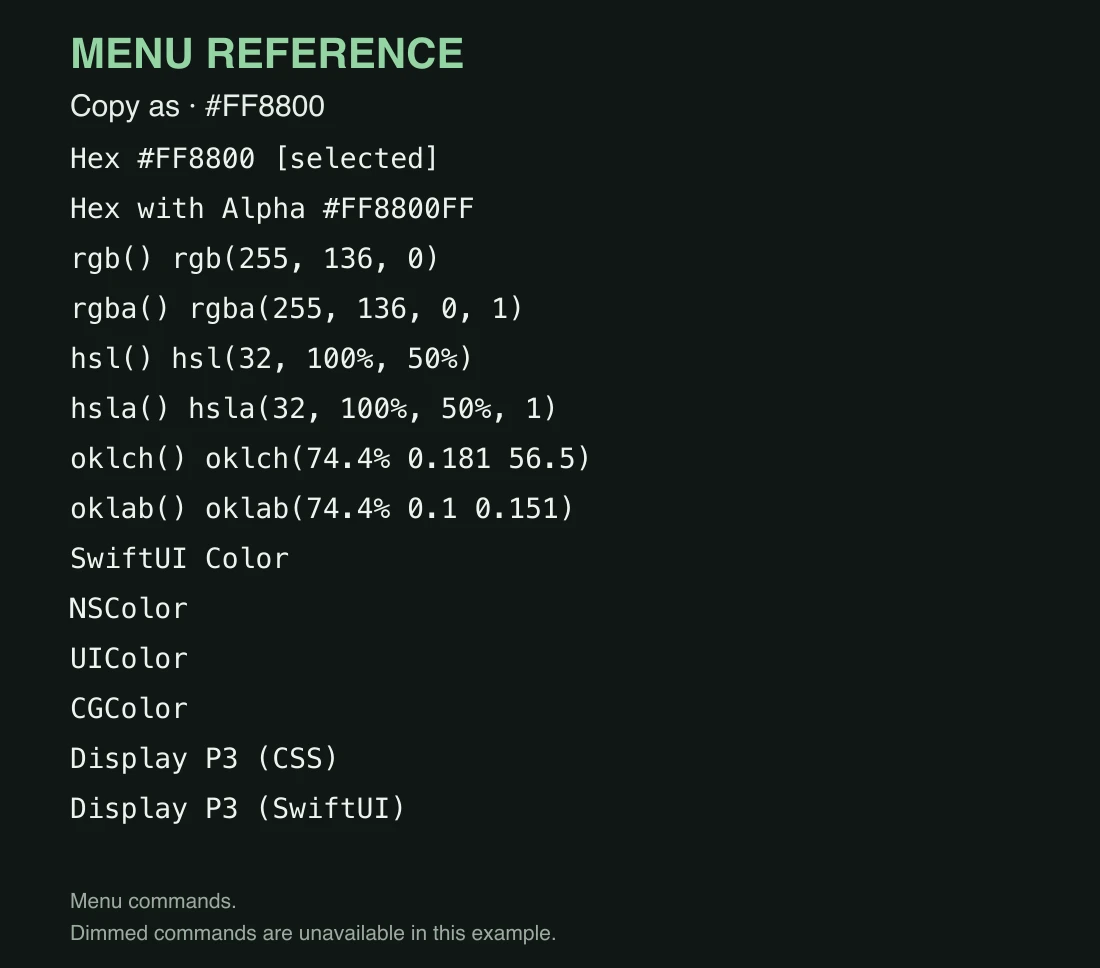
In Goblin's window, the inspector has a Copy as button with the same list. Picking a format puts that text on the clipboard as plain text and closes the strip or panel. It doesn't paste, and it doesn't add a new clip to your history.
Color formats#
Here's the orange #FF8800 in all 14 formats, in the order they appear. The Hex with Alpha, rgba() and hsla() rows show it at 50% opacity; the others show it solid.
| Format | Example |
|---|---|
| Hex | #FF8800 |
| Hex with Alpha | #FF880080 |
| rgb() | rgb(255, 136, 0) |
| rgba() | rgba(255, 136, 0, 0.5) |
| hsl() | hsl(32, 100%, 50%) |
| hsla() | hsla(32, 100%, 50%, 0.5) |
| oklch() | oklch(74.4% 0.181 56.5) |
| oklab() | oklab(74.4% 0.1 0.151) |
| SwiftUI Color | Color(red: 1, green: 0.533, blue: 0) |
| NSColor | NSColor(srgbRed: 1, green: 0.533, blue: 0, alpha: 1) |
| UIColor | UIColor(red: 1, green: 0.533, blue: 0, alpha: 1) |
| CGColor | CGColor(srgbRed: 1, green: 0.533, blue: 0, alpha: 1) |
| Display P3 (CSS) | color(display-p3 0.939 0.558 0.206) |
| Display P3 (SwiftUI) | Color(.displayP3, red: 0.939, green: 0.558, blue: 0.206) |
- Hex, rgb() and hsl() leave transparency out; use the forms with alpha for it. SwiftUI Color and both Display P3 forms add
opacity(or/ 0.5in CSS) only when the color isn't solid. - Code formats use numbers from 0 to 1 with up to three decimals.
- The Display P3 forms are the same color, converted, not the sRGB numbers relabelled, which is why the values differ. Use them in a project that works in Display P3.
- Goblin reads all of these back too: copy
NSColor(…),Color(.displayP3, …)orcolor(display-p3 …)text, and it's saved as a color.
Change the default color format#
- Open Settings›Clipboard and scroll to Transform, Colors and Combine.
- Open Default color format and choose one.
It sets which format is ticked in Copy as and which one color cards show first. It starts as Hex.
Your default format, and the card's footer#
A color card's footer shows its value in the default format. Click the footer to show the next format, and keep clicking to step through all 14; after Display P3 (SwiftUI) it starts again at Hex. The format you land on is remembered for that clip until Goblin quits. Double-clicking the card still pastes it. The footer of a floating color clip cycles the same way. In the strip and the window, the footer doesn't cycle on a compact card, in the Trash or a locked pinboard, or while you hold ⌘ or ⇧ to select.
Settings#
| Setting | What it does | Default |
|---|---|---|
| Default color format | The format colors show first and the one ticked in Copy as. | Hex |
| Combine text with | How Combine into One Clip joins text. | New Line |
Both are in the "Transform, Colors and Combine" section of Settings›Clipboard, which also reminds you of the shortcuts: ⌥⌘T opens Transform, ⌘J combines the selected clips, ⌘D floats a clip. More in Clipboard settings.
Ask the Goblin to transform, combine or convert#
Click Talk to Goblin in the main window toolbar and type one of these. Item IDs come from Find Clipboard Items.
| Request | What it does |
|---|---|
List Clipboard Transforms | Lists the transform and color-format IDs the other requests use. |
Transform Clipboard Item Into New Clip <item ID> | <transform ID> | Makes a new clip from the result, like Save as New Clip. The original stays. |
Combine Clipboard Items newLine | <item IDs> | Joins two to fifty clips in the order you list them, separated by commas. The separator can be newLine, blankLine, space, comma or tab. The originals stay. |
Copy Clipboard Color As <color item ID> | <format ID> | Puts the color on the clipboard in that format and checks the result. |
Locked, secret, missing and unsupported clips are refused.