 Goblin
A trigger keeps the Mac awake on its own while something is true, and lets it sleep again when that stops. For example: stay awake while Keynote is in front, while the Mac is on your desk with its display and charger plugged in, or every weekday from 9 to 5. You make triggers in Settings›Keep Awake›Triggers. To get there, right-click Goblin's menu bar item, choose Settings… (⌘,), click Keep Awake in the sidebar and scroll to Triggers; or choose Triggers›Edit Triggers… from the Keep Awake menu bar item.
How triggers work#
- Goblin checks your triggers every 5 seconds, but only while no session is running. A trigger never replaces or ends a session you started yourself.
- When a trigger's conditions are true, it starts a session at once. The card shows it as "Trigger: " followed by the trigger's name.
- Triggers are checked in list order. If two match, the higher one starts the session.
- When the conditions stop being true on two checks in a row, the session ends, about 5 to 10 seconds later. The second check stops a brief blip, like a cable wiggle, from ending it.
- Turning the trigger off, deleting it, or turning off Use triggers ends its session at once.
When you step in#
- If you start a session yourself while a trigger's session is running, yours replaces it. When yours ends, the trigger can start again within a few seconds if its conditions are still true.
- If you end a trigger's session with End, or it ends because of the battery or heat rules, that trigger waits: it won't start again until its conditions have stopped being true once. So pressing End sticks, until the next time the situation comes round.
- A trigger doesn't start if the battery or heat rules would end the session straight away. It tries again on the next check.
Make a trigger#
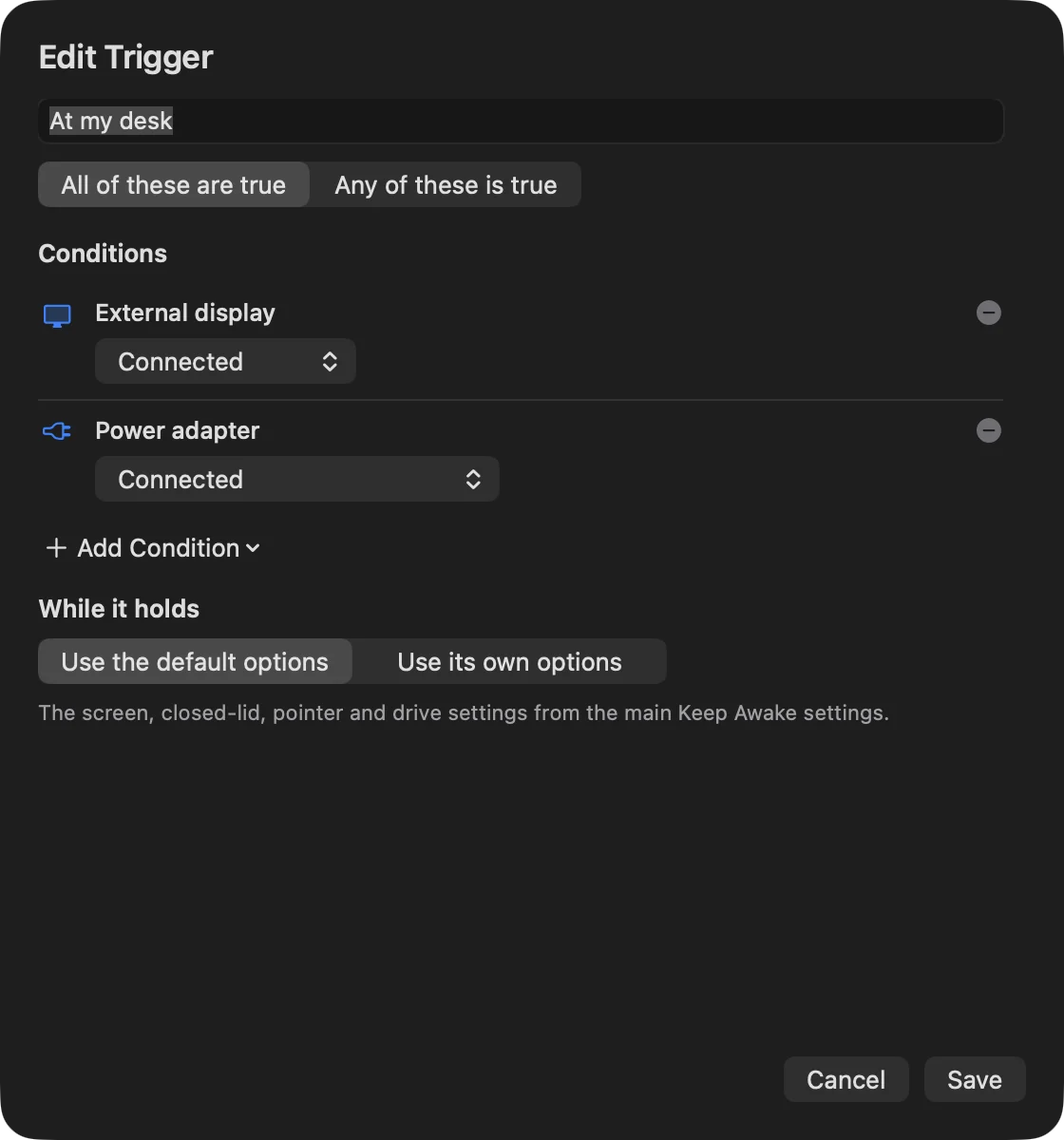
- Open Settings›Keep Awake and scroll to the Triggers section.
- Click Add Trigger…. A sheet opens. Adding your first trigger also switches on Use triggers.
- Type a Name, such as "Presenting", "At my desk" or "Overnight backup".
- Choose Start when: All of these are true or Any of these is true.
- Click Add Condition and pick one from the menu (see the table below). Fill in its details. Add more if you need them; the remove button beside each one takes it out.
- Under While it holds, choose Use the default options (the screen, closed-lid, pointer and drive settings from the main Keep Awake settings), or Use its own options and tick the ones this trigger needs: Keep the screen on, Let the screen saver start, Stay awake with the lid closed, Move the pointer when the Mac is idle and Keep the chosen drives awake.
- Click Save or press Return. Save stays greyed out until the trigger has a name and at least one complete condition. Cancel or Esc closes the sheet without saving.
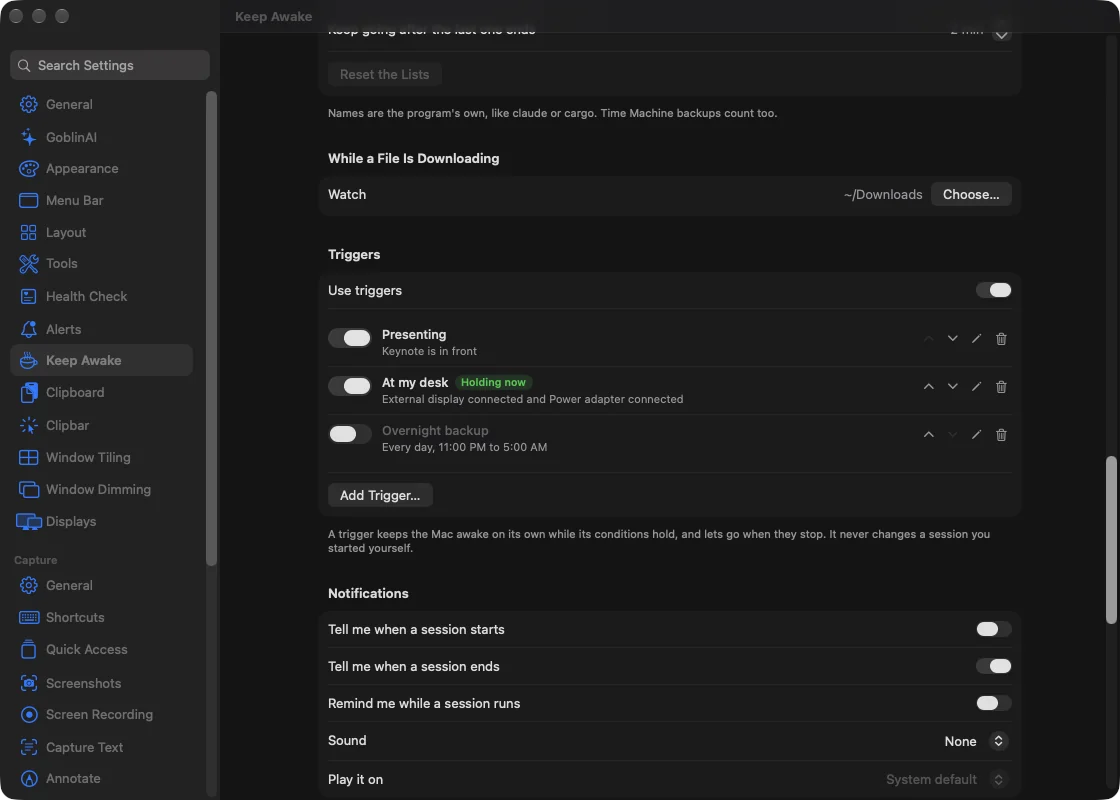
The trigger appears in the list. When its conditions are true, a green Holding now badge shows and the Keep Awake card starts a session called "Trigger: " and the trigger's name.
Example: stay awake while an app is in front#
- In Settings›Keep Awake›Triggers, click Add Trigger….
- Name it, for example "Presenting".
- Click Add Condition and choose Apps›An app is in front.
- Open the app menu in the condition and choose the app from Running apps, or Other App… to pick one that isn't open.
- Leave While it holds on Use the default options and click Save.
Switch to that app: within about 5 seconds Holding now appears and a session starts. Switch away and it ends 5 to 10 seconds later.
A trigger with no conditions never starts. If a condition is missing a detail, the sheet says what it needs, such as "Choose an app." or "Choose at least one day."
Note: If a trigger uses Stay awake with the lid closed, macOS asks for your password every time the trigger starts a session, unless you've approved Goblin's helper. See Closed lid and triggers.
Conditions#
The Add Condition menu groups conditions by kind. The last column is how the condition reads in your list of triggers.
| Condition | Details you fill in | True when | Shown as |
|---|---|---|---|
| Apps›An app is running | An app, picked from Running apps or with Other App… | That app is open | "Keynote is running" |
| Apps›An app is in front | An app, as above | That app is the one you're using | "Keynote is in front" |
| Displays›External display connected | Connected or Not connected | Any display other than the built-in one is on (or none is) | "External display connected" |
| Displays›Displays mirrored | Mirrored or Not mirrored | Any displays are mirroring (or none are) | "Displays mirrored" |
| Devices›USB device connected | Device name, or pick from Connected now | That USB device is plugged in | "USB: name" |
| Devices›Bluetooth device connected | Device name, or pick from Connected now | That Bluetooth device is connected | "Bluetooth: name" |
| Devices›Sound output | Output name, or pick from Sound outputs | That's the Mac's current sound output | "Sound output: name" |
| Devices›Drive connected | Drive name, or pick from Connected drives | That drive is mounted | "name is connected" |
| Network›Wi-Fi network | Network name, or This network | The Mac is on that Wi-Fi network (exact name) | "Wi-Fi: name" |
| Network›IP address | An address like 10.0.0.5 or a range like 192.168.1.0/24, or pick from This Mac's addresses | One of this Mac's addresses is that address or in that range | "IP address in 192.168.1.0/24" |
| Network›VPN connected | Nothing | A VPN connection is up | "VPN connected" |
| Network›DNS server | An address like 1.1.1.1 or a range, or pick from In use now | One of the DNS servers in use matches | "DNS server 1.1.1.1" |
| Power›Power adapter | Connected or Not connected (on battery) | The Mac is on its charger (or on battery) | "Power adapter connected" |
| Power›Battery above | Charge above, 5% to 100% (default 50%) | The battery is above that charge | "Battery above 50%" |
| Power›Charging | Nothing | The battery is charging | "Charging" |
| Activity›CPU busy for a while | Above a percentage (default 60%) for a number of minutes (default 5, up to 180) | The whole Mac's CPU use stayed above that for the whole time | "CPU above 60% for 5 min" |
| Activity›Idle for a while | No keyboard or mouse for a number of minutes (default 10, up to 480) | You haven't touched the keyboard or mouse for that long | "Idle for 10 min" |
| Activity›While recording the screen | Nothing | Goblin is recording the screen or counting down to a recording (Capture) | "Recording the screen" |
| Time›On a schedule | Days (default Monday to Friday), From and to times (default 9:00 AM to 5:00 PM) | It's one of those days, between those times | "Weekdays, 9:00 AM to 5:00 PM" |
A few details:
- Picking from the list is better than typing a name. For USB devices, Goblin then matches the device's own IDs, for Bluetooth its address, and for sound outputs and drives their own IDs, so renaming the device doesn't break the trigger. A typed name is matched ignoring capitals. USB hubs and the Mac's built-in devices aren't listed.
- Bluetooth devices are read about every 20 seconds, so this condition can take that long to notice a change. Goblin doesn't need Bluetooth permission for it.
- IP address and DNS server work with IPv4 and IPv6 addresses and ranges.
- Battery above is always true on Macs without a battery, so a desktop trigger that also needs it still works.
- On a schedule: a to time earlier than From runs past midnight; the days you pick are the days it starts on. The same start and end time means the whole day.
- Idle for a while stops being true the moment you touch the keyboard or mouse. Don't combine it with mouse jiggle: the nudges count as activity and end the trigger's own session.
Wi-Fi network names need Location#
macOS only tells apps the name of your Wi-Fi network if they have Location Services permission. When an enabled trigger uses Wi-Fi network, the Triggers section shows a note if Goblin can't read the name:
- "Wi-Fi names are hidden until you allow Location Services." with an Allow Location Access… button, if you haven't been asked yet.
- "Wi-Fi name couldn't be determined." with an Open Privacy & Security button, if Location Services is off for Goblin.
To let a Wi-Fi trigger read the network name:
- In Settings›Keep Awake›Triggers, click Allow Location Access… in the note.
- Allow it in the macOS prompt. If you'd said no before, the note offers Open Privacy & Security instead: click it, open Location Services, and switch on Goblin.
- Return to Goblin. The note goes away once the network name can be read.
See Permissions for what Goblin does with Location.
Manage your triggers#
Turn a trigger on or off#
In Settings›Keep Awake›Triggers, click the switch at the left of the trigger. Off keeps the trigger in the list but never starts a session, and ends its session if it's running.
Reorder triggers#
Click the up or down arrow at the right of a trigger (Move up, Move down). When two triggers match, the higher one starts the session.
Edit, copy or delete a trigger#
- In Settings›Keep Awake›Triggers, right-click the trigger, or use the buttons at its right.
- To change it, choose Edit… (or click the pencil), make your changes and click Save.
- To make a copy, choose Duplicate. A copy appears below, with " copy" after its name.
- To remove it, choose Delete (or click the trash can).
Warning: Deleting doesn't ask first and can't be undone. Switch the trigger off instead if you might want it back.
Turn all triggers on or off#
Switch Use triggers at the top of the section. While it's off the list is dimmed and nothing starts by itself. You can also use the separate menu bar item's Triggers›Use Triggers; Edit Triggers… there opens Settings›Keep Awake, switching to it if Settings is already open on another pane.
What each row shows#
Each trigger in the list has:
- a switch to turn it on or off without deleting it;
- its name ("Untitled" if it has none) and its conditions, joined with "and" or "or";
- a green Holding now badge while its conditions are true, updated every few seconds, so you can test a trigger without waiting for it;
- buttons to move it up or down, edit it, and delete it. Deleting doesn't ask first.
Goblin only reads what your enabled triggers need. With no enabled Bluetooth trigger, for example, it doesn't keep checking your Bluetooth devices.
To start and stop sessions from scripts, Shortcuts or an AI assistant instead, see Automate it.
Manage app triggers with Goblin AI#
New: Coming in the next update. Goblin AI can list triggers, change their enabled state, and add app triggers.
Ask list keep awake triggers to see each trigger's name, full ID, and enabled state. Use that ID in disable keep awake trigger ID, enable keep awake trigger ID, or remove keep awake trigger ID. Replace ID with the full ID from the list; names or positions do not select a trigger.
add keep awake app trigger com.apple.Safari creates a trigger for the installed app with that bundle ID. Use enable automatic keep awake triggers or disable automatic keep awake triggers to change the master switch. Enabling one trigger while the master switch is off does not start automatic sessions; Goblin tells you that the master switch is still off. Other conditions and combinations can be prepared in the exact native trigger editor with the configuration-review commands below; native Save is still required.
Native trigger configuration review#
Read Keep Awake Trigger Configuration UUID returns the current trigger's native JSON. Create Keep Awake Trigger Work prepares a new trigger in the actual native condition/session-options editor. Review Keep Awake Trigger Configuration JSON prepares edits from that complete native JSON, preserving its current UUID. Both require native Save; opening the editor does not add or change a trigger. Removed or changed sources cannot be saved over, and canceling the task closes its review. Reorder Keep Awake Triggers UUID1,UUID2 requires every current trigger UUID exactly once; earlier matching triggers have precedence. Native session permission/hardware checks still apply when a trigger starts a session.
Read Keep Awake Defaults returns the exact native JSON subset for session options, minute/hour menu choices, launch duration, work-process lists, selected Drive Alive volumes and sound output. Review Keep Awake Defaults <edited JSON> prepares confirmation and checks unchanged source state plus current native devices before saving. Use List Keep Awake Devices for current sound output UIDs and eligible volume UUIDs. Minute/hour choices must be distinct ascending lists; a new launch duration must be in that configured menu. This preserves unrelated settings and triggers. Existing session options stay as they were, while native work detection, drive choices and sound routing use current preferences. Closed-lid and jiggle permissions remain native session-start gates.
Choose Keep Awake Downloads Folder opens the native folder picker; no folder changes before a confirmed choice. Reset Keep Awake Downloads Folder prepares confirmation to use ~/Downloads. Active download sessions see the chosen folder on their next native check. Read Keep Awake Defaults Review reports pending/results; Cancel Keep Awake Defaults Review cancels the review or picker without rolling back completed changes.
Read Keep Awake Session History reads the most recent twenty native session-log entries, including session UUID, start/end timestamps and the same title/detail shown in Settings. It does not start or change a session.