 Goblin
Wherever Goblin lists an app, a process or a project, you can find out more about it in two ways. Rest the pointer on its name for a hover card: a quick look without leaving the list. Or open the App Inspector for the full story: its history, every process, the files it keeps, alerts about it alone, and who signed it.
Hover cards#
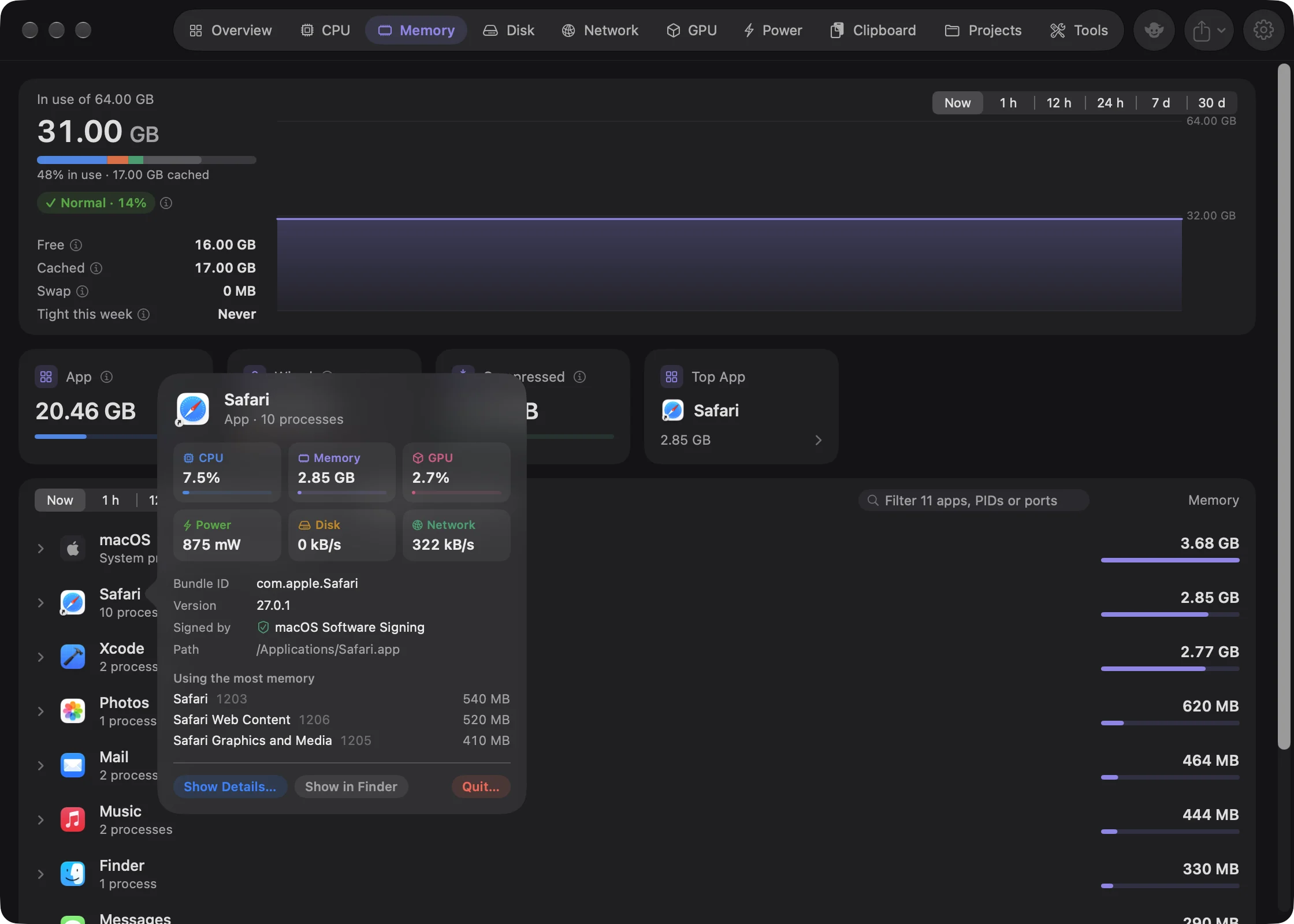
Rest the pointer on an app's, process's or project's name for a moment (0.6 seconds, or 0.25 seconds if another card has been showing) and a card pops up next to it. It closes shortly after the pointer leaves both the name and the card, or when you scroll, click elsewhere, type or press Esc. Click an empty part of the card to open the full details. While a card is open, the list behind it holds still.
App card#
- The app's icon and name, and whether it's an App, Part of macOS or a Command-line tool, with how many processes it runs. For macOS and tools, a sentence explaining what it is.
- Six figures: CPU, Memory and GPU with a bar for their share of the Mac, then Power, Disk and Network. Hover a figure for more, such as "0.42 of 10 cores · 4% of this Mac".
- Bundle ID, Version, Signed by, listening Ports and Path.
- Using the most memory: its three biggest processes, when it has more than one.
- Buttons: Show Details… (opens the inspector), Show in Finder and Quit….
If some of its processes run as another user, the card notes that their disk and power use isn't counted.
Process card#
The process's name and PID, and what it belongs to: a project, macOS, a command-line tool, or an app. Goblin explains macOS processes it knows, such as WindowServer or mds_stores. Below: its figures, Runs as (you, root, or a macOS service), Running for, Ports and Path. Buttons: Show App Details…, Show in Finder, and Quit Process…, or Stop Process… for a process in a project.
Disk and power show "—" for processes that belong to another user, because macOS doesn't let apps measure those.
Project card#
On the Projects tab: the project's kind and process count, its status ("Working right now.", "Idle for 2 hours.", "Up for 3 days and barely used.", "Running, quiet right now."), and for an idle server what stopping it would free. Then CPU, Memory, Up, its first six processes and Path, with Open in Terminal, Show in Finder and Stop Project… buttons.
Open the App Inspector#
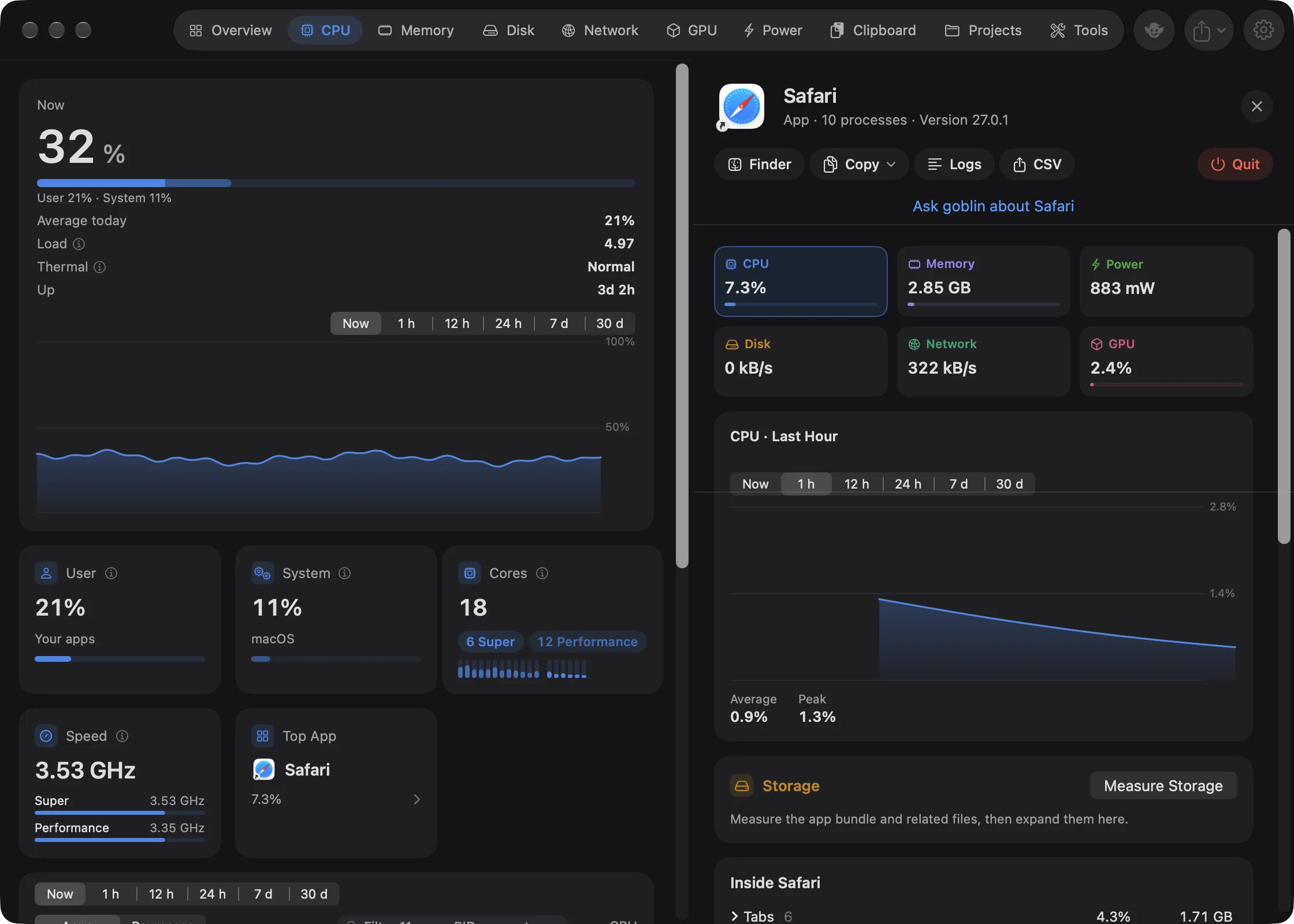
- Open any tab with an app list, such as CPU (⌘2) or Memory (⌘3).
- Double-click the app's row. Or point at it and click its ⓘ button.
The inspector opens on the right of the main window, with the tab you were on still on the left.
Other ways in:
- choose Show Details… from a row's context menu or a hover card;
- click the Top App card on a tab;
- click a row in Worth a Look for an app that's running, or Show \<app\> in the health banner;
- click an app's name in Keeping the Mac Awake, on the Keep Awake page of the Power tab (see Find out why your Mac won't sleep).
It opens on the right of the main window, next to the tab you were on. From the menu bar panel, the window opens first. Close it with the ✕ button, Esc or ⌘W.
If the app quits while you're looking, the inspector keeps its last figures and history and adds a Not running chip.
The header#
The app's icon and name, then App, Part of macOS or Command-line tool, the number of processes and the version. The buttons along the top (with shorter names in a narrow window):
| Button | What it does |
|---|---|
| Show in Finder | Shows the app, or the tool's program file, in Finder. Not for macOS. |
| Copy | A menu: Path; Process IDs (while it runs, separated by spaces); Summary, its figures and top 20 processes as text. |
| Logs | Opens the Log viewer for this app: what it has written to the system log, and its crash reports. |
| Export CSV | Saves every figure for the chart's current range as a spreadsheet file. See below. |
| Quit | Asks before quitting the app. Only while it runs, and never for macOS. |
For macOS and command-line tools, a sentence under the header says what they are.
Quitting#
- Open the app's details as above.
- Click Quit in the buttons along the top.
- In the question, click Quit to let the app close and save first, or Force Quit to end it at once.
Quit opens a confirmation, "Quit \<app\>?". Quit asks the app to close and save first. Force Quit ends it, and every helper process, at once, and unsaved changes are lost. Goblin then tells you how much memory was freed.
Processes that belong to macOS or another user can't be quit from Goblin. If an app doesn't respond, Goblin says so and suggests Force Quit.
Export CSV#
- Open the app's details and choose the chart's range ( Now, 1 h, 12 h, 24 h, 7 d or 30 d).
- Click Export CSV in the buttons along the top (it reads CSV in a narrow window).
- Name the file and click Save.
Export CSV opens a save panel with a name like "Safari last hour.csv". The file has one row per reading, with the columns Time, CPU (cores), Memory (MB), Power (W), Disk (kB/s), Network (kB/s) and GPU (%). With the range on Now it holds the last few minutes. The menu bar panel's app rows offer the same export with Export CSV…, where you choose the range in the save panel.
Figures and chart#
Six tiles show CPU, Memory, Power, Disk, Network and GPU right now. CPU, memory and GPU have a bar for their share of the whole Mac. Estimated power starts with "≈". Click a tile to chart it.
The chart's range picker offers Now (the last few minutes), 1 h, 12 h, 24 h, 7 d and 30 d. Under the chart: the Average, the Peak, and for memory the Change over the range. Goblin records apps in 15-minute steps, so a past range needs at least one of those; until then it says "No history for this range yet. Apps are recorded every 15 minutes."
See how much space an app takes#
- Open the app's details and scroll to the Storage card (apps only).
- Click Measure Storage.
- Click Show Files to list them. (It reads Hide Files once open.)
The card shows the size of the Application and its Related files: containers, caches, preferences, saved state, supporting files, logs and the like. To remove some, tick the ones you want gone and click Review Removal. You review everything before it goes, as with every removal in Goblin; see The Disk tab. To remove an app completely, use Applications.
Inside a browser#
For browsers (Chrome, Safari, Firefox, Edge, Brave, Arc, Dia) and apps that show web pages, an Inside \<app\> card groups the processes by what they do: Tabs or Windows, Extensions, Graphics, Browser or App, and Helpers, each with its count, CPU and memory. Expand a group to see its processes. One renderer can serve several tabs, so the counts are processes, not tabs.
Processes#
Every process the app runs, biggest memory first, up to 40 (then "and 12 more"). The header shows the ports it listens on. Each row shows the name, a lock when it runs as another user, its ports, a sentence explaining macOS processes Goblin knows, the PID, CPU, memory, and a button to quit that one process. Right-click a process for Show Logs, Quit Process…, Copy PID, Copy Path and Show in Finder.
Alerts#
- Alert me when \<app\> misbehaves: "Busy CPU, growing memory, heavy disk or network." Turn it off to stop Goblin's alerts about this app. This is the same as Don't Alert About \<app\> in Worth a Look; turn it back on here or under Muted Apps in Settings › Alerts.
- Tell me when it's done: see the next section.
Get a notification when an app finishes#
- Start the long export, build or render.
- Open the app's details and find Tell me when it's done in the alerts area.
- Click Watch. It reads Stop Watching while it's on; click that to cancel.
Goblin sends a notification when the app's CPU stays under 3% for a minute ("\<app\> has gone quiet") or when it quits ("\<app\> has quit"). Goblin asks for permission to send notifications the first time, and this one is always sent as a notification.
Details#
Who signed the app: "Apple (part of macOS)", "Apple", "Apple (Mac App Store)", or the developer's name from its certificate, such as "Google LLC". Unsigned apps say "Not signed" or "Not signed by a developer" with a warning shield. Below that, the app's path and bundle ID, which you can select and copy.