 Goblin
A blocklist is a list of servers that someone else maintains: ad networks, trackers, malware hosts, telemetry endpoints. Add one, and Goblin's firewall denies connections to everything on it, for every app, without you writing a rule for each. The lists update themselves as their publishers change them.
Blocklists are part of the firewall, so they live on the Rules screen and work only while the firewall is on.
Adding blocklists#
Add a blocklist from the catalogue#
- Open the Network tab, click Rules, and find BLOCKLISTS in the sidebar.
- Click the + next to it. Or choose File›New Blocklist…. The Add Blocklists sheet opens.
- Tick the lists you want. Lists you already have are marked Added.
- Click Add. Each list downloads right away.
When it worked, each list appears under BLOCKLISTS with its entry count, and the header counts line in Rules mentions it ("3 blocklists (85,312 entries)"). If a download fails, the list shows a warning sign.
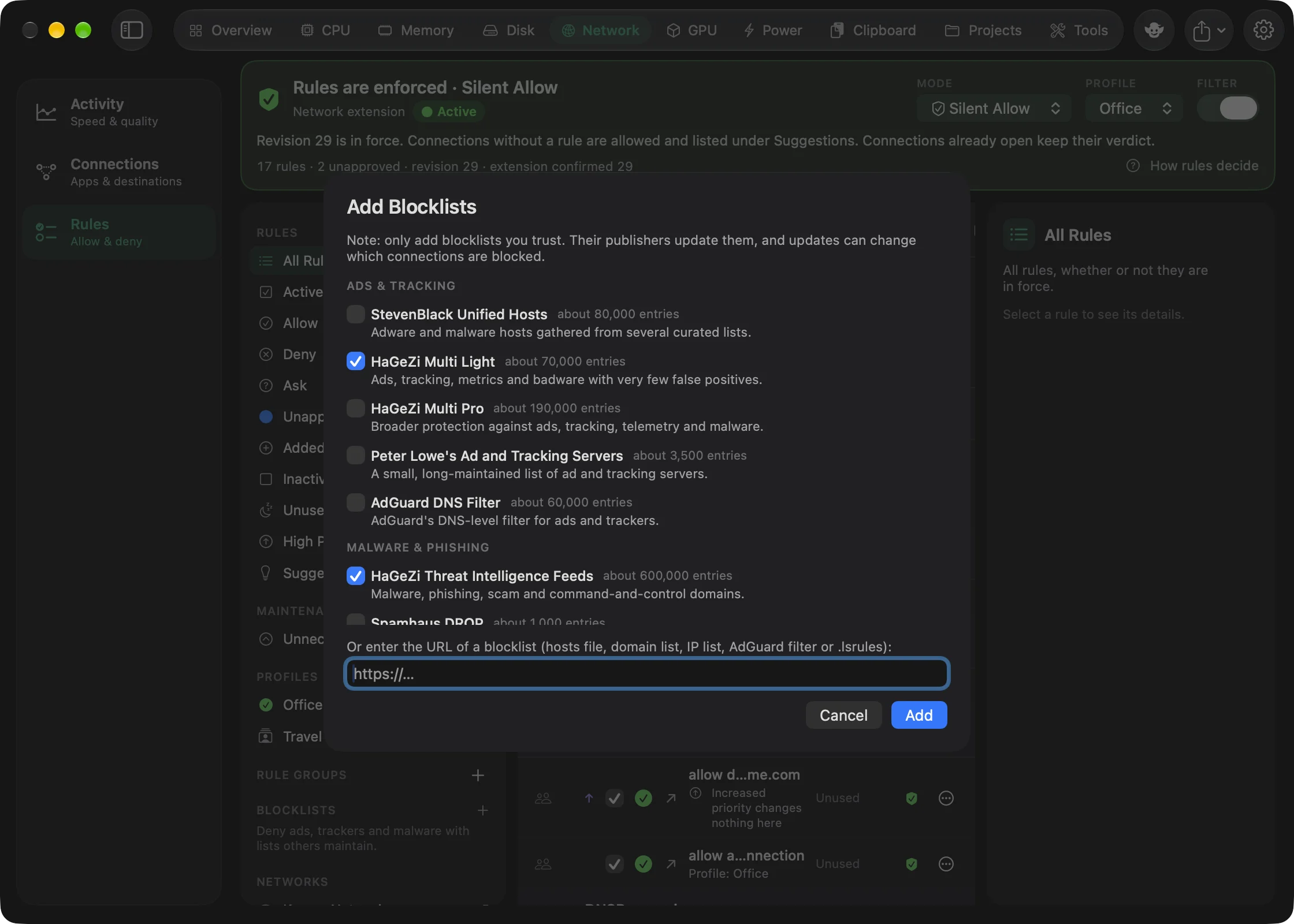
Only add lists you trust. Their publishers update them, and an update can change which connections are blocked.
The catalogue#
| List | Category | About | What it blocks |
|---|---|---|---|
| StevenBlack Unified Hosts | Ads & Tracking | 80,000 entries | Adware and malware hosts gathered from several curated lists. |
| HaGeZi Multi Light | Ads & Tracking | 70,000 entries | Ads, tracking, metrics and badware, with very few false positives. |
| HaGeZi Multi Pro | Ads & Tracking | 190,000 entries | Broader protection against ads, tracking, telemetry and malware. |
| Peter Lowe's Ad and Tracking Servers | Ads & Tracking | 3,500 entries | A small, long-maintained list of ad and tracking servers. |
| AdGuard DNS Filter | Ads & Tracking | 60,000 entries | AdGuard's DNS-level filter for ads and trackers. |
| HaGeZi Threat Intelligence Feeds | Malware & Phishing | 600,000 entries | Malware, phishing, scam and command-and-control domains. |
| Spamhaus DROP | Malware & Phishing | 1,000 entries | Address ranges hijacked or run by criminals ("Don't Route Or Peer"). |
| FireHOL Level 1 | Malware & Phishing | 4,500 entries | IP ranges of attacks, malware and abuse, with almost no false positives. |
| HaGeZi Apple Telemetry | Privacy | 100 entries | Telemetry and tracking from Apple devices. Can affect some Apple services. |
| HaGeZi Microsoft Telemetry | Privacy | 400 entries | Telemetry from Microsoft Office and other Microsoft apps. |
Larger lists catch more, and are more likely to block something a site or app needs. The descriptions say which lists aim for few false positives.
Add your own list#
- Open the Add Blocklists sheet as above.
- Under "Or enter the URL of a blocklist", paste the
https://address of the list. - Click Add. Goblin shows "Downloading…" and then the list appears in the sidebar.
Goblin reads:
- hosts files (
0.0.0.0 ads.example.com) - plain domain lists, one per line
- AdGuard and Adblock Plus filters (
||ads.example.com^) - IP address and CIDR range lists
.lsrulesfiles that list denied servers
The list is named after the last part of its address. Only HTTPS addresses are accepted, a list can't be added twice, and a download is limited to 64 MB. If the address points at a rule group with allow rules, Goblin says This looks like a rule group, not a blocklist; subscribe to it as a rule group instead. Lines Goblin can't read, such as filter rules with options, are skipped and counted.
A blocklist's page#
Select a blocklist in the sidebar to see it.
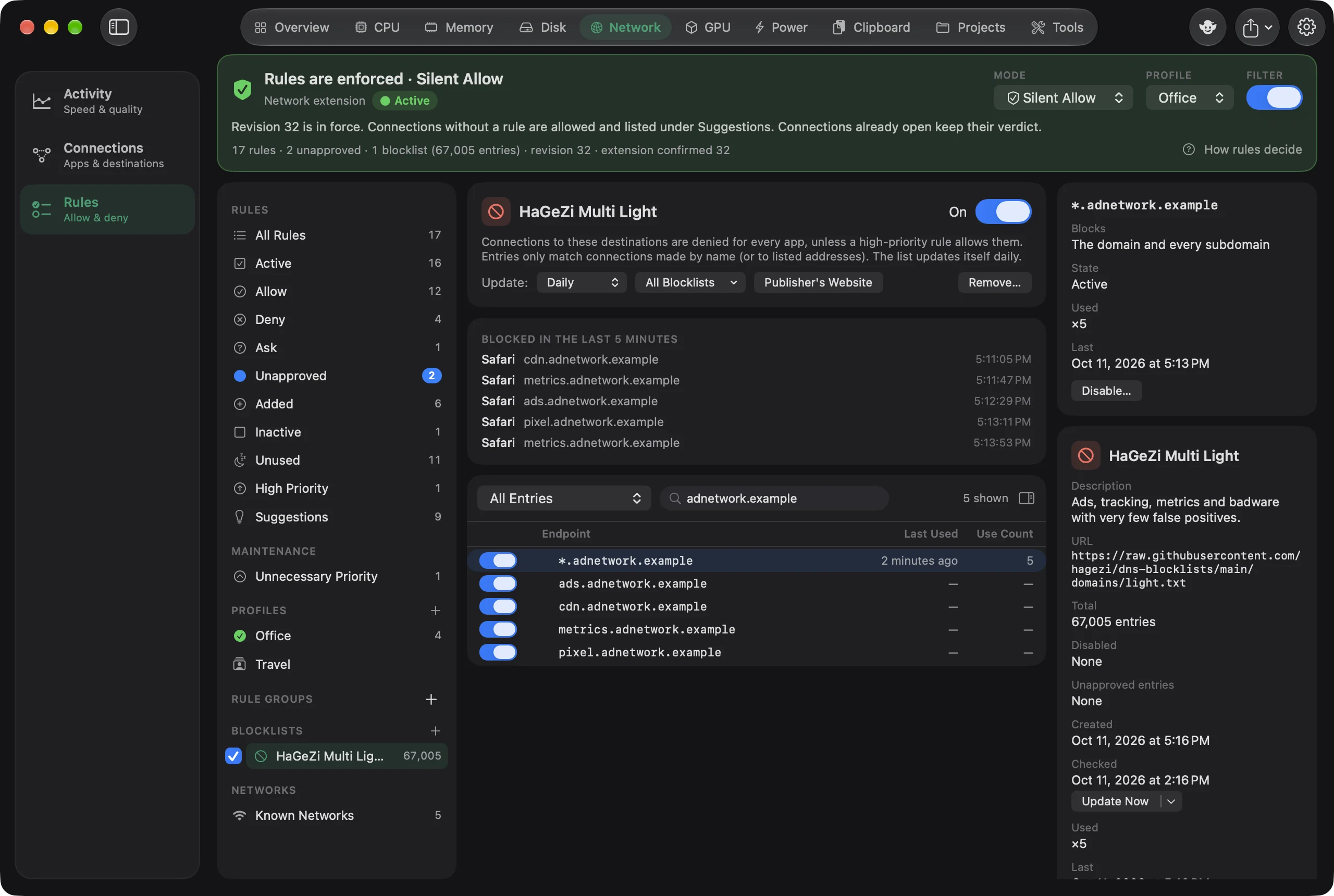
The header has the list's name and an On switch, the last update error if there was one, and how many lines couldn't be read. Below that:
| Control | What it does | Default |
|---|---|---|
| Update: | How often Goblin fetches a new copy: Manually, Hourly, Daily or Weekly. | Daily |
| All Blocklists | Enable All Blocklists, Disable All Blocklists, Update All Blocklists and Update All Blocklists (Without Cache). | |
| Publisher's Website | Opens the publisher's page. For lists from the catalogue. | |
| Remove… | Removes the list after asking. |
With Allow Rule Editing off in Settings › Firewall › Security, the On switch, Update:, enabling or disabling all blocklists, Remove… and changes to entries ask for Touch ID or your password first. See Locking the rules.
BLOCKED IN THE LAST 5 MINUTES appears when the list recently denied something: which app, which destination, and when. It's the quickest way to check whether a list is behind something that stopped working.
Turn a blocklist on or off#
- Find the list under BLOCKLISTS in the Rules sidebar.
- Click its checkbox. Or select the list and use the On switch in its header.
An off list keeps its entries but blocks nothing. To switch all of them at once, open the All Blocklists menu in a list's header and choose Enable All Blocklists or Disable All Blocklists.
Update a blocklist now#
- Select the list in the sidebar.
- Open the inspector with the sidebar-shaped button at the right of the entry table's toolbar.
- Click Update Now. Use the menu arrow next to it and choose Update Now (Without Cache) to fetch a full copy.
The button reads "Updating…" while it works, and Checked shows the new time. To update every list, choose Update All Blocklists in the All Blocklists menu.
Change how often a list updates#
- Select the list in the sidebar.
- Open the Update: menu in its header.
- Choose Manually, Hourly, Daily or Weekly.
Remove a blocklist#
- Select the list in the sidebar.
- Click Remove… in its header.
- In the dialog "Remove <name>?", click Remove.
The list and its entries are gone, and its connections are no longer blocked. You can add it again from the catalogue.
Turn off one entry#
- Select the list and find the entry. Use Search entries to look for it.
- Switch the entry's switch off. Or right-click it and choose Disable Blocklist Entry….
- In the dialog "Disable blocking of …?", click Disable Blocklist Entry.
The entry is struck through. Connections to it are no longer denied by this list, and later updates don't turn it back on. To bring it back, switch it on again or right-click and choose Enable Blocklist Entry.
Approve new entries#
- Select the list. If an update added entries, Approve All appears above the table (and the Show menu offers Unapproved Entries).
- Review the entries with the blue dot.
- Click Approve beside one entry, or Approve All for all of them.
Entries#
The table lists the list's entries, with a switch, the blue unapproved dot, the Endpoint, Last Used and Use Count. Very long lists show the first part and say so; search to find a particular entry. The filter shows All Entries, Active Entries, Inactive Entries, Unapproved Entries or Used Entries.
Turning an entry's switch off asks you to confirm with Disable Blocklist Entry. Connections to it are then no longer denied by this list. The entry stays in the list, and later updates don't turn it back on. Right-click an entry for Disable Blocklist Entry… or Enable Blocklist Entry, Approve and Copy Endpoint.
The inspector shows the selected entry (what it blocks, its state, use count and last use) or, with nothing selected, the list: its description, URL, total and disabled entries, unapproved entries with Approve All, when it was added and last checked, with Update Now and Update Now (Without Cache).
What an entry matches#
- A domain entry covers the name and every name below it:
example.comalso blocksads.example.com. - A hostname entry (from a hosts file) covers that exact name.
- An address or range covers connections to those addresses.
Names only match connections an app opened by name. A connection made straight to an address is matched only by address entries.
Updates#
Lists check for updates on their own: 20 seconds after Goblin starts, then every 30 minutes for any list that's due by its Update setting. Goblin asks the server whether the list changed and only downloads it when it has. Updates run only while the firewall is on.
Entries an update adds get a blue dot, as unapproved, while Mark new blocklist entries as unapproved is on in Settings › Firewall › Advanced. They block straight away all the same; the dot is there so you can see what changed. Approve them in the entries table or the inspector.
Two notifications in Settings › Firewall › Notifications cover updates: Blocklist or Rule Group Updates (off at first) and Failed Blocklist or Rule Group Updates (on). A failed update also puts a warning sign beside the list in the sidebar.
How blocklists rank against rules#
Blocklists sit between high-priority rules and normal rules:
- High-priority rules decide first.
- Then blocklists deny any outgoing connection to a listed destination.
- Then normal rules, then the operation mode.
So an ordinary Allow rule can't override a blocklist, however specific it is, and a Deny rule doesn't need to. Blocklists apply to outgoing connections only; they never block another device connecting to your Mac. The full order is in How rules decide.
Letting one app past a blocklist#
When a list blocks something you need, you have three ways out. To use the first:
- Open Connections and find the row marked "Blocked by <list>: <entry>".
- Right-click it and choose Allow for <App> Only. This makes a high-priority rule for that app and that entry.
- Choose Show in Blocklist from the same menu if you want to see the entry first.
All three ways:
- Allow for <App> Only. In Connections, right-click the blocked row (it says "Blocked by <list>: <entry>"). This makes a high-priority rule allowing that app, and only that app, to reach the entry. Show in Blocklist on the same menu jumps to the entry.
- Turn the entry off in the list, which unblocks it for every app.
- Write a high-priority Allow rule yourself in the rule editor.
The first keeps the entry blocked for every other app.
Blocklists in backups and imports#
Your blocklist subscriptions are saved in firewall backups and downloaded again after a restore. Restore Factory Settings keeps them only with Preserve subscribed rule groups and blocklists ticked. A rule file you import that also contains blocked servers isn't added as a blocklist; add its address here to use them.