 Goblin
Your clipboard history grows fast. Search finds a clip by what's in it, where it came from and when you used it. You can type words, click filters, or type short search terms such as app:safari or after:monday that turn into filters as you go. A search you use often can become a smart pinboard: a tab that always shows that search's results.
Search works the same way in the strip, on the Clipboard tab of Goblin's window, and in the menu bar panel's Clipboard tab.
Start a search#
- Open the strip with ⇧⌘V.
- Press ⌘F, click the magnifier in the top bar, or start typing. Any letter or number begins a search.
- Type what you remember: a word from the clip, the app it came from, or a file name.
- Look at the cards. They narrow as you type. Press ↓ or Tab to reach them, then Return to paste.
On the Clipboard tab of Goblin's window, click Search above the cards instead. In the menu bar panel the search field is always there.
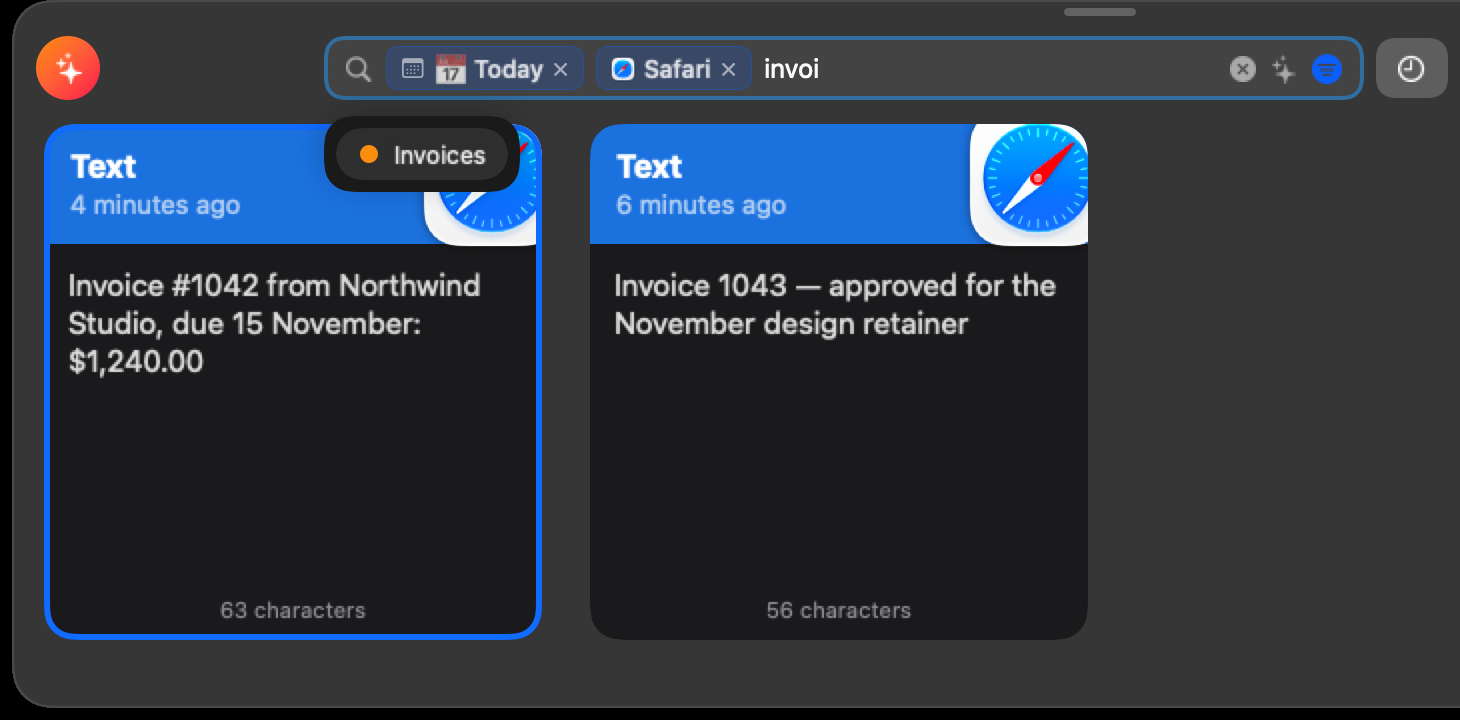
The field holds:
- the chips you've added (filters, each with an ✕ to remove it),
- your words,
- ⓧ to clear everything,
- the sparkles button, Save as Smart Pinboard… (below),
- Filters, a funnel button that opens the Filters popover. It is filled in while any chip is on.
Search covers everything. With anything typed or chosen, the results come from History and every pinboard together, whichever list you were looking at, even a pinboard or smart pinboard. The menu bar panel says "All clips" while it searches. The one exception is the Trash: searching there searches only the Trash.
To finish the search, press Esc. In the strip and the window that closes the search and clears its words and chips; in the menu bar panel the first Esc clears the search and the next closes the panel. In the strip, Tab moves between the field and the cards, and ↓ moves to the cards.
Chips#
A chip is a filter: a kind of clip, an app, a pinboard, a date, a device. You add chips three ways: from the suggestions under the field, from the Filters popover, or by typing a search term.
Add a chip from the suggestions#
- Start a search and type at least two letters, such as
saf. - Up to five suggestion pills appear under the field, matching the last word or few words you typed.
- Click the pill you want. In the strip you can press ↓ or ↑ to highlight one and Return to add it.
The chip replaces the words it stood for: typing "today saf" and picking Today leaves "saf" to keep matching.
Remove or edit a chip#
- Click a chip's ✕ to remove it.
- Press ⌫ in an empty field to remove the last chip.
- Click a chip's name to turn it back into text you can edit.
- Click ⓧ in the field to clear everything.
What the suggestions offer#
Pills come from:
- Dates: today, yesterday, this week, last week, last 30 days (or "last month", "past month", "30 days").
- Kinds, with everyday words: "photo", "screenshot", "png" or "pic" suggest Image; "url" or "website" suggest Link; "doc" or "folder" suggest File; "hex" or "swatch" suggest Color.
- What Goblin recognised: phone number ("tel", "mobile", "call"), email, address ("map", "street"), date, code ("script", "snippet"), JSON, PDF, video ("movie", "mp4"), audio ("song", "music"), tracking number ("package", "parcel"), file path, number ("price", "amount"), emoji, rich text ("rtf", "formatted"), name ("person", "contact"), organization ("company").
- Your pinboards, apps and devices by name. Apps you copy from most come first.
- A typed date at the end of what you typed, such as "2026-09-30", "9/30/2026", "march 3", "mar 3rd" or "3 march 2025". It's always the first pill and stands for that whole day. Without a year it means the most recent one.
Searching in plain language#
With Apple Intelligence on your Mac, a search of four or more words, such as "screenshots from safari last week", is read by the on-device model after you pause for a moment. Goblin turns what it understood into chips and leaves the other words as they were. See Apple Intelligence.
The Filters popover#
Use the popover when you'd rather click than type.
- Start a search.
- Click the Filters button (the funnel) at the right of the field, or press ⌘F again.
- Click a chip in any section to add it. Click a chip that is already on to remove it.
- The popover closes after each pick. Open it again to add another.
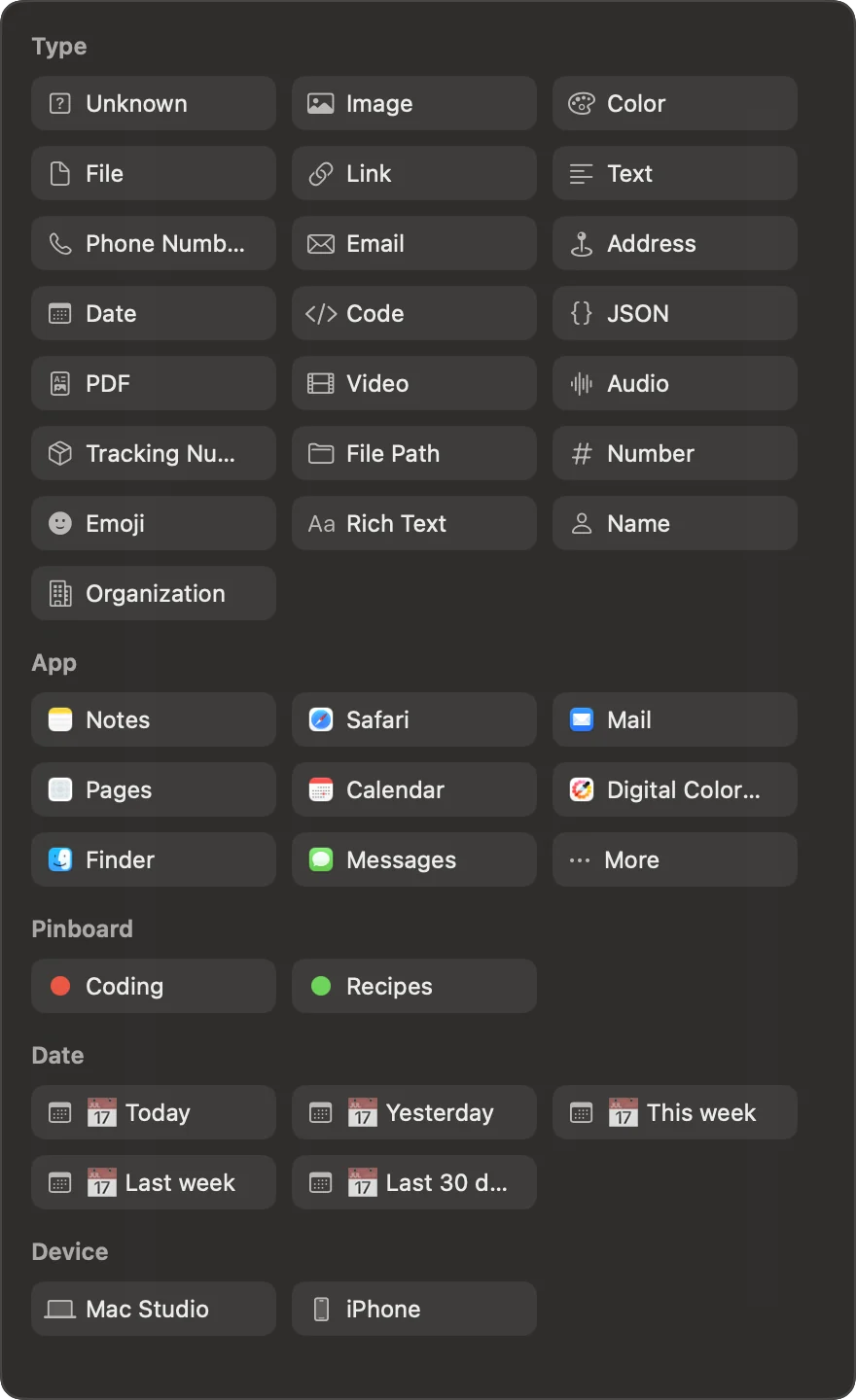
| Section | Chips |
|---|---|
| Type | Unknown, Image, Color, File, Link, Text, then what Goblin recognises: Phone Number, Email, Address, Date, Code, JSON, PDF, Video, Audio, Tracking Number, File Path, Number, Emoji, Rich Text, Name, Organization |
| App | Every app you've copied from, most clips first. The first eight show; More shows the rest |
| Pinboard | Your pinboards, each with its color |
| Date | Today, Yesterday, This week, Last week, Last 30 days |
| Device | This Mac first, then your other Macs and iPhone, when you have clips from them |
How a search matches#
Chips of the same sort are alternatives. Two app chips find clips from either app; Today and Last week find clips from either. All kinds and recognised types count as one sort, so Image and Phone Number find images or phone numbers.
Different sorts must all match. An app chip and a date chip find clips from that app on that date.
Every word must match. Each word matches the start of a word anywhere in the clip, ignoring case and accents, so "saf" finds Safari and "cafe" finds café. Goblin searches:
- the clip's name and its text,
- a link's address and page title,
- file names,
- text Goblin found in images, and what it recognised in them,
- the Apple Intelligence description, if there is one,
- what Goblin recognised in the text (phone numbers, addresses and so on),
- the name of the app it came from.
A search of only punctuation, such as @ or $, looks for that exact character instead.
Some things are kept out of search on purpose. Passwords and keys Goblin detected can be found only by their name and app. Clips in a locked pinboard don't appear at all, except with is:locked while the pinboard is open.
Link and Color reach into text. The Link chip also finds text clips that contain a link, and Color finds text that contains a color code.
Dates mean when you last used a clip, not when you first copied it. Pasting or copying an old clip again counts as using it.
Search terms#
- Start a search.
- Type a term, such as
app:safariorafter:monday. - Press the space bar or Return to finish the word. The term turns into a chip, and the results narrow.
In the strip, Return finishes a pending term instead of pasting. Terms ignore capital letters. A term Goblin doesn't understand, such as foo:bar or kind:banana, stays an ordinary word.
| Term | Finds | Example |
|---|---|---|
kind: | A kind of clip or something Goblin recognised. Values below | kind:image, kind:phone |
app: | Clips from an app, by name or bundle ID. A partial name finds every app it starts | app:safari, app:"visual studio" |
board: or in: | Clips pinned to a pinboard, by name or the start of it | in:recipes |
device: or from: | Clips from a device, by name or the start of any word in it | from:iphone, device:macbook |
is: | pinned (or pin); trashed (trash, deleted), which searches the Trash; template (templates); locked | is:pinned |
has: | ocr (text found in an image), trigger (a snippet trigger is set), description or desc (an Apple Intelligence description), annotations (also annotation, annotated, markup: a capture you marked up) | has:ocr |
before: | Last used before that date | before:2026-09-01 |
after: | Last used on or since that date | after:monday, after:3d |
on: | Last used within that day, week, month or year | on:yesterday, on:"last month" |
size: | Clips of that size. Values below | size:>5mb |
"words" | Those words next to each other, in that order | "see you soon" |
-word | Clips without that whole word | -draft |
-term | The opposite of a kind:, app:, board:, in:, device:, from:, is: or has: term | -app:slack, -is:pinned |
is:locked finds clips in locked pinboards that are open at the moment, and nothing while they're all locked.
Put quotes around a value with spaces: app:"visual studio", on:"this week". Inside a phrase, write \" for a quote mark. A quote starts a phrase only at the start of a word, so 5" screen is ordinary text.
-before:, -after:, -on: and -size: aren't opposites of anything: Goblin treats them as words to leave out.
Kinds#
kind: takes these values. The ones on the same line mean the same thing.
| Value | Finds |
|---|---|
image, images, img, picture, photo | Images |
text | Text |
link, links | Links |
color, colour, colors | Colors |
file, files | Files and folders |
unknown | Other formats |
phone, phonenumber, tel | Phone numbers |
email | Email addresses |
address | Postal addresses |
date | Dates |
url | Text containing a link |
code | Code |
json | JSON |
path, filepath | File paths |
colorcode | Text containing a color code |
tracking, trackingnumber, package | Tracking numbers |
person, name | People's names |
org, organization, organisation, company | Company names |
number | Numbers and amounts |
richtext, rtf | Rich text |
pdf, video, audio, emoji | PDFs, videos, audio, emoji |
template, templates | Snippet templates, the same as is:template |
screenshot, screenshots, scrolling | Screenshots and scrolling captures Goblin took |
recording, recordings, screenrecording, gif, gifs | Screen recordings and GIFs Goblin took |
Dates#
before:, after: and on: take:
| Value | Example |
|---|---|
| A day | 2026-09-30, 2026/9/30, 9/30/2026, 9/30/26, march 3, mar 3rd, march 3, 2026, 3 march, 3rd mar 2026 |
| A day without a year | 9/30, march 3: the most recent one that isn't in the future |
| A named time | today, yesterday, "this week", "last week", "this month", "last month", "this year", "last year", "last 30 days" |
| A weekday | monday to sunday, or mon to sun: the most recent one, today included |
| A time ago | A number and a unit, with or without ago: 30min, 6h, 3d, 2w, 2mo, 1y, "2 weeks ago" |
Units: min, h (or hr, hour), d (day), w (wk, week), m or mo (month), y (yr, year). Note that m means months, not minutes.
after:counts from the start of the date:after:mondayis since Monday began,after:3dthe last three days.before:means strictly before the date starts.on:is the whole span: a day, a week, a month or a year.on:3dis the whole day three days ago.
on:today, on:yesterday, on:"this week", on:"last week" and on:"last 30 days" give the same chips as the Filters popover. Several on: dates are alternatives, like any date chips; before: and after: must always hold, so after:2026-09-01 before:2026-10-01 is September.
Size#
size: measures everything Goblin stored for a clip, every format included, so a short piece of text copied from a web page (which brings its formatting along) can be larger than you'd expect. Units are b, kb (or k), mb (m) and gb (g), counted in thousands: 1 MB is 1,000,000 bytes. Decimals work.
| Term | Means |
|---|---|
size:5mb or size:=5mb | Exactly 5 MB |
size:>5mb, size:>=5mb | Over 5 MB, or 5 MB or more |
size:<100kb, size:<=100kb | Under 100 KB, or 100 KB or less |
size:100kb..2mb | From 100 KB to 2 MB, both included |
size:..2mb, size:1mb.. | Up to 2 MB, or 1 MB and up |
Examples#
| Search | Finds |
|---|---|
kind:image from:iphone | Pictures copied on your iPhone |
app:xcode kind:code after:monday | Code copied from Xcode since Monday |
kind:link -app:slack | Links, except ones copied in Slack |
"meeting notes" on:"last week" | That phrase, used last week |
invoice in:work | Clips with "invoice" in the Work pinboard |
is:pinned size:>10mb | Pinned clips over 10 MB |
is:trashed kind:image | Images in the Trash |
has:trigger | Every clip with a snippet trigger |
Smart pinboards#
A smart pinboard is a saved search with its own tab. It doesn't hold clips of its own: it shows whatever in your History matches the search right now, most recently used first, and keeps up as you copy.
Save a search#
- Search for what you want, with words, chips or terms.
- Click the sparkles button in the search field (its tip reads Save as Smart Pinboard…). It appears once the search has something in it.
- A new smart pinboard named "Untitled" opens, with its name ready to type. Type a name and press Return.
Its tab, sidebar row and chip carry a sparkles badge. You can do this in the strip, on the Clipboard tab of Goblin's window and in the menu bar panel.
What a smart pinboard shows#
- Its cards look like History's, colored by app.
- Nothing can be pinned, dropped or reordered in a smart pinboard; the search decides what's there. Its clips are ordinary History clips, so the ones that aren't pinned age out under Keep History like any others (see Pinboards).
- Searching while you're on it searches everything, as usual.
- ⌘← and ⌘→ step through smart pinboards along with the others.
Change the search#
- Open the smart pinboard.
- Click Edit Search in the strip's top bar (or the window's toolbar, or the panel's line above the list). Or right-click its tab and choose Edit Search….
- The search opens with the saved chips and words. Change them.
- Click the button in the search field that names the pinboard, such as Update “Receipts”. It saves the search and takes you back to the pinboard.
Closing the search without updating keeps the old one.
Pin All#
To keep everything the smart pinboard shows right now:
- Right-click the smart pinboard's tab.
- Choose Pin All to and pick an ordinary pinboard from the list. If you have none yet, the list says "No pinboards yet".
Every clip it shows goes into that pinboard, so it is kept for good. Clips already pinned stay where they are. With more than 25 clips to pin, Goblin asks first. Pinning is covered on the Pinboards page.
Its menu#
Right-click a smart pinboard's tab for Rename, Edit Search…, Pin All to › your pinboards, Delete, and the row of colors.
To delete one, choose Delete. It doesn't ask: the smart pinboard goes to the Trash, shown as a card reading "A search", and Put Back restores it. Deleting a smart pinboard never deletes any clips.
Ask the Goblin to search#
Click Talk to Goblin in the main window toolbar and type Filter Clipboard Search followed by the terms, such as Filter Clipboard Search kind:image app:safari. History opens with that search. Input that isn't a search term stays ordinary text, and nothing is deleted. List Clipboard Filter Targets lists the apps and devices you can use in a filter.