 Goblin
The strip is the fastest way to paste, but it covers only the bottom of the screen and goes away when you click elsewhere. Goblin shows the same clips in two other places. The Clipboard page in Goblin's window has room to browse, look closely at a clip and sort out many at once. The Clipboard tab in the menu bar panel is a compact list for pasting without leaving what you're doing.
Both use the strip's lists, cards, menus and search, so everything on the strip page, Search and Pinboards works here too. While the clipboard is off, both show a Clipboard is off card with a Turn On Clipboard button.
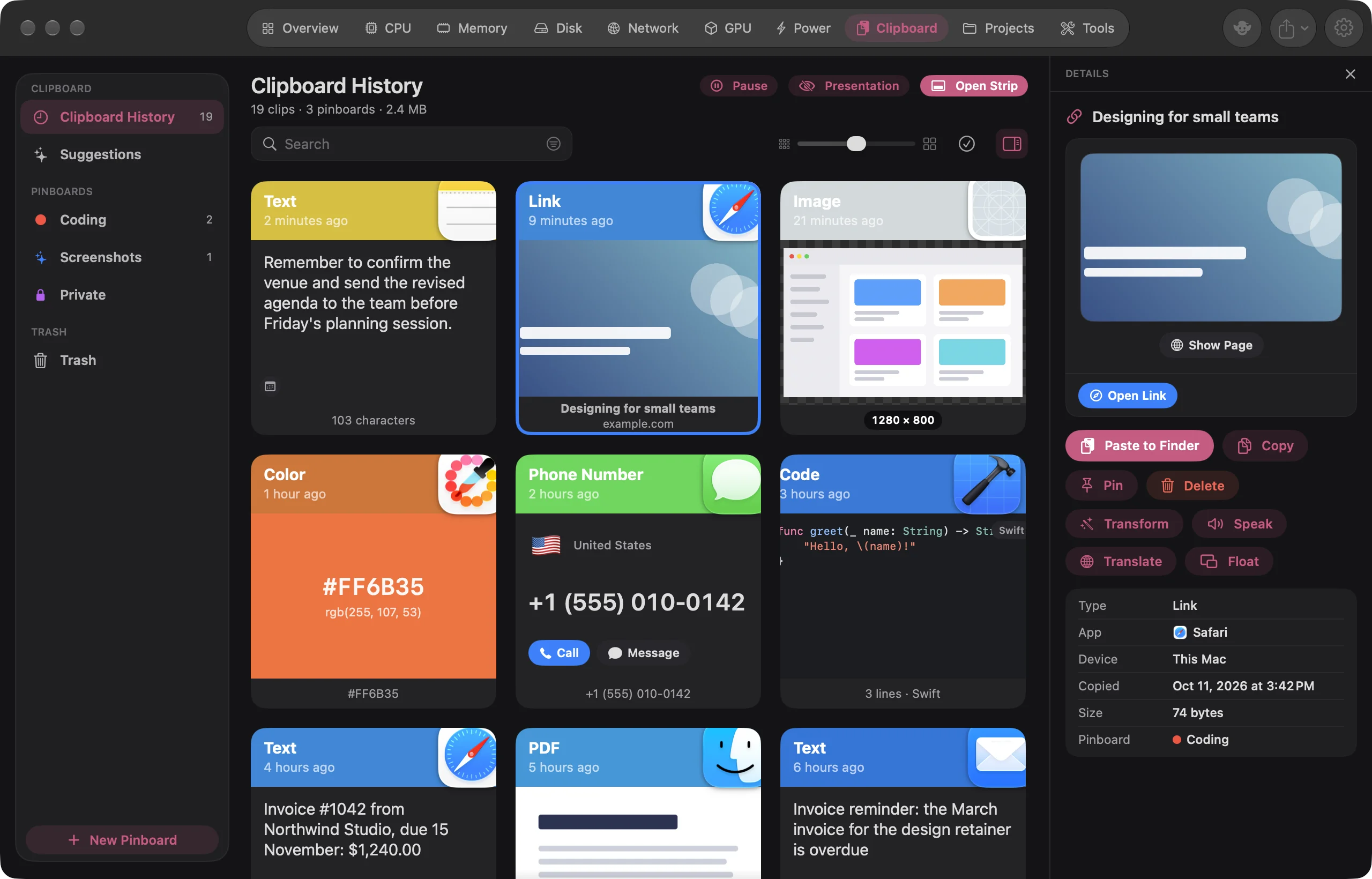
Open the Clipboard page#
- Open Goblin's window and click the Clipboard tab (it is one of the ten tabs along the top).
- Click a list in the sidebar on the left: Clipboard History, a pinboard or Trash.
You can also choose Open in Window from the strip's ⋯ menu, or click the window icon (Open in Window) in the footer of the menu bar panel's Clipboard tab. Both open the list you were looking at.
The sidebar#
Under Clipboard:
- Clipboard History (or the name you gave it), with the number of clips. Right-click for Erase History….
- Suggestions, on Macs with Apple Intelligence. See Apple Intelligence.
Under Pinboards, each pinboard with its color dot, a sparkles icon if it's smart or a padlock if it's locked, and how many clips it holds. Click one to open it, right-click for its menu, drag rows to reorder them, and drop cards on a row to pin them there. New Pinboard at the foot of the sidebar makes a new one (⇧⌘N).
Under Trash, the Trash with its count. Right-click for Empty Trash….
The header#
The title of the list you're looking at, and on the right:
- Pause or Resume, to stop or restart keeping copies.
- Presentation, which turns on presentation mode and reads Presenting while it's on. See Privacy.
- Open Strip, which opens the strip on the same list. While the strip is open it reads Close Strip and closes it.
- Empty Trash…, while you're in the Trash.
Under the title, a summary such as "1,942 clips · 6 pinboards · 757 MB": the clips in History, how many pinboards you have, and how much space the clipboard uses on disk. With iCloud sync on, the header also shows how syncing is going.
The toolbar#
- Search, which opens the search field. ⌘F or typing does the same.
- Edit Search and Pin All to… on a smart pinboard.
- Card size, a slider from small to large cards.
- Select mode (the tick in a circle). While it's on, each click adds a card to the selection or takes it out, without holding ⌘.
- Inspector (the panel icon), which shows or hides the inspector.
The grid#
The cards are the strip's cards, in as many columns as fit. Clicking, double-clicking, right-clicking and dragging work as they do in the strip: double-click or Return pastes, right-click opens the card menu, and you can drag cards out to other apps, onto a pinboard in the sidebar, or onto each other to reorder a pinboard.
A paste from the window goes into the last app you used before Goblin. If there isn't one, Goblin beeps and says "Switch to the app you want to paste into first".
The strip's keys work here, with these differences:
- ↑ and ↓ move a whole row up or down.
- ⌘1 to ⌘9, ⌘, and ⌘W belong to the window (⌘1 to ⌘0 jump between its tabs), so there's no Quick Paste on this page.
- Esc steps back (closing the preview, the Filters, the search, the Trash or Suggestions) but doesn't close the window.
Change the card size#
- Find the Card size slider in the toolbar, between a small and a large grid icon.
- Drag it left for smaller cards and more columns, or right for larger cards.
The window remembers the size, and the cards always stretch to fill the row.
The inspector#
The inspector shows the selected clip on the right, under the heading Details. It appears when the window is wide enough; widen the window if you don't see it. It is on at first, and Goblin remembers whether you hid it.
- Nothing selected: "Select a clip".
- One clip: its name, a large preview (the same as the strip's preview), and buttons: Paste to app (or Paste), Copy, Edit (text; Annotate for pictures, Edit Video for video files), Pin (a menu of your pinboards and New Pinboard…, with the clip's current pinboard greyed out) and Delete, then Transform, Copy as and Float (Transforms, Paste tools). Pictures also get Upload, Copy Text and, once you've annotated one, Revert to Original. In the Trash: Put Back and Delete Permanently….
- Facts about it: Type, App, Device ("This Mac" or the other device), Copied, Last used, Pasted ("Once" or "5 times", how often you've used it), Size, Dimensions for images or Length for text, the files it holds, its Pinboard, where it was Deleted from (in the Trash), the Labels Goblin recognised in an image, and its Trigger with Set… or Change… (Snippets).
- Description, the Apple Intelligence description if there is one, and Text in the image, the text Goblin found in a picture.
- A clip in a locked pinboard shows "Locked" and an Unlock button. See Locked pinboards.
- Several clips: how many are selected and pinned, and a list of the first eight.
Hide or show the inspector#
- Click the x at the top right of the inspector to hide it.
- To bring it back, click the Inspector icon (a panel on the right) in the toolbar.
Act on several clips#
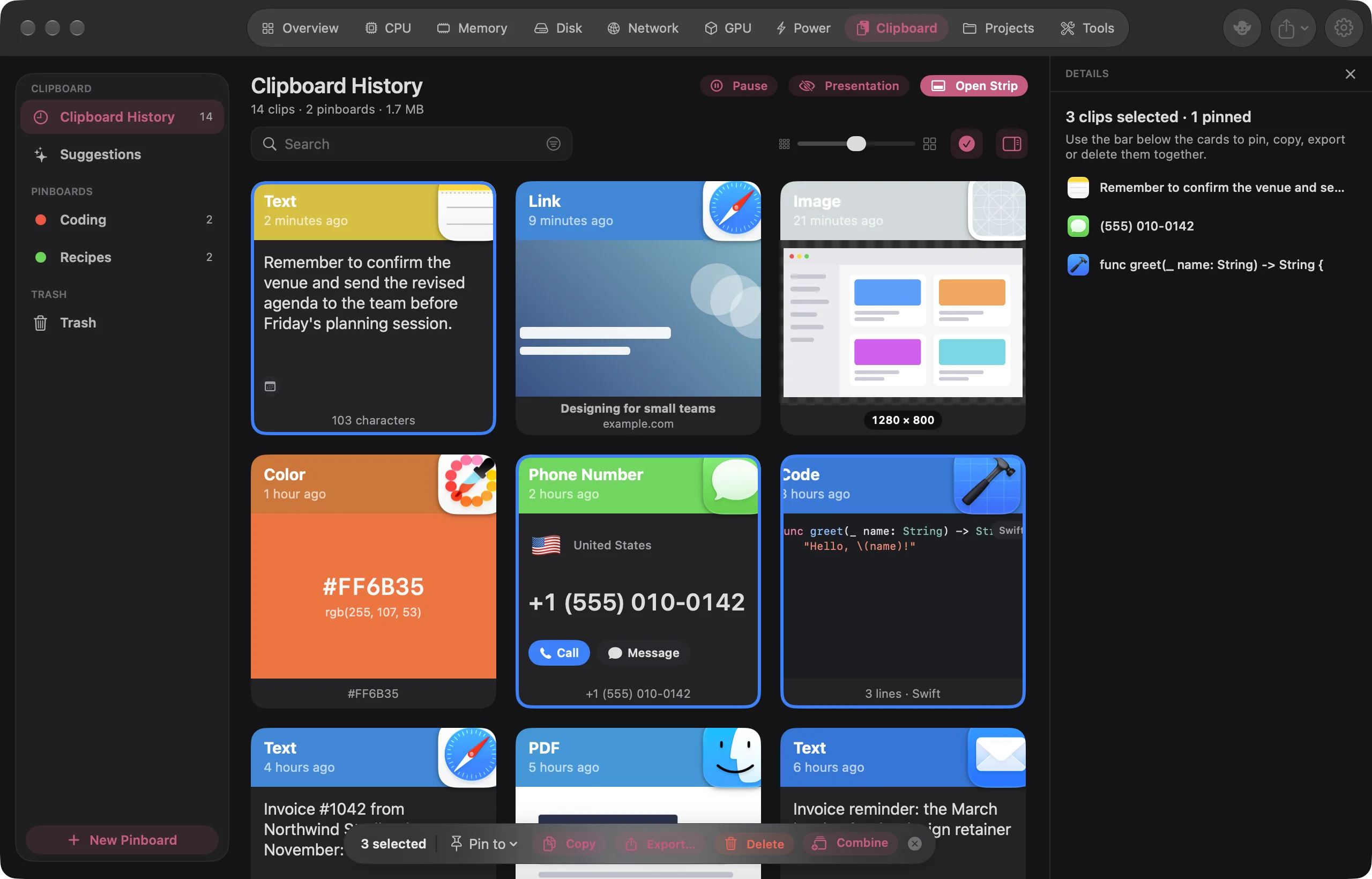
- Select two or more cards: ⌘-click, ⇧-click, ⌘A, or turn on Select mode in the toolbar and click each card.
- A bar floats under the grid with the count, such as 3 selected. Click the button you want.
| Button | What it does |
|---|---|
| Pin to | Pins them all to a pinboard, or to a New Pinboard… |
| Copy | Puts them on the clipboard together (text clips joined by line breaks) |
| Export… | Saves them to a folder you choose, one file each |
| Delete | Moves them to the Trash (asking first if any is pinned) |
| Combine | Makes one clip from them, when they can be combined. See Paste tools |
| ✕ | Clears the selection |
In the Trash the bar has Put Back, Delete Permanently… and Empty Trash… instead.
Export clips as files#
- Select the clips and click Export… in the bar.
- Choose a folder in the sheet ("Choose where to put 3 clips, one file each.") and click Export Here.
Goblin writes the clips there in the order shown, numbered: "001 Shopping list.txt", "002 Screenshot.png" and so on. Text becomes .txt files, images and files are saved as themselves, and links become .webloc files that open in your browser. A message tells you how many it exported, and how many it skipped. To move whole pinboards, see Import and export.
The Clipboard tab in the menu bar panel#
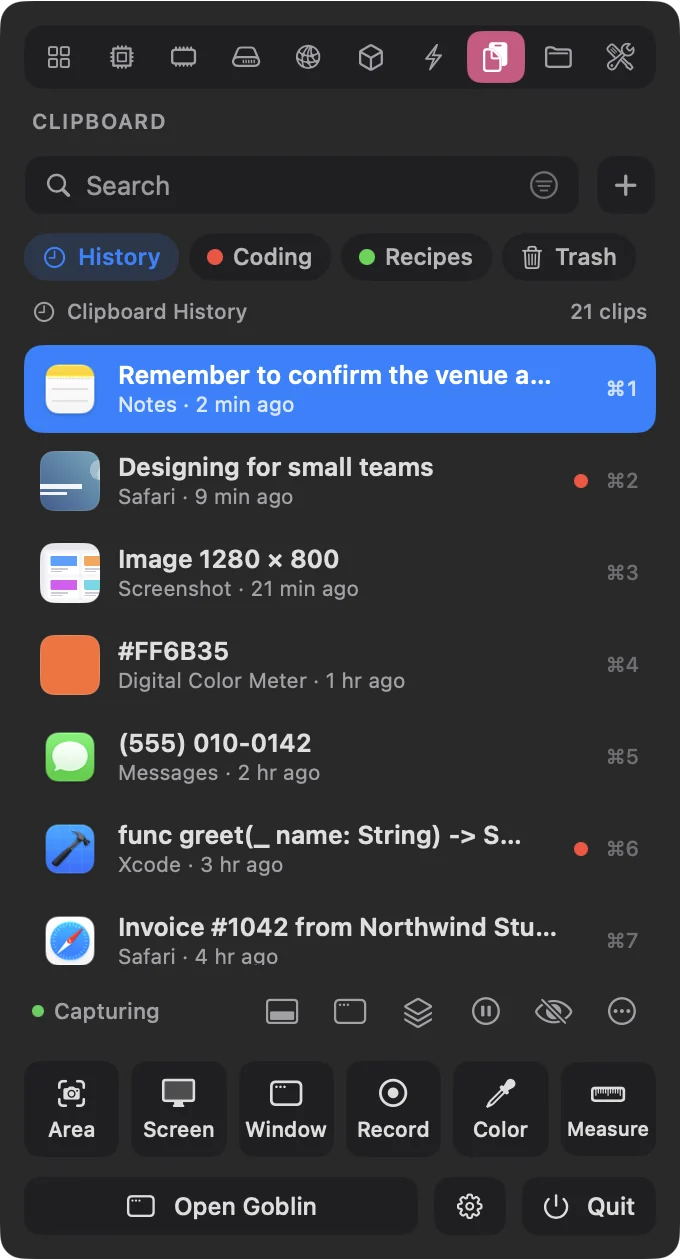
Click Goblin's menu bar item and choose the Clipboard tab. The panel opens over the app you're using, and that app is where pastes go. The list starts at the newest clip each time you open the tab. The tab's tile on the panel's Overview shows how many clips are in History, or "Off". Drag the panel's bottom edge to make the list taller.
Paste from the menu bar panel#
- Click Goblin's menu bar item and choose the Clipboard tab.
- Start typing to search, or click a chip to pick a list: History, a pinboard or Trash.
- Click the row you want, or move with ↑ ↓ and press Return.
The panel closes and the clip is pasted into the app you were using. For a faster way, press ⌘1 to ⌘9 to paste one of the first nine rows without selecting it.
To copy a clip without pasting it, ⌥-click the row or press ⌥Return. To paste it as plain text, ⇧-click or press ⇧Return.
Search and lists#
- The search field is always there and ready for typing. It takes the same words, chips and search terms as the strip, with Save as Smart Pinboard… (sparkles), a clear button and Filters. Suggestion pills appear under it; click one to add it.
- + next to the field makes a New Text Item (⌘N).
- Chips for each list: History, each pinboard, and Trash with its count. Click one to show it; click Trash again to go back to History. Right-click History for Erase History…, a pinboard for its menu, and Trash for Empty Trash…. You can drop rows on a pinboard's chip to pin them.
- The line above the list names what you're looking at ("All clips" while searching) and counts it. It holds Empty Trash… in the Trash, and Edit Search and Pin All to… on a smart pinboard.
The rows#
Each row has a small picture (a color swatch, an image or link thumbnail, the app's icon), the clip's name, and under it the app, the device if it came from another one, and how long ago you used it: "Safari · 22 min ago". In the Trash rows say when and where from they were deleted. A colored dot marks a clip in History that's pinned. The first nine rows show ⌘1 to ⌘9 (or the Quick Paste key you chose).
| To | Do this |
|---|---|
| Paste | Click the row, or press Return |
| Paste as plain text | ⇧-click, or press ⇧Return |
| Copy without pasting | ⌥-click, or press ⌥Return |
| Quick Paste | ⌘1 to ⌘9 (add ⇧ for plain text) |
| Move the selection | ↑ ↓, or ⌘↑ ⌘↓ for the first or last |
| Preview | Space, while the search field is empty |
| Copy the selected clip | ⌘C, while the search field is empty |
| Delete | ⌘⌫ (in the Trash: delete permanently) |
| New Text Item | ⌘N |
| More | Right-click for the card menu, or drag a row out to another app |
| Close | Esc closes the preview, then clears the search, then closes the panel |
In the Trash, a click selects a row and Return puts it back. A deleted pinboard shows as one row with a Put Back button.
Tab and ⇧Tab switch to the panel's other tabs.
The preview opens inside the list rather than floating, with Share and Edit at the top. Close it with Space or Esc.
The footer#
On the left, Capturing with a green dot, or Paused with an amber one, and the sync status when iCloud sync is on. On the right, a row of small icons (hover for the name):
- Open Strip (⇧⌘V), on the same list,
- Open in Window, the Clipboard page above,
- Start Copy Queue, which becomes Copy Queue is on. Click to end it. (Paste tools),
- Pause capturing or Resume capturing,
- Presentation mode (Privacy),
- More, the strip's More menu.