 Goblin
Ignore lists tell Goblin what to leave alone. Put a folder or file on a list and the scans skip it: it won't be suggested, listed or offered for removal. Use them for things you want to keep, such as a folder of installers you archive on purpose, or an app you don't want to see in Applications. Anything inside an ignored folder is ignored with it.
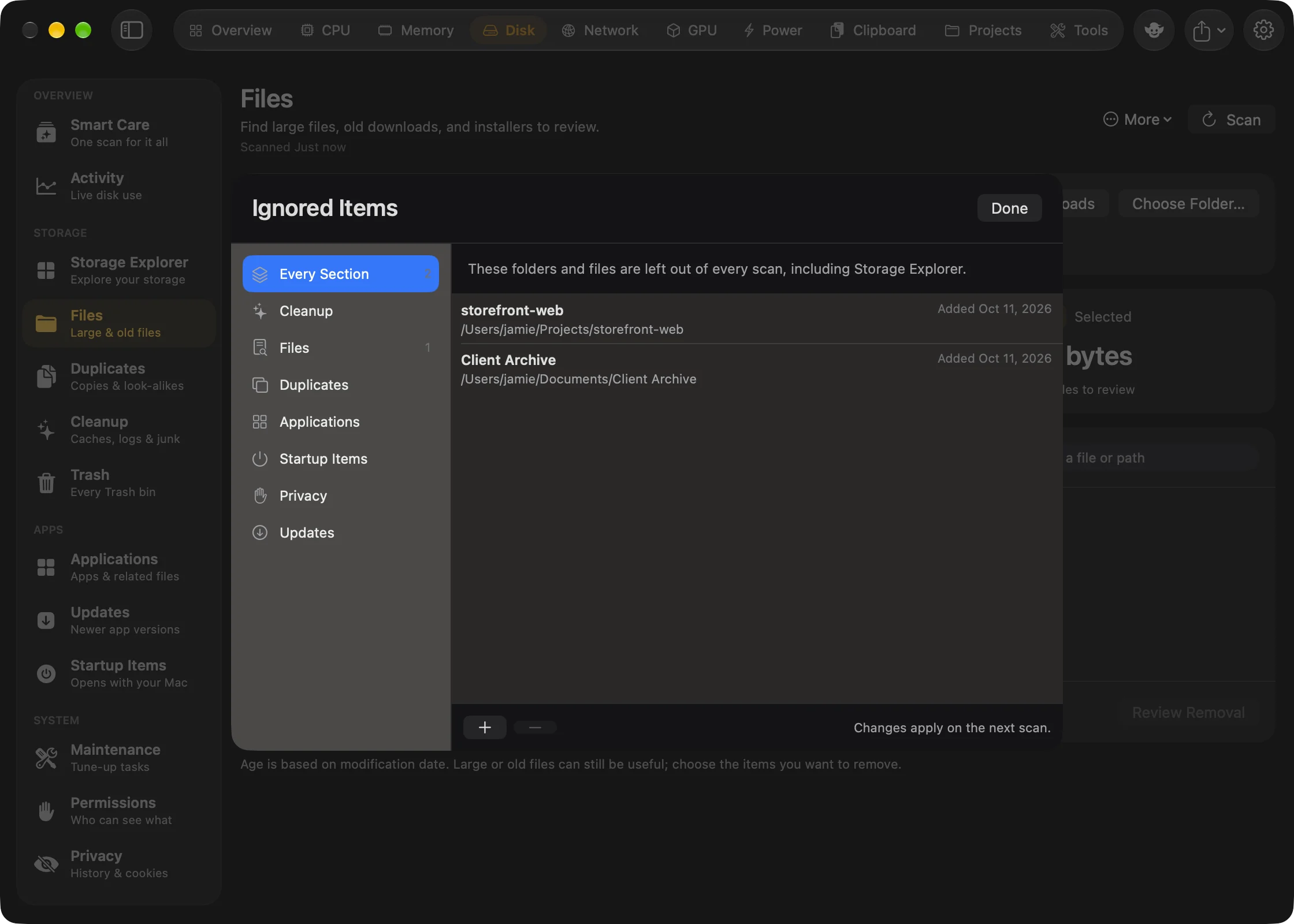
Open the Ignored Items sheet#
- Open the Disk tab in the main window.
- Go to Applications, Files, Cleanup or Storage Explorer. These are the pages with a More menu.
- Click More (⋯) in the header, then Ignored Items….
(The menu also has Removal History….) The Duplicates, Startup Items, Privacy and Updates pages have no More menu, but their lists are in the same sheet: open it from one of the four pages above.
The sheet has a pane for each list, with how many entries it holds:
| List | What an entry does |
|---|---|
| Every Section | Left out of every scan, including Storage Explorer. |
| Cleanup | Cleanup won't suggest anything inside these folders. |
| Files | Files won't list anything inside these folders. |
| Duplicates | Duplicates won't compare anything inside these folders. |
| Applications | Applications won't list these apps or their leftover files. |
| Startup Items | Startup Items won't list launch items stored in these folders. |
| Privacy | Privacy won't offer to clean anything inside these folders. |
| Updates | Apps you ignored and versions you skipped in Updates. |
Each entry shows its name, path and when you added it ("Added earlier" for entries from before Goblin kept dates).
Ignore a folder or file#
- Open Ignored Items… as above.
- Choose the list on the left. Pick Every Section to leave it out of everything, or one section's list to leave it out of that section only.
- Press + under the entries.
- In the file picker, choose one or more folders or files and press Ignore.
- Press Done.
Changes apply on the next scan.
Stop ignoring something#
- Open Ignored Items… and choose the list the entry is on.
- Select the entry.
- Press −. Goblin looks at it again from the next scan.
- Press Done.
For the Updates list, this is how you bring back an app you ignored or a version you skipped.
Ignore from a section#
You can also ignore things from the sections themselves, without opening the sheet:
| Where | How | Goes on |
|---|---|---|
| Files | Right-click a file › Ignore Item | Files |
| Duplicates | Right-click a copy › Ignore This File or Ignore This Photo | Duplicates |
| Applications | Right-click an app › Ignore App | Applications |
| Leftovers | Right-click a leftover › Ignore Item | Applications |
| Startup Items | An item's ⋯ menu › Ignore | Startup Items |
| Updates | An app's ⋯ menu › Ignore This App or Skip This Version | Updates |
The Cleanup, Privacy and Every Section lists are filled from the + button only. The Updates pane has no +: ignore an app from the Updates page.
How the lists combine#
Each section skips its own list plus Every Section. Storage Explorer uses only Every Section: ignored places are skipped during the scan and counted as "Excluded locations" in Not accounted for.
Changing the Every Section list makes Storage Explorer forget its remembered scans and deselect anything that is now excluded, so the next scan matches the list. As a safety check, Goblin also refuses to remove a selected folder that contains something you've ignored. See The safety checks.