 Goblin
 doesn't keep a separate list of captures. Each one becomes a clip in your clipboard history, and every capture is also pinned into a pinboard named Screenshots. So everything you can do with clipboard history works on your captures: search, preview, drag out, paste, share, sync.
This needs the Clipboard switched on (Settings›Clipboard). While it is off, captures are only files on disk.
Find an old capture#
- Right-click Goblin's menu bar item and choose Image & PDF Tools›Open Capture History.
- The main window opens on the Clipboard tab with the Screenshots pinboard selected. It is a gallery with larger pictures.
- Use the filter at the top (All, Screenshots or Recordings; GIFs count as recordings), or search.
- Double-click a card to use it, drag it into another app, or right-click it for the same menu the strip has.
You can also open the pinboard in other ways:
- The strip. Press Show Clipboard (⇧⌘V by default) and pick the Screenshots pinboard. It shows a camera in its color instead of a plain dot.
- From capture.
goblin capture historyand thegoblin://capture/historylink open the window on that pinboard too.
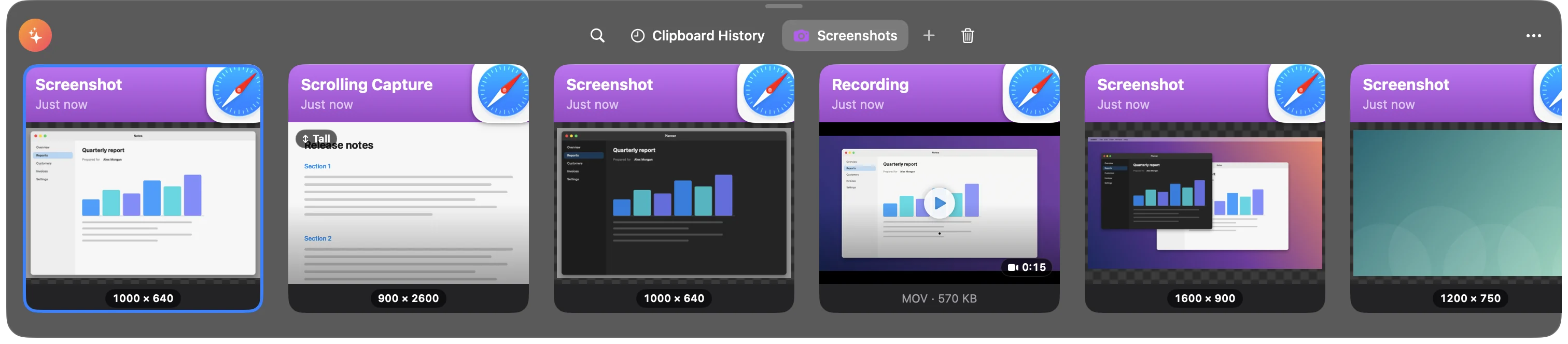
A recording or GIF card shows its first frame and its length, and plays, muted and looping, while the pointer is over it. A very tall picture, such as a scrolling capture, shows its top with a Tall badge. A card with no title is named for what it is: Screenshot, Scrolling capture, Recording or GIF.
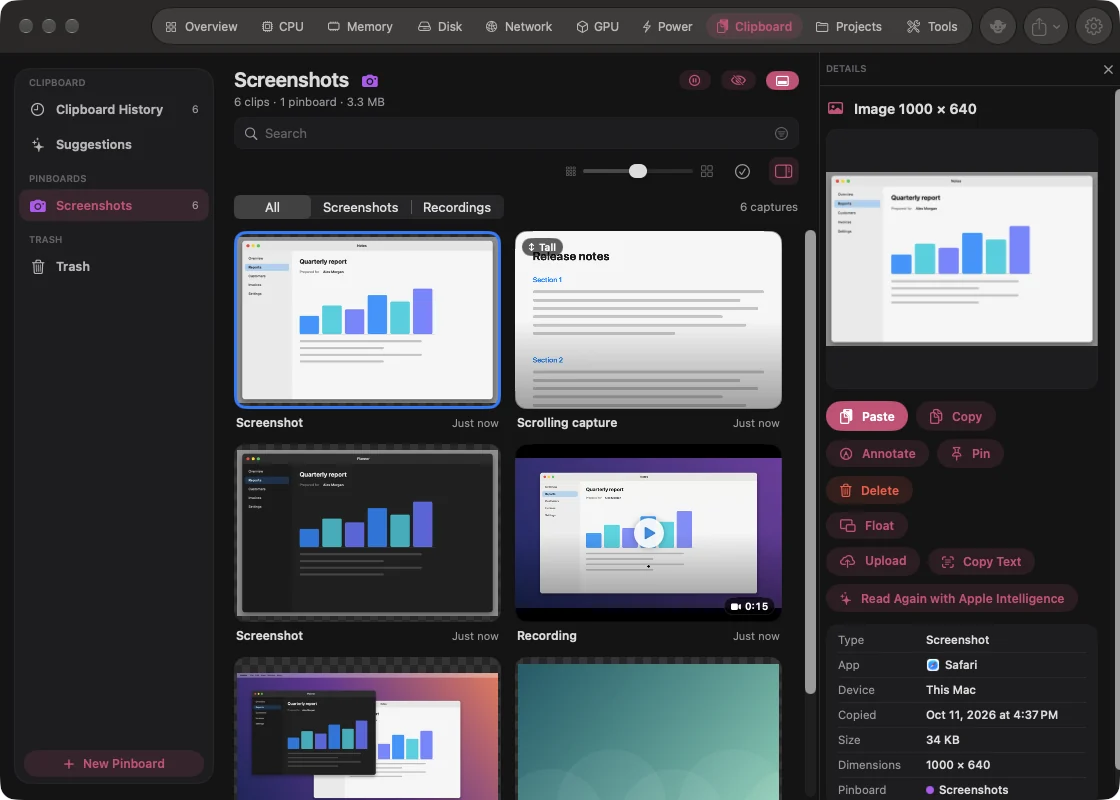
Searching the clipboard also finds the text in a screenshot, because Goblin reads the words in pictures as it saves them.
Reuse the last capture#
Three items in the Image & PDF Tools submenu of the right-click menu on Goblin's menu bar item work on the latest capture:
- Annotate Last Screenshot opens it in the annotation editor.
- Pin Last Screenshot floats it on screen above your other windows.
- Restore Last Capture brings back its Quick Access card, whatever kind of capture it was. It is dimmed when the file is gone.
goblin capture last annotate|pin|restore does the same, and goblin capture list prints the latest captures (with --json for scripts).
Turn capture history on or off#
- Open Settings›Capture›General.
- Find the History section.
- Switch Keep captures in the Screenshots pinboard on or off.
| Setting | What it does | Default |
|---|---|---|
| Keep captures in the Screenshots pinboard | Pins every screenshot, scrolling capture, recording and GIF into the Screenshots pinboard, so your capture history is kept like any pinboard: it syncs, can be shared, and isn't removed by Keep History. | On |
You can rename the pinboard or move it. If you delete it, it only comes back when you turn the setting off and on again. If the Clipboard itself is off, the section says captures are only added to history while Clipboard is on.
Captures follow the clipboard's privacy rules. An app set to Don't save in Settings›Clipboard›Privacy keeps its screenshot file but doesn't get it added to history. Anything you haven't pinned follows Keep History, the Trash and Clear history when Goblin quits.
Screenshot to History#
A separate shortcut takes a screenshot straight into history without a card.
- Open Settings›Clipboard›Shortcuts. Find Screenshot to History.
- Use the default ⌃⇧5, or click the field and record another one.
- Press the shortcut, then select an area or a window. It is saved, with its text read, without touching your clipboard.
Also copy the screenshot, just below it, changes that. It is a clipboard shortcut, so it works even when the capture shortcuts are switched off.