 Goblin
A connection alert appears when an app tries to connect somewhere and Goblin's firewall needs you to decide. The connection waits while you choose. Your answer can be for this one connection, or it can become a rule that decides future ones, for as long as you say.
When you see one#
- In Alert mode, for any connection that no rule or blocklist covers.
- For an Ask rule, in any mode. See Making a rule.
- When a program has changed since its rule was made, in any mode, Silent included, while When a program's identity changed is set to Ask (the default). See When a program has changed.
The alert floats near the top middle of the screen that has the pointer, on every Space. It takes the keyboard without bringing Goblin's window forward. If several connections are waiting, they're answered oldest first, and the alert says "N more waiting".
New in 1.1: A soft sound plays when an alert appears. It follows Sound effects in General settings, and stays quiet when macOS's Play user interface sound effects is off.
Answer a connection alert#
The quick way, for most alerts:
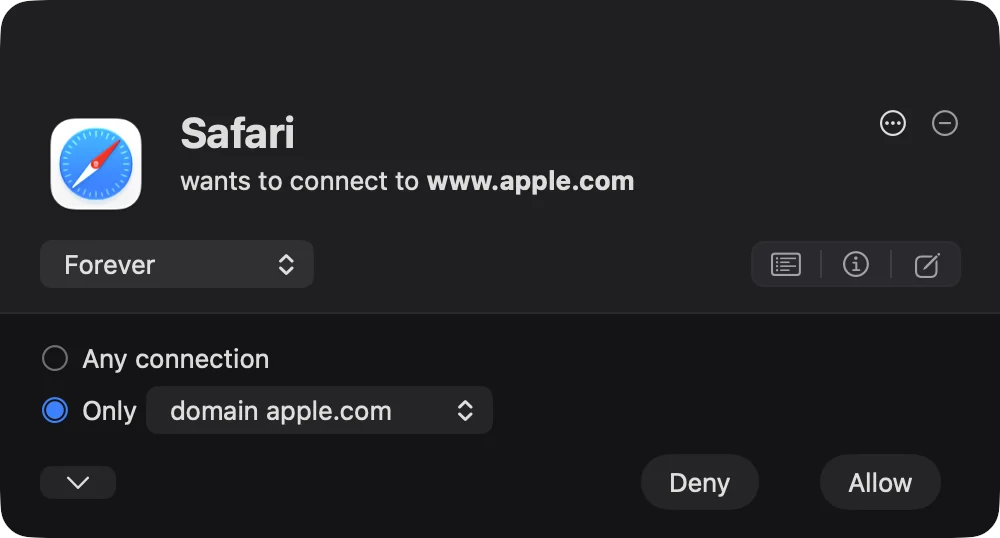
- Read the app's name and the sentence under it, such as "wants to connect to apple.com on port 443 (https)".
- Open the duration menu at the left of the row under the app's name (it starts on Forever unless you changed it) and choose how long your answer should last. Choose Once to decide only this connection.
- Choose what the answer covers: Any connection, or Only with a destination. With Once, this doesn't matter.
- Click Allow, or Deny. Return allows and Esc denies.
When it worked, the alert closes, the connection goes ahead or is refused, and the next waiting alert (if any) takes its place. Unless you chose Once, the new rule appears in Rules with a blue dot.
Allow or deny just this once#
- Open the duration menu and choose Once.
- Click Allow or Deny.
No rule is made. Other connections waiting from the same app for the same place are decided the same way, and a later connection asks again.
Make a permanent rule from an alert#
- Open the duration menu and choose Forever. (Choose Until Quit, Until Logout, Until Restart or For 1 Minute up to For 30 Days for a rule that ends by itself.)
- Near the bottom of the alert, pick Any connection to cover everything the app connects to, or Only and then a destination from its menu, such as domain apple.com.
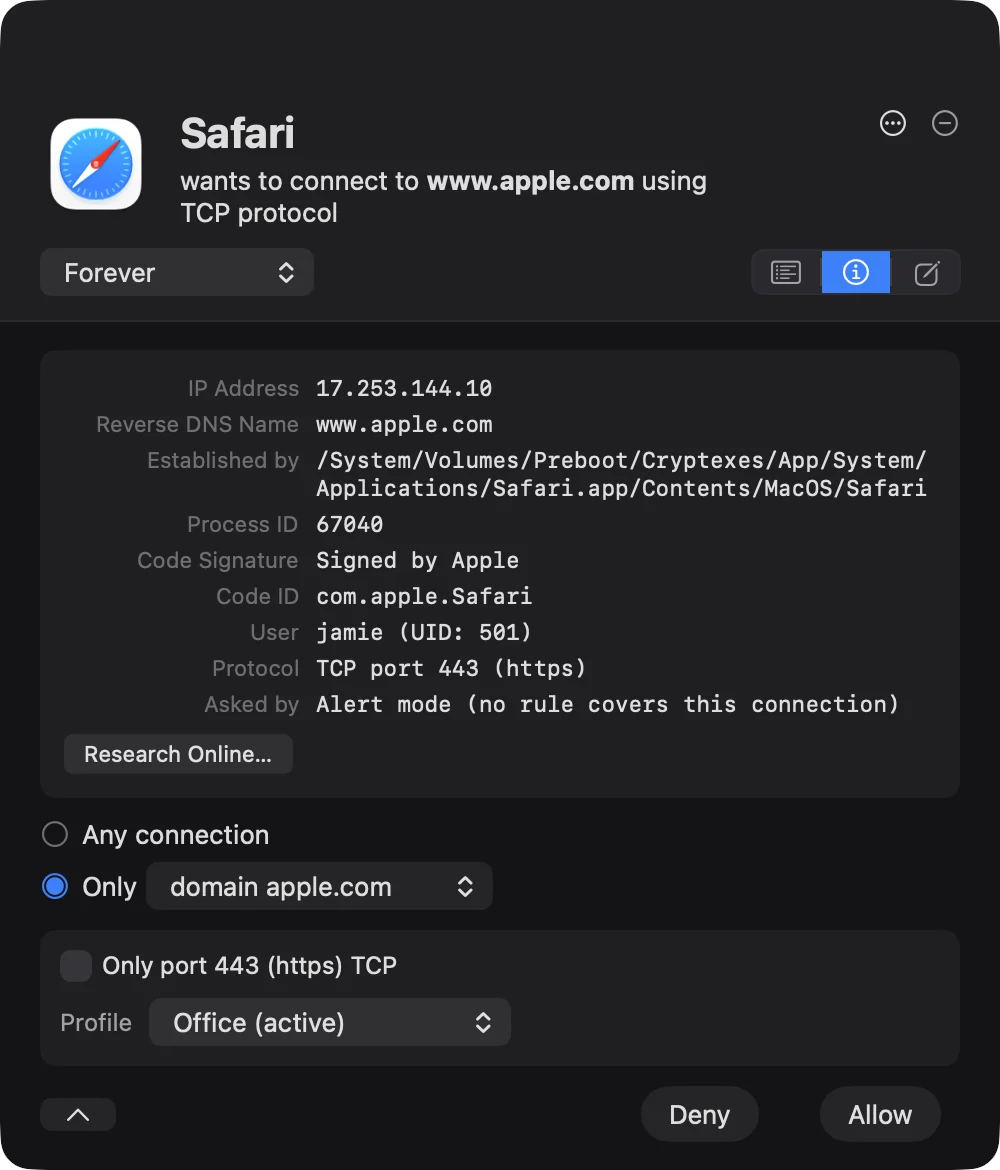
- Optionally click ⌄ and tick Only port 443 (https) TCP to limit the rule to that port, or pick a profile.
- Optionally click the Notes tab (the rightmost icon) and type a note to save with the rule.
- Click Allow or Deny.
When it worked, a rule for this app appears in the Network tab's Rules. It is marked as unapproved (a blue dot) until you approve it. The details of each choice follow below.
Answer an alert later#
- Click the minimize button (⊖, "Minimize; answer later") at the top right of the alert.
- The alert shrinks to a small bar reading "<App> is waiting", and the connection keeps waiting.
- Click Show on the bar, or the menu bar panel's "N connections waiting for your answer" line, to bring it back.
Check what an app is before answering#
- Click the Info tab (the "Details about the connection" icon under the app's name) to see the address, the program's path and signature, and what asked.
- Click the Policy tab ("Internet Access Policy") to read what the developer says the app connects to and why.
- Click Research Online… in either tab to search for the app and server in your browser.
- Click the same tab icon again to close it, then answer as usual.
Choose ⋯›Show Network Monitor to see the app's other connections in Connections first. The alert steps aside and the connection keeps waiting.
Reading the alert#
The top shows the app's icon and name ("Safari", or "claude via curl" when a command-line tool connects on an app's behalf), then a sentence such as "wants to connect to apple.com" or "wants to accept an incoming connection from …". It may add " in the local network", " via Private Relay" or the port, such as " on port 443 (https)".
How much of the port and protocol the sentence shows depends on Detail Level in Firewall settings. Press D to show the full details any time. Incoming connections always show the local port.
Other lines appear when they apply:
- An IDN note explains that a name like münchen.de is written differently on the wire (its Punycode form).
- An App Translocation warning: macOS is running the app from a temporary place, so Goblin can't make a permanent rule for it. The durations are then limited to Once, Until Quit, and 1 minute, 10 minutes or 2 hours.
In the corner:
- ⋯›Show Network Monitor opens Connections focused on this app and minimizes the alert.
- ⊖ (Minimize; answer later) shrinks the alert to "<App> is waiting", with a countdown if one applies, and a Show button to bring it back.
The tabs#
Icon buttons under the header open a tab. Click the same one again to close it.
Policy (Internet Access Policy). Some developers describe what their app connects to and why. If this app has a policy, the tab shows the developer's description, the purpose that matches this connection, and "If you deny this connection: …". Otherwise it says the connection isn't documented, or that the app has no Internet Access Policy. A Developer's website link appears when the policy has one.
Info (Details about the connection). The IP address, the hostname the system gave for it, whether iCloud Private Relay carries it, the program's path and process ID (marked "(terminated)" if it has quit), its code signature and Code ID, the user, the parent app when a tool connects on its behalf, the protocol and local port, how many connection attempts wait on this answer, and what asked: a rule, or "Alert mode (no rule covers this connection)".
Both tabs have Research Online…, which searches DuckDuckGo for the app and the server in your browser.
Notes. A text box, already filled with a line like "On Oct 2, 2026, Safari tried to establish a connection to apple.com using the TCP protocol." It's saved as the note of the rule you make. Choose a duration other than Once to make a rule.
Your choices#
What the rule covers#
- Any connection covers everything the app connects to.
- Only covers one destination, picked from a menu: domain apple.com (the domain and its subdomains) or host www.apple.com (that name only). For a connection to a bare address, the choices are the local network, a subnet such as subnet 192.168.1.0/24, or address 192.168.1.20.
Which of domain or host is selected first follows Domain or Host in Firewall settings.
Modify Existing Rules#
If you already have a permanent rule for the same program, destination, port, protocol, direction and profile, the alert says "A rule for this program and destination already exists: …" and shows Modify Existing Rules, checked. Left checked, your answer changes that rule instead of adding a second one, and extra copies are removed.
More options#
The ⌄ button (Profile, port and protocol) shows:
- Only port 443 (https) TCP (or "Only local port …" for incoming). Check it to limit the rule to this port and protocol. When the connection has no port, it says the rule covers any.
- Profile: Effective in all profiles, or one of your profiles, with the active one marked. Shown only if you have profiles.
To always open the alert with these options showing, turn on Show the options below the buttons right away in Firewall settings.
How long it lasts#
The duration menu sets how long your answer counts. The first choice comes from Rule Lifetime in Firewall settings, Forever unless you changed it.
| Duration | What happens |
|---|---|
| Once | No rule. Only this connection (and any others waiting with it) is decided. |
| Forever | A permanent rule. |
| Until Quit | A rule that ends when this run of the app quits. If you open the app again, it doesn't apply. |
| Until Logout | A rule that ends when you log out. |
| Until Restart | A rule that ends when the Mac restarts. |
| For 1 Minute, For 10 Minutes, For 2 Hours, For 1 Day, For 7 Days, For 30 Days | A rule that ends after that time. |
The menu is greyed out when the app can't be identified well enough for a rule.
A rule made from an alert names the app by its signing identity, or by its path if it isn't properly signed. Its direction matches the connection. It covers the port and protocol only if you checked Only port…. It's marked unapproved (a blue dot in Rules) while "Mark new rules as unapproved" is on, which is the default. It works straight away either way.
If the alert came from an Ask rule, your answer is made high priority when that's needed to win over the Ask rule. Otherwise you'd be asked again.
The buttons#
- Allow (green) allows the connection.
- Deny denies it. When the app's Internet Access Policy says denying has consequences, the button reads Deny… and shows a warning first (see below).
Answering an alert always works, even when you've locked rule editing in Firewall settings › Security. The lock asks for Touch ID or a password before changes in Rules and Settings, but not here.
Waiting and timeouts#
Stop an automatic answer#
When an alert counts down ("Automatically allowed in 42 s"):
- Click Cancel Automatic Confirmation beside the countdown. The countdown disappears and the alert waits for you. It isn't offered for UDP connections.
- Answer as usual.
To stop alerts answering themselves at all, open Settings›Firewall›Alert and switch off Confirm connection alert automatically.
Normally an alert waits for you. Confirm connection alert automatically in Firewall settings (off by default) answers for you after a delay you choose, 45 seconds unless you change it. A countdown then reads "Automatically allowed in 42 s" (or denied) and turns amber in the last 5 seconds. Cancel Automatic Confirmation stops the countdown and keeps the connection waiting for you (TCP connections only).
Some limits apply even without automatic confirmation:
- UDP connections can only wait about 8 seconds. macOS drops them after 10, so these alerts always count down.
- No alert waits longer than 6 hours. After that, the automatic answer set under Automatic Confirmation applies (Allow, unless you changed it).
- While Goblin isn't running, there's nobody to ask, so the same automatic answer applies.
Connections nobody answered in time are listed under Suggestions in Rules as Alert Timeout, so you can make a proper rule for them.
If an alert sits minimized, hidden or covered for 5 seconds, Goblin posts one "Connection Alert" notification for it. Clicking it brings the alert forward. You can turn this notification off in Firewall settings › Notifications.
Keyboard#
| Key | What it does |
|---|---|
| Return | Allow |
| Esc | Deny (or closes the deny warning) |
| ⌘Return | Allow, always |
| ⌥Return | Deny, always |
| D | Shows the port and protocol details |
Return and Esc answer only while Confirm with Return and Escape is on in Firewall settings (it is by default). Turn it off if a stray keypress might answer an alert you didn't read; ⌘Return and ⌥Return still work. While the Notes tab is open, Return, Esc and D type into the notes instead.
Goblin ignores clicks and key presses that another program simulates, unless Allow GUI Scripting access to Goblin is on in Firewall settings › Security. When it ignores some, it posts an "Ignored Simulated User Input" notification, at most once a minute.
The deny warning#
To deny anyway: click Deny…, read the amber box, and click Deny Anyway. Click Cancel to go back.
When the app's developer says denying this connection has consequences, Deny… shows an amber box first: "The developer says denying this connection has consequences", followed by what they say will happen. Click Deny Anyway or Cancel. Check Don't show again for this process to skip the warning for this app next time. Reset 'Deny'-Warnings in Firewall settings › Alert brings them all back.
When the app has already quit#
If the program quit while the alert was waiting, a banner says the connection can no longer succeed, though a rule would still apply to later attempts. Click Cancel to deny once without making a rule, or answer as usual to make a rule for later attempts. When other attempts by the same program are waiting too, you get Cancel All (deny them all once) or Review Others.
When a program has changed#
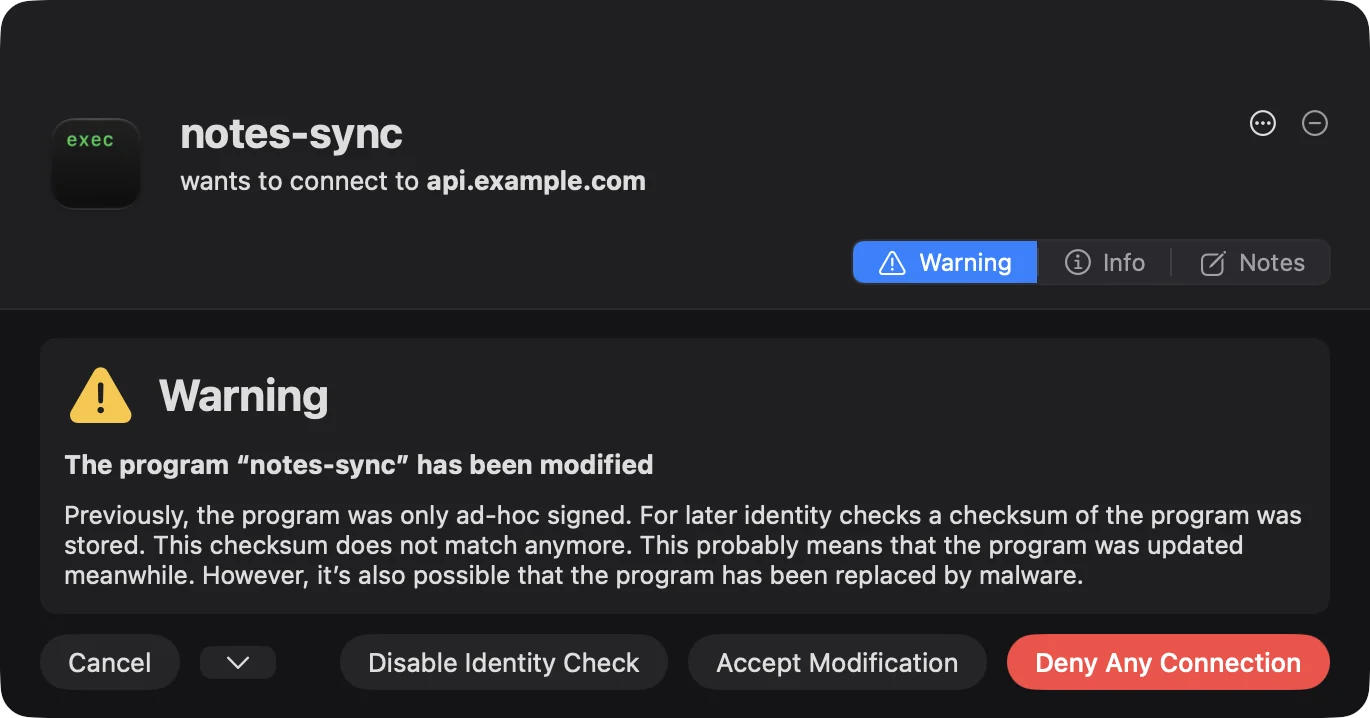
To answer one of these alerts: read the Warning tab, then click Accept Modification if you expected the change (an update, a rebuild), or Deny Any Connection if you didn't. Cancel denies once and keeps asking.
Rules made with an identity check remember exactly which program they're for. If that program changes, for example an update that isn't signed the same way, or a tool rebuilt on your Mac, the rule isn't applied blindly. You get an alert with a Warning tab in place of Policy, and a large "Warning" heading:
- "The program “X” has been modified": its checksum no longer matches.
- "The identity of the program “X” has changed": for example, a different developer team signed it.
- "For security reasons, an existing rule for any via-process was not applied to “X”!": an app's rule covers any tool that connects on its behalf, but this tool has no code signature, so it can't be told apart from any other program. The words "existing rule" show the rule. Accept Modification isn't offered for this one.
The explanation underneath says what changed and why it matters: usually an update, but it's also possible the program was replaced by malware.
| Button | What it does |
|---|---|
| Accept Modification | Trusts the program as it is now. The rule records the new identity, and the waiting connection gets the rule's original answer. |
| Disable Identity Check | The rule applies to this program whatever it has become. |
| Deny Any Connection (red) | Denies the program's connections. Its ⌄ options set how long that lasts and for which profile. |
| Cancel | Denies this connection once. In the alert about a tool with no code signature, it reads Cancel…. |
These alerts never allow by keyboard: Return and ⌘Return choose Deny Any Connection, Esc cancels once, and ⌥Return denies.
If you'd rather Goblin refuse changed programs without asking, set When a program's identity changed to Deny in Firewall settings › Security. Rules whose check failed are also listed under Identity Mismatch in Rules.