 Goblin
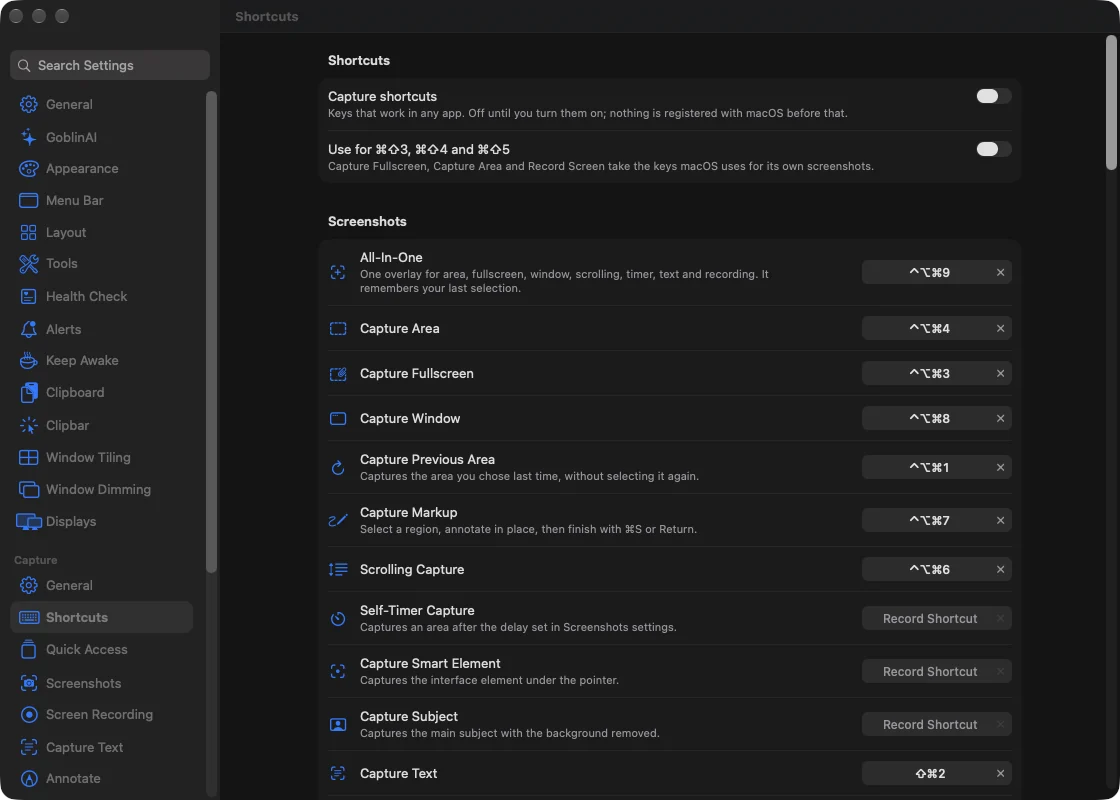
Capture shortcuts work in any app. Goblin ships them off: nothing is registered with macOS until you switch them on, either in Set Up Capture or in Settings›Capture›Shortcuts.
Turn them on#
- Open Settings›Capture›Shortcuts.
- Switch on Capture shortcuts. (The first time, Goblin may offer Set Up Capture, a three-step walkthrough of Screen Recording, the shortcuts and the ⌘⇧3/4/5 keys. Set Up Capture… on Settings›Capture›General opens it again.)
- The shortcuts in the list below work from now on. Try one: press ⌃⌥⌘4 and drag over part of the screen.
Change or clear a shortcut#
- Click a shortcut's field in Settings›Capture›Shortcuts. It shows the current keys and waits for new ones.
- Press the combination you want. It is saved straight away. A combination needs ⌘, ⌃ or ⌥, so typing isn't affected.
- Press Esc to leave it as it was, or press the × (or Delete) to clear it.
If the combination is taken, the field says why. See Clashes.
The defaults#
Goblin's own combinations are ⌃⌥⌘ and a digit, so they don't take over a key you already use:
| Shortcut | Default |
|---|---|
| Capture Previous Area | ⌃⌥⌘1 |
| Capture Text | ⌘⇧2 |
| Capture Fullscreen | ⌃⌥⌘3 |
| Capture Area | ⌃⌥⌘4 |
| Record Screen | ⌃⌥⌘5 |
| Scrolling Capture | ⌃⌥⌘6 |
| Capture Markup | ⌃⌥⌘7 |
| Capture Window | ⌃⌥⌘8 |
| All-In-One | ⌃⌥⌘9 |
These ship with no combination, because they would otherwise take a key some apps use. Assign one if you want it:
- Screenshots: Self-Timer Capture, Capture Smart Element, Capture Subject (the object cutout), and Capture Area & Copy, & Save, & Annotate and & Pin.
- Recording: Pause or Resume Recording, Draw on Screen While Recording, Restart Recording, Delete Recording, Start Video Recording, Start GIF Recording and Select Window to Record. The first four only work while a recording runs.
- Quick Access Overlay: Hide/Show Overlays, Save All Overlays and Close All Overlays.
- Tools: Open Annotate, Open Video Editor, Show Recently Uploaded and Show Shortcut List.
Pick Color is in the Tools group too; it is the same key as in Clipboard settings. The page lists the shortcuts in four groups: Screenshots, Recording, Quick Access Overlay and Tools. Under them are the keys that work inside the editor, on Quick Access cards and in the selection overlay, which can be changed too. Capture Text has extra shortcuts of its own on its page.
Capture Area & … shortcuts do what their name says and skip the other After Capture actions if you tick Ignore After Capture actions when using these shortcuts.
Reset the shortcuts#
Press Reset Shortcuts… at the bottom of the page and confirm. Every global capture shortcut goes back to what it came with; the ones that would take over a common app's key start unassigned.
Use for ⌘⇧3, ⌘⇧4 and ⌘⇧5#
macOS takes screenshots with ⌘⇧3 (the screen), ⌘⇧4 (an area) and ⌘⇧5 (the screenshot toolbar). To use those keys for Goblin instead:
- In Settings›Capture›Shortcuts, make sure Capture shortcuts is on.
- Switch on Use for ⌘⇧3, ⌘⇧4 and ⌘⇧5. Capture Fullscreen and Capture Area take ⌘⇧3 and ⌘⇧4, and All-In-One takes ⌘⇧5, which is where macOS puts its own screenshot toolbar.
- If macOS's own shortcuts are still on, Goblin says macOS still answers those keys. Press Turn Them Off for Me and Goblin switches macOS's screenshot shortcuts off for you. Give Back to macOS undoes it any time.
- Or do it yourself: press Open Keyboard Settings, click Keyboard Shortcuts…, then Screenshots, and untick the five. Each turns green in Goblin as you do, and Goblin takes the keys over when the last one is off.
Switch the setting off and the three go back to the ⌃⌥⌘ combinations; Goblin gives macOS its own keys back if it had switched them off. In Set Up Capture this is step 3, Use ⌘⇧3, ⌘⇧4 and ⌘⇧5 for Goblin, and the choice to stay with Goblin's keys is Keep ⌃⌥⌘ Shortcuts.
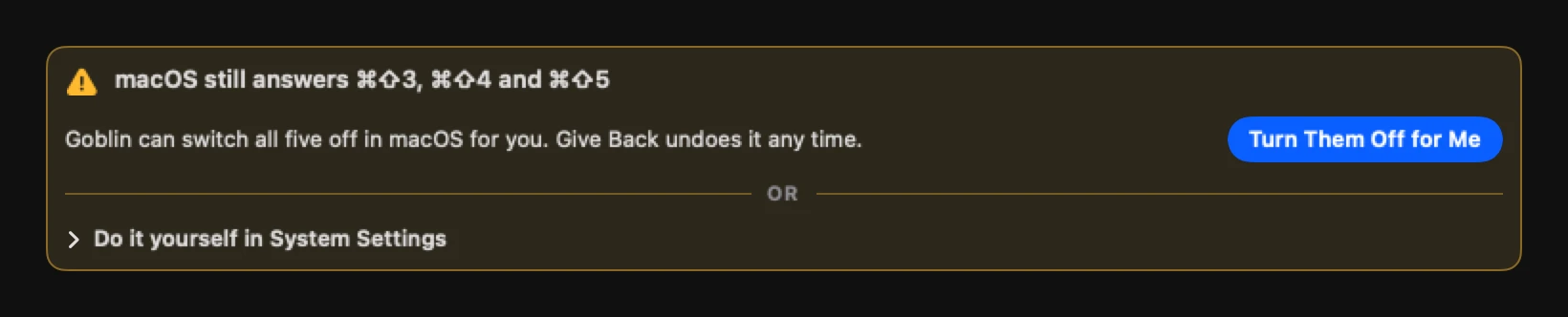
If one of the keys is already used by another shortcut, Goblin says which and changes nothing.
Clashes#
Two things can't hold the same combination, and Goblin checks both ways.
- A capture shortcut refuses a combination used by another capture shortcut, by the editor, by macOS's screenshot shortcuts, or by one of Goblin's own: the dropdown, the window and the Network Monitor shortcuts, the extra shortcuts in Settings›Menu Bar, the clipboard shortcuts and every Clipbar shortcut (show, show for selection, search actions, reopen last result and the ones you give single actions). It says which one.
- Goblin's own shortcuts check capture in turn. The dropdown, window and Network Monitor shortcuts in General settings and the extra shortcuts in Settings›Menu Bar show a red note when an enabled capture shortcut already holds the combination, and the clipboard shortcuts refuse it.
A combination that another app holds can't be registered, and the field says In use by another app.