 Goblin
The share button in the main window's toolbar turns what Goblin sees into something you can keep or send: a picture for a post or a bug report, a text summary to paste into a support request, or a spreadsheet of every app and process. It's the square with an upward arrow, to the left of the Settings gear, and it's there on every tab. Its tooltip reads Share or export.
Open the share menu#
- Look at the right of the main window's toolbar.
- Click the square with an upward arrow (Share or export), just left of the Settings gear.
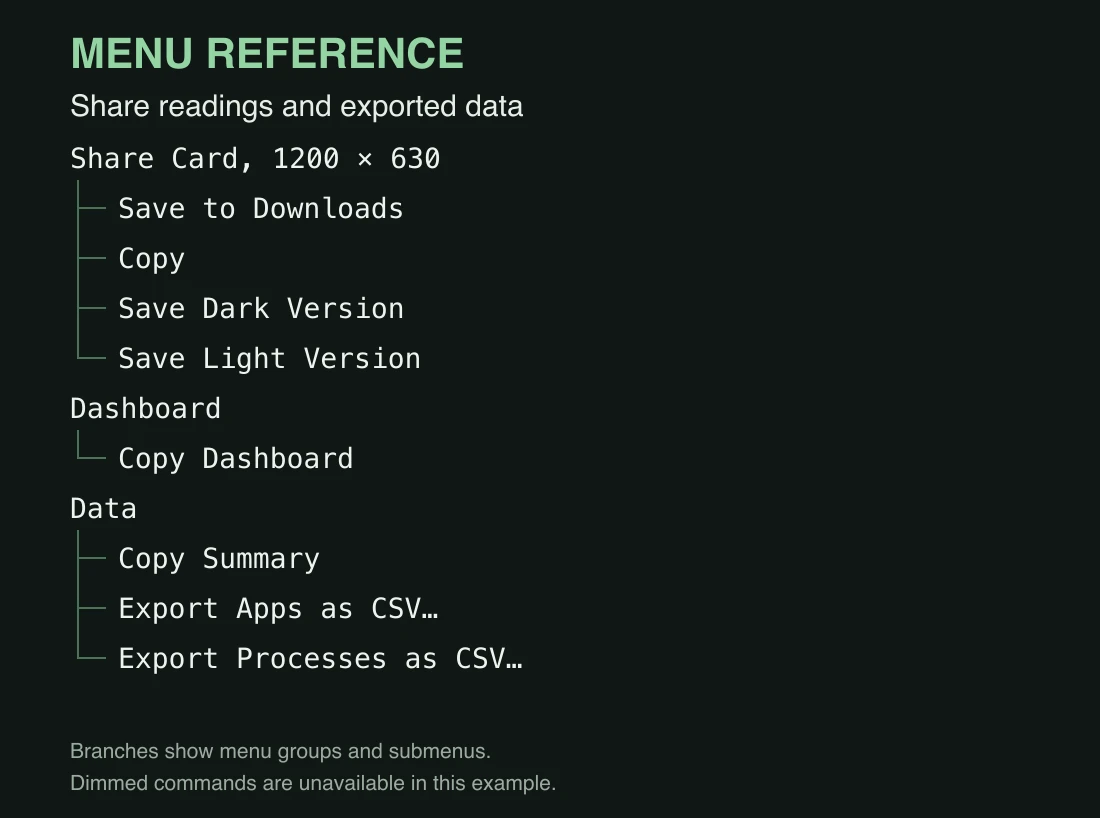
The menu has three sections: Share Card, 1200 × 630, Dashboard and Data. In a narrow window it moves into the More actions menu (the circled ellipsis).
Everything in this menu is a snapshot of the moment you choose it. For an app's history over time, use the App Inspector's Export CSV instead.
Save a share card#
- Open the share menu as above.
- Under Share Card, 1200 × 630, click Save to Downloads. Or click Copy to put it on the clipboard.
When it worked, a message says "Saved to Downloads" and Finder shows the file. The card is a picture sized for social posts and link previews.
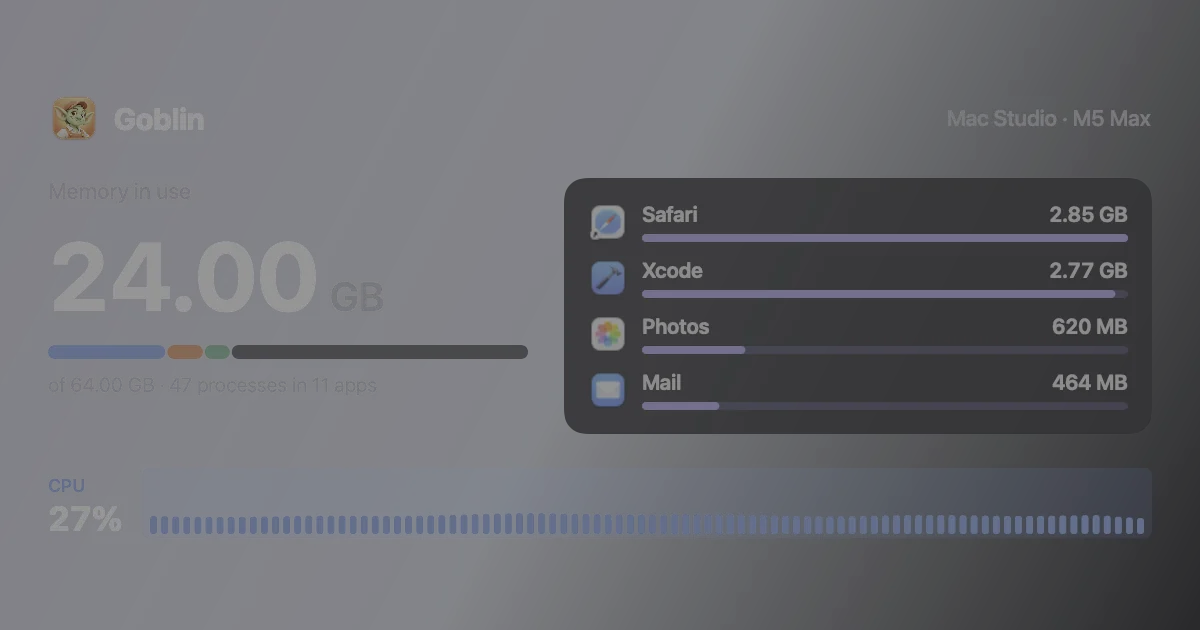
It shows:
- Goblin and its icon, with your Mac's model and chip;
- Memory in use, with a bar split into app, wired, compressed and free plus cached memory, and a line such as "of 32 GB · 612 processes in 84 apps";
- your four apps using the most memory, with their icons;
- your CPU use now, with a strip of the last 90 readings.
| Item | What it does |
|---|---|
| Save to Downloads | Saves the card as a PNG in your Downloads folder, in the window's current light or dark look, then shows it in Finder. |
| Copy | Copies the card as a picture, ready to paste. |
| Save Dark Version | Saves a dark card to Downloads, whatever the window looks like. |
| Save Light Version | Saves a light card to Downloads. |
Saved cards are named "Goblin" followed by the date and time, written the way your region writes dates. There's no save panel, so saving twice in the same minute replaces the first file.
Copy the Overview as a picture#
- Open the share menu.
- Under Dashboard, click Copy Dashboard.
- Paste into a message or a document.
A message says "Dashboard copied". The picture shows your Overview cards, as they're laid out now, with a header showing your Mac's model, chip and the date. It's copied only; there's no save option. It leaves out the Mac health line, Worth a Look, Temperatures & Fans, Volume per App and the drive list on the Disk card.
Data#
Copy a text summary of your Mac#
- Open the share menu.
- Under Data, click Copy Summary.
- Paste it into an email, a forum post or a support request.
A message says "Summary copied". Copy Summary copies a plain-text report of your Mac right now, ready to paste into an email, a forum post or a support request:
- your Mac's model, chip and macOS version, the date and how long it has been up;
- anything the health check is flagging;
- CPU: use, load, cores and thermal state;
- Memory: in use, its parts, cached, swap and pressure;
- Disk: free space on each volume, and reading and writing speeds;
- Network: the interface and speeds;
- GPU: use and memory;
- Battery: charge, whether it's charging, time left, health and cycles (on Macs with a battery);
- Sensors: CPU and GPU temperatures and fan speeds, in your chosen temperature unit;
- the top 8 apps by CPU, by memory and by power;
- up to 8 recent alerts;
- your dev servers with their ports and memory.
CPU figures in the summary are always per core (100% is one full core), whatever you've chosen in Settings.
Export Apps as CSV…#
- Open the share menu.
- Under Data, click Export Apps as CSV… (or Export Processes as CSV…).
- In the save panel, check the name and folder, then click Save.
The first one saves a spreadsheet with one row per app, including the macOS and command-line tool rows, largest memory first. A save panel opens in your Downloads folder with a name like "Goblin Apps 2026-10-02 14.05.csv". The columns are:
App, Kind (app, macOS or tool), Processes, CPU % (per core), Memory MB, Power W, Disk read kB/s, Disk write kB/s, Network in kB/s, Network out kB/s, GPU %, Bundle ID and Path.
Export Processes as CSV…#
The same, with one row per process, grouped by app and largest memory first within each. The columns are:
PID, Process, App, User ID, CPU % (per core), Memory MB, Power W, Disk read kB/s, Disk write kB/s, Network in kB/s, Network out kB/s, GPU %, Listening ports (separated by spaces), Measured by (libproc or ps, for processes of other users) and Path.
In both files, megabytes are 1,048,576 bytes and kilobytes 1,000 bytes. Figures have one decimal place, power three. CPU per core can go above 100% for apps that use several cores. The files open in Numbers, Excel or any spreadsheet.
Other exports#
- One app's history: Export CSV in the App Inspector, or Export CSV… when you right-click an app in the menu bar panel, saves every figure for that app over a range you choose.
- Logs: a log window's Save As… saves entries as text or JSON. See Logs.