 Goblin
Updates compares the apps you have with their latest releases and lists the ones that are behind. For apps that publish a secure update feed, Goblin can download, check and install the update for you. App Store apps open the App Store, and Homebrew apps show the command to run.
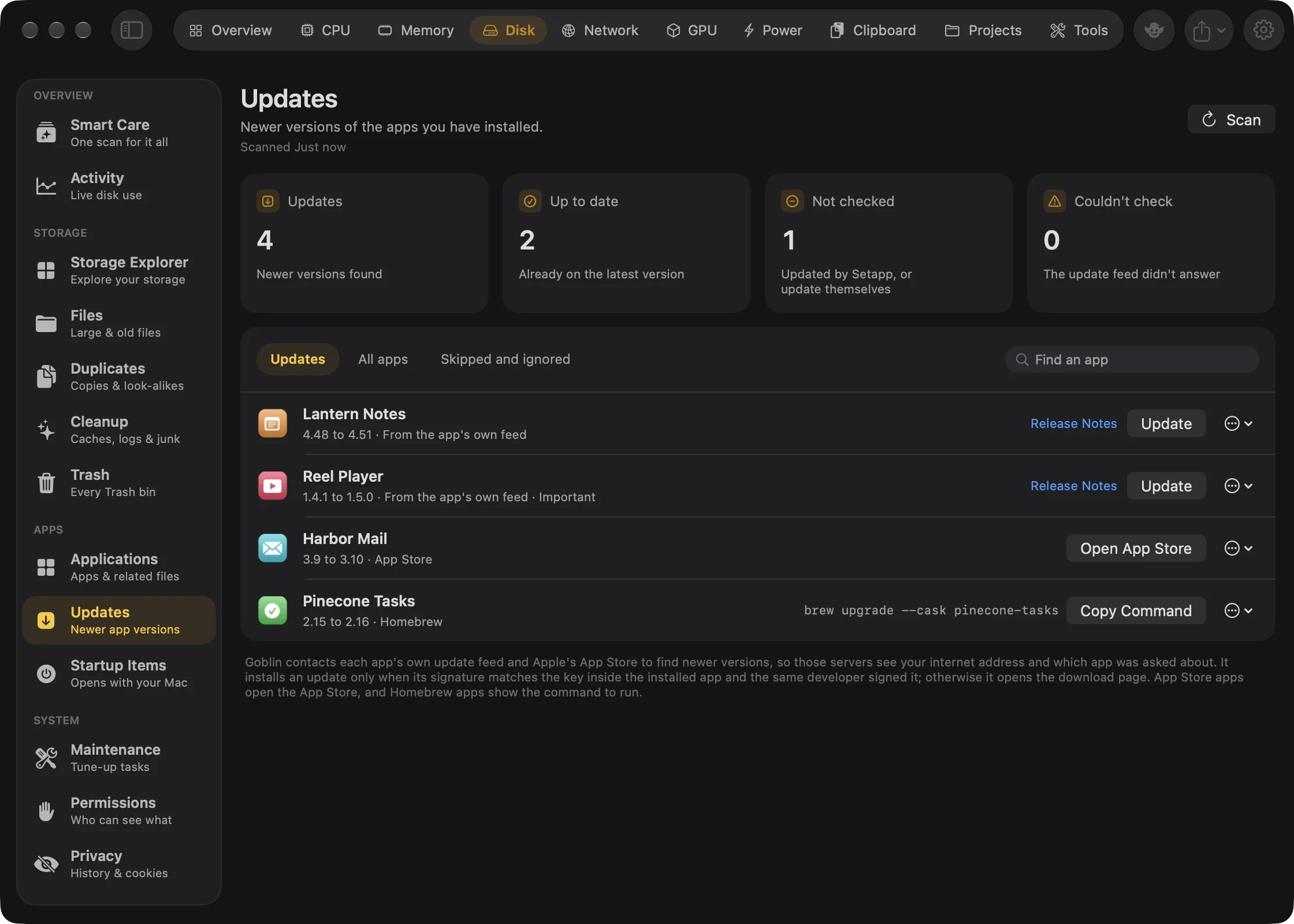
Check your apps for updates#
- Open the Disk tab in the main window.
- In the sidebar, under Apps, choose Updates. The first time you open it, Goblin checks on its own. After that it reuses what it found in the last 6 hours, for apps whose version hasn't changed since.
- To check again right now, press Scan. It turns into Cancel while it runs, with "Checked N of M apps".
- Leave the Updates filter selected. It lists the apps with a newer version waiting.
If nothing is behind, the list says "Everything is up to date".
The four cards at the top count the results:
- Updates: newer versions found.
- Up to date: apps already on the latest version.
- Not checked: apps that Setapp updates, that update themselves, that use an update feed that isn't secure, or that you ignored.
- Couldn't check: apps whose update source didn't answer.
Which apps are checked#
If you've scanned Applications, Goblin checks the apps it found there, except the ones it protects. Otherwise it looks in /Applications and ~/Applications, and one folder down. Apple's apps, Goblin itself and background-only apps are left out.
Where Goblin looks for updates#
Goblin decides where each app gets its updates in this order:
- Homebrew. If you have Homebrew and the app was installed as a cask, Goblin asks Homebrew which casks are outdated. The row shows the command, such as
brew upgrade --cask <name>, with Copy Command. Goblin never runs it for you. - Setapp. Apps from Setapp show "Updated by Setapp" and aren't checked.
- The App Store. Goblin looks the app up in Apple's App Store for your region. Open App Store opens its page. If the new version needs a newer macOS, the row says so.
- The app's own feed. Many apps publish a list of their releases (a Sparkle feed). Goblin reads it, skipping beta releases, versions for other systems or for a macOS you don't have, and partial updates. If the feed isn't on a secure connection, Goblin doesn't use it and the row says so. An app with no feed shows "Updates itself".
An update the developer marks as important shows · Important after the version.
Read the release notes#
On a row with an update, press Release Notes. The notes open in a small popover, or on the developer's page when the feed only links to them. Not every update has notes, so the button isn't always there.
Installing an update#
For apps updated from their own feed (rows that say From the app's own feed):
- On the app's row, press Update. If the app is open, the button reads Quit and Update and Goblin asks the app to quit first.
- Watch the row. It shows each step: Checking, Downloading, Verifying the signature, Unpacking, Installing.
- When it's done the row reads "Updated to X. The old copy is in the Trash." Press Open to launch the new copy.
Only one app installs at a time. Goblin asks the app to quit (waiting up to 20 seconds), moves the old copy to the Trash and puts the new one in its place. If that fails, the old one is put back.
Goblin only installs an update it can prove is genuine:
- The download must match the signature the app's developer published, checked against the key inside the app you have, before Goblin opens it.
- It must really be a zip or disk image.
- The new app must have the same identifier, be signed by the same developer with a valid Developer ID, and not be older than the one you have.
If any check fails, Goblin doesn't install anything. It opens the developer's download page instead and says why, for example "The download doesn't match the signature the app's developer published, so it wasn't installed."
When Goblin can't install it#
Sometimes Update is replaced by Open Download Page, with the reason under the row:
- The app doesn't publish a signing key, or the download isn't signed, so Goblin can't check it.
- The download isn't on a secure connection.
- The app has no identifier, or the copy you have isn't signed with a Developer ID.
- The app's folder isn't writable by you.
App Store and Homebrew apps are never installed by Goblin; they use the steps below. If a download fails, check your connection and try again. If the app is still open, quit it and try again.
Update an App Store app#
- On the app's row (it says App Store), press Open App Store.
- In the App Store, press Update.
Update a Homebrew app#
- On the app's row (it says Homebrew), press Copy Command. The command looks like
brew upgrade --cask <name>. - Open Terminal, paste the command and press Return.
Skip a version#
If you don't want this particular update, skip it. The next newer version shows again.
- Click ⋯ on the app's row.
- Choose Skip This Version.
The row moves to the Skipped and ignored filter.
Stop checking an app#
- Click ⋯ on the app's row.
- Choose Ignore This App.
Goblin stops checking that app. It leaves the Updates and All apps lists and moves to Skipped and ignored.
Bring back a skipped or ignored app#
- Choose the Skipped and ignored filter.
- Click ⋯ on the app's row and choose Show Again.
You can also undo skips and ignores from the Updates pane of Ignored Items, in the More (⋯) menu of Cleanup, Applications, Files or Storage Explorer (the Updates page has no More menu of its own). Select the entry and press −. See Ignore lists.
The list#
Filters: Updates (the default: updates you haven't skipped or ignored), All apps (everything except ignored apps) and Skipped and ignored. Find an app filters by name.
Each row shows the app, then either "<old> to <new>" and where it comes from (From the app's own feed, App Store or Homebrew), "Up to date", or why it couldn't be checked.
The ⋯ menu on each row:
| Item | What it does |
|---|---|
| Skip This Version | Hides this update. The next newer version shows again. |
| Ignore This App | Stops checking this app. |
| Show Again | Undoes a skip or an ignore. |
| Show in Finder | Shows the app in Finder. |
What goes online#
To find updates, Goblin contacts each app's own update feed and Apple's App Store, so those servers see your internet address and which app was asked about. Requests carry no cookies, and only secure connections are used. See Privacy and data.