Goblin
Quick answers to the questions people ask most. Each one links to the page with the full story. If something isn't working, go to Troubleshooting, which is organized by symptom. If your question isn't here, write to support.
Jump to
- About Goblin: where to get it, supported Macs, how it differs from Activity Monitor, privacy
- Using it: opening the window, quitting, asking the Goblin, turning him off
- Permissions and safety: Full Disk Access, cleaning, your password, a prompt that repeats
- The firewall and clipboard: firewall, clipboard
- Looking after Goblin: updates, reset, uninstall, help
Where do I get Goblin?#
From macgoblin.com. There's no account to make. See Installing Goblin.
Which Macs does it run on?#
Any Mac with macOS 15 Sequoia or later, Apple silicon or Intel. A few readings depend on the hardware: some Macs report fewer temperature sensors or no fans, and on Intel Macs per-app power can be an estimate, marked with ≈. See Thermals.
How is it different from Activity Monitor?#
Activity Monitor lists processes as they are right now. Goblin counts each app's helper processes under the app, so you see one row per app with its memory, CPU, power, disk and network use, and you can switch to single processes when you want them. It also keeps 30 days of history for the Mac and for every app, tells you when an app misbehaves in the background, shows temperatures and fans, and adds disk cleanup, an uninstaller and an optional firewall. See the Overview and CPU.
Why are Goblin's CPU numbers different from Activity Monitor's?#
By default Goblin shows an app's CPU as a share of the whole Mac, so all cores together make 100%. Activity Monitor counts each core as 100%. To match it, choose Per core in Settings›General›App CPU. See General settings.
Does Goblin keep running when I close its window?#
Yes. Closing the window leaves Goblin in the menu bar, where it keeps watching for alerts and recording history. To quit, right-click (or Control-click) its menu bar item and choose Quit Goblin, or press ⌘Q while Goblin is in front. See The menu bar item.
Why does Goblin ask for Full Disk Access?#
macOS keeps some folders private: your Trash, browser history and cookies, the records of which apps may use your camera and microphone, Mail attachments, iPhone backups and other apps' data. Goblin needs Full Disk Access to show and clean those, and macOS can't ask for it with a prompt, so it takes one switch in System Settings. Everything else works without it. See Permissions.
Is it safe to clean with Goblin?#
Goblin shows every item in a review before anything is removed, and nothing goes until you confirm. Most items move to the Trash, so you can put them back. Items that need administrator rights, such as files an app installed for every user, are deleted for good, and the review says so. A Smart Care scan changes nothing on its own, and Goblin never empties your Trash without asking. See The Disk tab.
Why does Goblin ask for my password?#
Some tasks need administrator rights: removing files an app installed for every user, emptying items the system owns from the Trash, maintenance tasks, Time Machine snapshots, background items, privacy permission resets, forgetting Wi-Fi networks, Scan as Administrator and Capture Traffic. macOS shows its own password prompt for each one, and Goblin never sees your password.
New in 1.1: Allow System Tasks in Settings › General and these run without a password prompt.
See General settings.
Does Goblin send my data anywhere?#
No. What Goblin measures stays on your Mac, and there's no tracking. The only thing counted is how many Macs check for updates each day, anonymously. It goes online for a short list of reasons, such as checking for its own updates. Privacy and your data lists every one.
The one way your own data leaves the Mac is iCloud Sync, and only if you turn it on: your clips, pinboards and chosen settings then go to your own iCloud account, end-to-end encrypted, so only your Macs can read them. With Clipboard on, Goblin also fetches previews for links you copy, unless you turn Generate Link Previews off in Settings › Clipboard.
Where's the clipboard history? Why does ⇧⌘V do nothing?#
New in 1.1: Goblin's clipboard manager.
The clipboard is off until you turn it on, because it reads everything you copy. Open Settings›Clipboard and turn on Clipboard. From then on Goblin keeps what you copy, and ⇧⌘V opens the strip at the bottom of the screen. If ⇧⌘V still does nothing, another app holds the same shortcut: Settings › Clipboard marks it In use by another app. Quit that app (Paste, for example) or choose another combination there. See The clipboard strip.
Why don't my copies show up in the clipboard?#
Goblin skips copies on purpose while the clipboard is paused or presentation mode is on, copies from apps you set to Don't save, and passwords that apps mark as confidential. If nothing at all shows up, macOS may be blocking Goblin from reading what other apps copy. Work through If new copies don't appear.
Why does Goblin copy the clip instead of pasting it?#
To paste into the app you're using, Goblin presses ⌘V for you, and macOS only allows that once you turn Goblin on under System Settings›Privacy & Security›Accessibility. Until then, Goblin puts the clip on the clipboard and you press ⌘V yourself. Also check that Paste Items in Settings › Clipboard is set to To active app. See Permissions.
Can I sync my clipboard between Macs?#
Yes. Turn on Sync clipboard history and pinboards in Settings›iCloud Sync on each Mac, with every Mac signed in to the same Apple ID. It's end-to-end encrypted, uses your iCloud storage, and never syncs passwords and keys Goblin detects. See Syncing clips between Macs.
How do I turn off the animated Goblin?#
- Open Settings with ⌘, and choose GoblinAI.
- In the Your goblin card, turn Animated Goblin off.
Or right-click him on the Overview and choose Turn Off Goblin, or Hide for an Hour to send him away for a while. He only appears on the Overview, pauses when the window is hidden, and stays still with Reduce Motion. His chat keeps working. See Meet the Goblin.
What can I ask the Goblin?#
Open the conversation with Talk to [Name] in the main window's toolbar. He answers questions about your Mac from live readings (try "What's using my memory?" or "Why is my Mac slow?"), lists the busiest apps with Show and Quit… buttons, opens screens, and changes a set of supported settings. Nothing is quit until you confirm in the dialog. See Ask what's using your Mac.
How do I open Goblin's window?#
- Click Goblin's item in the menu bar.
- Click Open Goblin at the bottom of the panel.
Or open Goblin from Applications or Launchpad, or press ⌥⌘S if you've turned on Open window from any app in Settings › General. If the menu bar item is missing, see Goblin's icon is missing.
Why does a permission prompt keep coming back?#
Because the permission is still off, or macOS tied it to a different copy of Goblin. Goblin asks only when you use a feature that needs it. Turn Goblin on in System Settings › Privacy & Security for the permission named, or remove it with − and add the copy in Applications. The steps are in A permission keeps asking.
Do I have to use the firewall?#
No. The firewall is optional and off until you turn it on. While it's off, Goblin installs and runs nothing for it, and Network › Connections still lists what your apps connect to. See Firewall.
Does the firewall slow my internet down?#
Goblin's network extension decides each connection from its details (app, address, port, protocol) as it opens. It doesn't read what passes through, and byte counts come from macOS. So the work grows with the number of new connections, not with how much you download. If anything unexpected happens inside the extension, it lets the connection through rather than break your network. In Alert mode, a connection without a rule waits while Goblin asks you. See Firewall and Answering a connection alert.
Where are my firewall rules stored?#
In ~/Library/Application Support/Goblin/NetworkRules.json. The network extension keeps its own copy, so your rules keep working while Goblin isn't running. Goblin writes an automatic backup to the Backups folder beside it before a restore or a reset to factory settings. To save a copy yourself, use Export Configuration… in Settings › Firewall › Advanced, or export rules from Rules.
How much history does Goblin keep?#
30 days, for the whole Mac and for each app, recorded while Goblin runs. You can clear it in Settings › History.
Clipboard history is separate. Keep history in Settings › Clipboard sets how long clips last (a month by default), clips in pinboards are kept until you delete them, and Clear History… in Settings › History doesn't touch them. See Pinboards and the Trash.
Can Goblin control my fans?#
No. Goblin reads fan speeds and temperatures, but it never changes them. See Thermals.
Why do I see a Power tab on a desktop Mac?#
On a Mac without a battery, the Power tab's first page shows power instead of a battery: what the Mac is drawing now, with the CPU, GPU and fan readings. See Battery.
How do I reset Goblin?#
New: Coming in the next update. Reset settings from General.
Open Settings›General›Reset settings, click Reset All Settings…, then confirm Reset Settings and Restart. Local preferences return to defaults and iCloud sync turns off on this Mac. History, pinboards, files, saved tool results, credentials, encryption, custom Clipbar actions and firewall rules stay. Other Macs' settings stay as they are. Clipboard turns off; turn it back on to use your clips. The full steps and controls to reset one part are in Troubleshooting.
How do I stop automatic updates?#
- Open Settings›General.
- Turn Update automatically off.
Goblin still checks and shows when a new version is available, and you install it with Install. See Updates.
How do I uninstall Goblin?#
- Choose Uninstall Goblin… from the Goblin menu, or click Uninstall… in Settings › General.
- Tick Keep my settings and history if you may reinstall.
- Click Uninstall.
It removes the network extension, login item, goblin command and other pieces, then permanently deletes Goblin. Use it rather than dragging Goblin to the Trash. See Uninstall Goblin.
How do I get help?#
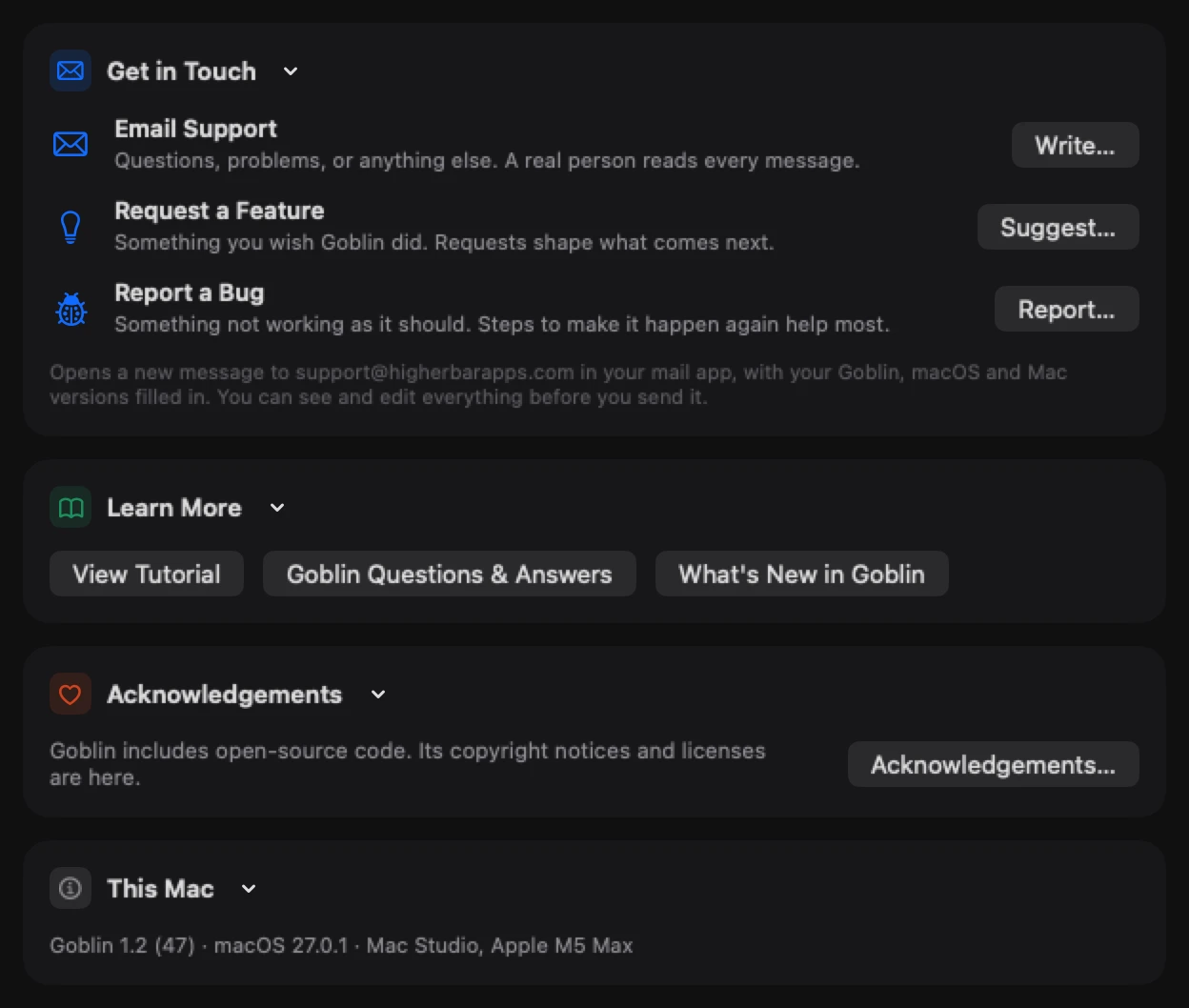
Open Settings›Help & Feedback and click Write… next to Email Support, or Report… for a bug. Goblin opens a new message to support@higherbarapps.com in your mail app with your Goblin, macOS and Mac versions filled in, and you can see and edit all of it before you send it. The Help menu has the same choices. A real person reads every message.