 Goblin
Network›Activity shows how fast your Mac is downloading and uploading, how much data it has moved, and how good the connection is: how steady, as well as how fast. It also lists your addresses and the apps moving the most data. Use it when the internet feels slow, a call stutters, or you want to know which app is using your bandwidth.
Open Network Activity#
- Click Network in the tab bar of the main window, or press ⌘5.
- If the tab has a sidebar, click Activity at the top of it.
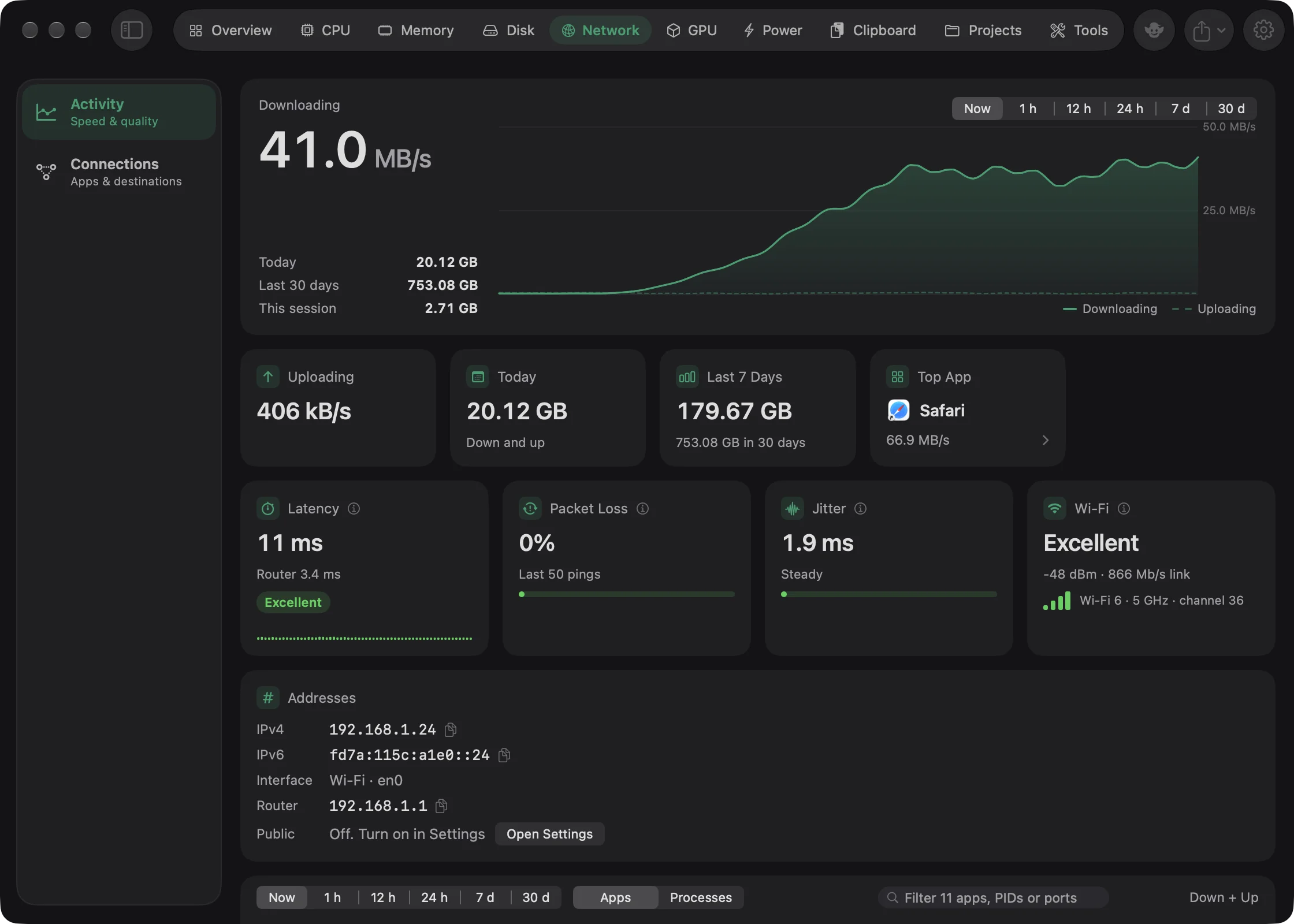
You'll see your download speed in large type with a chart under it, and the connection quality cards below.
When the Network tab has a sidebar, Activity ("Speed & quality") is its first section. The others are Connections, which lists every connection your apps make, and Rules, while the firewall is on. See Connections and The firewall. Hide Sidebar in the toolbar hides the sidebar here and on the Disk and Tools tabs together.
Change the speed units#
- Open Settings (⌘,) and click General.
- In the Network Speed card, click Bytes or Bits.
Every speed on this tab follows that choice:
- Bytes (the default), like file sizes: kB/s, MB/s, GB/s.
- Bits, like internet plans: kb/s, Mb/s, Gb/s.
Speeds use steps of 1,000. Under 1 kB/s reads as "0 kB/s", so a trickle of traffic can show as nothing.
Download speed and totals#
The big figure is your download speed right now. The chart draws downloads as a solid line and uploads as a dashed one, and the range buttons above it work as on the CPU tab.
| Row | What it shows |
|---|---|
| Today | Downloaded plus uploaded since midnight. |
| Last 30 days | Downloaded plus uploaded over the last 30 days. |
| This session | Downloaded plus uploaded since Goblin started. |
Below the chart are four cards:
| Card | What it shows |
|---|---|
| Uploading | Upload speed right now. |
| Today | Down and up since midnight. |
| Last 7 Days | Down and up over the last seven days, with the 30-day total in the note. |
| Top App | The app moving the most data now, apart from macOS. Click it to open its details. |
What counts#
Goblin adds up the Mac's Wi-Fi, Ethernet and most USB or Thunderbolt network adapters. It leaves out VPN tunnels, so traffic through a VPN isn't counted twice. Some setups that use other kinds of connection, such as some iPhone tethering, may not show at all.
The Today, Last 7 Days and Last 30 days totals come from Goblin's own history, so time when Goblin wasn't running is missing from them.
Connection quality#
These cards show how good the connection is. They appear while Check connection quality is on, which it is by default. To turn it off or on:
- Open Settings (⌘,) and click General.
- Find Check connection quality and switch it off or on.
To measure, Goblin sends one tiny ping a second to your router and one to 1.1.1.1 (Cloudflare), and times the replies. Nothing else is sent. It only pings while Goblin's window or menu bar panel is on screen, so the cards keep what they had when you come back. A ping with no reply within 2 seconds counts as lost.
| Card | What it shows |
|---|---|
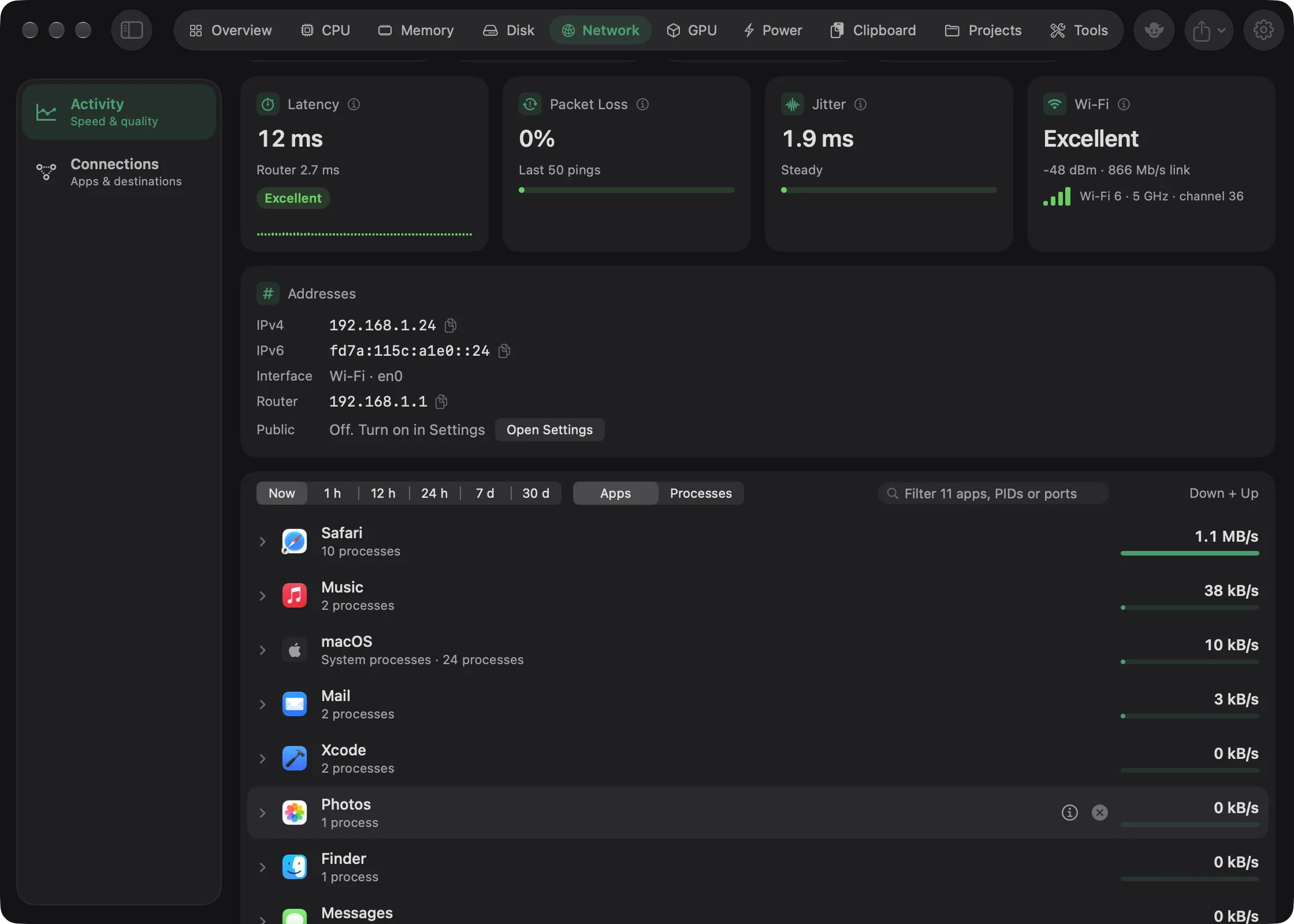
| Latency | How long a ping takes to reach the internet and come back: the middle of the last 10 replies. The note gives the time to your router. A strip draws the last 60 pings, with lost ones as full-height red bars. |
| Packet Loss | The share of the last 50 pings to the internet that never came back. The note says where they're lost: Lost before the router: Wi-Fi or Lost beyond the router. |
| Jitter | How much latency jumps around from one ping to the next. The note reads Steady, Some variation or Uneven, calls may stutter. Shows "Measuring…" until it has 10 replies. |
| Wi-Fi | Your Wi-Fi signal, graded, with signal bars, signal strength in dBm, link speed, and the Wi-Fi standard, band and channel (such as "Wi-Fi 6 · 5 GHz · channel 36"). |
Each figure is graded, in green, amber or red:
| Measure | Excellent | Good | Fair | Poor |
|---|---|---|---|---|
| Latency | 30 ms or less | 60 ms or less | 120 ms or less | over 120 ms |
| Packet loss | none | — | under 2% | 2% or more |
| Jitter | 10 ms or less | 30 ms or less | 50 ms or less | over 50 ms |
Even a little packet loss counts as Fair, because 1–2% is already enough to freeze video calls.
Wi-Fi signal#
The grade comes from how far the signal stands above background noise, which Goblin works out from the signal strength and the noise level the Wi-Fi chip reports. Four bars is excellent; moving closer to the router or away from walls helps.
The card's title is your network's name when macOS shares it. macOS only does that for apps that have Location access, and Goblin never asks for it, so the title usually reads Wi-Fi.
When you're not on Wi-Fi, the card is called Interface instead and names the connection you're using, such as "Ethernet", "VPN" or "Offline".
Why it's lost matters#
Where pings get lost tells you what to fix. Lost before the router points at your Wi-Fi (or, on a cable, your own network): move closer to the router or switch bands. Lost beyond the router points at your internet provider. The health check uses the same reasoning when it reports The connection is unsteady. See Health and alerts.
Addresses#
The Addresses card lists the addresses of the connection your Mac is using now, read from the Mac itself without going online.
| Row | What it shows |
|---|---|
| IPv4 | Each IPv4 address on the connection. |
| IPv6 | Up to two IPv6 addresses, and how many more there are. Local-only (fe80::) addresses are left out. |
| Interface | The connection's name and its system name, such as "Wi-Fi · en0", or "VPN · utun3". "Offline" when there's none. |
| Router | Your router's address. |
| Public | The address the internet sees. Off unless you turn it on. |
Copy an address#
- Open Network›Activity and find the Addresses card.
- Click the address you want.
A green check and "Copied" confirm it, and the address is on your clipboard.
Show your public IP address#
Your Mac doesn't know its public address on its own; it has to ask a server. Goblin only asks if you turn it on.
- Open Settings (⌘,) and click General. Or click Open Settings in the Public row.
- Switch on Show my public IP address.
- Go back to Network›Activity. The Public row now shows the address.
When it's on, Goblin asks Cloudflare (https://1.1.1.1/cdn-cgi/trace) while a Goblin window or the menu bar panel is on screen, or while the IP-change alert is on. It asks at most every 5 minutes, and again after the network changes. The request sends no cookies and nothing is logged. If it fails, the row says Unavailable.
When your address changes#
My IP address changes in Settings›Alerts tells you when your Mac's address changes, once the new one has held for 20 seconds. It's off by default. Turning it on makes Goblin read your addresses in the background too. See Health and alerts.
The app list#
The list works as on the CPU tab, sorted by Down + Up: each app's download and upload speed together. Goblin measures each app every 3 seconds while the window is open, so a process that has just started shows no speed until the next reading. With a past range chosen, the list shows the 12 apps that moved the most data in that time.
For every connection an app makes, and where it goes, see Connections.