 Goblin
Settings›GoblinAI holds everything about the Goblin who lives in Goblin: the animated caretaker on the Overview, his name and colors, how he talks, and the optional Apple Intelligence, voice and memory features. The Goblin is also a chat: he answers questions about your Mac and about Goblin, opens pages, and carries out supported tasks.
Two switches are separate on purpose. Animated Goblin controls his presence on the Overview. Use Apple Intelligence controls optional on-device wording and understanding. Local app help and supported controls work with Apple Intelligence off. For the character himself, see Meet the Goblin.
Open the conversation#
- Click the Goblin button in the toolbar of Goblin's window. It reads Talk to Goblin (with your goblin's name) on hover.
- Or right-click the Goblin on the Overview and choose Talk to [Name]….
- Or, in the menu bar panel, click the Goblin at the bottom right. This needs Goblin in the menu-bar panel to be on.
- Type in the box that says Ask, open a page, or change a setting… and press Return.
The icons at the top of the chat open Siri Phrases (the phrases Siri and Shortcuts understand), Personality and Apple Intelligence (the same controls as this pane) and close the conversation. The line under his name reads Apple Intelligence or Local app help, so you can tell which is answering.
Rename your goblin or change his colors#
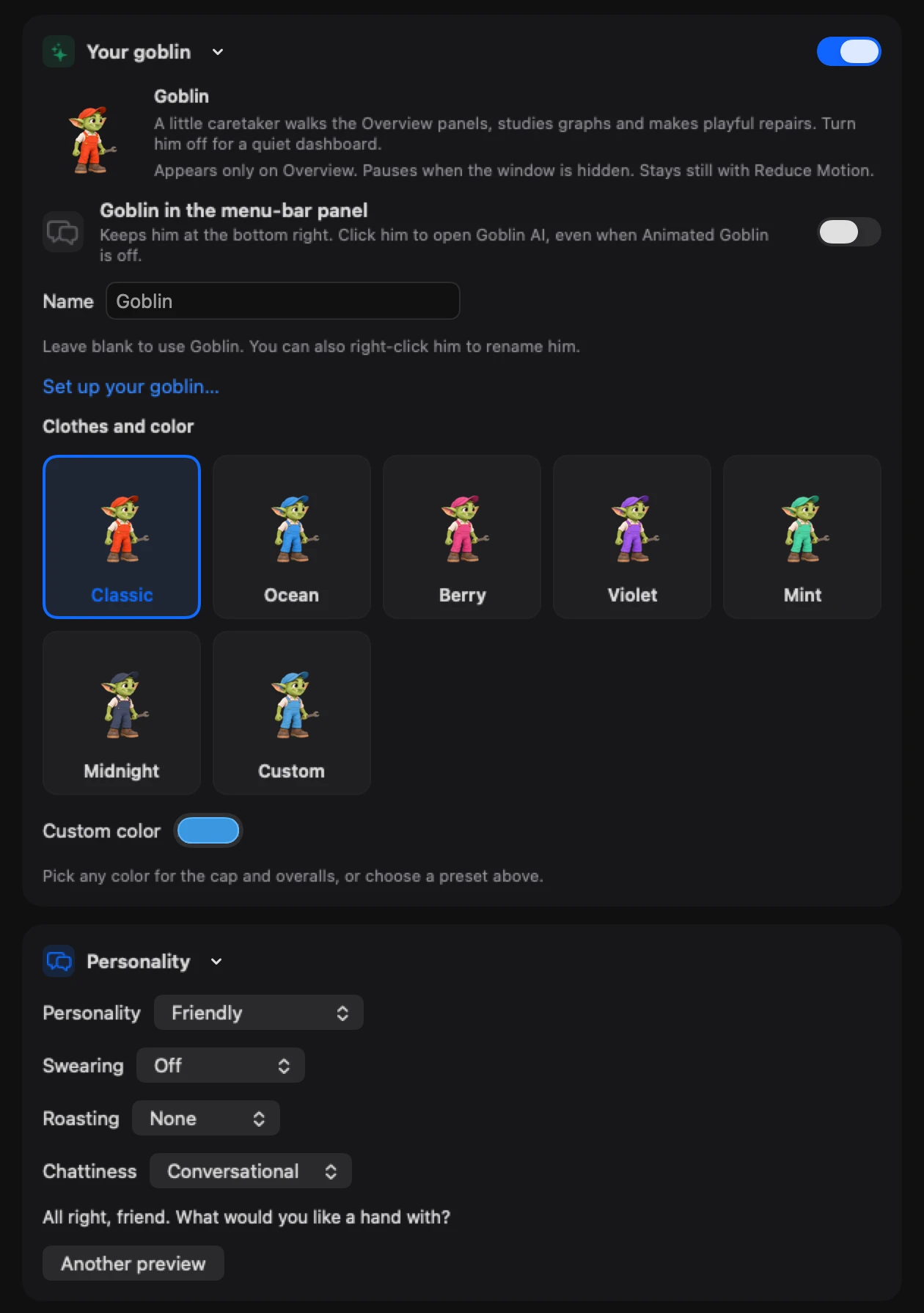
- Open Settings›GoblinAI.
- In the Your goblin card, type a new name in Name. Leave it blank to go back to Goblin. You can also right-click him and choose Rename….
- Under Clothes and color, click Classic, Ocean, Berry, Violet, Mint or Midnight for his cap and overalls.
- For any other color, click Custom color and pick one. This selects Custom.
You can also right-click him and choose Outfit Color and a color.
New: Coming in the next update. Naming and outfit colors.
Turn the animated Goblin off#
- Open Settings›GoblinAI.
- In the Your goblin card, switch Animated Goblin off.
His animation on the Overview goes away. He appears only on the Overview, pauses when the window is hidden, and stays still with Reduce Motion. The chat still works. To hide him from the menu bar panel, switch off Goblin in the menu-bar panel.
Set up your goblin#
After onboarding finishes, a sign on the Overview offers to introduce and customize your goblin: Set up your goblin or Not now. You can run the same setup later.
- Open Settings›GoblinAI.
- Click Set up your goblin… in the Your goblin card.
- Type a name (up to 60 characters), choose a Personality, then Swearing, Roasting and Chattiness.
- Read what the goblin says in the preview. Click Another preview for a different line.
- Click Done to save. Not now (on the first invitation) or Cancel (later) leaves your saved name and style as they were.
AI, speech and memory preferences are separate and are set below. If you see "Finish onboarding or close the current dialog before setting up your goblin", finish the welcome window or close the dialog first.
Change personality and style#
New: Coming in the next update. Companion personality, optional on-device writing, speech and explicit local memory.
- Open Settings›GoblinAI and find the Personality card.
- Choose a Personality, Swearing, Roasting and Chattiness.
- Read the sample greeting under the pickers. Click Another preview for a new one.
| Setting | Choices or behavior | Default |
|---|---|---|
| Personality | Friendly, Mean, Funny, Cozy, Chaotic, Grumpy, Dramatic or Straightforward. | Friendly |
| Swearing | Off, Occasional or Full sailor. | Off |
| Roasting | None, Gentle or Ruthless. | None |
| Chattiness | Quiet, Conversational or Very chatty. Quiet leaves out optional greeting interjections and roast tags. | Conversational |
Turn on Apple Intelligence#
- Open Settings›GoblinAI and find the Apple Intelligence card.
- Switch Use Apple Intelligence on. It is on by default, and used only when Apple Intelligence is available.
- Read the line under the switch. It says whether the model is ready or why not.
Apple Intelligence here means Apple's on-device model, on a Mac with macOS 26 or later and Apple Intelligence turned on in System Settings. There is no cloud model and no companion server. Without it, Goblin uses local navigation and guide help, or asks for specifics. Generated text never runs as a task, and Goblin never runs a shell command from it.
Make the Goblin speak#
- Open Settings›GoblinAI and find the Voice card.
- Switch Speak replies automatically on.
- Choose a Voice, or leave System auto.
- Set the speaking rate (80–360 words/min) and Voice volume.
- Click Preview voice to hear a short sample. Click Stop speaking to cut a reply short.
| Setting | What it does | Default |
|---|---|---|
| Speak replies automatically | Reads companion replies using an installed system voice. | Off |
| Voice | An installed macOS voice, or System auto. | System auto |
| Speaking rate | 80–360 words/min. | 180 words/min |
| Voice volume | Companion speech volume. | 100% |
Turn on memory#
Memory is off until you turn it on, and it stays on this Mac.
- Open Settings›GoblinAI and find the Memory card.
- To keep what you and the goblin say between launches, switch on Save conversations on this Mac. Saved text is restored after you relaunch Goblin, and can include what you type and readings quoted in replies. Actions are never saved or replayed.
- To let him keep facts you tell him, switch on Remember facts on this Mac.
- Click Manage memory to add a fact (up to 500 characters) with Remember, Edit or Forget one, Clear saved conversation…, or Clear all memory….
Only facts you save are kept; live readings are not. Turning memory off keeps the files until you clear them.
| Setting | What it does | Default |
|---|---|---|
| Save conversations on this Mac | Saves new message text locally. | Off |
| Remember facts on this Mac | Loads saved facts and enables explicit saves. | Off |
These controls also appear under the sliders icon in the chat. Companion memory and voice choices stay local to this Mac.
Ask what is slowing your Mac down#
Ask what is slowing your Mac down and Goblin answers from live readings in about a second, without waiting for a model. Try “what's using my memory?”, or ask about CPU, network, battery, disk, GPU, heat, a slow Mac, your Mac's health or one app. These work with Apple Intelligence off.
The answer comes with a short card under his bubble: a headline and a numbered list of the top apps, each with its value, a bar for its share, a dot when you're using it, and sometimes a one-line note. Each row has up to two small round buttons.
| Button | What it does |
|---|---|
| Target icon (Show in the tab's name) | Opens that reading's tab (Memory, CPU, Power, Disk, Network or GPU) and rings the app's row. |
| x icon (Quit [app]…) | Opens the usual Quit / Force Quit confirmation for that app. Once the app has really closed, Goblin says so. Only for apps that can be quit. |
You can also type it: “quit Safari”, or “close the first one” for the first row of the card. Goblin only forces an app to quit if you ask for that. Greetings, thanks and common questions are answered instantly, he understands follow-ups and everyday wording, and he only offers the buttons that fit.
Ask for a task#
Goblin can run registered native actions instead of making you find a tab: supported settings, live readings, scans, window layouts, displays, screenshots and recordings, clipboard search, Keep Awake, and file review tools. The actions are the same ones Goblin offers to Siri and Shortcuts. Goblin checks that the action still exists and validates its inputs before using the native controller. Required permissions, file choices, removal reviews and confirmations still apply. A request to scan starts a scan; it does not remove its results.
- Open the conversation.
- Type the task in plain words, for example “keep my computer awake for 3 hours”, “take a screenshot”, “search clipboard”, “split this PDF and remove page 2” or “convert HEIC to PNG”.
- Include any value the task needs: a search phrase, an app name or a full file path. Goblin asks when something is missing instead of guessing.
- Approve any confirmation or native review that appears.
Clear registered commands and the PDF, HEIC and timed Keep Awake commands work with Apple Intelligence off. Natural rephrasing needs Apple Intelligence. PDF and HEIC tasks open their review tools; PDF page numbers start at 1 and page 2 comes up unchecked. Choose a destination and save or convert after reviewing. See PDF Tools and HEIC Converter.
Some complex controls and multi-step editing workflows still need their native screen; the list doesn't expose every button or nested setting in the app.
Run two to five steps in a row#
Supported exact commands can be chained with ; then between them. Each step needs its explicit arguments. A native review, permission flow or background operation must be the last step. An unsupported or malformed step rejects the whole sequence before anything changes. Goblin rechecks each step as it goes and stops on a failure or cancel. Steps that already finished stay finished; use the relevant Undo.
Use exact names for targets#
- “list audio devices”, then “select audio output Studio Display” (the exact name or device UID; duplicate names need the UID). “list app volumes” shows the apps you can control.
- “pin last screenshot”, “restore last capture”, “annotate clipboard image” and “show capture uploads” use the capture controls.
- “read text from file /Users/me/Documents/Scan.pdf”, “set OCR pages 2-5”, then “start reading text”. “check OCR status”, “cancel reading text” and “copy OCR text” use the same Read Text window.
- “scan files larger than 50 MB” sets the minimum scan size; “check storage scan status” reads progress.
- “list dev servers” and “list containers” read current targets. Containers are monitoring-only: no start, stop or restart.
Change a setting by typing#
Goblin can change individual supported fields of the Measure, Clipboard, Clipbar, Window Tiling, Display Controls, menu bar and health settings through the same typed settings as their screens. Examples: “set measure units to pixels”, “set clipboard sound volume to 0.5 volume”, “set clipbar position to below”, “set window tiling gap to 8 pt”, “disable health GPU check”, “set health disk warning to 25 GB” and “set menu bar graph style to line”. Read a field with show and its exact setting name, for example “show health CPU threshold”.
- The feature, and any parent control, must be on first. A disabled parent check must be enabled before changing a value it controls.
- A verified change supports Undo while the field still has the applied value.
- Enable measure, disable clipbar, enable window tiling and enable display controls flip the feature switches. Screen Recording and Accessibility remain prerequisites for what needs them.
- Enable Clipboard History opens the native privacy review and leaves history off until you click Turn On.
- Enable Launch at Login uses macOS; if macOS needs approval, Goblin opens Login Items and reports it as pending.
- Enable AI Assistant Access asks you to confirm, because connected assistants can send app, server and connection information to their AI provider.
- Enable Settings Sync Category needs an exact category name; the first time, it prepares the choice between this Mac and iCloud, and sync stays off until you confirm. See iCloud Sync.
- Check Goblin Updates only checks. Install Available Goblin Update is a separate confirmed request that may relaunch Goblin.
- Lists and colors: Set Measure Excluded Apps, Set Clipbar Excluded Apps and Set Window Tiling Ignored Apps take a JSON array of exact bundle identifiers such as
["com.apple.TextEdit"]and replace the whole list ([]clears it). Set Custom Theme Color and its panel, window target and activation relatives take six hex digits, with or without#. Set Clipboard Snippet Prefix takes a JSON string of up to eight characters with no spaces. These structured changes have readbacks but no companion Undo.
Voice can be set the same way: enable automatic companion speech, set companion speaking rate to 180 words/min, set companion speech volume to 0.5 volume, List Companion Speech Voices and Set Companion Speech Voice (an exact identifier, a unique displayed name, or System auto).
These adapters do not cover every field. Dynamic per-app and per-display configuration still needs its native control. Opening a settings pane or guide does not make those edits.
More commands#
- Capture preferences. Set Capture Screenshot Show Cursor true, Read Capture Screenshot Format, Undo Capture Setting. Values must match the native choice or range. These change future captures; they don't restart a recording or export. Filename templates (1–256 characters, no path separators), the recording countdown and Do Not Disturb, after-capture behavior and annotation defaults are covered too. Set Capture Mouse Highlight Color #33AAFF takes six hex digits. List Capture Microphones shows device IDs; enable recording microphone capture first, then Set Capture Recording Microphone Device [ID]. Choose Capture Export Folder uses the native folder picker.
- Quick Access. Set Quick Access Auto Dismiss Enabled true, Set Quick Access Auto Dismiss Delay 10, Read Quick Access Position, Undo Quick Access Setting. Read Quick Access Actions returns the card configuration; pass the complete object back to Set Quick Access Actions [JSON]. Nothing is uploaded or exported.
- The goblin himself. Set Goblin Personality friendly, Set Goblin Swearing off, Set Goblin Roasting gentle, Set Goblin Chattiness conversational, Read Goblin Personality, Set Goblin Name Pip, Set Goblin Outfit Color #33AAFF, set goblin outfit to ocean, set goblin app icon to night. They don't enable AI, memory or speech. Undo Native Setting restores the last name, outfit or color change if it still matches.
- Dock. Show Goblin in Dock and Hide Goblin from Dock.
- Network lookups. Enable Public IP Lookup and Enable Connection Quality Checks ask you to confirm first; their Disable commands turn them off. set network rules unused period to 30 days takes 1, 2, 3, 7, 14, 30, 60, 90 or 180 days.
- Clipbar scripts. Allow Clipbar Script Extensions asks you to confirm that future shell and AppleScript extensions can run commands as you. Set Clipbar Excluded Sites ["example.com"] replaces the exclusion list.
- Layout. List Goblin Layout IDs, then Set Overview Card Order, Set Tab Order (every ID exactly once), Set Hidden Overview Cards, Set Hidden Tabs (a subset; Overview can't be hidden) and Set Muted Alert Apps with JSON arrays. See Layout.
- Shortcuts. List Task Shortcuts shows the targets and their current bindings. Set Task Shortcut sets one. Enabled global bindings need ⌘, ⌃ or ⌥ and must pass the owner, clash and registration checks; a failure restores the old binding. The list covers Measure, Clipbar, the registered Clipboard and Capture bindings, the dropdown, window, Network Monitor, Window Dimming, display actions and Capture Text actions: not every shortcut in the app.
- Editors, PDF and HEIC. Within ten minutes of a successful explicit editor task, this editor can fill a later editor target, for example Read Editor Status this editor. same folder fills Set PDF destination or Set HEIC destination from an earlier accepted destination. Goblin never guesses a focused editor or a folder.
- Window Dimming and Window Tiling. List Window Dimming Targets, Review Exclude Window Dimming Display/App, Request Window Dimming Accessibility, Review Window Dimming Preview and the matching cancel and result commands. Create Window Layout Divider horizontal | Group adds a divider. See Window Dimming and Window tiling.
- Monitoring exports. Save Monitoring Share Card light, Copy Monitoring Share Card dark, Copy Monitoring Dashboard current, Copy Monitoring Summary, Export Monitoring Apps CSV and Export Monitoring Processes CSV. Saves open the native picker; cancel writes no file. Nothing is uploaded.
- MCP clients. List MCP Client Installations, then Review Add Goblin MCP Client or Review Remove Goblin MCP Client with one of
claudeDesktop,claudeCode,cursororcodex. The review names the exact configuration path. Once installation starts, wait for the result: there's no cancel or automatic rollback. Review Copy Goblin MCP Configuration and Review Copy Goblin Claude MCP Command copy the fixed templates. See AI assistants.