Goblin
Clipbar normally appears when you select text with the mouse. You can also open it from the keyboard, type to find any action, give an action a shortcut of its own, and work on what an action returns in a small result window.
Use the bar from the keyboard#
The bar never takes the keyboard from the app you're working in, because moving the cursor there would lose your selection. It takes the keyboard only when you ask.
- Set a shortcut for Show Clipbar for Selection in Settings › Clipbar › Activation. It is off until you do.
- Select text in any app.
- Press the shortcut. Goblin reads the selection and shows the bar over it with the keyboard on it. If the bar is already showing from a mouse selection, the same shortcut gives it the keyboard.
- Move with the keys in the table below, and press Return to run the focused button.
To search instead, press Search Actions (⌃⌥K to start with). It opens the bar's search, larger, ready to type.
The app with your selection stays the active app, and the bar stays open however far the pointer wanders while the keyboard has it. Without the keyboard, ordinary typing goes to your app as usual and closes the bar.
| Key | In a row of buttons | In a column (the ⋯ list, a long list, search results) |
|---|---|---|
| ← → | Move the focus ring | → opens a list; ← goes back |
| Tab ⇧Tab | Move the ring forward or back, wrapping | The same |
| ↓ | Opens the focused folder or list | Moves down |
| ↑ | Goes back out of an open list | Moves up |
| Return | Runs the focused button, or opens it if it's a folder or list | The same |
| ⌫ | Goes back out of an open list | The same |
| Esc | Closes the bar | Closes the bar |
| A letter | Opens the search with that letter | The same |
The focus ring starts on the first button. Running a button from the keyboard gives the keyboard back to your app first, so Copy, Paste and key presses reach it with your selection intact.
Search every action#
Once the bar has the keyboard, type a letter, or use Search Actions, and the bar becomes a search field over every action that fits this selection. It looks inside folders and lists too, so you can reach one transform without opening Transform first. It also includes built-ins that fit the selection but aren't on your bar, the items of Transform, Writing, Save to Pinboard, Snippets and spelling suggestions, and extension actions.
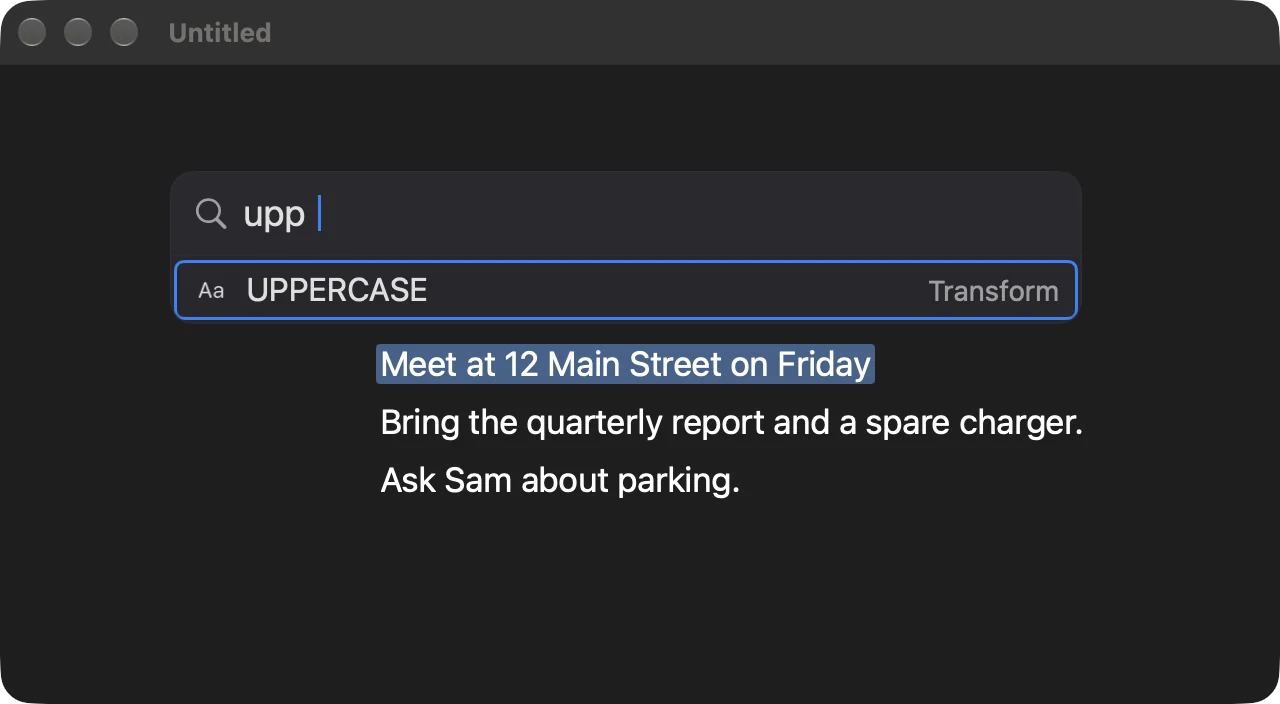
- Every word you type has to match. A word matches the start of a name, the start of any word in it, or any part of it. The name of the folder an action sits in also counts, and so do letters that appear in order ("trnsl" finds Translate). Case and accents are ignored. Best matches come first.
- ↑ and ↓ (or Tab) move through the results, and Return runs the focused one.
- ⌫ deletes a letter; on an empty field it leaves the search. Esc clears the text, and on an empty field closes the bar.
The search accepts accents, dead keys and input methods. ⌥E then E types é. With a Japanese or Chinese input source, the reading shows underlined after your text; pick a candidate and press Return to add it to the search (not to run an action). The emoji picker works too. Esc during a composition cancels just the composition.
Give an action its own shortcut#
- Open Settings›Clipbar and scroll to Actions.
- Click the ⋯ at the end of the action's row and choose Add Shortcut… (Change Shortcut… if it has one).
- Click the box and press a combination with ⌘, ⌃ or ⌥ in it.
- Click Done.
- Select text anywhere and press the shortcut. The action runs on the selection without opening the bar first.
The bar shows a spinner, then a tick or the result. If nothing is selected, Goblin beeps. A shortcut already used by another Clipbar shortcut is flagged in the recorder, and the row shows its keys in the list afterward. To remove a shortcut, choose Change Shortcut… and click the × beside the box. Removing an extension or a custom action takes its shortcut away. Up to 60 action shortcuts can be active.
The result window#
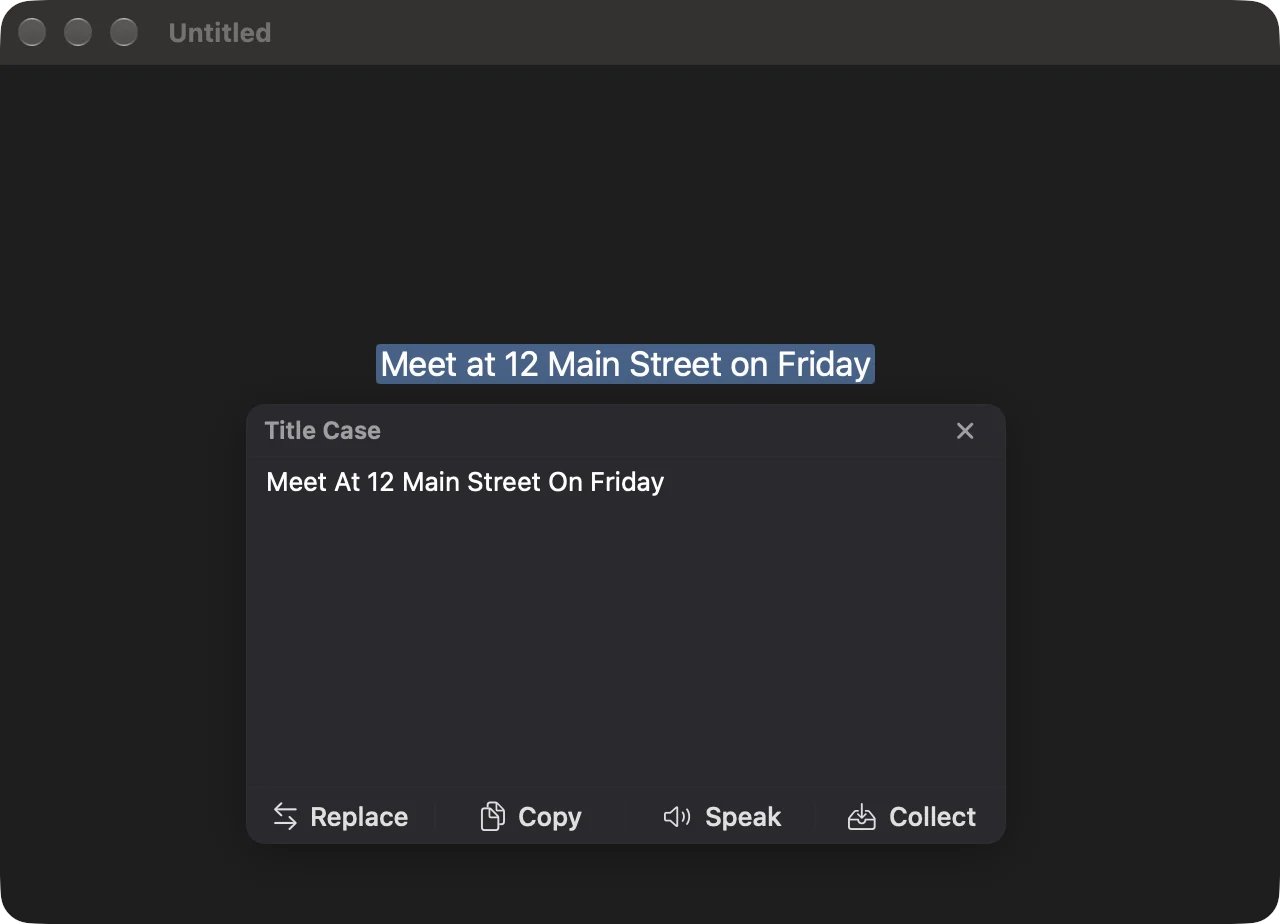
Actions that return text (a transform, a definition, a conversion, a count, a shortened link, a lookup) show it in a small window beside the bar, and the bar goes away.
| Button | What it does |
|---|---|
| Replace | Types the text over your selection. Shown only when the selection takes typing and the action rewrites text. The window goes first, so your app has the keyboard when the text arrives. |
| Copy | Puts the text on the clipboard. |
| Speak / Stop | Reads the text aloud, and stops. |
| Collect | Adds the text to your Clipbar collection. |
| Save… | For a picture, such as a QR code: saves it as a file. Pictures get Copy and Save… only. |
| × | Closes the window. |
- Edit first. The text in the window is editable. Replace, Copy and Collect use what's there.
- Move and resize. Drag the window by its title strip and resize it from its edges. Goblin remembers the size for the next result.
- Closing. Press Esc when the window has the keyboard, or click outside it. Turn off Close the result when you click outside it in Settings › Clipbar › Results to keep it open until you close it.
Reopen the last result#
- Set a shortcut for Reopen Last Result in Settings › Clipbar › Activation. It is off to start.
- Press it. The last result window comes back near the pointer, with the text as you left it.
Choose what happens to a result#
- Open Settings›Clipbar and scroll to Actions.
- Click the ⋯ on the action's row (or on a folder, to set everything inside it).
- Choose When It Finishes, then Show Result, Replace Selection or Copy.
The choices:
| Choice | What happens |
|---|---|
| Show Result | Opens the result window. This is the default. |
| Replace Selection | Types the result over the selection straight away. |
| Copy | Copies the result and the bar says Copied. |
Set it on a folder to apply it to everything inside. A folder of transforms set to Replace Selection turns each transform into one click. Replace Selection only works when the selection takes typing and the action rewrites text. Otherwise Goblin shows the result. Dictionary, Word Count and the reports among the transforms (such as Validate JSON and Extract URLs) are never typed over your selection.
Read it another way#
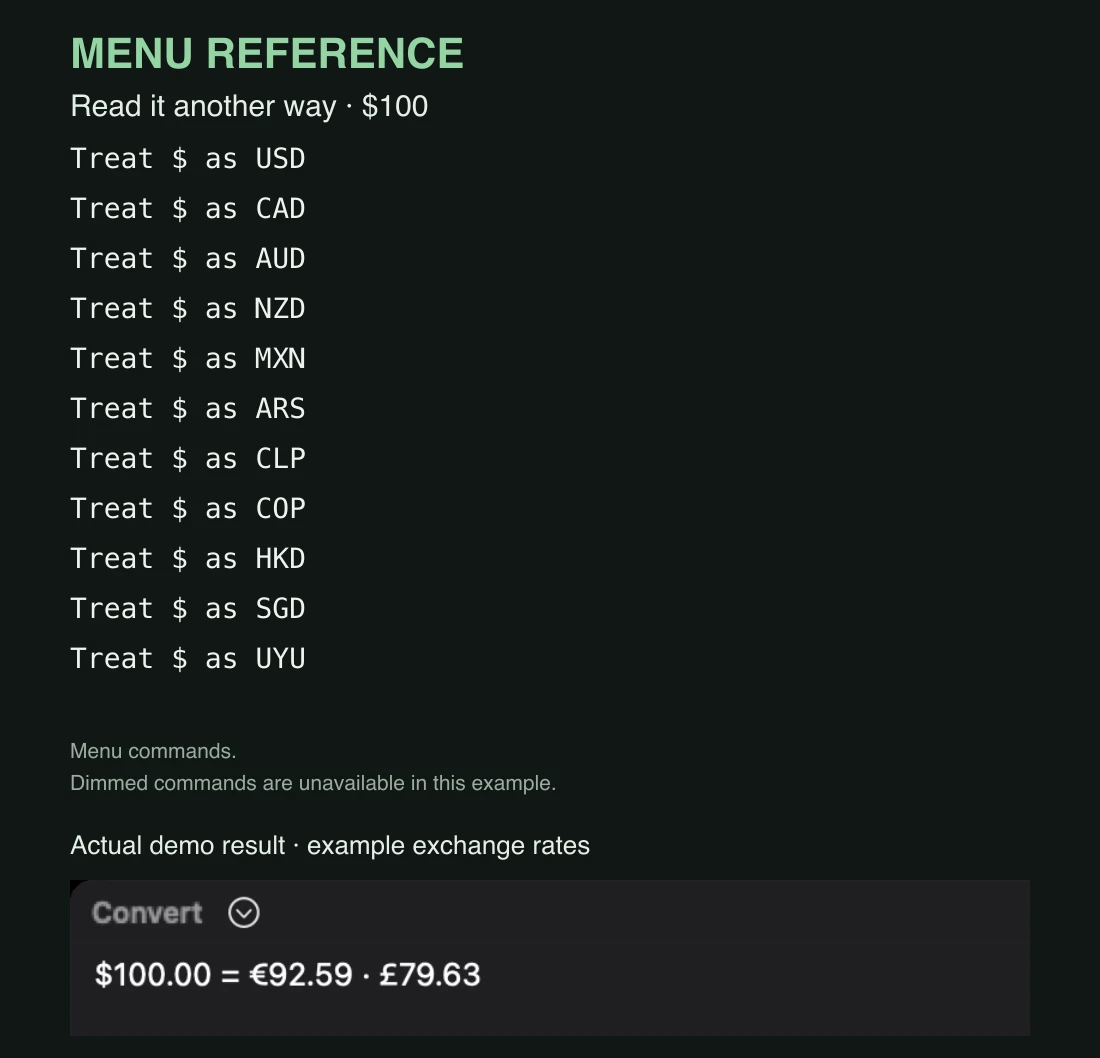
When Convert finds a $, kr or ¥ amount that could mean more than one currency, the result window shows a menu beside its title. Pick another reading from it, such as Treat $ as CAD, and the result updates. Goblin remembers the choice for that website. More on Clipbar Convert.