 Goblin
macOS keeps a lot of your Mac private until you allow an app in. Goblin asks only when a feature needs something, and most of it is optional. This page lists every permission, when Goblin asks, what it's for, and how to take it back.
At a glance#
| Permission | When Goblin asks | What needs it |
|---|---|---|
| Full Disk Access | On Welcome's last page, and from any Disk section or Settings›General | Trash, browser privacy data, app permissions, Mail and iPhone backups, leftovers |
| Documents, Desktop and Downloads | The same places, if you choose folders one at a time instead | Projects and apps you run from those folders |
| Notifications | On Welcome's notifications page, or the first time a notification is due | Alerts, reminders and "it's done" notices |
| Login item | The Welcome window and Settings›General | Starting Goblin when you log in |
| Administrator password | Each time a task needs administrator rights | Removing system files, Maintenance, Time Machine snapshots and more |
| Goblin's helper | Only if you allow it in Settings›General›System Tasks | Running those tasks without the password prompt |
| Network extension | Only when you turn the firewall on | The optional firewall |
| Location Services | Only for features that need the Wi-Fi network's name or your location | Firewall profiles per network, the Connections map, Keep Awake Wi-Fi triggers |
| Local Network | macOS may ask the first time Goblin pings your router | Connection quality |
| System audio | The first time you change an app's volume | Per-app volume on the Sound page of the Tools tab |
| Automation (Finder) | When you uninstall an app that has a system extension | Moving that app to the Trash through Finder |
| Accessibility | When a Keep Awake session uses mouse jiggle, or the first time the clipboard tries to paste for you | Moving the pointer; pasting clips into the app you're using, and snippet text expansion |
| Screen Recording | Only if you turn on Allow Screen Access in Settings › Clipboard | Clipboard suggestions from the window you're pasting into |
| Touch ID or your login password | Each time you open a locked pinboard | Locked pinboards |
| iCloud | Never: Goblin uses the iCloud account you're signed in to | iCloud Sync of clips, pinboards and settings |
Give Goblin Full Disk Access#
macOS keeps some folders private: your Trash, Safari, Chrome and Brave history and cookies, the list of which apps may use your camera, microphone and screen, Mail attachments, iPhone backups, and other apps' leftovers. Goblin needs Full Disk Access to show and clean them, and to notice when you drag an app to the Trash.
macOS can't ask for this with a prompt. Goblin offers it on the last page of the Welcome window, and again from any Disk section that needs it (look for Full Disk Access Settings) and from Settings›General.
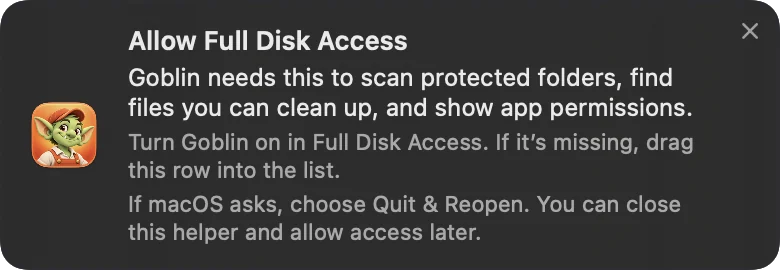
To turn it on:
- Click Allow… (or Open System Settings). System Settings opens on Privacy & Security›Full Disk Access, and a small window appears beside it with Goblin's icon.
- Drag Goblin from that window into the list, or click + and choose Goblin.
- Turn Goblin's switch on. If macOS offers Quit & Reopen, choose it.
- Wait a moment. Goblin checks once a second, closes the helper window and comes back to the front as soon as access is on. Sections that had to skip private folders scan again by themselves.
To turn it off again: open System Settings › Privacy & Security › Full Disk Access and switch Goblin off or remove it.
Allow folders one at a time#
If you'd rather not give Full Disk Access, you can allow only Documents, Desktop and Downloads. That covers Projects, apps you run from those folders and Clipbar's download offer. The Trash, browser data and other apps' files still need Full Disk Access.
- Open Settings›General and find the Folder Access card. (On Welcome's last page, click Rather not? Allow folders one at a time.)
- Click Allow… beside a folder. macOS shows its own prompt.
- Click Allow in the prompt. The row shows a green On.
Goblin never looks inside those three folders until you've allowed them, so macOS won't ask about them out of the blue. If a dev server or terminal is running in a folder you haven't allowed, the Projects tab says Some projects aren't shown and offers the same Allow… buttons. If macOS has already been told no for a folder, switch it on in System Settings › Privacy & Security › Files & Folders.
Turn notifications on or off#
Goblin sends notifications for alerts you've asked for, such as an app stuck in a loop, a disk almost full or a battery running low. The Welcome window asks on its notifications page: Turn On Notifications makes macOS ask. Otherwise macOS asks the first time a notification is due. Without notifications the alerts still show inside Goblin.
To check they work:
- Open Settings›Alerts.
- Click Send a Test Notification.
- If notifications are off for Goblin, it says so and offers Open Notification Settings. Click it and turn Allow Notifications on.
To turn them off, use System Settings › Notifications › Goblin, or turn off the alerts you don't want in Settings › Alerts.
Stop Goblin opening at login#
Open Goblin at login in the Welcome window (on by default) and Open at login in Settings › General add Goblin to your login items. It then starts in the menu bar without opening a window.
To stop it:
- Open Settings›General.
- Turn Open at login off.
Or remove Goblin in System Settings › General › Login Items & Extensions.
With Clipboard on, the login item is also what starts recording your clipboard when you log in. Settings › Clipboard has no login switch of its own, so with the login item off the clipboard records only while Goblin is open.
Your administrator password#
Some tasks change files or settings that belong to the system, so macOS asks for an administrator's name and password each time:
- removing the files an app installed for every user (these can't go to the Trash, so they're deleted for good)
- emptying items the system owns from the Trash
- some Maintenance tasks
- Time Machine snapshots
- changing background items that run for every user, in Startup Items
- resetting privacy permissions in Permissions
- forgetting saved Wi-Fi networks
- Scan as Administrator in Storage Explorer
- Capture Traffic in Connections
The prompt is macOS's own. Goblin never sees or stores your password.
Allow Goblin's helper#
New in 1.1: Allow Goblin's helper once and those tasks stop asking for your password.
If the password prompts get tiresome:
- Open Settings›General and scroll to the System Tasks card.
- Click Allow Goblin to Run System Tasks….
- In System Settings › General › Login Items & Extensions, turn Goblin on under Allow in the Background.
- Return to Goblin. The card reads On: no password needed.
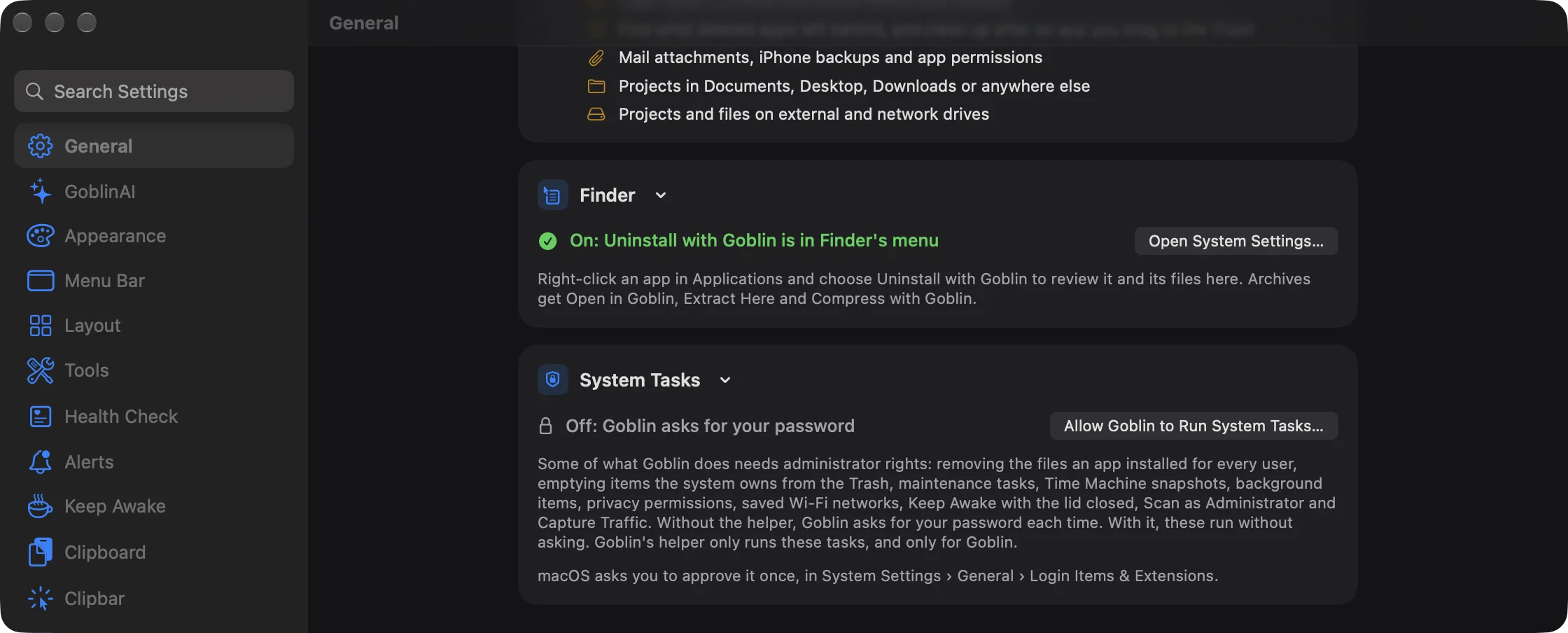
The helper runs only the tasks listed above, only for Goblin, and checks each one before running it. It starts when a task needs it and quits a minute after the last one. If it's off or can't be reached, Goblin falls back to the password prompt.
Keep Awake's closed-lid mode is not one of these tasks: it asks for your password each time a session starts.
To turn it off: Turn Off on the System Tasks card, or switch Goblin off under Allow in the Background in System Settings › General › Login Items & Extensions.
The network extension#
The firewall is optional and off until you turn it on in Settings›Firewall. Turning it on asks macOS for two things, and Goblin walks you through both:
- Goblin's network extension, approved in System Settings › General › Login Items & Extensions.
- Filtering network content, one Allow in the prompt that follows.
macOS only installs this kind of extension for an app in the Applications folder, so move Goblin there first. While the firewall is off, Goblin doesn't install or run anything for it. Encrypted DNS asks for its own approval when you turn it on. See The firewall and Encrypted DNS.
To remove it: turn the firewall off in Settings › Firewall and choose Turn Off and Remove the Extension.
Location Services#
macOS only tells an app the name of the Wi-Fi network you're on if it has Location access. Goblin asks only when you turn on something that needs it, with a button labelled Allow Location Access…:
- switching firewall profiles by Wi-Fi network, and saving where networks are
- Automatically Determine My Location on the Connections map
- Keep Awake triggers that watch for a Wi-Fi network
New in 1.1: Keep Awake and its Wi-Fi triggers.
Your location stays on your Mac.
To revoke it: System Settings › Privacy & Security › Location Services.
Other prompts you may see#
- Local Network. macOS may ask the first time Goblin pings your router to measure connection quality. Nothing else on your network is contacted. You can stop the pings with Check connection quality in Settings › General.
- System audio. The first time you change an app's volume in the Sound tab. Sound is adjusted live and never recorded.
- Automation (Finder). When you uninstall an app that carries a system extension, such as a network filter, Goblin asks Finder to move it to the Trash, because that's how macOS removes the extension too. See Applications.
- Automation (your scripts). The first time a script app, such as Script Editor, sends commands to Goblin, macOS may ask whether it may control Goblin. See AppleScript.
- Accessibility. When a Keep Awake session uses mouse jiggle, macOS asks whether Goblin may control the computer. Without it, the pointer doesn't move. See Closed lid and other options.
New in 1.1: Keep Awake's mouse jiggle.
The clipboard#
New in 1.1: The clipboard, which asks for nothing until you turn it on.
Clipboard is off until you turn it on in Settings › Clipboard. Until then it reads nothing and asks for nothing. Once it's on:
- Accessibility lets Goblin paste for you: a clip you choose with Return or Quick Paste lands in the app you were using, Copy Queue pastes the next item on each ⌘V, and snippets expand as you type. Until you allow it, a paste only copies the clip and you press ⌘V yourself; Settings›Clipboard shows a red ! with Allow Accessibility…. Clicking it brings up macOS's own request and opens Privacy & Security›Accessibility with Goblin's helper beside it; turn Goblin on there. With Accessibility, Goblin sends ⌘V, notices yours while Copy Queue is on, and, only if you turn on text expansion, watches what you type for snippet triggers (kept in memory, never saved). Paste Clip in Shortcuts needs it too. Goblin doesn't ask for Input Monitoring.
- Screen Recording is only for Allow Screen Access in Settings › Clipboard, which is off by default. It lets suggestions look at the window you're about to paste into, once each time you open them. The text is read on your Mac and nothing is saved or sent. Goblin walks you through turning it on in Privacy & Security›Screen Recording.
- Touch ID or your login password opens a locked pinboard. This isn't a System Settings permission. See Locked pinboards.
- iCloud. Syncing clips or settings needs you signed in to iCloud in System Settings; otherwise Settings›iCloud Sync says "Sign in to iCloud in System Settings to sync." Synced data uses your own iCloud storage. See iCloud Sync.
To revoke them: System Settings › Privacy & Security › Accessibility or Screen Recording, turn Goblin off. More on what the clipboard keeps is in Clipboard privacy.
The Finder extension#
Goblin's Finder extension adds Uninstall with Goblin to Finder's right-click menu for an app in Applications. Goblin doesn't prompt for it; turn it on or off in System Settings › General › Login Items & Extensions. See Uninstall from Finder.
Take a permission back#
Every permission can be withdrawn without uninstalling anything. The feature that needed it just stops working, and Goblin tells you when you try to use it.
- Open System Settings and choose Privacy & Security.
- Click the permission: Full Disk Access, Accessibility, Screen Recording, Location Services or Files & Folders.
- Switch Goblin off, or select it and click - to remove it.
Notifications are under System Settings › Notifications › Goblin. The helper, login item and Finder extension are under System Settings › General › Login Items & Extensions. To turn the firewall's network extension off, use Turn Off and Remove the Extension in Settings › Firewall.