 Goblin
 keeps the last 30 days of readings so its charts can show more than the present: system figures every minute, apps every quarter of an hour, and the alerts it raised. Settings›History shows how much it has kept and lets you clear it. The pane also has the button that undoes every per-app volume you've set.
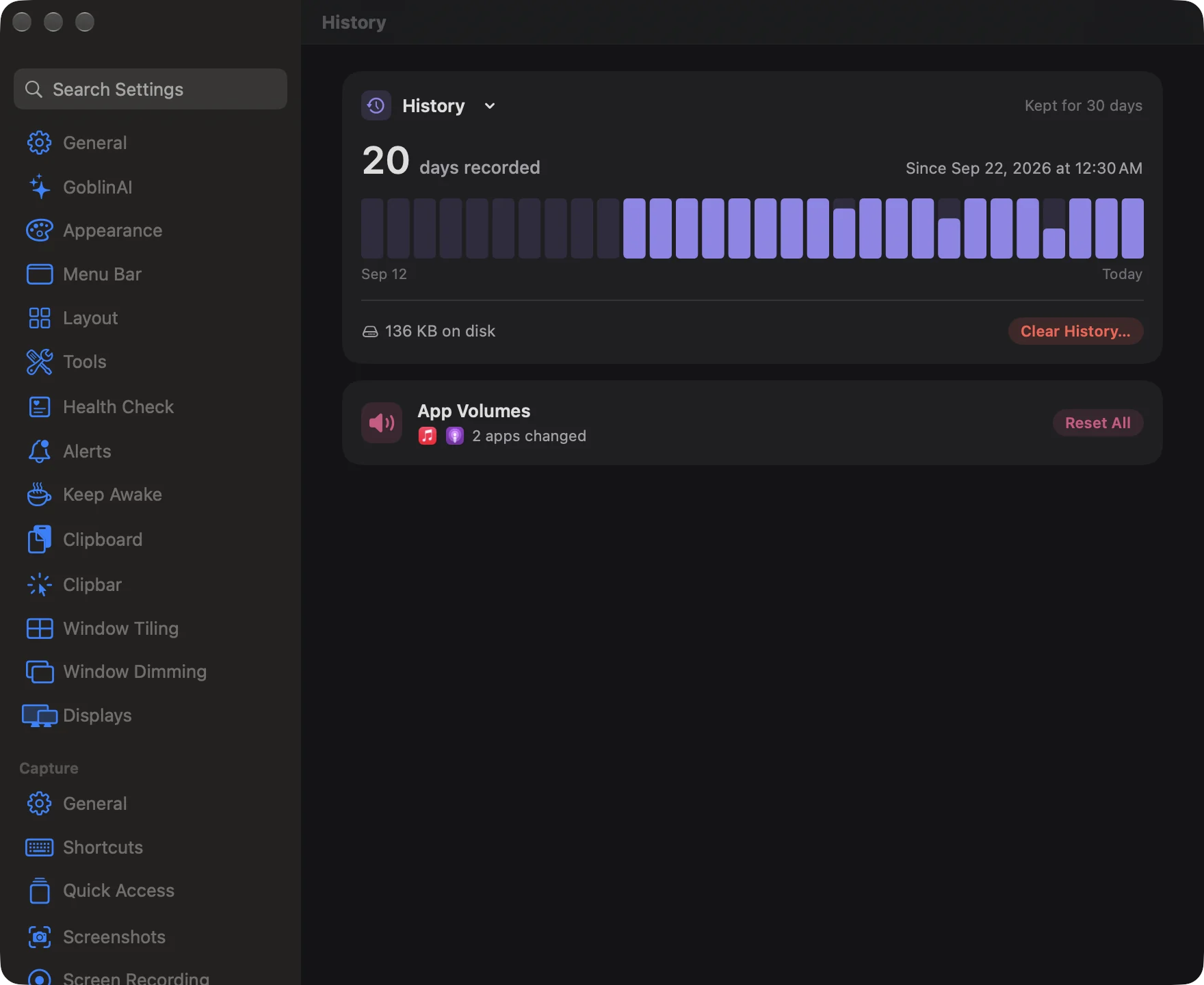
See what has been recorded#
Open Settings›History. The History card shows:
- How many days have been recorded, and the date and time of the oldest reading (Since…).
- A strip of 30 bars, one for each day from 29 days ago to Today. A bar's height is the share of that day's hours with readings, so a short bar means Goblin wasn't running for much of that day.
- How much space the history takes on disk, at the bottom.
History is stored on your Mac only, in ~/Library/Application Support/Goblin/History.sqlite. Readings older than 31 days are removed by themselves. See Privacy and data.
Clear the history#
- Open Settings›History.
- Click Clear History… at the bottom of the History card.
- In Clear 30 days of history?, click Clear History. Click Cancel to keep it.
The day strip empties and the charts for past days start over.
Warning: Clearing history can't be undone.
Your clipboard history is kept separately and Clear History… doesn't touch it. How long clips are kept is Keep History in Settings › Clipboard, a month unless you change it.
Reset all app volumes#
The App Volumes card shows whether you've changed any app's volume with Goblin's sound controls: All at 100%, or how many apps are changed, with up to three of their icons. Point at the line to see each app and its level.
- Open Settings›History.
- Find the App Volumes card. If it says All at 100%, there's nothing to reset.
- Click Reset All.
Every app goes back to its own volume and Goblin stops adjusting their sound. Reset All is greyed out when no app is changed.
Per-app volumes are set from the Volume per App controls. See Sound.