 Goblin
New: Coming in the next update. The Tools tab.
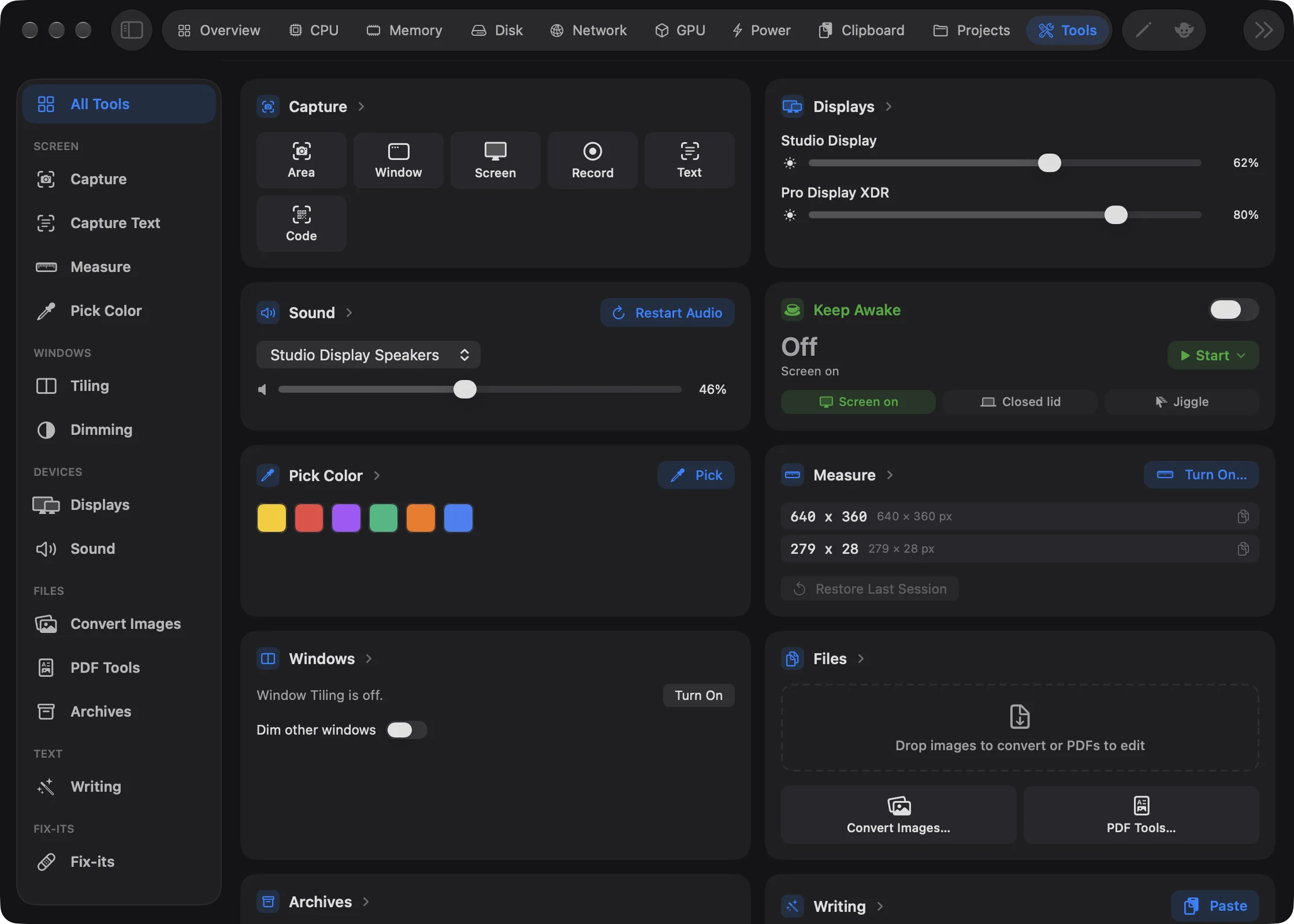
Goblin has a number of small helpers: taking a screenshot, picking a color, changing a screen's brightness, converting images, restarting Finder when it freezes. The Tools tab puts them in one place, as cards that work right where they are. Their buttons, sliders and swatches do the job without opening anything else. The same tools are on the Overview, in the menu bar panel and, if you want it, in a menu bar item of their own.
Open the Tools tab and use a tool#
- Click Tools in the tab bar of the main window, or press ⌘0.
- Stay on All Tools to use a tool right on its card: click a button, drag a slider or click a swatch. Or click a tool's name in the sidebar for its own page, with its shortcut and a list of what it made lately.
- For a tool that needs the screen (a capture, Measure, Pick Color), click its button, then work on the screen as the tool asks. It may need a permission first; the tool's page says "Needs Screen Recording" with an Allow… button if so.
When it worked, the card shows the result: a new thumbnail on Capture, a swatch on Pick Color, a new line on Measure.
The first time you open the tab, a short introduction shows how to use the cards, how to drop files onto Goblin, Goblin's items in Finder's right-click menu, and how to arrange the cards. How Tools Work at the bottom of the sidebar opens it again.
The sidebar#
The sidebar is grouped, as the Disk tab's is. Hide it with the sidebar button in the toolbar.
| Group | Pages |
|---|---|
| (top) | All Tools: a card for each tool. |
| Screen | Capture, Capture Text, Measure, Pick Color. |
| Windows | Tiling, Dimming. |
| Devices | Displays, Sound. |
| Files | Convert Images, PDF Tools, Archives. |
| Text | Writing. |
| Fix-its | Fix-its. |
Goblin remembers the page you were on. Keep Awake has a card here too, but its page is Power›Keep Awake; see Keep Awake.
New: Coming in the next update. Sound and Displays used to be tabs of their own. They are now pages under Devices in this sidebar, and each has a card on All Tools. Anywhere that remembered the old Sound or Displays tab opens that page.
The cards#
All Tools shows a card for each tool you haven't hidden. Right-click a card to Show on Overview (or Remove from Overview), Hide from Tools, or Customize….
| Card | What's on it |
|---|---|
| Capture | Buttons for an area, a window, the full screen, a recording, text and a code, with the last four captures below as thumbnails. While you're recording, a Stop Recording button replaces them. See Taking screenshots. |
| Displays | A brightness slider for each screen. See Displays. |
| Sound | Your output and microphone, volume, a volume slider for each app that's playing sound, and Restart Audio (it asks first, because sound and microphones disconnect for a moment). See Sound. |
| Keep Awake | Keep Awake's controls, with its switch. |
| Pick Color | A Pick button and the colors you've picked as swatches. Click a swatch to copy its code. |
| Measure | A Measure button (Turn On… while Measure is off), your recent measurements, which you click to copy, and Restore Last Session. |
| Windows | Buttons to snap the front window left, right, to full size, centered or to the next display, and a Dim other windows switch with a slider from 10% to 90%. If Window Tiling is off, the buttons give way to Turn On. |
| Files | A place to drop images (to convert) or PDFs (to edit), and Convert Images… and PDF Tools… buttons. |
| Archives | A place to drop an archive (to extract it) or other files (to compress them), and Open…. See Archives. |
| Writing | A text box, a Paste button, and the five Apple Intelligence actions below. |
| Fix-its | A button for each fix below. |
Fix, rewrite or translate text#
The Writing card works on text you type or paste, on this Mac, with Apple Intelligence.
- Open Tools (⌘0) and find the Writing card on All Tools, or click Writing in the sidebar.
- Type or paste your text into the box, or click Paste to take the text on your clipboard.
- Choose an action: Fix Grammar, Rewrite, Formal, Summarize or Translate.
- Read the result in the box below, then click Copy.
What each action does:
| Action | What it does |
|---|---|
| Fix Grammar | Fixes spelling, grammar and punctuation, keeping your wording. |
| Rewrite | Makes it read more clearly, keeping the meaning and tone. |
| Formal | Rewrites it in a formal tone for work email. |
| Summarize | Sums it up in a few short sentences. |
| Translate | Translates it into your language, or into English when it's already in yours. |
Keep Editing, next to Copy, puts the result back in the text box so you can run another action on it. Cancel stops one that is running. The card says so when Apple Intelligence isn't turned on or this Mac doesn't support it. The text stays only while Goblin is running.
Tool pages#
Choose a page in the sidebar for more than the card shows. Pages for Capture, Capture Text, Measure, Pick Color, Tiling, Dimming, Convert Images, PDF Tools and Archives start with a header:
- A big Run button, or Turn On and Turn Off for tools that switch on and off, or Open for the file tools.
- A pin button, which adds the tool to your pinned tools. The first six pinned tools that work as a button make up the row of buttons in the Goblin menu bar dropdown.
- Settings…, which opens that tool's page in Settings.
- A status line: Ready, On, Off, or what's missing, such as "Needs Screen Recording" with an Allow… button.
- The tool's shortcut, which you can change right there. Tiling has one shortcut for each layout, so it sends you to Settings.
Under the header come what the tool made lately (colors, measurements, captures, text you captured), or, for the file tools, a dashed place to drop files.
Arranging the cards#
- Open Tools and make sure All Tools is selected in the sidebar.
- Click the pencil in the toolbar. The cards turn dashed, each with an eye and a pin on its top edge, and a bar reads "Drag cards to rearrange them."
- Drag a card to where you want it.
- Click the eye to hide a card from the Tools tab (it dims), or the pin to put it on the Overview.
- Click Done. Reset puts everything back the way it started.
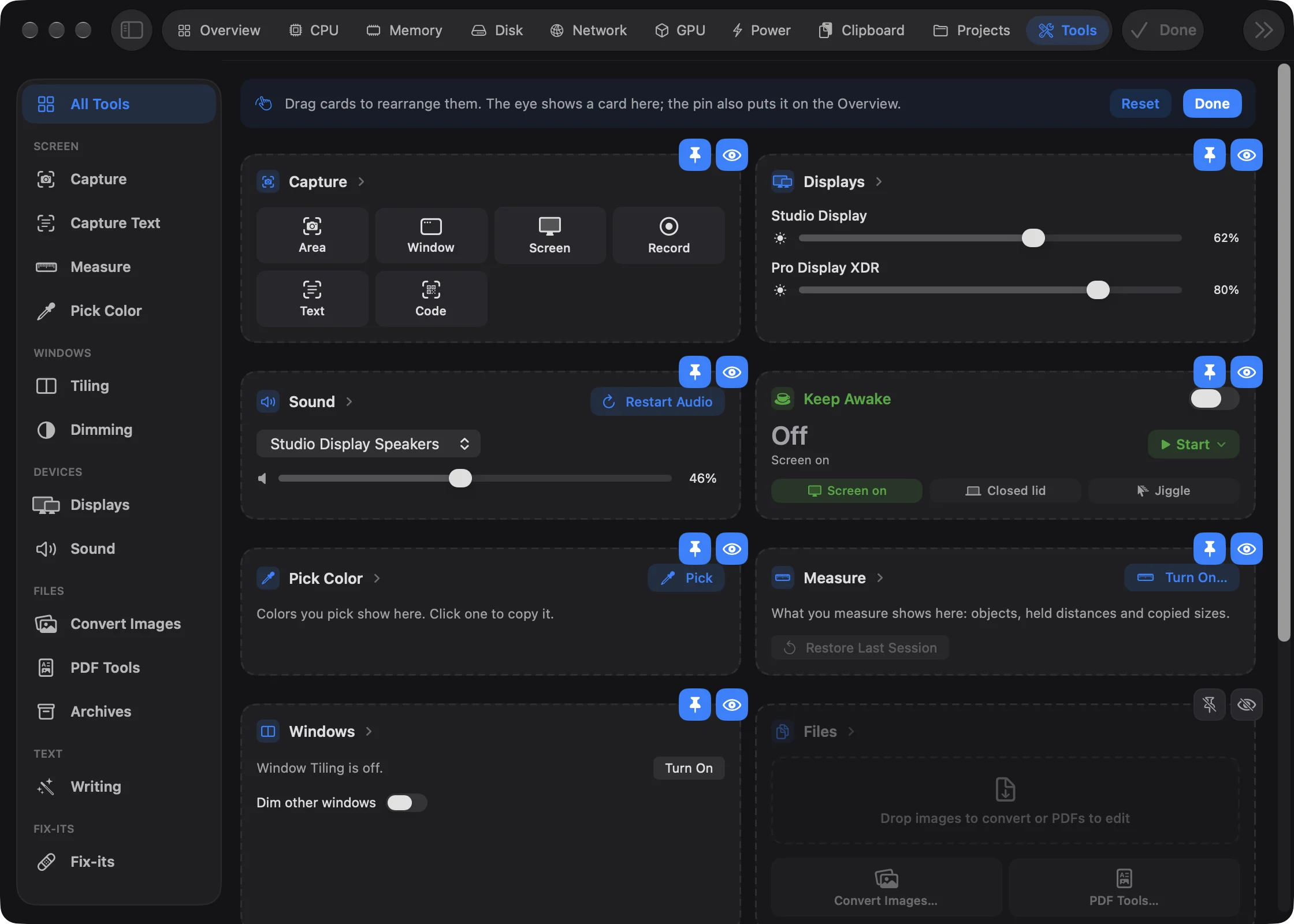
A hidden card leaves the Tools tab, not the app. A line under the cards counts them ("2 hidden. Click the pencil to show them again."); click it to bring the eye back. You can also right-click a card to Show on Overview (or Remove from Overview), Hide from Tools or Customize….
You can do the same with the small pictures of the cards in Settings›Tools›Tool cards, and you can arrange the Overview's tool cards in the Overview's own edit mode. Out of the box, the Overview shows Displays, Sound, Keep Awake, Capture, Pick Color, Measure and Windows.
Run a fix-it#
Fix-its are one-click restarts for things that get stuck. Nothing here deletes anything.
- Open Tools (⌘0) and click Fix-its in the sidebar, under Fix-its.
- Find the row for what's stuck. Each row says when you'd use it.
- Click Run.
- If Goblin asks first, read what will happen and click the fix's name (such as Restart Finder), or Cancel.
When it worked, the row shows the result with the time ("Restarted Finder. · 2 minutes ago"), and a short message slides up from the bottom of the window. If it failed, the row says what went wrong, in red.
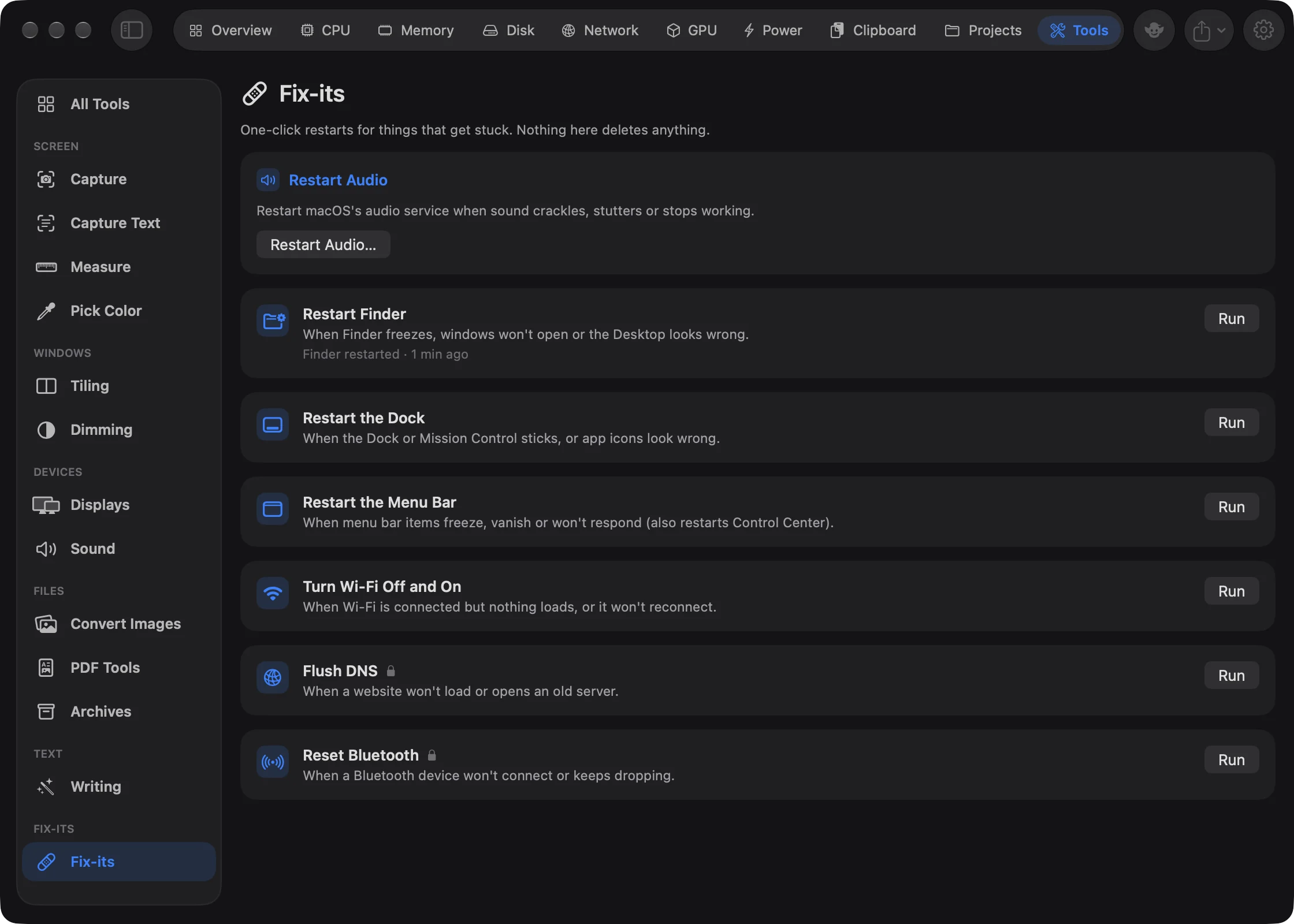
The page starts with the Restart Audio card (see below), then a row for each fix.
| Fix | Use it when | What happens |
|---|---|---|
| Restart Finder | Finder freezes, windows won't open or the Desktop looks wrong. | Finder closes and reopens; its windows go away for a moment. |
| Restart the Dock | The Dock or Mission Control sticks, or app icons look wrong. | The Dock disappears for a moment and comes back. |
| Restart the Menu Bar | Menu bar items freeze, vanish or won't respond. | The menu bar and Control Center blink off and back on. |
| Turn Wi-Fi Off and On | Wi-Fi is connected but nothing loads, or it won't reconnect. | Wi-Fi turns off for a couple of seconds, so downloads and calls may drop. A Mac with no Wi-Fi says so. |
| Flush DNS (lock) | A website won't load or opens an old server. | Clears the cache of website addresses. Doesn't ask first. |
| Reset Bluetooth (lock) | A Bluetooth device won't connect or keeps dropping. | Bluetooth devices disconnect and reconnect. |
Each fix except Flush DNS asks first, with a Don't ask again box. If you've ticked it, click Ask before running again on that fix's row to turn the question back on. A lock marks the fixes that run as administrator: if Goblin's system helper is allowed they run without a prompt, and otherwise macOS asks for your password. Restart Audio can't run while a recording is using the microphone.
Restart Audio#
Use this when sound crackles, stutters or stops working. It restarts macOS's audio service, so sound and microphones disconnect for a moment, including in calls and other apps.
- Open Tools and click Fix-its (or Sound) in the sidebar. The Restart Audio card is there. The Sound card on All Tools has a Restart Audio button too.
- Click Restart Audio….
- In the question "Restart Audio?", click Restart Audio. macOS may ask for an administrator password.
- Wait for "Restarting audio…" and then "Waiting for audio…" to finish.
When it worked, the card says "Audio restarted." Your per-app volumes are put back. If you cancel the password prompt it says "Audio restart cancelled." While a screenshot or recording is in progress the button is off and the card says "Finish the current capture before restarting audio."
Drop files on Goblin#
Drag files toward Goblin’s menu bar icon or the Drop on Goblin target underneath it. A compact menu opens with actions for your selection: PDF tools, image conversion and annotation, video editing or archive tools.
Drop directly on a tool tile, or drop onto the target first and click an action afterward. For images, hold the drag over Convert to reveal PNG and JPG. The Cancel drop area leaves the original files where they are.
The menu is separate from the main panel and does not switch it to the Tools tab. You can also shake the pointer while dragging to show it. See Drop files on Goblin for steps, all supported file types and the settings that control the target.
In the menu bar#
The menu bar panel has a Tools tab with the same tools as tiles and boxes, and an Edit button beside the title for choosing which show and their order. Anything that needs the screen, such as a capture, Measure or Pick Color, closes the panel first. Right-click Keep Awake there to choose how long. See The menu bar panel.
Turn on the Tools menu bar item#
A Tools menu bar item is a separate icon of its own. It is off by default.
- Open Settings (⌘,) and click Tools.
- In the Menu bar item card, turn on Tools menu bar item.
A click on the icon opens a panel of the tools you chose, with Edit and All Tools… at the bottom; an ⌥-click opens the Tools tab. The icon fills in while a tool that switches on and off, such as Keep Awake, is on, and Show Keep Awake time left beside the icon adds the time while a session with an end is running.
Settings›Tools also chooses the first six pinned tools, which show as a row of buttons in the Goblin menu bar dropdown.
Shortcuts, Siri, the goblin command and AI assistants can use many of these tools too. See Automation.