 Goblin
Cleanup finds files your Mac can do without: caches apps rebuild, old logs and crash reports, Xcode build output, iPhone update files, installers left in Downloads, and a few things you'll want to think about first, like iPhone backups. It lists them by category, you tick what you want gone, and every removal goes through the review sheet first.
Clear junk with Cleanup#
- Click Disk in the main window's tab bar, then Cleanup in the sidebar (under Storage). It scans the first time you open it; press Scan for a fresh look later.
- Press Select recommended to tick the safe groups, or tick the groups and items you want yourself.
- Press Review Cleanup at the bottom. The footer shows how many items are ticked and how much space they use.
- In Review cleanup files, check the list and press Move to Trash.
- When it worked, a status card says what moved, and the list is cleared. Scan again to see what's left.
Quit apps whose caches you are clearing first; see Quit apps first.
Reading the page#
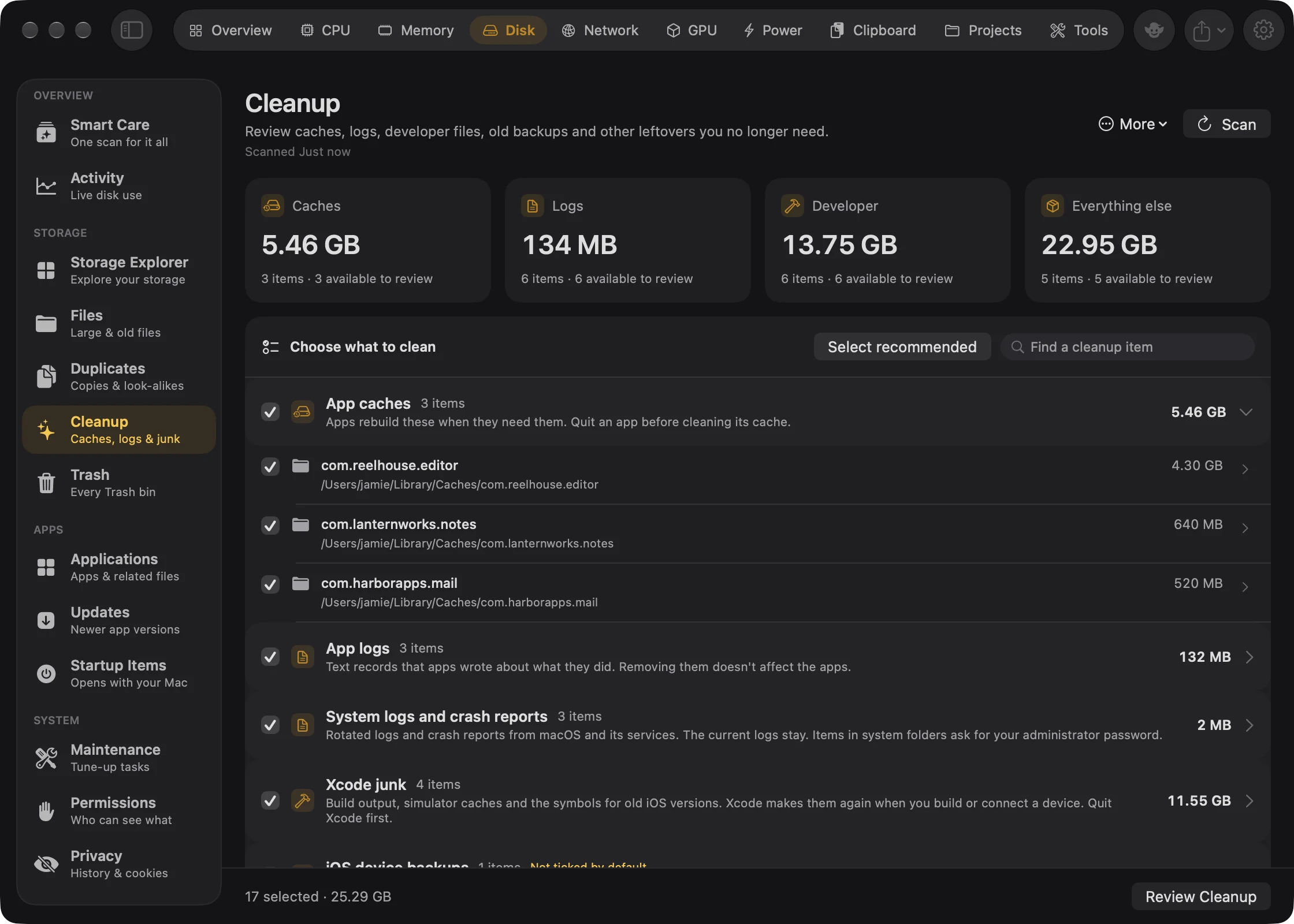
Four summary cards sit at the top: Caches, Logs, Developer and Everything else. Each shows a total size (a dash before the first scan) and "N items · M available to review". Document versions aren't counted, since Goblin can't remove them.
Below them, the Choose what to clean list holds one group per category. A group shows a checkbox that ticks the whole group, its title, how many items it has, its total size and a line saying what the files are. Groups you should choose yourself carry a Not ticked by default badge. Click a group's chevron to fold it away.
In a group:
- Each item has its own checkbox. A folder opens into a tree of the files inside, each with a checkbox, so you can clean part of a folder. Long folders show Show 50 more files at the end. Links show "Link · not followed".
- Click a file to see it in Quick Look. Right-click any item for Show in Finder.
- An item marked Review only with a lock can't be ticked. Hover it to see why, for example "macOS keeps this cache in use for iCloud and storage. Inspect it in Finder."
- An item Goblin couldn't read completely can't be ticked either: "Some files couldn't be read. This is a partial size; check permissions and scan again."
Find a cleanup item filters the list by name or path.
Select recommended#
Nothing is ticked after a scan. Select recommended ticks everything that's safe to clear without a second thought. It leaves out the categories you should choose yourself: Xcode archives, iOS device backups, Mail attachments, old screen recordings, merged git worktrees, and the project dependency, build and package cache groups. Each of those carries a Not ticked by default badge. On connected drives it also leaves out the Spotlight index and the file system event log (see External drives). Tick and untick from there, then press Review Cleanup.
The categories#
There are 19, in this order. A group only appears in the list when the scan finds something in it. "Recommended" means Select recommended ticks it.
| Category | What it is | Where Goblin looks | Recommended | What happens |
|---|---|---|---|---|
| App caches | Files apps keep to load faster. Apps rebuild them when needed. | Each item in ~/Library/Caches | Yes | Moves to the Trash |
| System caches | Caches shared by every account on this Mac. | Each item in /Library/Caches | Yes | Usually owned by the system: deleted for good after your password |
| App logs | Text records apps wrote about what they did. Removing them doesn't affect the apps. | Each item in ~/Library/Logs, except crash reports | Yes | Moves to the Trash |
| System logs and crash reports | Old logs and crash reports from macOS and its services. The current logs stay. | Crash reports in ~/Library/Logs/DiagnosticReports and /Library/Logs/DiagnosticReports, other items in /Library/Logs, and old (rotated) logs in /private/var/log | Yes | Your own crash reports move to the Trash; items in system folders are deleted for good after your password |
| Xcode junk | Build output, simulator caches and the support files for older iOS versions. Xcode makes them again. Quit Xcode first. | ~/Library/Developer/Xcode/DerivedData, ~/Library/Developer/CoreSimulator/Caches, and the older versions in Xcode's iOS, watchOS, tvOS and visionOS DeviceSupport folders | Yes | Moves to the Trash |
| Xcode archives | The debug symbols for builds you shipped. Without them you can't read crash reports from those versions. | ~/Library/Developer/Xcode/Archives | No | Moves to the Trash |
| iOS device backups | Backups of iPhones and iPads. Once one is gone you can't restore from it. Listing them needs Full Disk Access. | ~/Library/Application Support/MobileSync/Backup | No | Moves to the Trash |
| iOS and iPadOS updates | Update files Finder downloaded for iPhones and iPads. Finder downloads them again when you next update. | .ipsw files in ~/Library/iTunes' iPhone, iPad and iPod Software Updates folders, and Apple Configurator's firmware cache | Yes | Moves to the Trash |
| Broken preferences | Settings files that can't be read. The app that owns each starts again with its default settings. | ~/Library/Preferences | Yes | Moves to the Trash |
| Deleted users | Folders left behind by accounts you deleted. | /Users/Deleted Users | Yes | Deleted for good after your password |
| Mail attachments | Attachments Mail downloaded. Mail fetches them again from the server, but mail kept only on this Mac has no other copy. | Mail's Mail Downloads folder, and every Attachments folder inside ~/Library/Mail | No | Moves to the Trash |
| Downloaded installers | Disk images and installer packages. | .dmg, .pkg and .mpkg files anywhere in ~/Downloads | Yes | Moves to the Trash |
| Document versions | Earlier versions of documents that macOS keeps for File›Revert To. | /.DocumentRevisions-V100, shown as one row, Saved document versions | Information only | Never removed. Each app's File›Revert To manages them |
| Old screen recordings | Screen recordings and GIFs over a month old. A recording can't be made again. | .mov, .mp4 and .gif files in your capture folders (Settings›Capture). In a shared folder such as Downloads, only files that start with Goblin's recording name | No | Moves to the Trash. A recording still in your Screenshots pinboard is review only: remove its clip first |
| Merged git worktrees | Extra checkouts of a git repository whose branch is already merged, with nothing left uncommitted. | Git repositories under your project folders (see below) | No | Moves the folder to the Trash and tells git to forget it. The branch and commits stay |
| Project dependencies (node_modules) | Installed packages inside your projects. An install brings them back. | node_modules folders in your projects | No | Moves to the Trash |
| Project build folders | Build output and tool caches: .next, .turbo, .nuxt, .svelte-kit, .parcel-cache, .angular, .expo, DerivedData and Trigger.dev's .trigger/tmp. The next build makes them again. | Inside your projects | No | Moves to the Trash |
| Package caches | npm's download cache. npm downloads packages again when an install needs them. | ~/.npm/_cacache | No | Moves to the Trash |
A few details worth knowing:
- Caches macOS needs stay put. In App caches, the caches iCloud and macOS's storage services keep in use are listed as review only. In System caches, Apple's own caches and Goblin's own are review only too.
- Xcode keeps your newest support files. For each device type and processor, only the newest DeviceSupport version stays; the older ones are offered. They're labelled like "iOS DeviceSupport: 17.2 (21C62)".
- iPhone backups are named for the device. For example "Jason's iPhone, iOS 18.2, 3 Oct 2026".
- Broken preferences only checks your own files, and leaves Apple's alone. Without Full Disk Access, Goblin only looks for empty files, because opening other apps' settings could make macOS ask whether Goblin may access data from other apps.
- Mail attachments are listed by mailbox, as "Attachments in <mailbox>". Empty folders are left out.
- Downloaded installers follow the same rules as Large & old files: hidden files, packages and project folders are skipped.
- Old logs only. In
/private/var/log, Goblin only offers logs macOS has already rotated, with names likesystem.log.0.gz. The log being written now is never offered.
Goblin doesn't offer language files or the extra processor code inside universal apps. Removing them breaks the apps' signatures.
New: Coming in the next update. The last four rows (merged git worktrees, project dependencies, project build folders and package caches), the Removed before filter, the Simulators list and the Docker storage card.
Developer folders in your projects#
Goblin looks for project folders under these folders in your home folder, whichever exist: dev, Developer, Projects, Code, code, src, Sites, repos, workspace, Documents/GitHub, Documents/Projects and Documents. It goes up to six levels deep, never into hidden folders, packages, Library or symbolic links, and anything on your Cleanup ignore list is skipped. After 150,000 folders it stops and says so.
Nothing in these groups is ticked for you. A row is named for its project, as in "goblin-site › node_modules", and says when the project last changed, so you can spot stale ones. A row that Goblin won't let you tick is marked Review only, and hovering it says why:
- a running program has the project as its working folder;
- the project has no
package.json, or no lockfile (package-lock.json,pnpm-lock.yaml,yarn.lock,bun.lockorbun.lockb), so Goblin can't be sure a reinstall brings back the same versions (this applies tonode_modules); - git tracks files inside the folder, so removing it would show up as changes;
- Goblin couldn't read which programs are running.
Goblin checks again right before removing, and stops with a message if anything has changed. Merged worktrees are checked the same way: the main checkout, locked worktrees, detached heads, anything with uncommitted or untracked files, and branches not yet merged into your main branch are review only.
Removing a worktree moves its folder to the Trash and tells git to forget it. The branch and its commits stay in the repository, so you can check the branch out again.
Delete node_modules and build folders#
- Open Disk›Cleanup and press Scan.
- In Choose what to clean, find Project dependencies (node_modules) or Project build folders (they count toward the Developer card). Click the group's chevron to open it.
- Tick the folders you want to clear. Folders for projects you haven't touched in a while are the safest.
- Press Review Cleanup, check the list, and press Move to Trash.
Find items that keep coming back#
When a listed item is at the same path as something you removed before, its row says "Came back:" with how many times you removed it and when you last did, for example "Came back: removed 3 times, last on Oct 4, 2026". This is common for caches and build folders that a tool fills again.
To see only these, tick Removed before (N) next to Select recommended. The filter only appears once something has come back.
Trash or gone for good#
Files you own go to the Trash, where you can put them back until you empty it. Files in system folders can't go to the Trash. Goblin gathers all of them into one administrator step, so you're asked for your password once, and deletes them for good. That step only accepts items in a product's own folder, rotated logs in /private/var/log, and folders in /Users/Deleted Users. The review marks these items System file · needs your password · deleted permanently, and macOS shows its usual administrator prompt when you confirm.
New in 1.1: With Goblin's helper allowed under System Tasks in Settings › General, system files are deleted without the password prompt, even though Cleanup's notes still mention your password.
You can also tick Delete immediately in the review to skip the Trash for everything. See Move to Trash or delete now.
Quit apps first#
Caches can rebuild while an app is open. When a cache or log folder is named exactly after one installed app, Goblin links the two. The review then waits until that app is closed, says "Close <app> first", and offers Quit <app>, which asks the app to quit normally.
After a cleanup, the list is cleared. Scan again to see what's left.
Simulators#
If Xcode has made simulators on this Mac, two cards appear below the list after a scan.
Delete simulators#
To delete the ones Xcode can no longer run:
- Open Disk›Cleanup and scan.
- On the Unavailable simulators card, press Delete Unavailable Simulators….
- In Delete unavailable simulators?, press Delete Simulators.
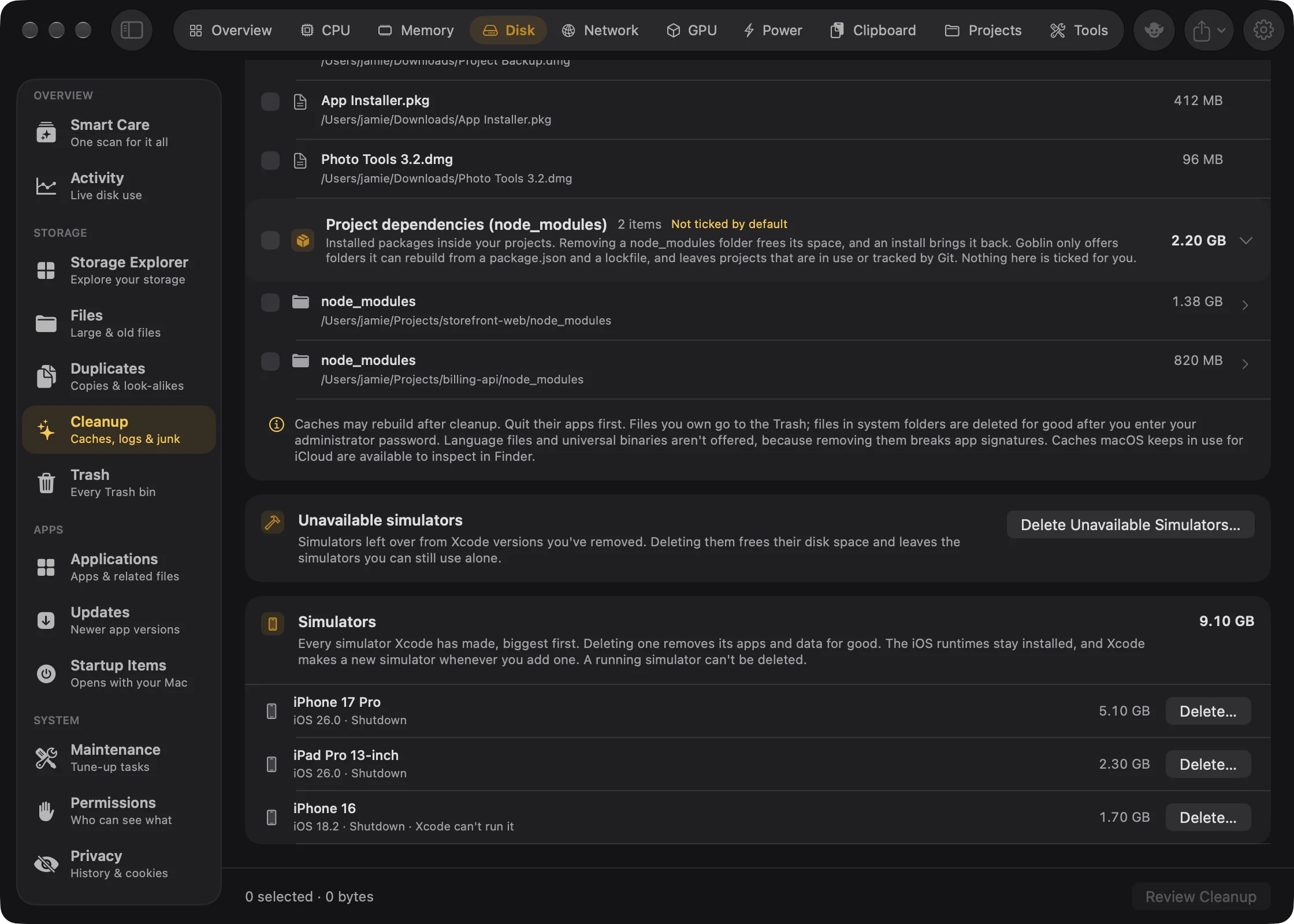
The card is for simulators left over from Xcode versions you've removed. The confirmation explains that Goblin runs xcrun simctl delete unavailable, which deletes the simulators Xcode can no longer run, with the apps and data inside them. Simulators you can still use stay. It runs as you, with no password. The card then says how many it deleted, or "There were no unavailable simulators."
To delete one simulator:
- On the Simulators card, find the device. Each row shows its name, runtime, state and size, biggest first. The card shows five; press Show all N simulators for the rest.
- Press Delete… on its row.
- Press Delete <device name> to confirm, or Cancel.
Warning: Deleting a simulator removes its apps and data for good. A simulator that is running can't be deleted: shut it down in Simulator first. The iOS runtimes stay installed, and Xcode makes a new simulator whenever you add one.
Docker storage#
New: Coming in the next update. A Docker storage card appears at the bottom of Cleanup when Docker is installed.
The card lists Docker's images, build cache, containers and volumes, each with its size, how many are in use and how much is reclaimable. Containers and volumes show "kept": they hold your running work and data, and Goblin never removes them.
Remove unused Docker images and build cache#
- Open Disk›Cleanup and scan.
- On the Docker storage card, press Refresh if the figures look old.
- Press Remove Unused Images and Build Cache…. It's greyed out when there's nothing to reclaim.
- In Remove unused Docker images and build cache?, press Remove.
Warning: This runs docker image prune --all and docker builder prune --all and can't be undone. Images download and build cache rebuilds when needed. It goes into Removal History as deleted permanently.
Connected drives#
After each scan, Goblin also checks connected external drives for the hidden files macOS and Finder leave on them, and lists each drive as its own group at the end of the list. See External drives.
If something's missing#
- Folders Goblin couldn't read are listed above the list with "Allow Full Disk Access to include it." See Full Disk Access.
- System-wide categories are only checked for your own account's home folder.
- To keep a folder out of Cleanup for good, add it under More›Ignored Items… (see Ignore lists).
- Smart Care runs the same scan as part of its checkup.