 Goblin
Settings›Capture›Wallpaper manages the pictures the annotation editor offers as backgrounds behind a screenshot. They do not change your Mac's desktop wallpaper. Use it to add your own image, such as a brand gradient or a photo, or to remove one you no longer want.
The wallpaper list#
The Wallpapers section shows the built-in images and your own as thumbnail tiles with names. The editor uses this same list. Opening the page loads the built-in images; No custom wallpapers yet. means you have not added your own, even if built-in tiles are present.
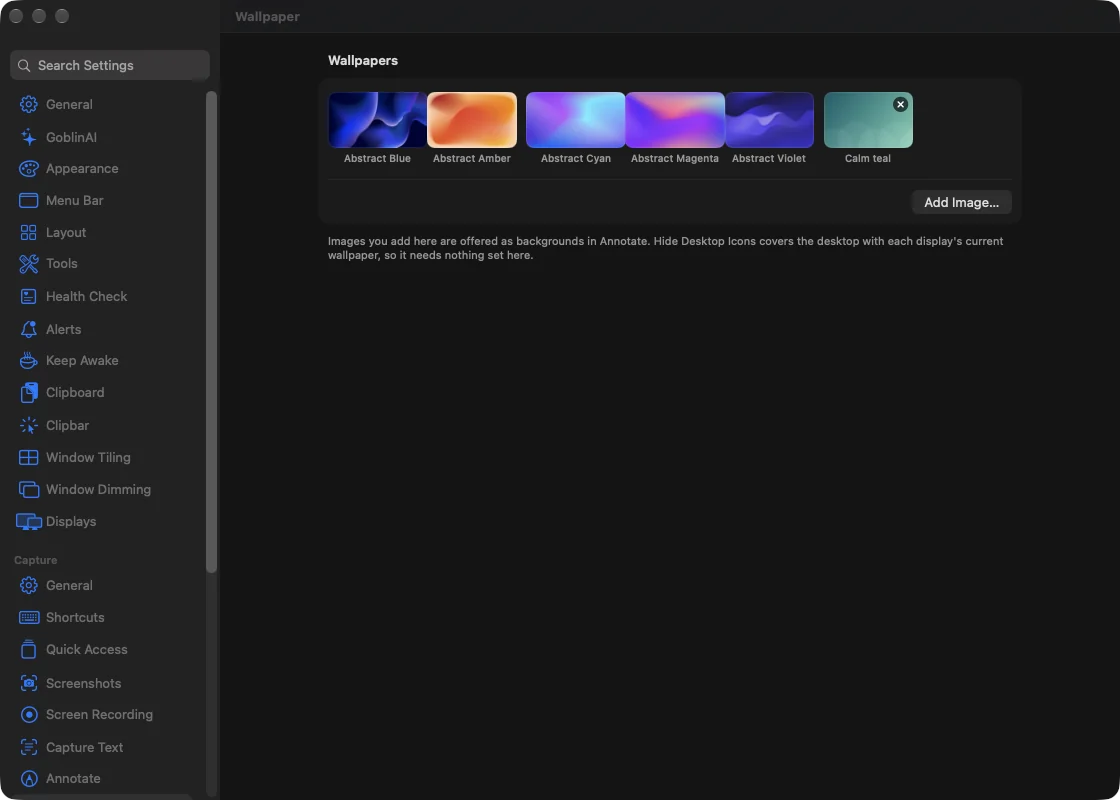
Add an image#
- Open Settings›Capture›Wallpaper.
- Press Add Image….
- In the file picker, select one or several image files and confirm.
- The images appear as new tiles. They are now in the editor's background list too.
Goblin remembers access to the files and keeps references to those originals, so keep the files where they are if you want to use them later. Nothing is uploaded. You can also add an image from the editor's own Wallpapers section.
Remove an image#
- Open Settings›Capture›Wallpaper.
- Point at one of your own tiles. A remove button (Remove) appears in its corner.
- Click it.
This removes the saved entry and its cached preview from Goblin's list. It does not delete the original image file, and you can add it again with the file picker. The built-in tiles have no remove button.
Use a wallpaper in Annotate#
- Open a screenshot in the annotation editor.
- Press the Background button in the toolbar (or B).
- Choose a tile from Wallpapers.
Padding, shadow, corner and the other canvas controls are covered in Annotating screenshots.
Hide Desktop Icons is separate#
Hide Desktop Icons covers the desktop using each display's current wallpaper. It needs nothing configured here. Adding or removing a screenshot background does not change which wallpaper that desktop cover uses. See Menu bar and desktop for its controls.