 Goblin
Settings›Help & Feedback is where you reach the person behind Goblin, find answers, replay the tutorial and open the release notes. This page also covers the What's New window and Uninstall Goblin…, which you start from Settings›General or the Goblin menu.
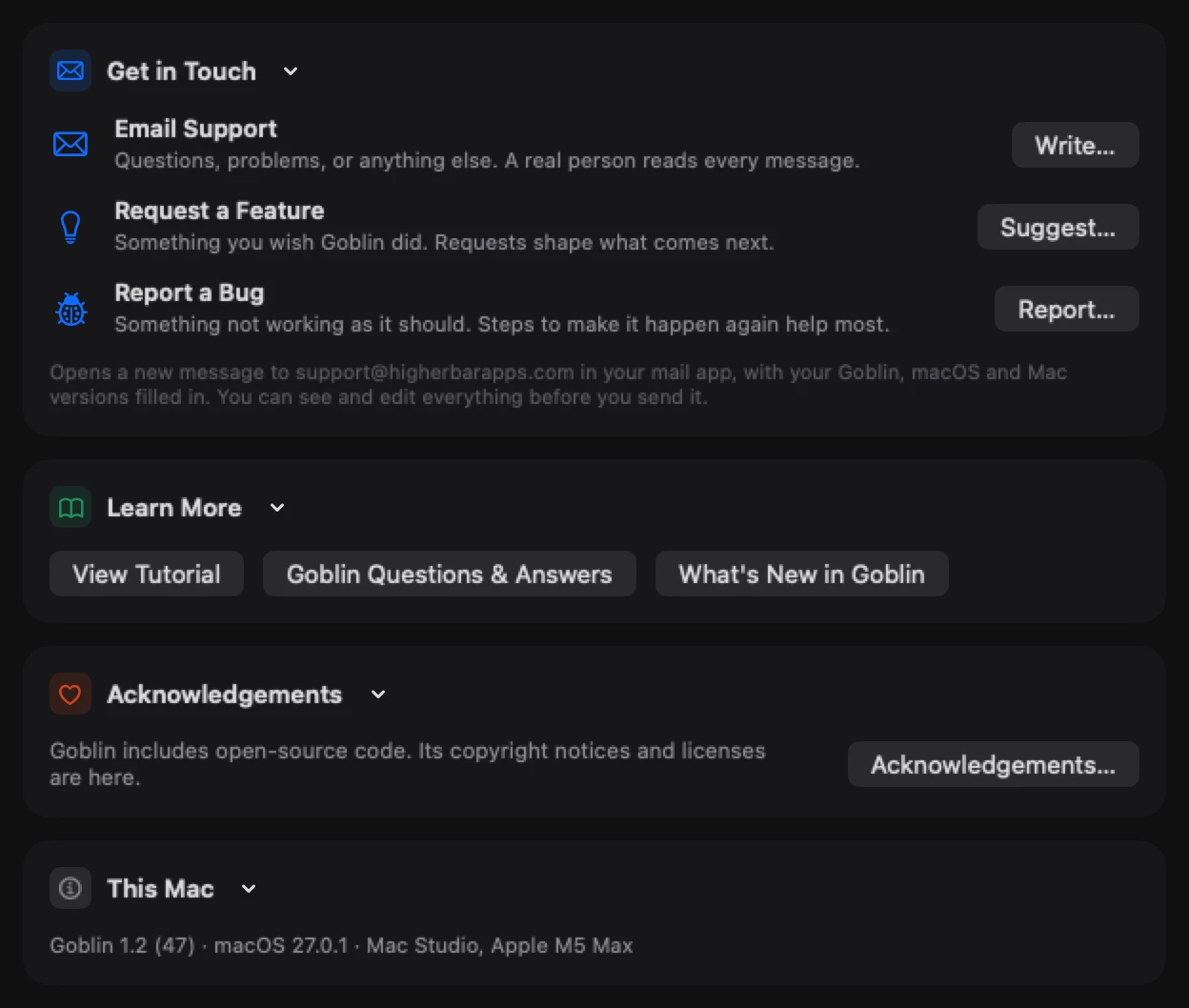
Contact support, request a feature or report a bug#
- Open Settings›Help & Feedback.
- In the Get in Touch card, click the button for what you want: Write… for Email Support, Suggest… for Request a Feature, or Report… for Report a Bug.
- Your mail app opens a new message to
support@higherbarapps.com. Fill in the blanks Goblin left for you. - Check the details at the bottom (your Goblin, macOS and Mac versions) and remove anything you'd rather not share.
- Send the message from your mail app.
Goblin sends nothing itself; it only opens the message. The Help menu in the menu bar has the same three items: Email Support…, Request a Feature… and Report a Bug….
| Button | What it's for | What the message starts with |
|---|---|---|
| Email Support › Write… | Questions, problems, or anything else. A real person reads every message. | The subject "Goblin Mac Support". |
| Request a Feature › Suggest… | Something you wish Goblin did. Requests shape what comes next. | The subject "Goblin Feature Request" and two prompts: what you'd like Goblin to do, and how it would help you. |
| Report a Bug › Report… | Something not working as it should. Steps to make it happen again help most. | The subject "Goblin Bug Report" and prompts for what happened, what you expected, and the steps to make it happen again. |
Find your Goblin version and Mac details#
The This Mac card shows one line with your Goblin version and build number, your macOS version, and your Mac's model and chip, separated by dots. Select it and copy it with ⌘C. It's the same line Goblin adds to support emails, so paste it into a message if you're contacting support another way.
Open the questions and answers#
- Open Settings›Help & Feedback.
- In the Learn More card, click Questions & Answers.
The questions and answers on macgoblin.com open in your browser. In the menu bar it's Help›Goblin Questions & Answers.
Replay the tutorial#
- Open Settings›Help & Feedback.
- In the Learn More card, click View Tutorial.
Goblin's window opens on the welcome tutorial from the start.
Open What's New#
The What's New window shows the release notes for your version of Goblin. Open it from any of these:
- What's New in Goblin in the Learn More card of Settings › Help & Feedback.
- What's New in Settings › General.
- Goblin›What's New in Goblin in the menu bar.
- What's New in the right-click menu of Goblin's menu bar item.
It also opens by itself the first time you open Goblin's window after an update, unless the welcome or Full Disk Access setup is due first.
The notes load from macgoblin.com each time, and the window keeps no website data. Links that lead away from the notes open in your browser. Click Done (or press Return) to close it. Without a connection the window says What's New is unavailable and offers Open in Browser. See Updates and What's New.
Read the acknowledgements#
The Acknowledgements card has one button, Acknowledgements…. It opens a list of the open-source projects Goblin includes, with what Goblin uses each for, a Project Page link and the license text. Click Done to close it.
Uninstall Goblin#
- Click Uninstall… in Settings › General, or choose Goblin›Uninstall Goblin… in the menu bar.
- Read the Uninstall Goblin? alert. To keep your settings and history for a later reinstall, tick Keep my settings and history. It's unticked by default.
- Click Uninstall, or Cancel to stop.
- If macOS asks for your administrator password to remove the network extension, enter it.
- Wait while Removing Goblin… finishes. Goblin quits when it's done.
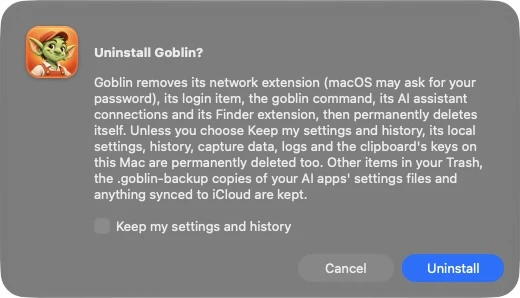
Warning: Uninstalling permanently deletes Goblin and, unless you ticked Keep my settings and history, its settings, history and capture data. Goblin doesn't move them to the Trash. Other items in your Trash and anything synced to iCloud are kept.
Goblin removes:
- its network extension (if it stays, for example because you cancelled the password prompt, Goblin stops there and leaves everything else in place),
- its encrypted DNS settings, its login item and its privileged helper,
- its entries in Claude, Claude Code, Cursor and Codex, the
goblincommand, the cloud storage sign-ins it saved in your keychain, and its Dock entry, - unless you ticked Keep my settings and history, its folders in your Library (settings, history, caches and Finder extension data),
- and finally the app itself.
If macOS has to finish removing the network extension after a restart, Goblin says Restart to finish uninstalling Goblin; restart your Mac when you're ready. If something can't be removed, the window tells you what is left and offers Try Automatic Removal, Open Network Extensions or Open Library Folder, with a Remove manually section of steps.
The full walk-through is in Uninstalling Goblin.