 Goblin
Settings›iCloud Sync keeps your Macs in step through iCloud. It holds two separate things: syncing your clipboard history and pinboards, and syncing Goblin's own settings, so a theme, a menu bar layout or a set of alert thresholds you've tuned on one Mac follows you to the others. You choose which kinds of setting sync, one category at a time.
Every Mac needs to be signed in to iCloud with the same Apple ID in System Settings. Nothing else is needed: no passphrase and no extra account. Everything is end-to-end encrypted and stored in your own iCloud storage.
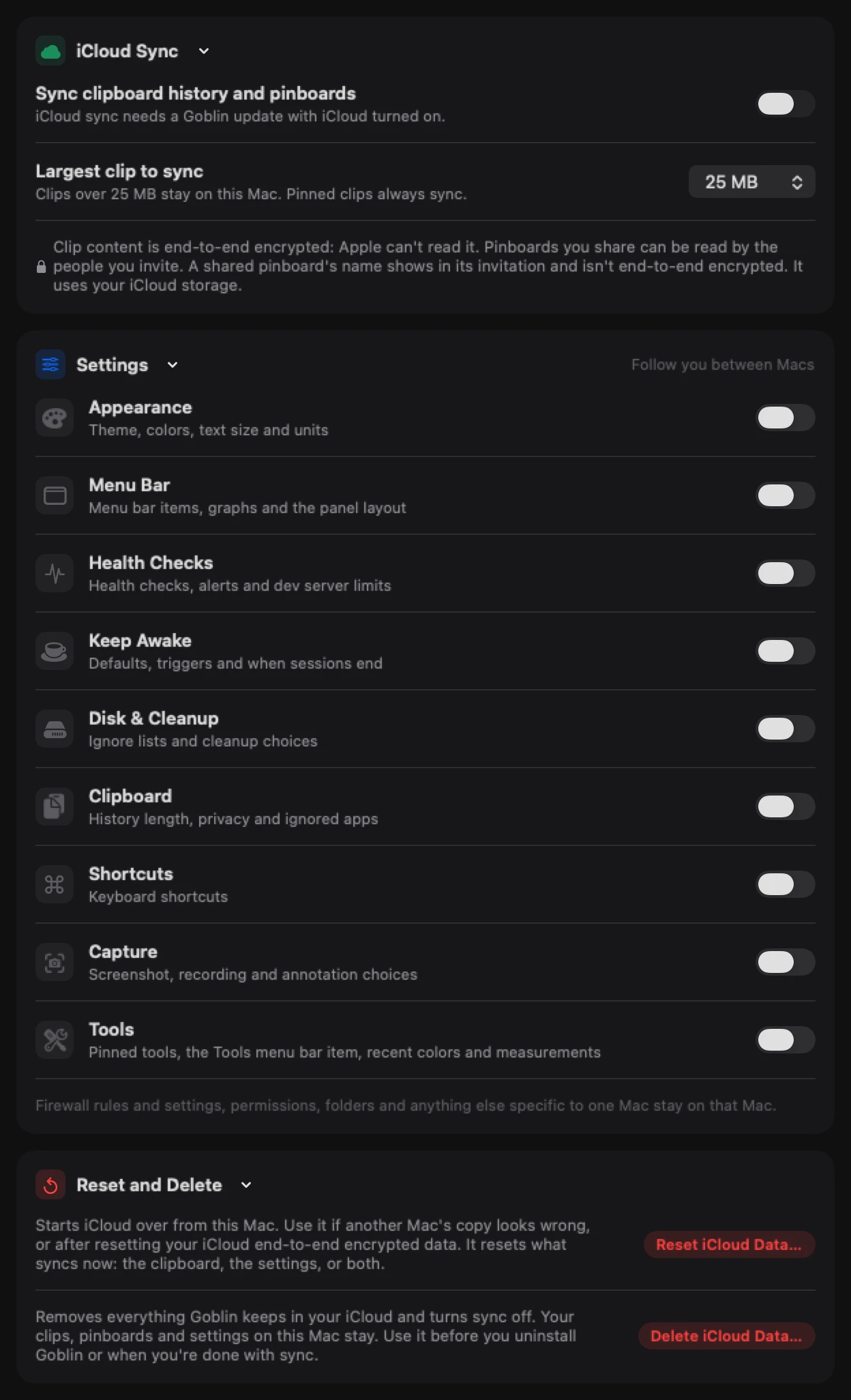
Sync Goblin settings between Macs#
Do this on each Mac that should share settings.
- Check that the Mac is signed in to iCloud in System Settings, with the same Apple ID as your other Macs.
- Open Settings›iCloud Sync.
- In the Settings card, switch on the categories you want to share, for example Appearance or Menu Bar. Each has its own switch, and all start off.
- The first time you switch a category on, Goblin asks Start from which Mac? Choose Use This Mac's Settings or Use iCloud's Settings. See Choose which Mac wins.
- Repeat on your other Macs. Changes apply on the other Macs as they arrive, without restarting Goblin.
Settings sync works on its own: it doesn't need Sync clipboard history and pinboards on, or even the Clipboard. The switches are per Mac, so you can sync your appearance to your laptop but not to a Mac you share with someone.
| Category | What syncs |
|---|---|
| Appearance | Theme, colors and tint (for the window and a separate panel theme), text size, units for temperature, network speed and CPU, plus Show in Dock, Sound effects, the app icon, showing your public IP address, and Window Tiling's spacing and colors. Also your Goblin's name, outfit, personality, voice choices and the Use Apple Intelligence switch, and how the Network Monitor and the rules list look. |
| Menu Bar | The menu bar item and its figures, style and graphs, the panel layout, the Overview's order and hidden cards, the order and hidden tabs, and what the firewall part of the menu bar shows. |
| Health Checks | Health checks, muted apps, every alert and its threshold, and from Settings › Projects: the ports that count as a dev server's, leak warnings and Snooze for, Show which agent started a server, Pull request for the branch and Preview deployments. |
| Keep Awake | Every Keep Awake option, triggers included: what a session starts with, when it ends, closed-lid and battery limits, mouse jiggle, notifications, sounds and the menu bar cup. |
| Disk & Cleanup | Ignore lists, apps you've told the uninstaller to ignore, Trash watching, Storage Explorer's hidden-items and size-basis choices, the App Spell, skipped app updates and ignored apps, Smart Care areas and reminder, cleaning drives on eject, and from Settings › Projects: Clean up servers, the idle time, Never stopped by cleanup and the time a server gets to shut down. |
| Clipboard | Settings › Clipboard: Keep History, the Trash, how pasting works, sounds, privacy choices and per-app rules, locked pinboard timing, color and combine choices, and how snippets expand. Also Clipbar's settings: its bar layout and custom actions, rules, Clean Paste and Convert choices, and where its notes, tasks and reading actions go. |
| Shortcuts | Goblin's keyboard shortcuts for the panel, the window and the Network Monitor, every clipboard shortcut and modifier key, Clipbar's shortcuts (including the ones you gave single actions), Capture's shortcuts, and Window Tiling's layouts, shortcuts, drag areas and ignored apps. |
| Capture | Screenshot, recording and annotation choices: formats, naming, Quick Access and its actions, text reading options, and Measure's units, colors and excluded apps. |
| Tools | Your pinned tools, the Tools menu bar item, and recent colors and measurements. |
Some settings stay on each Mac even when their category syncs, because they're a permission, a folder or a decision each Mac should make for itself:
- Clipboard: the Clipboard switch, the Clipbar switch, iCloud sync, Text expansion, Allow Screen Access, Find clips in Spotlight, Enable MCP, Clear history when Goblin quits and Encrypt clipboard history on this Mac.
- Features that watch your screen or keys: the switches that turn on Measure, Window Tiling and Display Controls.
- Keep Awake: Let AI assistants start and stop sessions, the Downloads folder it watches, the drives Drive Alive keeps spinning, and the sound's output device.
- Capture: save folders, devices, window and area positions, and cloud upload destinations.
- Never in any category: firewall rules and settings, permissions, Let AI assistants ask about this Mac, Open at login, automatic updates, folders and pinned locations, window sizes and positions, your history, and what GoblinAI remembers or saves about your conversations.
The card ends with a reminder of this: Firewall rules and settings, permissions, folders and anything else specific to one Mac stay on that Mac.
Choose which Mac wins#
The first time you turn a category on, on each Mac, Goblin asks Start from which Mac?, since iCloud may already hold that category's settings from another Mac:
| Choice | What happens |
|---|---|
| Use This Mac's Settings | This Mac's settings win and replace what iCloud holds, including any you've left at their defaults. |
| Use iCloud's Settings | Whatever iCloud already holds wins, and this Mac takes it on. Settings iCloud doesn't have stay as they are. |
| Cancel | Leaves the category off. |
On the Mac you've set up the way you like, choose Use This Mac's Settings. On every other Mac, choose Use iCloud's Settings. After that first choice, turning a category off and on again doesn't ask.
How settings stay in step#
- The newest change wins, setting by setting. Change your theme on one Mac and your alert thresholds on another, and both changes reach both Macs. Change the same setting on two Macs, and the later change wins.
- A setting you've never touched on a Mac counts as older than one you have, so another Mac's choice wins over it.
- Changes apply on the other Macs as they arrive, without restarting Goblin.
- Turning a category off stops it sending and receiving. Nothing is deleted, and settings that arrive meanwhile are kept for when you turn it back on.
To stop sharing a category on one Mac, switch it off in the Settings card on that Mac.
Sync the clipboard history and pinboards#
- Turn on Clipboard in Settings › Clipboard if it's off. Sync needs it.
- Open Settings›iCloud Sync.
- In the iCloud Sync card, switch on Sync clipboard history and pinboards.
- Read the line under the switch. It should move from Syncing to Synced just now.
This is the same switch as iCloud sync in Settings › Clipboard, but here it turns on without asking first. The switch never syncs itself to other Macs, so each Mac decides for itself. Everything about clipboard sync, including what does and doesn't sync and shared pinboards, is in Syncing clips between Macs.
Check whether sync is working#
The line under Sync clipboard history and pinboards shows what sync is doing and updates every few seconds:
| Status | What it means |
|---|---|
| Off | Sync isn't running. With the Clipboard off it says to turn it on in Settings › Clipboard first. |
| Syncing, 12 left | Changes are going up or coming down. |
| Synced just now, Synced 2 minutes ago | Everything is up to date. |
| Waiting for the network | The Mac is offline. Changes wait and go up when it's back. |
| Sign in to iCloud in System Settings to sync. | This Mac isn't signed in to iCloud. Sign in, then come back. |
| Your iCloud storage is full. Free some space to keep syncing. | iCloud has no room. |
| Couldn't sync: and a reason | Something went wrong. Goblin tries again by itself. |
Problems show in red, and anything waiting on you or the network in amber. If the status says Goblin needs an update with iCloud turned on, this copy of Goblin can't sync yet: update Goblin first. See Updates.
Reset iCloud data#
Use this if another Mac's copy looks wrong, after you've reset your iCloud end-to-end encrypted data, or when this Mac has moved to a different Apple ID and you want it to sync with the new one.
- Open Settings›iCloud Sync.
- In the Reset card, click Reset iCloud Data….
- In Reset iCloud data?, click Reset iCloud Data.
Goblin replaces the data currently set to sync: clipboard history and pinboards, your selected settings categories, or both. It uploads this Mac's copy again, and your other Macs fill back in from it. Nothing on this Mac is deleted.
Warning: This replaces what iCloud holds with this Mac's copy. Do it on the Mac whose data is right.
Reset iCloud Data… is available while clipboard sync or at least one settings category is on, in a build that can sync.
Delete Goblin's iCloud data#
New: Coming in the next update. Delete the cloud copy without removing your local clips and settings.
- Open Settings›iCloud Sync.
- In the Reset card, click Delete iCloud Data….
- Read Delete iCloud data?, then click Delete iCloud Data to confirm.
This removes Goblin's synced history, pinboards and settings from iCloud. Pinboards you shared stop working for invited people; pinboards other people shared with you stay. Your local clips, pinboards and settings stay. Sync turns off here, and your other Macs stop syncing when they notice.
Use it before uninstalling Goblin if you want the cloud copy removed too. Turning sync off or uninstalling alone leaves that copy intact. Reset iCloud Data… is different: it uploads this Mac's current synced data again.
Warning: Cloud deletion cannot be undone. You can turn sync on again later to start over from a Mac. If deletion fails, keep sync off and try Delete iCloud Data… again when online.