 Goblin
 answers to links that start with goblin://. Anything on your Mac can open one: Terminal with open, a launcher, a script, any app that opens links, or a link in a note. Because anything can open them, these links can only show you things or do what Goblin's own menus do. None of them removes anything.
If Goblin isn't running, opening a link starts it. A link Goblin doesn't understand is ignored.
Open a link#
Pick whichever fits where you are.
From Terminal
- Type
open, a space, then the link in single quotes. - Press Return.
open 'goblin://awake/start?for=30m'This starts a 30-minute Keep Awake session and prints nothing. Put the link in single quotes, so the shell leaves ? and & alone.
From a shortcut: in the Shortcuts app, add the Open URLs action and type the link in it. See Shortcuts.
From a script: osascript -e 'open location "goblin://awake/stop"' opens it from AppleScript, and any other tool that can open a URL works the same way.
From a note or web page: click the link. The first time, your browser may ask whether to open it in Goblin.
goblin://uninstall#
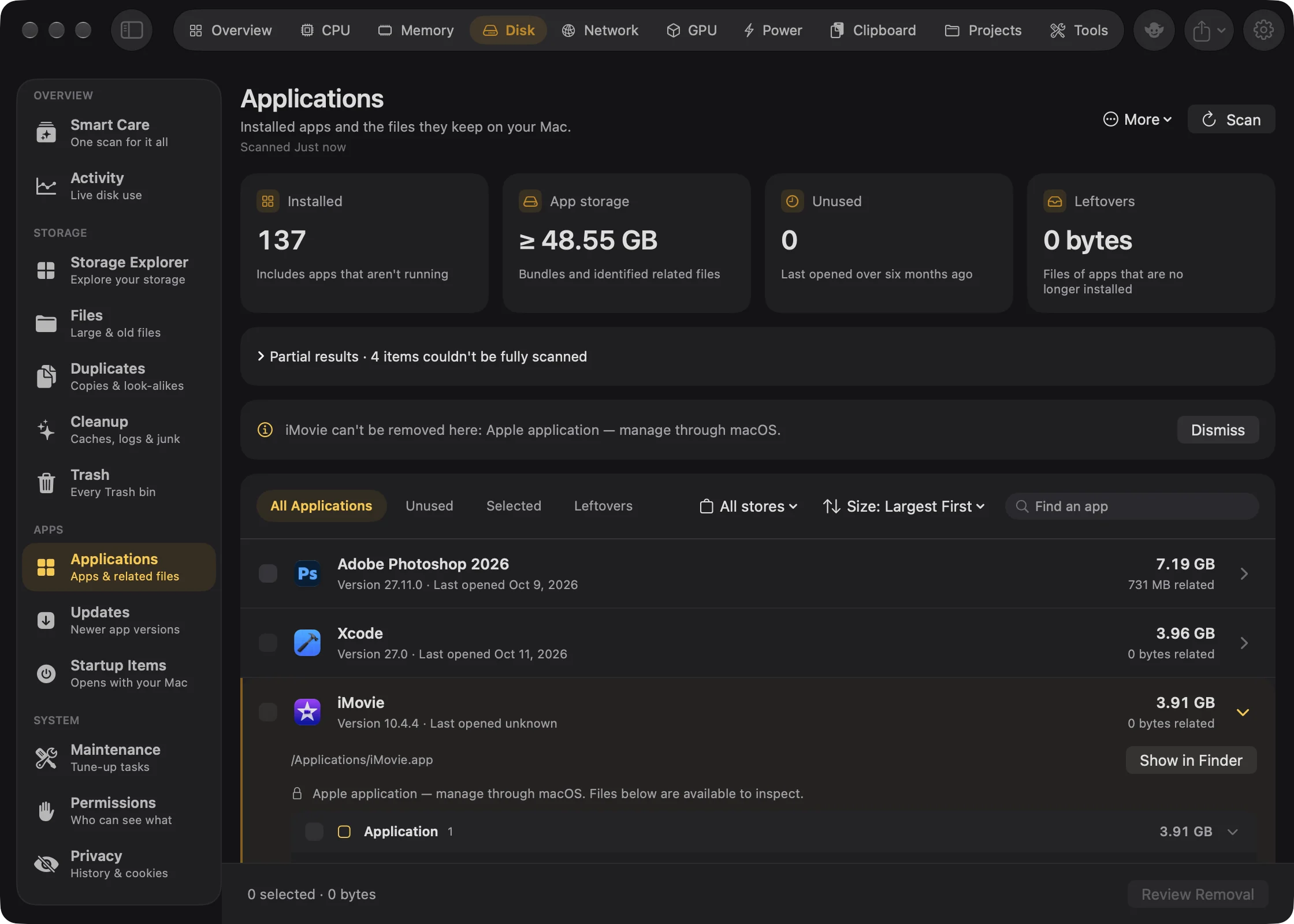
goblin://uninstall?path=<the app's path>Opens the main window on Disk › Applications with that app and its related files ready for you to review. Nothing is removed until you choose to. This is the link Finder's Uninstall with Goblin uses.
The path must be:
- a full path to an app ending in
.app - inside
/Applicationsor your own~/Applicationsfolder (subfolders are fine) - not an app inside another app
- percent-encoded, so spaces and symbols survive:
/Applications/My%20App.app
Any other path is ignored. For example:
open 'goblin://uninstall?path=/Applications/Google%20Chrome.app'This brings Goblin's window forward on Disk›Applications with Google Chrome selected and its files listed. Nothing is removed until you review the list and confirm. Spaces in the path are written as %20.
goblin://awake#
New in 1.1: Keep Awake, and the goblin://awake links.
These start, stop and extend Keep Awake sessions. A session started from a link appears in the Keep Awake card and follows the same rules as any other session.
Start Keep Awake from a link#
- Open
goblin://awake/startwith a length:forfor how long, oruntilfor a clock time. - Look at the menu bar: the Keep Awake icon appears, and the card in the panel's Power tab shows the time left.
open 'goblin://awake/start?for=2h'
open 'goblin://awake/start?until=6:30pm'
The first keeps the Mac awake for two hours. The second keeps it awake until 6:30 PM (tomorrow, if that has already passed). Both replace a session that's running. Neither prints anything.
Stop or extend Keep Awake from a link#
open 'goblin://awake/extend?by=30m'
open 'goblin://awake/stop'
The first adds 30 minutes to the running session and does nothing if none is running. The second ends the session.
| Link | What it does |
|---|---|
goblin://awake/start | Starts a session. With no length, it lasts until you end it. Replaces a session that's already running. |
goblin://awake/stop | Ends the session. |
goblin://awake/toggle | Ends the session if one is running; otherwise starts one. Takes the same options as start. |
goblin://awake/extend?by=30m | Adds time to the running session. Does nothing when no session is running. |
Options for start and toggle#
| Option | Values | What it does |
|---|---|---|
for | 45s, 90m, 2h, 1.5h, 1h30m, 2 hours, 1d | How long the session lasts. A number needs a unit. |
until | 18:30, 6:30pm, 6pm, or a full date and time such as 2026-10-03T09:00:00Z | When the session ends. A clock time means the next time the clock shows it, today or tomorrow. A bare hour needs am or pm. |
file | A full path, percent-encoded, such as /Users/me/Downloads/Big%20Movie.mov | Instead of a length: stays awake while that file downloads. |
display | on or sleep | Keep the screen on, or let it sleep. |
lid | 1 or 0 | Turn closed-lid mode on or off for this session. Closed-lid mode still asks for your password. |
label | up to 80 characters | A name for the session, shown in the card and in History. |
- Give one of
for,untilorfile, not more. filemust start with/and can't contain..; a link with any other path is ignored. The file counts as downloading in the same ways as with Choose File…; see While a file is downloading.- No session can be longer than 30 days; that applies to
for,untilandby. displayandlidstart from your defaults in Settings›Keep Awake and change only what you give.- Units for
forandby:s,sec,second(s);m,min,minute(s);h,hr,hour(s);d,day(s). - Names are not case-sensitive. A link with an unknown, repeated or empty option is ignored as a whole.
More examples, each opened with open '...' in Terminal:
goblin://awake/start?for=2h&display=sleep&label=Backup
goblin://awake/start?file=/Users/me/Downloads/Big.zip
goblin://awake/toggle?for=1h
goblin://awake/extend?by=15m- The first starts a two-hour session named "Backup" that lets the screen sleep.
- The second stays awake until
Big.zipfinishes downloading. - The third ends a running session, or starts a one-hour one when none is running.
- The fourth adds 15 minutes.
The goblin awake command and the AI assistant Keep Awake tools use these same links.
goblin://clip#
New in 1.1: The clipboard, and the goblin://clip links.
These reach Goblin's clipboard. They do nothing while Clipboard is off in Settings › Clipboard. No clipboard link deletes anything for good or hands clip contents back to whatever opened it.
| Link | What it does |
|---|---|
goblin://clip/show | Opens the clipboard strip on History. Add ?pinboard=Work to open it on that pinboard. |
goblin://clip/window | Opens the Clipboard page of Goblin's window on History, or on a pinboard with ?pinboard=. |
goblin://clip/new?text=… | Saves the text as a new item, up to 100,000 characters. Add &pinboard=Work to put it straight into that pinboard; a name that matches no pinboard saves it in History. |
goblin://clip/stack | Starts the Copy Queue, or ends it if it's running. |
goblin://clip/pause | Stops recording what you copy until you resume. Add ?for=1h to pause for a while, up to a week. |
goblin://clip/resume | Starts recording again. |
goblin://clip/trash | Opens the strip on the clipboard Trash. |
goblin://clip/pin?id=…&pinboard=Work | Pins an item to that pinboard. It stays in History too. |
goblin://clip/putback?id=… | Puts an item back from the Trash. |
goblin://clip/item?id=… | Shows one item, selected, on the Clipboard page of Goblin's window. Spotlight uses this link. It never opens a secret, and an item in a locked pinboard just shows History. |
goblin://clip/refresh | Tells Goblin its clipboard files changed. The goblin clip command uses it after it writes; you don't need it yourself. |
pinboardtakes a pinboard's name; capitals don't matter.idis an item's full ID, the long form of the 8 charactersgoblin clip listprints.goblin clip list --jsonshows it in full.fortakes lengths like15m,1h,90mor1h30m.- Percent-encode the text in
new: spaces as%20,&as%26, a new line as%0A. - Option names are not case-sensitive. A link with an unknown, repeated or empty option is ignored as a whole.
Save text to the clipboard from a link#
open 'goblin://clip/new?text=Meeting%20notes&pinboard=Work'This saves "Meeting notes" as a new clip in the Work pinboard and prints nothing. Replace the text after text= with your own, with spaces written as %20. Leave off &pinboard=Work to save it in History only.
Pause or resume the clipboard from a link#
open 'goblin://clip/pause?for=30m'
open 'goblin://clip/resume'
The first stops Goblin recording what you copy for 30 minutes. The second starts recording again straight away.
Show a pinboard from a link#
open 'goblin://clip/show?pinboard=Snippets'This opens the clipboard strip on the Snippets pinboard.
The goblin clip command does the same from Terminal, and can also list, search and copy items.
goblin://capture#
Starts screenshots, recordings, the annotation editor and the other capture tools: goblin://capture/area, goblin://capture/full-screen, goblin://capture/record-gif and so on. The full list of names and options is on Automating capture.
goblin://measure#
goblin://measure (or goblin://measure/start) starts measuring the screen, the same as the Measure shortcut. goblin://measure/restore starts with the guides, held distances and selections from your last session. These links take no options, and they only do what the shortcut does. See Measure. In Terminal, goblin measure does the same.
open 'goblin://measure/restore'This starts measuring with the guides and measurements from your last session.
goblin://archive#
The Finder menu items Open, Extract Here, Extract to Folder and Compress use these links, and you can use them too. The verb is open, extract-here, extract-to or compress, and each file or folder is a path option; repeat path for several, up to 200:
open 'goblin://archive/extract-here?path=/Users/me/Downloads/Photos.zip'
open 'goblin://archive/compress?path=/Users/me/Documents/Report&path=/Users/me/Desktop/Notes.txt'
The first extracts Photos.zip into a new folder next to it. The second opens the Compress sheet with the folder Report and the file Notes.txt ready to be made into one archive. Put your own paths in place of /Users/me/....
Paths must be full paths to things that exist, and the first three verbs need archive files. A link that doesn't check out does nothing. Open shows the archive in Goblin's archive window, Extract Here extracts each archive into a new folder beside it, Extract to Folder asks you to pick the folder, and Compress opens the Compress sheet. See Archives. Nothing is deleted or overwritten: a name clash gets a number added to it.
goblin://clipbar/install#
Opens the install sheet for a selection-bar extension. Use snippet for the text of a small extension, or url for the https:// address of an extension package:
open 'goblin://clipbar/install?url=https://example.com/extension-package'This opens the install sheet for that package; replace the address with the package's real one.
Goblin always shows the sheet, so nothing installs until you click.
Opening folders and disks with Goblin#
Not a link, but close to one: drop a folder or a disk on Goblin's Dock icon, or choose Goblin from Finder's Open With menu, and Goblin opens Storage Explorer and scans it. Goblin never makes itself the default app for folders.