 Goblin
 adds actions to Apple's Shortcuts app. Use them to build your own shortcuts, run them from the menu bar or Spotlight, or say them to Siri. There's nothing to turn on in Goblin.
Add a Goblin action to a shortcut#
- Open the Shortcuts app.
- Click + in the toolbar to start a new shortcut.
- In the right-hand panel, click Apps, then click Goblin. (Or type "Goblin" in the search box.)
- Double-click an action to add it, or drag it into the shortcut.
- Fill in the action's options, such as Reading or For.
- Click the Play button ▶ at the top of the shortcut to run it once and see what it does.
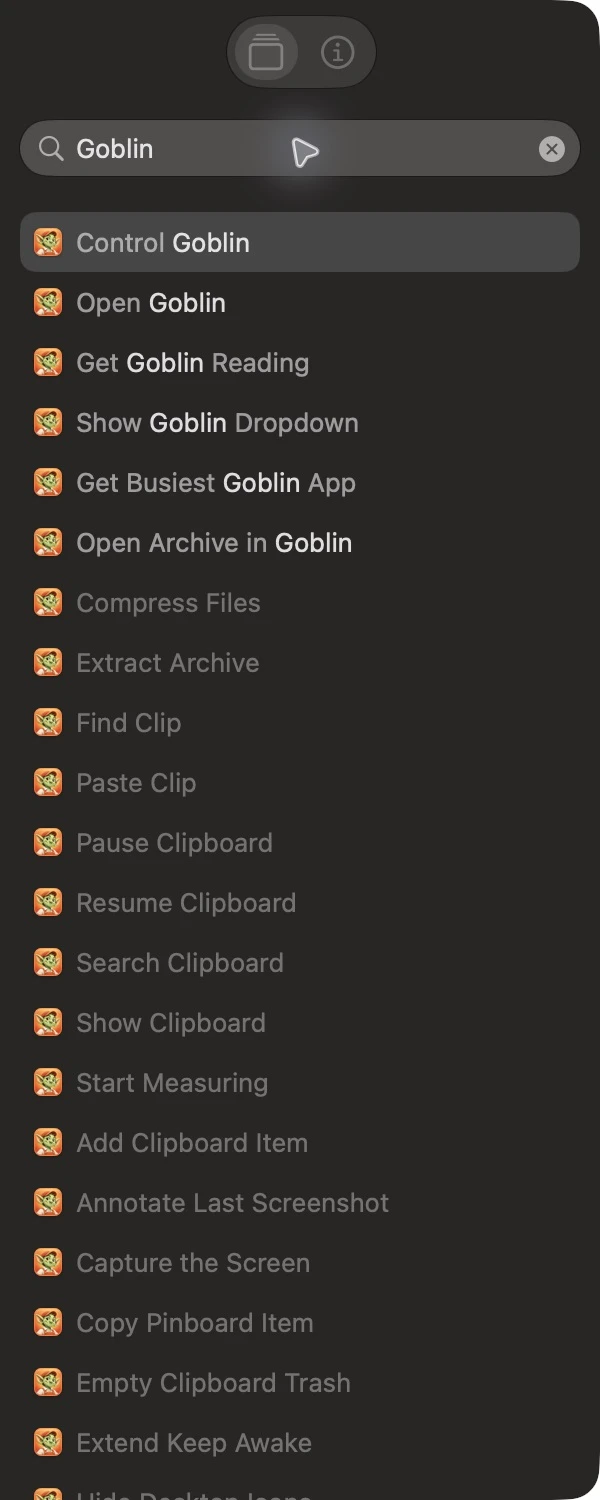
Name the shortcut and it shows in Shortcuts, the menu bar, Spotlight and, by name, to Siri. The sections below list every action and its options.
Readings and windows#
| Action | What it gives back | Options |
|---|---|---|
| Get Goblin Reading | A number: one of your Mac's current readings. | Reading: CPU percent (the default), Memory used in bytes, Memory pressure percent, Download bytes per second, Upload bytes per second, Battery percent, CPU temperature in Celsius. |
| Get Busiest Goblin App | The name of the app using the most of something right now. macOS's own processes are left out. | Usage: CPU (the default), Memory, Power, Disk, Network, GPU. |
| Open Goblin | Nothing. Opens Goblin's main window. | – |
| Show Goblin Dropdown | Nothing. Opens the panel under Goblin's menu bar item. It only opens it; it never closes it. | – |
Get Goblin Reading and Get Busiest Goblin App take a fresh reading each time, which takes a moment. If a reading isn't available, the action stops with "This reading isn't available on this Mac yet." That happens, for example, when you ask for Battery percent on a Mac without a battery, or for a temperature your Mac doesn't report.
The numbers come in plain units, so you can compare them directly: memory in bytes, network speeds in bytes per second, temperatures in degrees Celsius whatever unit Goblin shows.
Example: warn me when the Mac runs hot#
- In Shortcuts, start a new shortcut and add Get Goblin Reading.
- Set Reading to CPU temperature in Celsius.
- Add an If action. Set it to Reading (the output of the first action) is greater than
90. - Inside the If, add Show Notification and type "Mac is running hot".
- Click ▶ to run it.
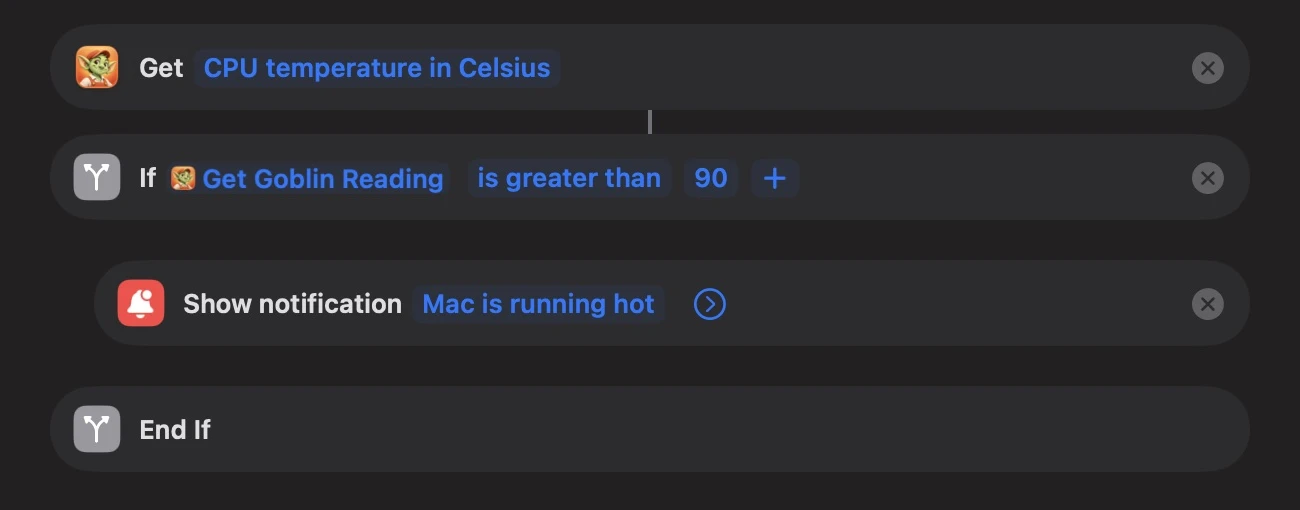
If the processor is above 90 degrees Celsius, a notification appears; otherwise nothing happens. To run it all the time, use Shortcuts' Automation tab to run it every few minutes.
Keep Awake#
New in 1.1: Keep Awake, and these six actions.
| Action | What it does | Options |
|---|---|---|
| Start Keep Awake | Starts a Keep Awake session, replacing one that's running. | For: how long; leave it empty to stay awake until stopped. Screen: Stays on or May sleep; leave it empty to use your settings. Closed lid: stay awake with the lid shut (Goblin asks for your password unless its helper is approved). |
| Stop Keep Awake | Ends the session. | – |
| Toggle Keep Awake | Ends the session if one is running; otherwise starts one with your default options. | For: how long, when it starts. |
| Extend Keep Awake | Adds time to the running session. Stops with "Keep Awake isn't on." when nothing is running. Sessions that end on a condition, such as "while an app is running", can't be extended. | Add: how much time. |
| Is Keep Awake On | Gives back true or false. | – |
| Get Keep Awake Time Left | Gives back the minutes left, to a tenth of a minute. Gives 0 when nothing is running, or when the session ends on a condition rather than a time. | – |
Example: keep my Mac awake for four hours#
- In Shortcuts, start a new shortcut and add Start Keep Awake.
- In the For field, type
4and choose hr. - Name the shortcut "Keep my Mac awake for four hours".
- Click ▶ to run it. Siri reads back "Your Mac will stay awake for 4 hours."
Now you can say "Hey Siri, keep my Mac awake for four hours", or click the shortcut in the Shortcuts menu bar menu. Leave For empty and the dialog reads "Your Mac will stay awake until you stop Keep Awake."
Lengths must be between one second and 30 days; anything else stops with "Keep Awake needs a length of time between a second and 30 days."
Turning Closed lid off in Start Keep Awake doesn't override your settings: if closed-lid mode is on by default in Settings›Keep Awake, the session still uses it. See Keep Awake basics.
Capture, text, Measure and archives#
These actions also live under Apps›Goblin.
Capture. Capture the Screen, Capture After a Countdown, Start Screen Recording, Stop Screen Recording, Pause or Resume Screen Recording, Is Screen Recording On, Hide Desktop Icons, Annotate Last Screenshot and Open Capture History. They're listed with their options in Automating capture.
Reading text. Read Text from File reads the text in an image or PDF and gives it back as text. Pages is blank for all pages, one page such as 3, or a range such as 2-5. Read Text from Clipboard does the same for a copied image, or an image or PDF file copied in Finder. See Capture Text.
Measure. Start Measuring starts measuring the screen, and Restore Last Measurements starts with the guides, held distances and selected objects from your last session. Measure has to be turned on in Settings first; see Measure.
Archives. These work on files from other actions, so you can chain them. See Archives.
| Action | What it does | Options |
|---|---|---|
| Extract Archive | Extracts zip, 7z, rar, tar and other archives into a new folder, and gives back the files it made. Nothing existing is replaced. | Archives; Destination Folder (blank to extract beside each archive); Password. |
| Compress Files | Makes an archive from files and folders, saved beside the first item, and gives it back. | Files; Format: Zip (the default), 7z, Tar, Tar with gzip, bzip2, xz or LZ4, or a single-file Gzip, Bzip2 or Xz; Password (zip and 7z only); Leave Out Mac Files (on by default: skips .DS_Store, __MACOSX and similar); Archive Name (blank to use the first item's name). |
| List Archive Contents | Gives back the path of everything inside an archive, as a list, without extracting it. | Archive; Password. |
| Open Archive in Goblin | Opens the archive in Goblin's archive window. | Archive. |
Clipboard#
New in 1.1: The clipboard, and these ten actions.
These work with Goblin's clipboard. Every one of them stops with "Turn on Clipboard in Goblin's Settings first." while Clipboard is off.
| Action | What it does | Options |
|---|---|---|
| Add Clipboard Item | Saves text as a new item, in History or straight into a pinboard. Gives back the text. | Text; Pinboard (leave empty for History only). |
| Get Latest Clipboard Item | Gives back the newest item in History, or the first in a pinboard, as text. | Pinboard (leave empty for History). |
| Get Clipboard Item at Index | Gives back the item at a place in a pinboard or History, counting from 1, as text. | Index (default 1); Pinboard (leave empty for History). |
| Search Clipboard | Finds items in History and every pinboard and gives back their text, as a list. | Search; Limit (default 10, up to 500). |
| Show Clipboard | Opens the clipboard strip. | Pinboard (leave empty for History). |
| Pause Clipboard | Stops recording what you copy. | For: up to a week; leave it empty to pause until you resume. |
| Resume Clipboard | Starts recording again. | – |
| Empty Clipboard Trash | Deletes everything in the clipboard Trash for good, after asking "Delete everything in the Clipboard Trash for good? This can't be undone." Items that aren't in the Trash aren't touched. | – |
| Paste Clip | Pastes a clip into the app you're using. | Clip |
| Copy Pinboard Item | Puts a clip from a pinboard on the clipboard, ready to paste. | Item; Pinboard (leave empty to take the item from any pinboard). |
What comes back as text: a link gives its address, and files give their names, one per line.
Get Clipboard Item at Index makes a pinboard a handy place to keep text for shortcuts: keep a greeting at place 1, a signature at place 2, and fetch whichever you need. Passwords and other secrets don't count toward the places.
Paste Clip pastes only when Paste Items is set to To active app in Settings › Clipboard and Goblin has Accessibility access; otherwise it puts the clip on the clipboard and you press ⌘V yourself. See Permissions. A template clip opens its fill-in panel first, as in the strip; see Snippets.
To choose a clip for Paste Clip or Copy Pinboard Item, Shortcuts lists your newest clips and lets you search them. Goblin also adds a Find Clips action, where you filter by Title, Kind, App or Copied (the date) and sort the results.
Shortcuts never sees passwords and other secrets, items in the Trash, or anything in a locked pinboard. Asking for a locked pinboard stops with "That pinboard is locked. Items in a locked pinboard are never given to Shortcuts."
Other messages you may see:
| Message | Why |
|---|---|
| "That pinboard no longer exists." | The pinboard chosen in the action was deleted. |
| "There is no such item." | Get Clipboard Item at Index asked for a place past the end. |
| "There is no text to add." | Add Clipboard Item got empty text. |
| "That clip is no longer available. It may have been deleted, or its pinboard is locked." | Paste Clip or Copy Pinboard Item points at a clip that's gone or locked away. |
| "That clip isn't in a pinboard." / "That clip isn't in the pinboard you chose." | Copy Pinboard Item only takes pinned clips. |
Siri, Shortcuts and Spotlight#
To use a phrase, say "Hey Siri", then the phrase from the table, with Goblin in it. To see everything you can say, open Settings›Siri Phrases.
Goblin exposes its actions to Shortcuts and provides the built-in Siri phrases below. Control Goblin adds a shared command catalog for feature screens, native controls and typed settings. Say a command followed by with Goblin, or say Control Goblin to choose an action. Find the same actions in Spotlight and Shortcuts:
| Phrase | Short name | Runs |
|---|---|---|
| "Get a reading from Goblin" | Get Reading | Get Goblin Reading |
| "Get the busiest app in Goblin" | Busiest App | Get Busiest Goblin App |
| "Open Goblin" | Open Goblin | Open Goblin |
| "Show the Goblin dropdown" | Show Dropdown | Show Goblin Dropdown |
| "Keep the Mac awake with Goblin" | Keep Awake | Start Keep Awake |
| "Keep my Mac awake for 4 hours with Goblin" | Keep Awake for a Duration | Keep Mac Awake for a Duration |
| "Capture full screen with Goblin" | Capture Screen | Capture the Screen |
| "Show my clipboard with Goblin" | Show Clipboard | Show Clipboard |
| "Control Goblin" | Control Goblin | Run a named Goblin command |
| "Stop keeping the Mac awake with Goblin" | Stop Keep Awake | Stop Keep Awake |
New in 1.1: The two Keep Awake phrases.
Timed Keep Awake phrases accept 15 minutes, 30 minutes, 1 hour, 2 hours, 3 hours, 4 hours, 6 hours, 8 hours, 12 hours, or 1 day. Siri confirms the duration after Goblin starts the session. Say "Keep my Mac awake for a while with Goblin" to have Siri ask for a duration. Existing battery and heat rules still apply, and quitting Goblin ends the session. The plain "Keep my Mac awake with Goblin" phrase stays awake until stopped. For another duration, build a shortcut using Start Keep Awake and set For to your duration.
Use the app name in the built-in phrases so Siri can choose Goblin. To say simply "Keep my Mac awake for four hours", create a shortcut with that name containing Start Keep Awake, with For set to 4 hours.
Commands for the other features#
Say these directly to Siri. If the command needs a value, Siri asks for it; Control Goblin in Shortcuts also has Number, Text and Duration fields so a saved shortcut can supply the values.
| Feature | Example phrase | Behavior |
|---|---|---|
| Feature screens and settings | "Show Window Tiling with Goblin", "Show Privacy with Goblin" | Opens the native destination. Topics without a dedicated destination open the bundled guide in the companion. Hidden or unavailable features explain how to make them available. |
| Window tiling | "Tile Window Left with Goblin" | Applies a layout from your current Window Tiling commands. Custom layouts use their saved names; removed layouts stop resolving. Requires Window Tiling and Accessibility. |
| Dimming | "Turn On Window Dimming with Goblin", "Set Window Dimming Intensity with Goblin" | Uses the native controller; intensity accepts 0–90 percent. Reports pending permissions or a paused state. |
| Displays | "Increase Brightness on Displays with Goblin", "Set Display Brightness with Goblin" | Uses the targets selected in Display Controls, including linked controls. Siri asks for 0–100 percent when setting a value. Unsupported hardware explains the limitation. |
| Sound | "Set App Volume with Goblin", "Restart Audio with Goblin" | Asks for an app and percentage, or requests confirmation before restarting audio. Goblin handles mixer permissions, administrator authorization and recovery. |
| Measure | "Start Measuring with Goblin", "Restore Measurements with Goblin" | Opens Measure using its existing session controls. |
| Capture | "Record the Full Screen with Goblin", "Stop Screen Recording with Goblin", "Annotate Last Screenshot with Goblin" | Uses the native capture commands and their permission and selection steps. Also supports countdown capture, desktop icons, history, image annotation and video editing by full file path. |
| Cloud upload | "Upload a Capture with Goblin" | Asks for the image/video path and confirms before uploading through your configured provider. Setup and upload progress stay in Goblin. |
| Clipboard | "Search Clipboard with Goblin", "Add Clipboard Item with Goblin", "Pause Clipboard History with Goblin" | Asks for text when needed. Search/latest use the existing filters that exclude secrets and locked clips. Empty Clipboard Trash asks for confirmation. |
| Disk and cleanup | "Scan Smart Care with Goblin", "Scan Duplicates with Goblin", "Scan a Folder with Goblin" | Starts scans using your current options, with folder paths supplied explicitly. Results and removal decisions remain in Goblin. Also supports applications, files, cleanup, trash, startup, maintenance, permissions, privacy and updates scans. |
| App removal | "Review App Removal with Goblin" | Asks for a previously scanned app and opens its existing removal review. Confirm the files in Goblin to continue. |
| Projects | "Stop a Dev Server with Goblin", "Restart a Dev Server with Goblin" | Asks for an exact project name or full path and confirmation, then uses Goblin's native process controls. |
| Firewall | "Check Firewall Status with Goblin", "Update Firewall Blocklists with Goblin" | Reports enablement or updates subscribed blocklists. Turning it on keeps macOS approval; turning it off asks for confirmation. Rules and profiles open their native screens. |
| Monitoring | "Read Memory Usage with Goblin", "Find Busiest App by Memory with Goblin", "Check Mac Health with Goblin" | Takes a fresh reading and gives the result in words. |
| Settings | "Turn Off Sound Effects with Goblin", "Set Appearance Mode to dark with Goblin", "Set Low Battery Threshold with Goblin" | Uses typed setters and validates allowed choices/ranges. Numeric settings ask for a value. Additional setup and complex settings open their existing controls. |
| Goblin AI | "Talk to My Goblin with Goblin", "Ask My Goblin with Goblin" | Siri asks for the question, then uses your companion's current on-device AI settings. Long responses remain in the companion conversation. |
A command that starts a scan, upload, recording selection or hardware request says it was requested. It does not claim that the work finished or that a pending macOS approval succeeded. Editors, file-removal reviews and security setup keep their native steps. You can still build named shortcuts around the individual existing actions.
Your clips in Spotlight#
New in 1.1: Find clips in Spotlight.
Find your clips in Spotlight#
- Make sure Clipboard is on in Settings›Clipboard.
- In the same pane, scroll to Spotlight.
- Switch on Find clips in Spotlight.
- Open Spotlight (⌘Space) and search for text you copied. Your clips are listed.
Your clips show up when you search in Spotlight; see Settings › Clipboard for the setting. Choosing one opens the Clipboard page of Goblin's window with that clip selected. It's off by default, and it's a setting for each Mac. Clipboard has to be on too. Once you have 50 or more clips, or while you search the clipboard, Goblin offers it once with a "Find your clips from Spotlight too" card; Turn On and Not Now both make the card go away for good.
What goes into Spotlight, on this Mac only:
- your newest 1,000 clips in History, and up to 500 from each pinboard;
- for each, its title, the first 300 characters of its text (a link's address, a color's hex code, a file's names), its kind, the app it came from and its pinboard's name. For an image, only "Image" or "Screenshot" and its size, never the text Goblin read in it.
Passwords and other secrets, the Trash and locked pinboards are never added. Neither is anything while Encrypt clipboard history on this Mac is on, so turning encryption on empties Goblin's part of Spotlight. Turning Find clips in Spotlight off removes everything Goblin added.
Every Siri phrase#
Open Settings›Siri Phrases to search every registered action and its alternate wording, see follow-up questions, and copy phrases. Your custom window layouts are included. The complete Siri phrase reference is also bundled into Goblin AI. Ask “What can I say to Siri?” or “Siri phrases for brightness.”
Other ways to automate#
- A keyboard shortcut can open the dropdown or the window, or turn Keep Awake on or off, without Shortcuts. See Keyboard shortcuts.
- Scripts can control Keep Awake through AppleScript, and the Run AppleScript action can run them.
Run the goblin command or a link from a shortcut#
To run the goblin command, add the Run Shell Script action and type the full path to the command. You need the command installed first.
~/.local/bin/goblin list --jsonThis gives the shortcut a JSON list of your dev servers as its output. Use the full path, because the action may not search ~/.local/bin.
To open a goblin:// link, add the Open URLs action and type the link in it.
goblin://clip/pause?for=30mThis stops the clipboard recording for 30 minutes when the shortcut runs.