 Goblin
Duplicates finds files whose contents are exactly the same, whatever their names, and photos that look alike, such as bursts or edited copies. You choose which copy to keep; the others go to the Trash after a review. One copy of every group always stays.
Duplicates never scans by itself, because it reads the contents of your files. Set it up and press Scan.
Find duplicate files#
- Click Disk in the main window's tab bar, then Duplicates in the sidebar (under Storage).
- Choose where to look. The folder starts as your home folder; click Choose Folder… to pick another, or Home to go back.
- Set Minimum size. Smaller files are ignored.
- Press Scan. Reading file contents can take a while on a big folder; Cancel Scan stops it.
- When it's done, the Identical files list shows the groups, biggest saving first.
Next, choose which copy to keep.
Find similar photos#
- Open Disk›Duplicates.
- Make sure Find similar photos is ticked (it is by default).
- Set Photos look to Almost the same, Very similar or Roughly similar.
- Press Scan, then click Similar photos above the list.
Photos in your Photos library aren't included; manage those in Photos.
What to scan#
| Setting | What it does | Default |
|---|---|---|
| Folder | Where to look. Home goes back to your home folder; Choose Folder… picks another. | Your home folder |
| Minimum size | Any size, 100 KB+, 1 MB+, 10 MB+ or 100 MB+. Smaller files are ignored. | 1 MB+ |
| Include project folders | Also look inside code projects (folders with .git, package.json and the like). | Off |
| Find similar photos | Also look for photos that look alike, not only identical files. | On |
| Photos look | How alike photos must be: Almost the same, Very similar or Roughly similar. | Very similar |
These settings reset when Goblin restarts. If you change them after a scan, a note reminds you to scan again; the results shown are still from the previous scan.
Scanning#
A scan only reads. You can cancel at any time, and the previous results stay.
Progress goes through reading folders, comparing file sizes, reading the start and end of files, checking file contents, checking for shared space, and then, if photos are on, looking at and comparing photos. Identical files appear before the photo pass finishes.
How identical files are found#
- Goblin walks the folder once, leaving out hidden files, your Library folder, apps, photo libraries, document bundles and other packages, cloud files that aren't downloaded, symbolic links, project folders (unless included) and anything on your ignore lists. It won't scan
/,/System,/Libraryor~/Libraryas a whole. - Only files at least the minimum size, and the same size as another file, are read further.
- Goblin fingerprints the first and last 64 KB of each (small files whole), then compares the full contents of the files that still match, using SHA-256.
- A file that changes while it's being read is dropped.
Copies that already share their data on disk, as APFS clones or hard links, are marked Shares space or Hard link. Removing them frees nothing, so they aren't counted as savings.
How similar photos are found#
Goblin looks at JPEG, HEIC, PNG and TIFF photos of 30 KB or more, up to the newest 5,000 in the folder. If there are more, it says so; pick a smaller folder to look at the rest. It compares how each photo looks using macOS's own image analysis on a small thumbnail, only between photos of about the same shape. Almost the same groups only near-exact matches, Roughly similar groups loosely alike ones.
In each group, the Best photo is the one with the highest resolution, then the newest, then the largest file.
Photos in your Photos library aren't included; manage those in Photos.
The results#
Four tiles sum up the scan: Duplicate sets, Can be freed (keeping one copy of each, not counting shared space), Similar photos and Selected.
Switch between Identical files and Similar photos above the list, and search with Find a file or path.
Identical files#
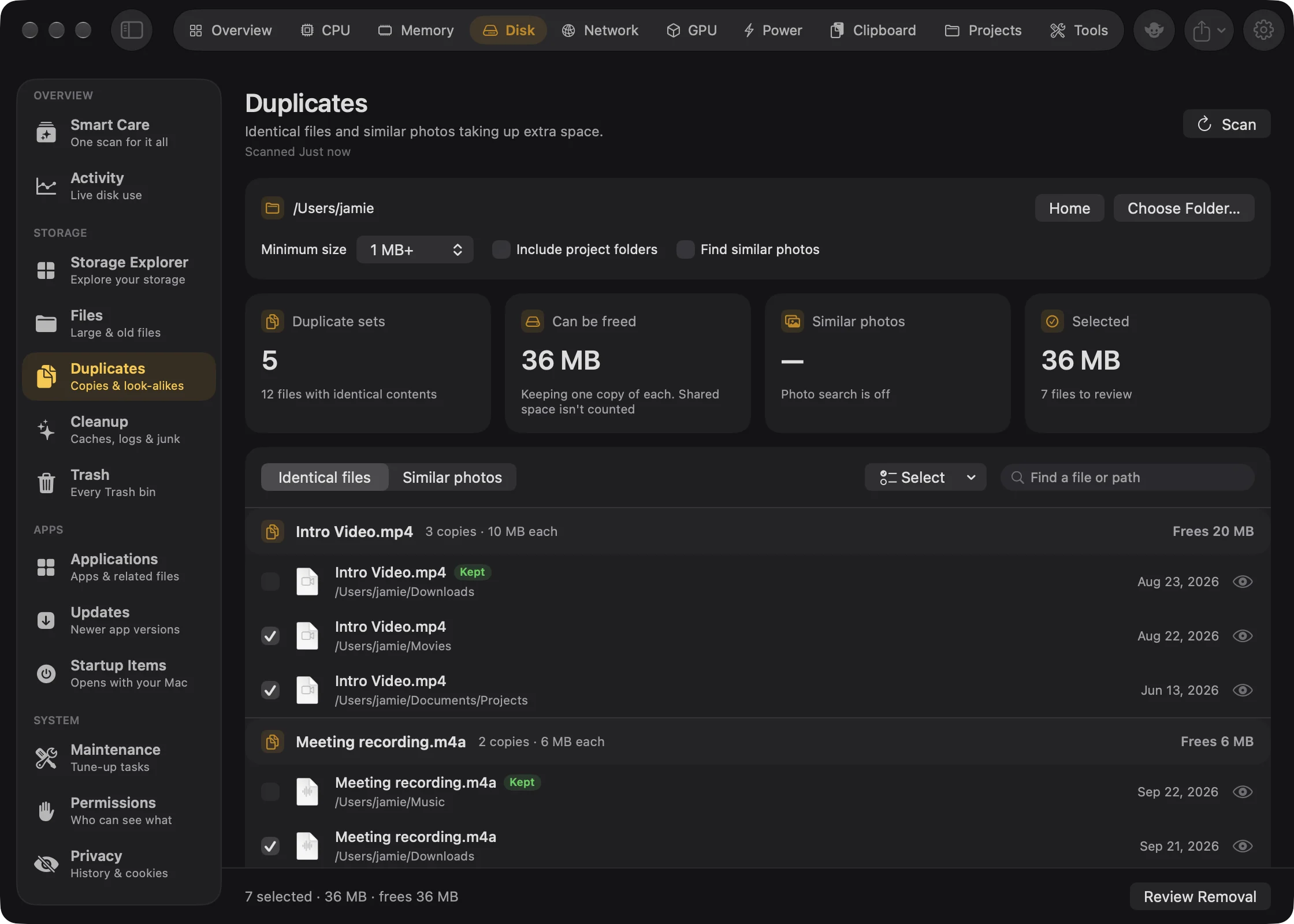
Groups are sorted by how much space removing the extra copies frees. Each shows the name, how many copies and their size, and what it frees. Copies are listed newest first, with their folder and date.
Choose which copy to keep#
Nothing is ticked after a scan. To pick, either tick the copies you want to remove yourself, or open the Select menu above the list and choose a rule:
- Keep the newest copy or Keep the oldest copy in every group.
- Keep the copy in a folder…: choose a folder; copies in it are kept, and copies elsewhere are selected. Groups with no copy in that folder keep the newest.
- Select none.
You can't tick every copy: the last one is marked Kept. To keep one specific copy, right-click it and choose Keep Only This Copy; Goblin ticks the others. The list shows 40 groups at a time (Show N More Sets).
Ignore a file#
Right-click a copy and choose Ignore This File. It goes on the Duplicates ignore list and drops out of the results. The same menu has Quick Look and Show in Finder. To undo it, see Ignore lists.
Similar photos#
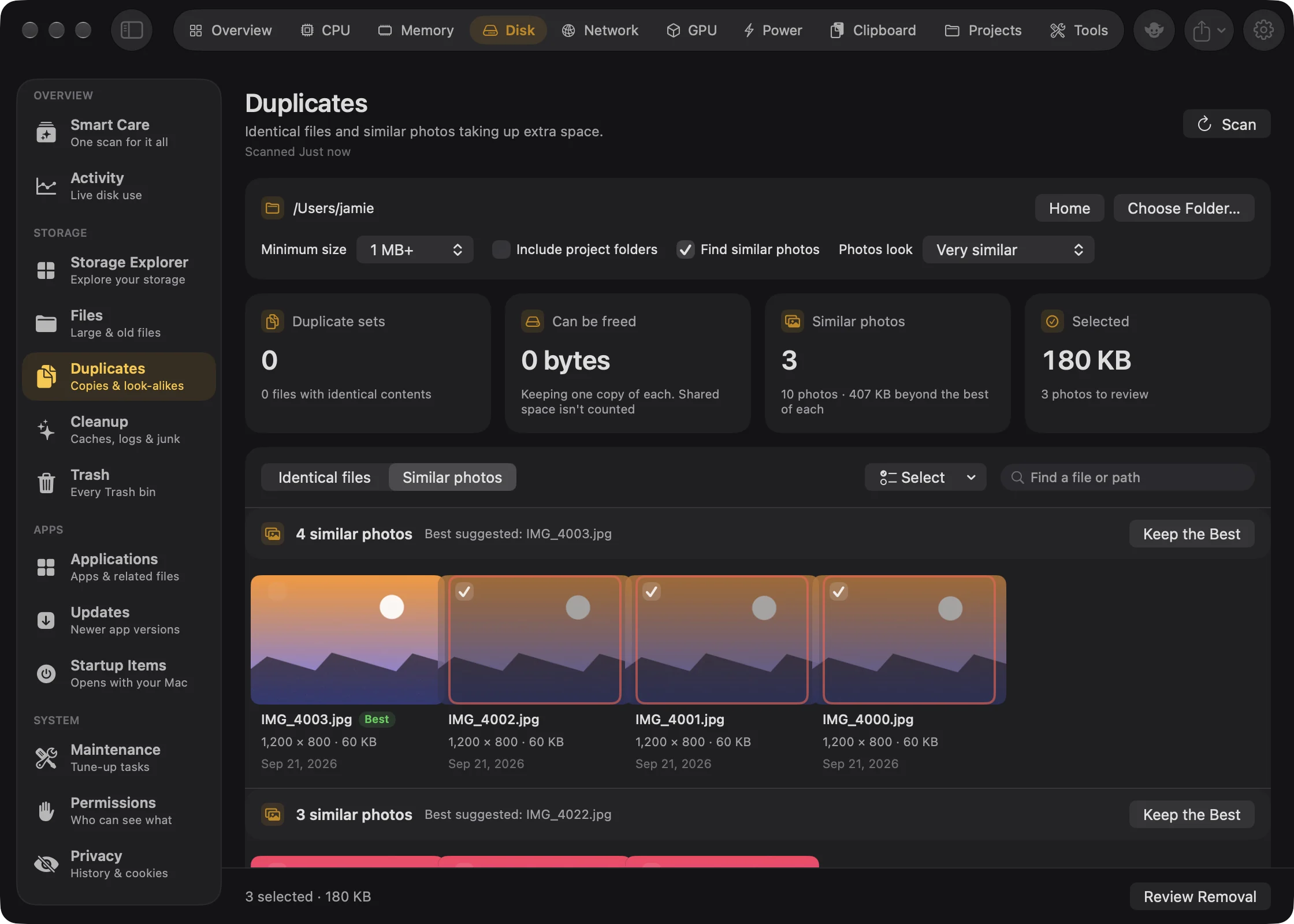
Each group shows its photos as thumbnails with their size in pixels, file size and date, and suggests the best one. Double-click a photo for Quick Look. One photo in each group always stays.
Keep the best photo#
- For one group, press Keep the Best above its thumbnails. Goblin ticks every other photo in the group.
- For every group, open Select and choose Keep the best of each.
- To keep a different photo, right-click it and choose Keep Only This Photo.
- To leave a photo out of future scans, right-click it and choose Ignore This Photo.
Remove the extra copies#
- Tick the copies to remove (see Choose which copy to keep). The footer shows how many files are selected and their size, and for identical files how much space removing them frees.
- Press Review Removal. Goblin checks the files first ("Checking files…").
- In the review sheet, look through the list and press Move to Trash.
- When it worked, the removed files leave the results.
Before the review opens, Goblin checks each group again: at least one unselected copy must still exist, unchanged. If not, it leaves that group alone and tells you. Each selected file must also be unchanged since the scan. The review sheet, Move duplicate files to Trash or Move similar photos to Trash, then works like every other removal; see Reviewing a removal. Files are also held to Storage Explorer's selection rules.
Removed files drop out of the results, and a group with one file left disappears.