 Goblin
When something in Goblin doesn't look right, find the symptom below and work through the steps in order. Most problems come down to a permission macOS hasn't given yet, or a setting that's off. If you're still stuck, the last section explains how to reach a person.
Find your symptom
- Goblin itself: the menu bar icon is missing, a permission keeps asking, it asks for your password, it uses a lot of CPU, it won't update, the chat gives odd answers
- Disk and Finder: scans look incomplete, "Uninstall with Goblin" is missing
- Alerts and readings: no notifications, temperatures or fans missing
- Network: the firewall blocks something it shouldn't, rules say "not enforced", the map is empty, short connections are missing
- Tools: screenshots don't work, Keep Awake, a dev server isn't listed, the clipboard
Goblin's icon is missing from the menu bar#
Goblin keeps running even when macOS hides its menu bar item, so everything is still within reach.
- Make sure Goblin is running: open it from your Applications folder. If it had quit, its item comes back.
- If it's running and the item still isn't there, the menu bar is probably full. On a Mac with a notch, macOS hides items that don't fit. Make Goblin's item narrower: choose the Icon style, show fewer figures, or turn on Compact menu bar size in Settings›Menu Bar. If Separate Items is on, each figure takes its own room, and macOS may hide the ones that don't fit; the Goblin item itself stays and shows only its icon.
- Quit apps with menu bar items you don't need, or rearrange items by holding ⌘ and dragging them, to make room.
- On recent versions of macOS, System Settings › Menu Bar lists which apps may show items there. Make sure Goblin is allowed. Menu bar managers can also hide it.
While the item is hidden, you can still get to Goblin:
- Turn on Open dropdown from any app (⌥⌘P) or Open window from any app (⌥⌘S) in Settings›General›Keyboard Shortcuts. With the item hidden, the dropdown shortcut opens Goblin's window on the panel's tab.
- Turn on Show in Dock in Settings›General, then click Goblin's Dock icon.
- Open Goblin from Applications or Launchpad again; the window opens.
The dropdowns Goblin opens by itself, such as the one for a frozen app, a heavy-memory warning or an app you trashed, no longer open off screen when the item is hidden. They drop down from the right end of the menu bar instead, where you can still answer them.
See The menu bar item and Separate items.
A permission keeps asking#
Goblin asks for a permission only when you use a feature that needs it, never in the background. If you decline, using the feature again takes you straight back to the right page of System Settings with a small window holding Goblin's icon. So it can look like Goblin keeps asking when really the permission is still off. To end it:
- Open System Settings›Privacy & Security and click the permission the prompt named: Accessibility, Screen Recording or Full Disk Access.
- Look for Goblin in the list. If it isn't there, drag Goblin from the small window into the list, or click + and choose Goblin in Applications.
- Turn Goblin's switch on. If macOS offers Quit & Reopen, choose it.
- Try the feature again. If it's still asking, Goblin is in the list and on, but macOS tied the permission to a different copy of Goblin (one you moved, replaced or ran from Downloads). Select Goblin and click − to remove it, quit Goblin, open the copy in Applications, and add it again.
Other versions of the same symptom:
- macOS asks about Documents, Desktop or Downloads. Goblin doesn't look in those folders until you allow it, so the prompt appears when you click Allow… beside a folder, or when you use something that reads one. Click Allow, or give Goblin Full Disk Access once and macOS stops asking. If you clicked Don't Allow, switch the folder on under System Settings › Privacy & Security › Files & Folders. See Allow folders one at a time.
- The password prompt keeps coming back. That's a different thing: see Goblin keeps asking for your password.
- The Welcome window's Done button is greyed out. It waits until every permission the earlier pages need is on, and you've settled Full Disk Access. Allow the rows listed, or click Back and turn the feature off.
See Permissions for what each one is for and how to take it back.
Disk sections are missing things, or scans look incomplete#
macOS keeps some folders private until you give Goblin Full Disk Access. Without it, Goblin can't read your Trash, Safari's history and cookies, the list of which apps may use your camera and microphone, Mail attachments, iPhone backups or some apps' leftovers. The sections that are affected say so, with a button to fix it.
- Click Full Disk Access Settings in the Disk section that asks for it (or Allow… in Settings›General). System Settings opens on Privacy & Security › Full Disk Access, with a small helper window beside it that holds Goblin's icon.
- Drag Goblin's icon from the helper into the list, or click + and choose Goblin in Applications.
- Turn Goblin's switch on. If macOS offers Quit & Reopen, choose it; Goblin comes straight back.
- Goblin notices the change by itself within a few seconds. It then scans the sections that had to skip protected folders again (Trash, Permissions, Privacy, Maintenance and Cleanup), so they include what they missed.
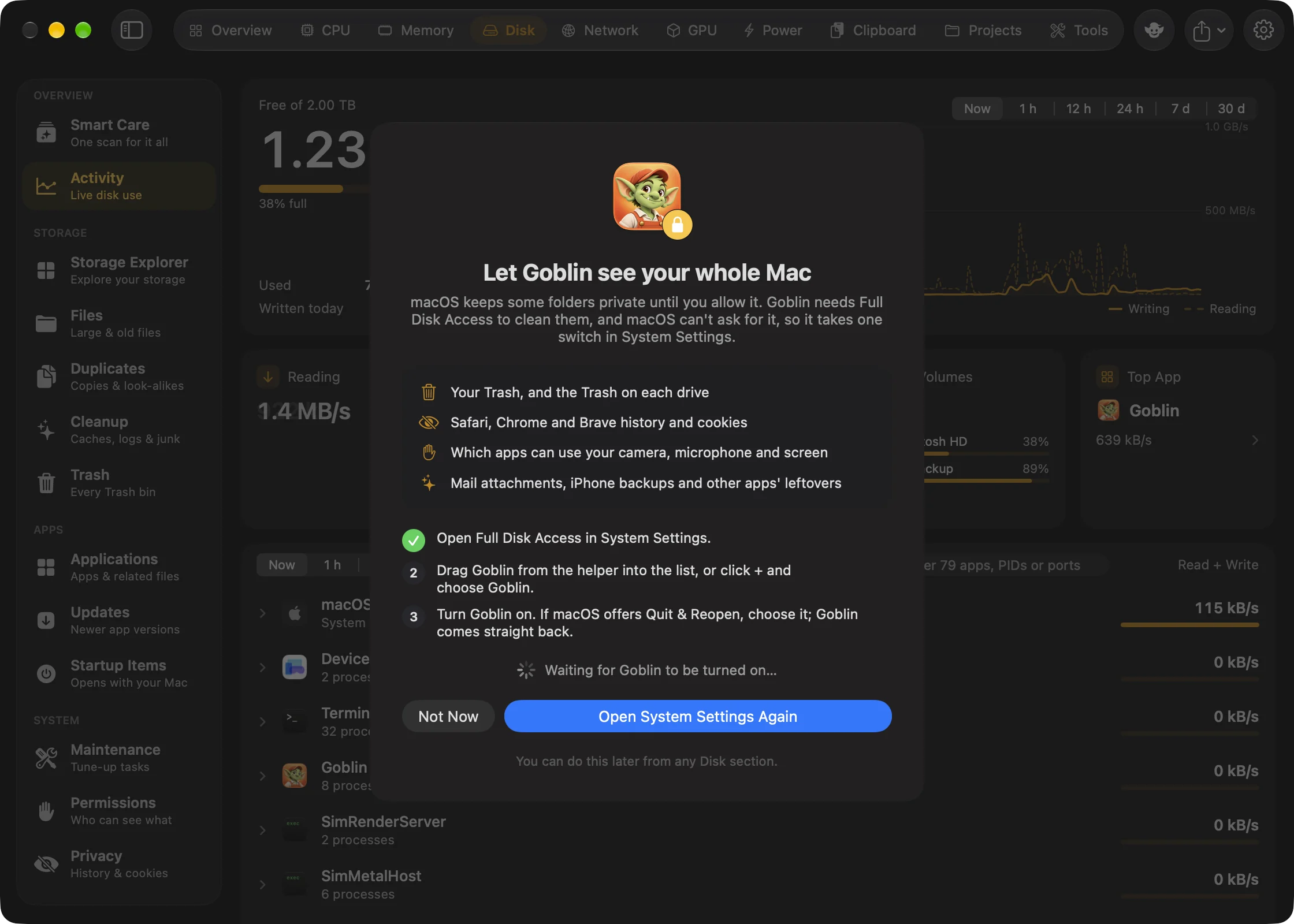
If Goblin is already in the list and switched on but the sections still ask, turn its switch off and on again. If you moved Goblin since you gave access, remove the old entry with − and add the copy in Applications.
Other reasons a scan can come up short:
- Storage Explorer shows "Some locations need access". A few folders stay closed even with Full Disk Access. Quick Rescan as Administrator measures only those folders, and Scan Everything as Administrator rescans the whole location. Both ask for your password. See Storage Explorer.
- A scan says "Waiting for macOS". macOS may be reading a slow disk, or waiting for you to answer a file-access prompt for Goblin that's hidden behind other windows. Answer the prompt, or cancel to go back to your earlier results.
- Smart Care lists "Couldn't check …". That area's scan didn't finish. Open the section itself to see why. See Smart Care.
Notifications don't appear#
- In Settings›Alerts, click Send a Test Notification. If it says Notifications are turned off for Goblin, click Open Notification Settings and allow Goblin in System Settings › Notifications. Check that a Focus isn't holding them back.
- Make sure Send a notification is on in the same pane. This switch is greyed out while Watch for apps that misbehave is off, but it still decides whether the Mac alerts notify. To change it, turn Watch for apps that misbehave on first.
- Make sure the alert itself is switched on. Several are off by default: A connected drive is almost full, A drive is connected, The network connection drops and My IP address changes.
Watch for apps that misbehave also controls more than app alerts. While it's off, Goblin doesn't raise the startup disk is almost full alert, warnings about a failing or worn-out drive, or memory warnings for dev servers.
Some alerts never become notifications, by design. They appear in Worth a Look on the Overview and in history instead:
- An app is busy in the background. Only an app that looks stuck, keeping one core fully busy, gets a notification.
- macOS's own jobs, such as Spotlight indexing or a Time Machine backup. These are explained on the Overview.
- An app keeps growing in memory, unless it holds at least 12% of the Mac's memory.
- An app writes a lot to disk or moves a lot of data, unless it's at least 5 times the amount you set.
- The Overview's status banner and health line.
Each app alert notifies at most once an hour for the same app. Firewall notifications have their own switches in Settings › Firewall › Notifications. See Alerts settings and Health and alerts.
Temperatures, fans or power readings are missing#
- The Temperatures & Fans page says "This Mac doesn't report its temperatures". macOS gives Goblin no temperature sensors to read on this Mac. Goblin still shows the thermal state, and warns you when macOS slows the processor down to cool it.
- A sensor group comes and goes. Readings under 20 °C from processor or graphics cores mean the cores are asleep, so Goblin leaves them out. A group can disappear while all its cores sleep.
- A sensor you expect never appears. Goblin finds the sensors once when it starts. Quit and reopen Goblin.
- "This Mac has no fans". Fanless Macs, such as a MacBook Air, cool silently. "This Mac doesn't report its fans" means macOS gave Goblin no fan readings.
- "Top speed unknown" or "Up to …". That's what the Mac reports about its fans' range.
- The Power card is missing or empty. It appears only when the Mac reports power for its parts, and updates only while Goblin is on screen. The first reading sets a baseline, so the figures appear from the second.
- App power has a ≈ sign. On Intel Macs without energy counters, per-app power is an estimate from CPU use.
Goblin only reads fans; it can't change their speed. See Thermals.
The firewall blocks something it shouldn't#
An app can't connect, a page won't load, or a tool that worked yesterday has stopped. Work out what blocked it first, then change only that. You need the firewall on for steps 1 and 3.
- See who said no. Open Network›Connections and find the app (the search box helps). Click its row. In the inspector, scroll to Firewall. It says "Denied" and why: a rule, a blocklist, or "No rule matched; the mode decided."
- Check whether the firewall is the cause at all. Open Settings›Firewall›General and switch Filtering: off. Every connection is now allowed and still listed. Try the app. If it works, the firewall was blocking it. If it still fails, the problem is elsewhere (the app, the network, a VPN). Switch Filtering: back on when you're done.
- Fix the cause you found:
- A rule denies it. In the inspector, under Matching Rules (first decides), click Disable to try it without the rule, Delete to remove it, or Edit to narrow it. Or click ✓ on the connection's row switch to add an allow rule for that app and server. A more specific rule beats a general one, and a rule for the app beats a rule for Any Process.
- A blocklist denies it. In the Blocklist part, click Allow for [App] Only to let that app through without turning the list off.
- No rule covers it and the mode is Silent Deny. In Silent Deny anything you haven't allowed is cut off. Change the Mode at the top of Network › Rules to Silent Allow or Alert, or add an allow rule. Keep the macOS Services group on, or the Mac may not get online.
- You answered an alert with Deny. The alert may have made a rule. Find it in Network›Rules (a new rule has a blue dot until you approve it), then delete or edit it. ⌘Z undoes the last rule change while Rules is showing. If an alert waited and answered itself, Settings›Firewall›Alert shows Confirm connection alert automatically; turn it off if you'd rather decide yourself.
- Restart the app. A changed rule applies to new connections. Connections already open keep their verdict, so quit and reopen the app, or wait for it to reconnect.
If the Connections banner or the Rules header says rules aren't enforced, see the next problem. See Rules, How rules decide and Answering a connection alert.
Firewall rules say "not enforced"#
Rules only take effect once Goblin's network extension is active and has confirmed them. The header in Network › Rules tells you where things stand.
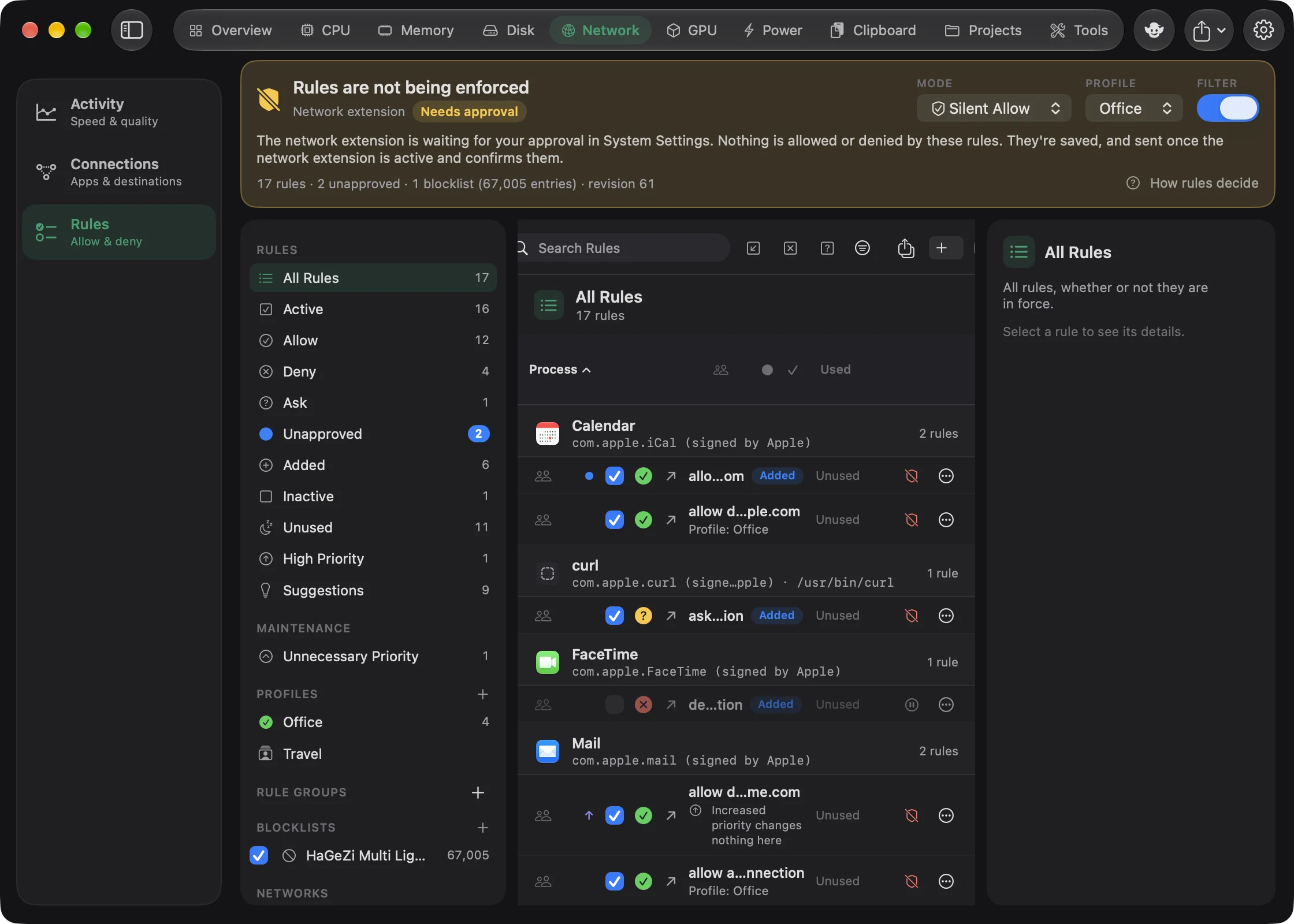
- Network extension: Off or Needs approval. Open Settings›Firewall›General and click Set Up…, or Continue Setup… in the Connections banner. Then:
- Click Install.
- In System Settings › General › Login Items & Extensions, click the ⓘ next to Goblin (it says "Network Extension" under its name), turn on the Network Extension switch, click Done, and enter your password or use Touch ID if asked.
- Click Allow when macOS asks to let Goblin filter network content. If you missed or dismissed that prompt, click Ask Again.
- "Move Goblin to the Applications folder first". macOS only installs this kind of extension from there. Move Goblin, open it from Applications and try again.
- Setup seems stuck. Open Can't find it, or stuck? in the setup sheet for tips, Try Again, and Copy Diagnostics, which you can paste into an email to support.
- Pending. Goblin is sending your latest rules to the extension. They count as enforced once it confirms. If it doesn't, Goblin keeps retrying.
- Unavailable. Click Check Again in the Connections banner. Restarting the Mac can help after an extension update or removal.
- "Filtering is off". The FILTER switch in the Rules header is off, so every connection is allowed and only listed. Turn it on.
Two Turn Off buttons do different things. Turn Off in the Connections banner only stops the extension's filter, so the firewall stays on and Rules shows "Not enforced". Turn Off… in Settings › Firewall › General turns the whole firewall off. See Firewall and Rules.
The map doesn't show#
- In Network › Connections, turn on the Map button in the toolbar. It's off by default.
- The map needs DB-IP's free country database, about 4 MB. If you see See where connections go, click Download Geolocation Database. If the download failed, click Try Again.
- If the firewall is on, check that Goblin may reach
db-ip.com. The built-in Goblin rule group allows it; if you turned that group off, a deny rule or Silent Deny can block the download.
Connections to your own network never appear as countries. They gather at My Location, which stands for the local network. To move My Location, use the location menu on the map. Automatically Determine My Location needs Location Services; if it says Location Services is off, allow Goblin in System Settings › Privacy & Security › Location Services. See The map.
Connections misses short connections#
Without the firewall, Connections asks macOS for a list of connections every 3 seconds (every 6 or 12 when there are many), so a connection that opens and closes between two looks isn't seen. The banner says so: "Sampled — short connections may be missed."
- Turn on the firewall. Its extension sees every connection as it opens, with the hostname the app asked for. It works in Silent Allow mode, which allows everything you haven't made a rule for.
- Pick a longer Displayed Time Range. The default, Open Right Now, hides connections that have already closed.
- Collection pauses while Connections isn't on screen, so connections from that time aren't listed in sampling mode.
- Listening sockets aren't listed. UDP sockets with no fixed destination appear only when Where is All.
If another app's network filter, VPN or ad blocker carries an app's traffic through its own proxy, Goblin sees the app's original connection but its byte counts can read zero. See Connections.
Goblin keeps asking for your password#
Some tasks need administrator rights, and macOS shows its own password prompt for each. Goblin never sees the password. If you cancel, the task reports Cancelled. and nothing changes.
New in 1.1: To stop the prompts, open Settings›General›System Tasks and click Allow Goblin to Run System Tasks…. Then, in System Settings › General › Login Items & Extensions, turn on Goblin under Allow in the Background. The card reads On: no password needed once it's approved.
A few prompts still appear with the helper on:
- Keep Awake's closed-lid mode asks for your password each time. See Closed-lid mode.
- Installing or removing the firewall's network extension may ask, because macOS handles that.
- If you turned off any switch in Settings›Firewall›Security, Goblin asks for Touch ID or your password before you change that area. It then stays unlocked until you lock it again or quit.
If the helper can't be reached, Goblin falls back to the password prompt. See General settings.
"Uninstall with Goblin" is missing in Finder#
- Select exactly one app, in
/Applicationsor~/Applications(or a folder inside them). The item doesn't appear for several items at once, for apps elsewhere, or for other files. - Turn on Goblin's Finder extension: open System Settings › General › Login Items & Extensions and find Goblin's Finder extension in the Extensions section (by app, or under Finder), then turn it on.
- Open Goblin at least once from Applications so macOS knows about the extension. If the item still doesn't appear, relaunch Finder.
Choosing Uninstall with Goblin opens Disk › Applications with the app and its files ready for review. Nothing is removed until you confirm. See Uninstall from Finder.
Screenshots, recordings or Capture Text don't work#
- Open Settings›Capture›General. If Screen Recording doesn't show a green On, click Allow… or Open System Settings, and turn Goblin on under Privacy & Security›Screen Recording. If macOS offers Quit & Reopen, choose it. A screenshot that comes out blank or black is usually this.
- Try the shortcut again. If nothing happens, another app may hold the same keys. A shortcut Goblin couldn't register shows In use by another app in Settings›Capture›Shortcuts. Quit the other app, or choose another combination.
- If a dimmed screen and crosshair stay up after a shot, a second program is listening for the same keys and drawing its own overlay. Another screenshot app is the usual cause, or a second copy of Goblin. Quit the other one, then try again.
- A recording that asks for the microphone or camera names which one; allow it under Privacy & Security.
See Permissions for capture and Capture shortcuts.
Keep Awake isn't doing what you expect#
The Mac went to sleep anyway.
- Open Goblin's window, click the Power tab, then Keep Awake.
- Scroll to the Keeping the Mac Awake card. Your session should be listed as Goblin. If it isn't, the session ended: a timer ran out, a trigger turned off, or the battery or heat limit in Settings›Keep Awake stopped it.
- With the lid closed, the session needs closed-lid mode, which asks for your administrator password. If you cancelled the prompt, the session ended. Turn closed-lid mode on again and enter the password, or allow Goblin's helper once in Settings›General›System Tasks.
The Mac won't sleep and Keep Awake is off. The same Keeping the Mac Awake card lists every app holding the Mac awake, which shows who is responsible. If Goblin turned sleep off and then stopped, open Settings›Keep Awake, scroll to Closed Lid, and click Turn Off Now when the Sleep row reads Turned off.
See Check that it's working and If the Mac was left unable to sleep.
A dev server or project isn't listed#
- Open the Projects tab. If a banner reads Some projects aren't shown, something is running in Documents, Desktop or Downloads, or on another drive, that Goblin hasn't been allowed into. Click Allow… beside each folder it names. For another drive, give Goblin Full Disk Access.
- Make sure the server is actually running.
- If the tab says nothing is running but you expect Docker containers, start Docker. Containers appear as a second page of the Projects tab only when Docker is installed.
See Projects and Allow folders one at a time.
The Goblin chat doesn't answer, or answers slowly#
Questions about your Mac (what's using memory, why it's slow, quit an app) are answered straight away from Goblin's live readings, with no model involved. Everything else is answered from the guide, and takes longer.
- Open the conversation: click Talk to [Name] in the main window's toolbar.
- Look at the line at the bottom. Local app help • Apple Intelligence is off or a note about Apple Intelligence not being ready explains why free-form questions get plain guide answers. Turn on Apple Intelligence in System Settings if your Mac supports it, then turn on Use Apple Intelligence in the chat's personality controls.
- If the thinking dots say Loading Apple Intelligence…, wait a few seconds: the first request after a while loads the model. Click Cancel beside the dots to give up on that question.
- Ask the question with the words Goblin uses: "What's using my memory?", "Quit Slack", "Open Displays".
- If a message says Not answered, a newer request replaced it. Ask again.
See Meet the Goblin.
Goblin uses more CPU than you expected#
Goblin works hardest while you're looking at it. With the main window in front, it reads everything every second, including every app and process, and draws live charts. With nothing of Goblin on screen it reads only the Mac-wide figures your menu bar shows, every 5 seconds, and the rest about every half minute. See How light Goblin is.
To bring its use down:
- Close the main window, or minimise it. Goblin keeps running in the menu bar. A window that's covered or on another Space counts as hidden.
- Close Network › Connections when you don't need it; it reads connections every few seconds while open.
- Figures in the menu bar that need extra reading in the background cost a little more: temperatures make Goblin read sensors every 10 seconds instead of 30, and GPU or network figures keep those readings going. Choose fewer figures in Settings›Menu Bar.
- The My IP address changes alert keeps Goblin reading your addresses in the background, and with Show my public IP address on it also asks Cloudflare, at most every 5 minutes. Turn the alert off if you don't need it.
- Large scans, such as Storage Explorer, Duplicates and Smart Care, use CPU while they run and stop when they finish.
When you look at Goblin in Activity Monitor, remember that opening Goblin's window to check makes it busier. Look at Goblin's own row with its window closed.
Goblin doesn't update itself#
Goblin can only replace a copy that's in a folder it can write to. If it runs from the disk image, or straight from Downloads, Settings›General offers Download instead of Install. Quit Goblin, drag it to Applications, and open it from there. A downloaded update installs once nothing of Goblin is on screen and no Keep Awake session is running, or when you quit. Restart Now installs it straight away. See Updates.
The clipboard isn't working#
New in 1.1: The clipboard and iCloud Sync.
Copies don't appear#
- Is Clipboard on? It's off until you turn it on in Settings›Clipboard.
- Is it paused, or is presentation mode on? Both stop copies being kept. Presentation mode can turn on by itself while Keynote or PowerPoint presents, a screen-sharing app shares, or your displays are mirrored.
- Was it a password, or from an ignored app? Goblin skips what apps mark as confidential, and apps set to Don't save under Apps in Settings › Clipboard (Keychain Access, Passwords, 1Password and Bitwarden are on that list from the start).
- Is macOS blocking Goblin from reading other apps' copies? Look for Goblin in System Settings›Privacy & Security and allow it to paste from other apps.
The full list is in If new copies don't appear.
⇧⌘V doesn't open the strip#
Another app is probably holding the same shortcut. Settings›Clipboard›Shortcuts marks a shortcut that couldn't be set with In use by another app, and says so when Paste is the one holding it. Quit the other app, or record a different combination there.
Clips are copied instead of pasted#
Goblin pastes by pressing ⌘V in the app you were using, which needs Accessibility:
- In Settings›Clipboard›Paste Items, check that To active app is chosen, not To clipboard.
- If a red ! shows there, click Allow Accessibility…, then Open System Settings, and turn Goblin on under Privacy & Security›Accessibility.
- If Goblin is already on in that list but pasting still doesn't work, turn it off and on again, or remove it with − and add it again.
See Permissions.
A snippet trigger doesn't expand#
- Check that Text expansion is on in Settings›Clipboard›Snippets, and that Accessibility is allowed (the same steps as above).
- Goblin never expands in password fields, or anywhere while macOS's Secure Event Input is on. Some apps keep it on outside password fields, such as Terminal with Secure Keyboard Entry turned on; while any app holds it, nothing expands anywhere. Turn that option off in the app, or quit it.
- Check the app you're typing in isn't excluded under Apps in the Snippets settings. Terminal apps are left out until you allow them.
- Pausing the clipboard also pauses expansion.
Clips or settings don't sync#
Look at the status line in Settings›iCloud Sync first. Then check:
- Are you signed in to iCloud? If the line says "Sign in to iCloud in System Settings to sync.", sign in on that Mac. Every Mac has to use the same Apple ID.
- Is Clipboard on, on every Mac? Clips only sync while Clipboard and Sync clipboard history and pinboards are both on. Settings sync separately, per category, under Settings.
- Is your iCloud storage full? The line says so; free some space in iCloud.
- Did the line say "Couldn't sync:"? Note the reason it gives, and send it to support with the steps below.
Passwords and keys Goblin detects never sync, by design. If one Mac's copy looks wrong, Reset iCloud Data… in Settings › iCloud Sync starts iCloud over from the Mac you're on. See iCloud Sync and Syncing clips between Macs.
Resetting settings#
To reset one part of Goblin, use the controls for it:
- Reset to Default or Reset to Defaults buttons on cards in Settings, such as Health Check.
- Clear History… in Settings › History, and Reset All for app volumes.
- Alert Again in Settings›Alerts›Muted Apps.
- Restore Factory Settings… in Network › Rules (the File menu) for the firewall's rules. It writes a backup first.
New: Coming in the next update. A confirmed settings reset replaces the Terminal command.
To restore local preferences, open Settings›General›Reset settings, click Reset All Settings…, then confirm Reset Settings and Restart. Goblin ends active Keep Awake sessions, turns iCloud sync off on this Mac and restarts. History, pinboards, files, saved tool results, credentials, encryption, custom Clipbar actions and firewall rules stay. Quit-clearing is skipped for this restart, and other Macs' settings stay as they are. Turn Clipboard back on to use your retained clips. See Reset all settings. To start completely fresh, use Uninstall Goblin… without ticking Keep my settings and history, then install Goblin again. See Uninstall Goblin.
Contacting support#
Open Settings›Help & Feedback and click Write… next to Email Support, or Report… to report a bug. Goblin opens a new message to support@higherbarapps.com in your mail app, with your Goblin, macOS and Mac versions filled in. You can see and edit everything before you send it. The Help menu has the same choices.
If you don't use a mail app on this Mac, write to support@higherbarapps.com from anywhere and copy the line under This Mac in Settings › Help & Feedback into your message. For firewall setup problems, include what Copy Diagnostics copies. Steps that make the problem happen again help most. See Help & Feedback settings.