 Goblin
Five panes of Settings are explained in other parts of this guide, because each controls a whole feature: Menu Bar, Keep Awake, Clipboard, iCloud Sync and Firewall. This page lists what's in each so you can find your way around, and links to the pages that explain every control.
Find a pane#
- Press ⌘, to open Settings, or right-click Goblin's menu bar item and choose Settings….
- Click the pane you want in the sidebar on the left. The panes run: General, GoblinAI, Appearance, Menu Bar, Layout, Tools, Health Check, Alerts, Keep Awake, Clipboard, Clipbar, Window Tiling, Window Dimming, Displays, the Capture panes, Measure, iCloud Sync, Firewall, Projects, History, Overlapping Apps, Siri Phrases and Help & Feedback.
- To search instead, press ⌘F and type in Search Settings. If the window is narrow, the sidebar collapses behind a button at the top left.
Firewall only appears when your copy of Goblin includes the firewall.
Menu Bar#
Settings › Menu Bar decides what Goblin's menu bar item looks like and what it shows. A preview of the item as it looks right now sits at the top, and changes as you change the settings below it.
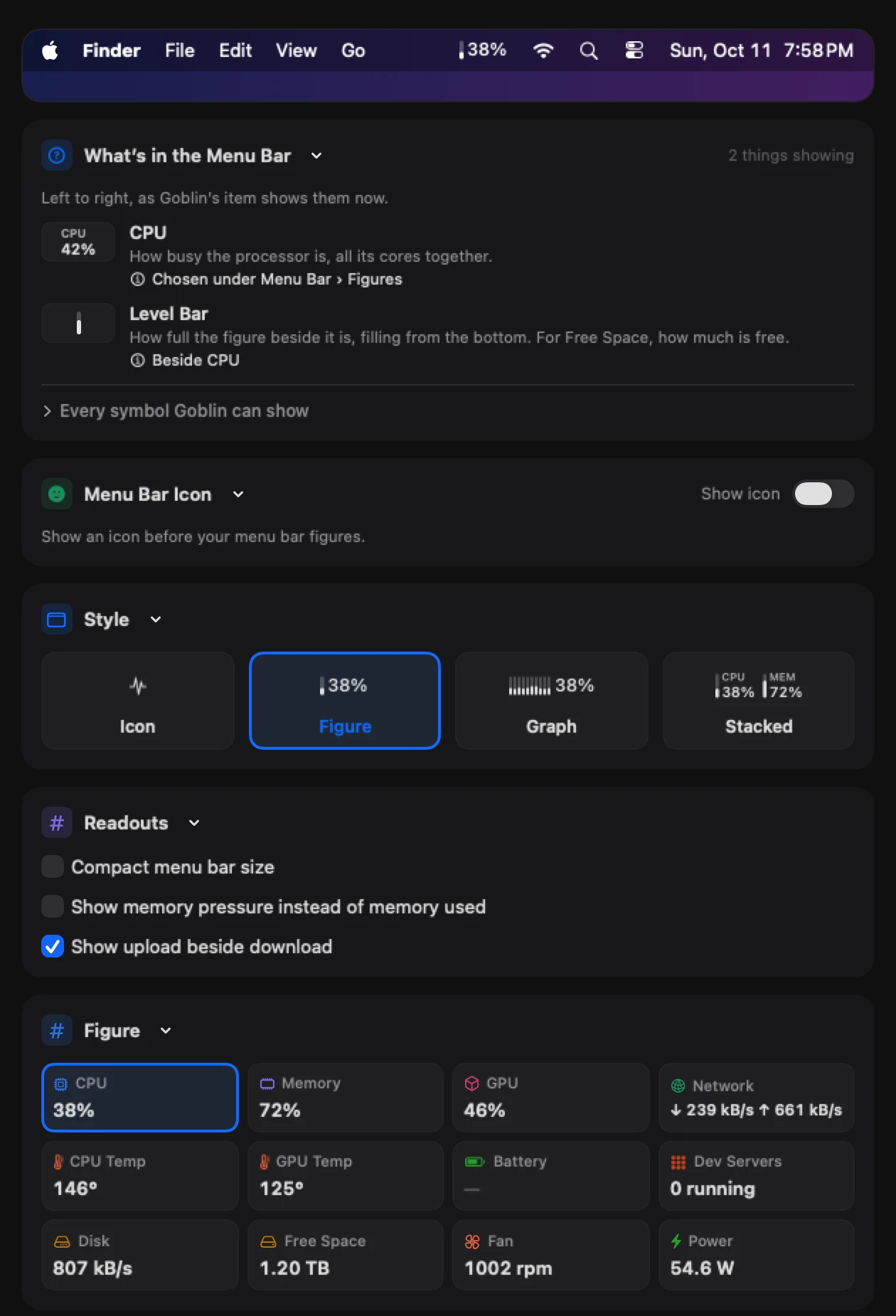
The cards, from top to bottom:
| Card | What it's for |
|---|---|
| What's in the Menu Bar | A key to every symbol and figure the item shows now, left to right. Every symbol Goblin can show opens the full list. |
| Menu Bar Icon | Show icon before your figures, and which icon: Pulse or Goblin. The Icon style always shows one. |
| Style | Icon, Figure, Graph or Stacked. |
| Readouts | Compact menu bar size, Show memory pressure instead of memory used and Show upload beside download. |
| Figure (Figures with the Stacked style) | Which figure or figures the item shows. |
| Show When Needed | Figures that join the item only while something is unusual. |
| Order | The order of the figures. Only shown with the Stacked style. |
| When Figures Appear | The levels at which the automatic figures join. |
| Graph Colors and Thresholds | Colors for the app charts (with a color-blind-friendly palette), how the menu bar readings are colored (fixed, or by how high they are), the menu bar graph's color, and the levels where colors change. |
| Labels and Precision | Name before the value, One decimal on percentages and Hide the % and ° signs. |
| Graph | The shape and width of the graph. Applies to the Graph style. |
| Presets | Whole menu bar setups (style, figures, readouts, colors and graph) to apply, save, rename, export and import. |
| Situations | Switch presets by themselves on battery or plugged in, and with or without an external display. |
| Clicks | What an Option-click on the item does. A click always opens the dropdown and a right-click shows the menu. |
| Shortcuts | Up to 8 extra global shortcuts, for example to open the window on a particular tab. These work beside the two in Settings › General. |
| Dropdown | Addresses on the Network tab, Power on the Temperatures page and Goblin in the panel: optional parts of the menu bar panel. |
| Separate Items | Show figures as separate menu bar items, each with its own dropdown. |
| Items | The list of separate items. Only shown while separate items are on. |
| Warning Sign | Show a warning sign when the Mac is under strain: when memory is running out, the CPU is nearly full, or macOS is slowing the Mac to cool it. |
New in 1.1: The Shortcuts card can add a shortcut that turns Keep Awake on or off.
Which tiles and boxes the menu bar panel shows is set in Layout, and the panel's colors in Appearance. Every Menu Bar control is explained in these pages:
- The menu bar item: icon, styles, figures, readouts, colors, labels and graphs.
- Separate items: one item per figure, and the Items list.
- Automatic figures: Show When Needed and When Figures Appear.
- Presets: presets and situations.
- Keyboard shortcuts: the Shortcuts card.
- The menu bar panel: the Dropdown card.
Keep Awake#
New in 1.1: The Keep Awake pane and the whole Keep Awake feature.
Settings › Keep Awake holds every option for keeping your Mac from sleeping. Its sections, in order:
| Section | What it's for |
|---|---|
| New Sessions | What a new session starts with: screen on, screen saver, closed lid, moving the pointer, keeping drives awake. |
| Start Menu | The minutes and hours offered under Start, and starting a session when Goblin opens. |
| Closed Lid | Staying awake with the lid closed. |
| Mouse Jiggle | Moving the pointer when idle. |
| Drive Alive | Keeping chosen drives from sleeping. |
| Battery and Heat | When a session ends by itself: low battery, unplugged, Low Power Mode, too hot. |
| Screen | Locking the screen when the Mac is idle, and letting the screen sleep while it's locked. |
| While Work Is Running | Which programs count as work for "while work is running" sessions. |
| While a File Is Downloading | Which folder Goblin watches for downloads. |
| Triggers | Starting sessions automatically. |
| Notifications | Notifications when a session starts or ends, reminders while one runs, their sound, and which speakers play it. |
| Menu Bar | The icon in Goblin's menu bar item (a cup, mug, pill, eye, bolt, sun, moon or light bulb), the time left or end time beside it, the 12- or 24-hour clock, and a separate Keep Awake menu bar item that can dim while no session runs. |
| AI Assistants | Let AI assistants start and stop sessions. |
| History | Your last 20 sessions. |
| Moving Over | A one-time import of session settings and triggers from another keep-awake app. Only shown when Goblin finds a supported app on your Mac. |
The pane is explained control by control in Keep Awake settings. Closed lid, mouse jiggle and Drive Alive are in Closed lid and more, and triggers in Triggers.
Clipboard#
New in 1.1: The Clipboard pane and the whole clipboard feature.
Settings › Clipboard starts with the switch that turns Clipboard on. Clipboard is off until you turn it on: Goblin doesn't read the clipboard, ask for permissions or take any shortcuts until then. Below the switch come iCloud sync and the clipboard's sounds, shared pinboards, how items paste, how long history is kept, importing and exporting pinboards, Apple Intelligence, privacy and encryption, ignored apps, the clipboard's keyboard shortcuts, transforms and snippets.
Every control is explained in Clipboard settings, and the clipboard itself in The clipboard strip.
iCloud Sync#
New in 1.1: The iCloud Sync pane.
Settings › iCloud Sync keeps your Macs in step through iCloud. It has three cards:
| Card | What it's for |
|---|---|
| iCloud Sync | Sync clipboard history and pinboards, with a line saying how syncing is going. |
| Settings | One switch per group of settings to sync: Appearance, Menu Bar, Health Checks, Keep Awake, Disk & Cleanup, Clipboard and Shortcuts. |
| Reset | Reset iCloud Data…, which starts Goblin's copy in iCloud over from this Mac. |
Everything is off until you turn it on. Firewall rules and settings, permissions, folders and anything else specific to one Mac stay on that Mac. See iCloud Sync.
Firewall#
Firewall is only in the list when your copy of Goblin includes the firewall. What the pane shows depends on whether the firewall is on.
While the firewall is off, the pane has two cards. Firewall, marked Off, explains what it does and has a Turn On… button. Turning It On lists the two things macOS asks you for: Goblin's network extension, approved in System Settings, and one Allow for filtering network content. While it's off, Goblin installs and runs nothing for it, and the Network tab's Connections list still works. See The firewall.
While the firewall is on, a strip across the top switches between nine panes:
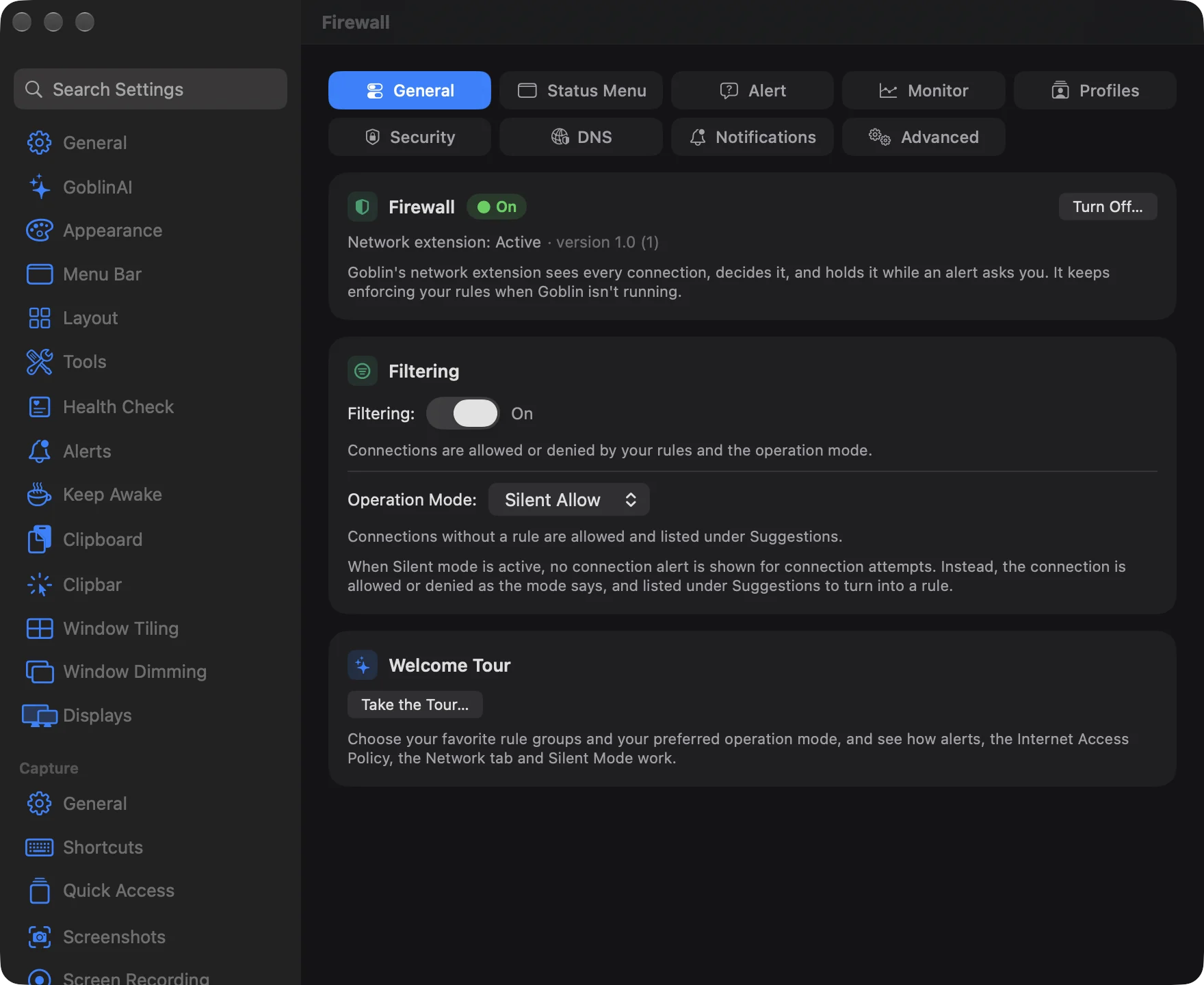
| Pane | What it's for |
|---|---|
| General | The firewall's on/off card (Turn Off…, and Set Up… if the extension needs approval), Filtering, Operation Mode, and Take the Tour…. |
| Status Menu | Showing the firewall in the menu bar panel's Network tab, firewall status in the menu bar, and a shortcut to open the Network Monitor. |
| Alert | How connection alerts look and behave. |
| Monitor | Options for the connections list and the map. |
| Profiles | Automatic profile switching, what happens on an unknown network, and how networks are recognised. |
| Security | Who may change rules, profiles and settings; what happens when a program's identity changes; Terminal and GUI Scripting access. |
| DNS | Encrypted DNS. |
| Notifications | Which firewall events send notifications. |
| Advanced | Rule approval, the traffic rate unit, extra local network ranges, the network extension's state, and exporting or restoring the firewall's configuration. |
The Traffic rate unit on the Advanced pane is the same setting as Network Speed in General. Every Firewall pane is explained in Firewall settings.