 Goblin
Most of the time Goblin's menu bar item opens only when you click it. Five things make a small dropdown open from it by itself, because each is worth a moment of your attention and Goblin can deal with it on the spot: an app that has stopped responding, memory that is running short, a Trash that has grown big, a keyboard shortcut that another app also uses, and an app you've just dragged to the Trash. Each one can be turned off (see Turn off the dropdowns).
How the dropdowns behave#
All five look alike: a callout hanging from Goblin's menu bar item with a bold title and a line under it, Goblin's mark in the corner, a row for each thing it's about, then a plain button on the left and the main one on the right. The main button is red when what it does can't be undone.
- It doesn't take the focus. Whatever you were typing in keeps the keyboard, so a dropdown never interrupts you mid-sentence.
- A click anywhere else closes it, in another app or in one of Goblin's windows.
- Up to five rows show before the list scrolls.
- It drops into place the way a menu does. With Reduce Motion on in macOS's Accessibility settings, it fades in instead.
The frozen-app, memory, Trash and shortcut-clash dropdowns show one at a time: a newer one takes the place of the other. The uninstall dropdown is separate and works a little differently; see Apps moved to the Trash below.
When the Goblin item is hidden#
macOS hides menu bar items that don't fit, which happens on a Mac with a notch or with a lot of other apps' items. If Goblin's item isn't there, a dropdown can't hang from it, so Goblin puts it near the right end of the menu bar on your main screen instead. It stays fully on screen, its arrow pointing up at the menu bar, and works exactly as it does under the item. An item that macOS has pushed out of the menu bar counts as hidden, the same as one you removed yourself.
The uninstall dropdown is the exception, because it needs the item to point at. Without it, Goblin makes that offer with its farewell card or a notification.
To get the item back, see My menu bar item is hidden.
Apps that stop responding#
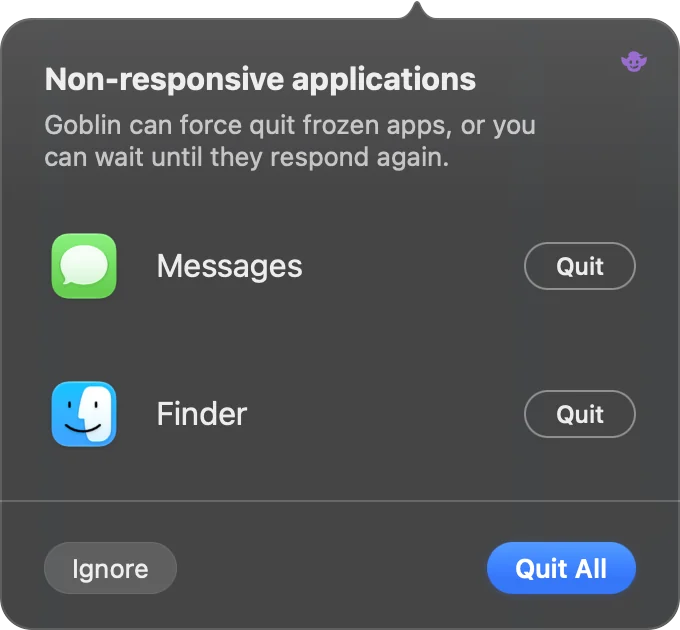
When an app stops responding (the spinning beachball, and "Not Responding" in Activity Monitor and in Force Quit Applications) for more than a second, a dropdown titled Non-responsive applications lists it, with "Goblin can force quit frozen apps, or you can wait until they respond again."
Force quit an app that stopped responding#
- When the Non-responsive applications dropdown opens, look at the list. Each row has the app's icon and name.
- To quit just one, click the Quit button on its row. To quit them all, click Quit (one app) or Quit All (several) at the bottom right.
- To leave them alone, click Ignore. Or click anywhere else to close the dropdown.
The row goes when the app is gone. The buttons at the bottom:
| Button | What it does |
|---|---|
| Ignore | Closes the dropdown and leaves the apps to finish. Goblin asks about them again only if they respond and then freeze again later. |
| Quit / Quit All | Force quits every app listed (Quit All when there's more than one). |
A row's own Quit force quits just that app. Force quitting can't be refused by the app, so anything unsaved in it is lost, and Goblin doesn't ask again first. If you'd rather give the app a chance, choose Ignore and wait.
The list keeps itself up to date: an app that starts responding again, or quits, leaves the list by itself, and the dropdown closes once none are left. Another app that freezes while it's open joins the list.
Which apps Goblin watches:
- Only apps with a Dock icon. Background helpers and command-line tools aren't offered.
- Never Goblin itself.
- Never an app that's paused in a debugger or stopped on purpose. It isn't responding, but it isn't stuck either, and force quitting it would throw away your debugging session.
Goblin hears from macOS the moment an app stops or starts responding, and also looks for itself every 10 seconds, and every second while an app is frozen. It uses the same signal macOS uses for the beachball and the Force Quit window; if a future version of macOS stops providing it, the dropdown doesn't appear.
A frozen app isn't an alert. It doesn't appear in Worth a Look, history or notifications, and the CPU alerts (an app may be stuck or is busy in the background) are separate; see Health and alerts.
Heavy memory usage#
New: Coming in the next update. The Heavy memory usage dropdown.
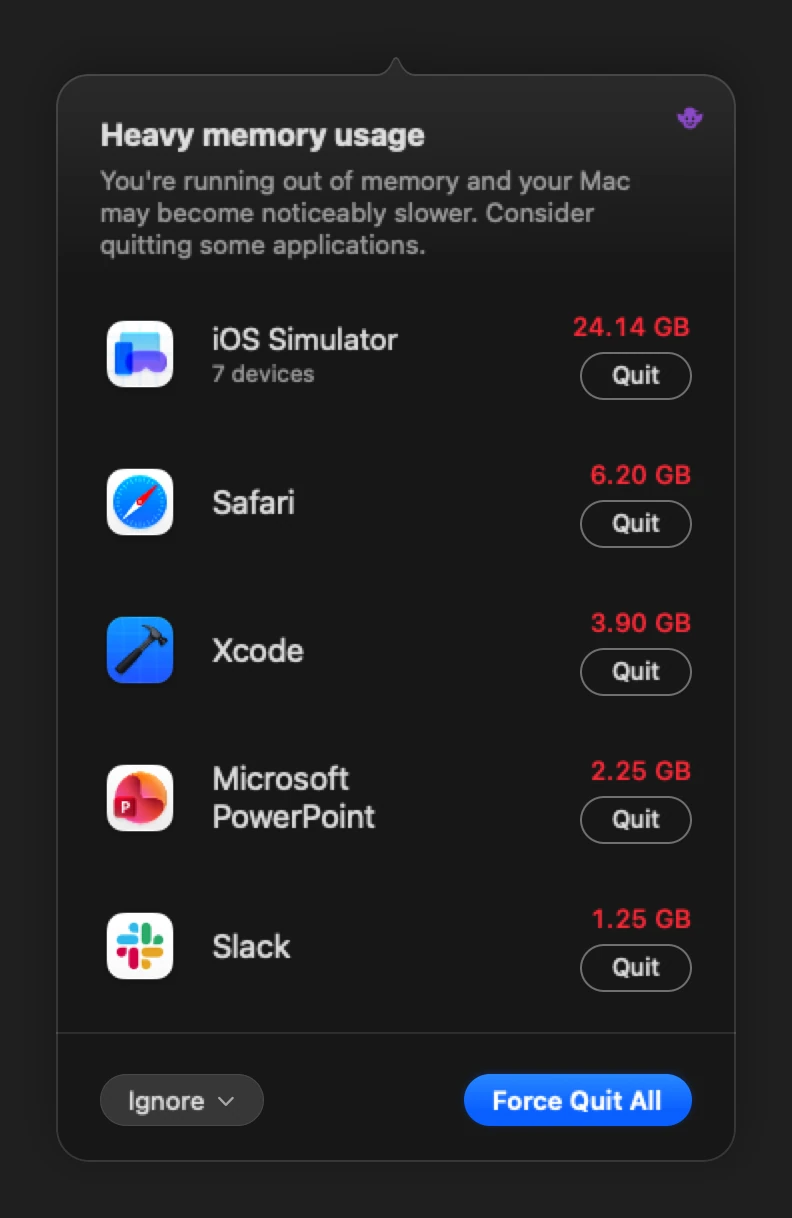
When your Mac is running out of memory, a dropdown titled Heavy memory usage lists the apps using the most: "You're running out of memory and your Mac may become noticeably slower. Consider quitting some applications."
Quit apps from the Heavy memory usage dropdown#
- When the dropdown opens, read the list. Each row shows an app's icon, name and memory, in red.
- Click Quit under an app's size to ask that app to quit. Goblin forces it only if it's still open 15 seconds later (see the table below).
- Or click Force Quit All to do the same for every app listed.
- To make it go away without quitting anything, click Ignore and choose how long (below).
When it appears. Either of these has to hold for a full minute:
- The share of memory in use, the same figure as MEM in the menu bar, is at or above the limit set in Settings › Alerts. The limit is 80% unless you change it (60% to 95%).
- macOS reports memory pressure.
It shows once per episode. It can come back only after usage has fallen 10 points below your limit and pressure is normal again, and never within 30 minutes of the last time. It doesn't appear when no app is using enough memory to be worth quitting (256 MB or more).
What it lists. Up to five rows, biggest first, each with the app's icon, its name and its memory in red, with a Quit button under the size:
- An app's helper processes count toward the app they work for, so a browser shows as one row.
- Every iOS simulator together is one iOS Simulator row, with how many devices are running.
- A command-line tool shows the app it was started from, such as a terminal, or Terminal.
- Goblin itself, Finder and macOS's own processes are never listed, and neither are processes that belong to other users.
The list keeps its sizes up to date while it's open, and an app that quits leaves it. The dropdown closes when none are left.
| Button | What it does |
|---|---|
| Quit (on a row) | Asks that app to quit. If it's still open after 15 seconds, Goblin forces it, unless it has come to the front (most likely asking whether to save). On the iOS Simulator row it shuts every running simulator down cleanly instead; simulators are never killed. |
| Force Quit All | Does the same for every app listed. Unsaved work in an app that is forced to quit is lost. |
| Ignore | A menu: For 1 Hour, Until Tomorrow, Never for app (one for each app listed), and Turn Off These Alerts. |
Never for app leaves that app out of the list from then on. Settings›Alerts says how many apps are left out and has a List Again button to bring them back. Turn Off These Alerts switches off Memory is running low in Settings.
A big Trash#
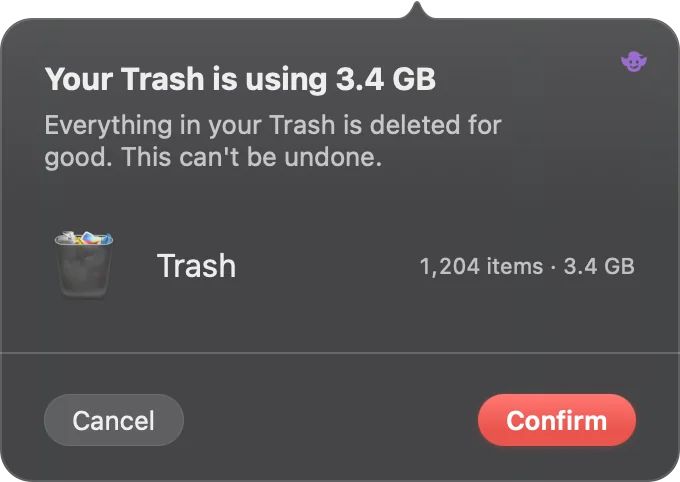
When your Trash grows past the size set for The Trash is getting big in Settings › Alerts (2 GB unless you change it), Goblin raises its warning on the Overview, and at the same moment this dropdown opens. Its title gives the size, such as "Your Trash is using 3.4 GB", with "Emptying it frees that space. Goblin never empties it without asking." Its one row shows the Trash with how many items it holds and their size, such as "1,204 items · 3.4 GB", read afresh as it opens.
Empty a big Trash#
- In the dropdown, click Empty Trash.
- The dropdown asks once more: "Everything in your Trash is deleted for good. This can't be undone." Click Confirm to go ahead, or Cancel to go back.
- Goblin empties the Trash with its spell, a small card in the corner of the screen that says how it went.
Warning: Emptying the Trash deletes everything in it for good. Nothing is deleted until you click Confirm.
| Button | What it does |
|---|---|
| Ignore | Closes the dropdown. Goblin mentions it again tomorrow if the Trash is still big. |
| Empty Trash | Asks once more, in the dropdown itself (below). |
After Empty Trash, the line changes to "Everything in your Trash is deleted for good. This can't be undone." and the buttons to Cancel and a red Confirm:
- Confirm closes the dropdown and empties your Trash with Goblin's spell, a small card in the corner of the screen that says how it went. See Trash.
- Cancel goes back to Ignore and Empty Trash.
The warning's notification has an Empty Trash… button too (hover over the notification to see it). It opens this dropdown already asking to be sure, at Cancel and the red Confirm, even if the dropdown is turned off in Settings › Alerts. Nothing is deleted until you click Confirm.
The panel's Disk tab also shows a Trash card while the Trash is over that size; see The menu bar panel.
Goblin measures your Trash at most every 30 minutes, and the warning and this dropdown come at most once a day while it stays over the size. Only your own Trash counts, not the Trash on other drives.
Shortcut clashes#
New: Coming in the next update. The Shortcut clash dropdown.
When macOS or an open app turns out to use one of Goblin's keyboard shortcuts, a dropdown titled Shortcut clash (or "2 shortcut clashes") opens. It is wider than the others because each row has two buttons. Its line under the title says "macOS answers these keys first, so Goblin’s shortcut never works until one of them changes." when every clash is with macOS, and "Two apps on the same keys: only one of them gets the press, and the other stops working." otherwise.
Each row shows the other app's icon, the keys, who holds them, and the Goblin shortcut they collide with, such as "Same keys as Goblin’s “Show Clipboard”" or, for macOS, "Blocks Goblin’s “Capture Area”".
Fix a shortcut clash#
- When the dropdown opens, read each row. It names the keys, the other app and the Goblin shortcut.
- To give Goblin's shortcut other keys, click Change on the row. It opens the Settings pane where the shortcut is set. Or click Open Settings at the bottom right.
- To deal with the other side instead, click Quit on the row, which asks that app to quit (it may ask to save first). Its shortcut comes back when you open the app again, and the dropdown comes back with it. For a clash with macOS, the row says Turn Off instead, which opens System Settings›Keyboard, where Keyboard Shortcuts… lists macOS's own.
- To close it without doing anything, click Ignore. Settings still marks the clash until it's fixed.
Goblin tells you once about each clash. It stays quiet for the first 20 seconds after Goblin starts, while your apps are still opening, and says nothing again about a clash it has already shown, even when the other app quits and returns. Moving or turning off Goblin's shortcut makes it forget. The dropdown closes by itself when nothing it lists clashes any more. More about clashes is in Keyboard shortcuts.
Apps moved to the Trash#
When you drag an app to the Trash, the Uninstall applications correctly dropdown offers to remove what it left behind. Its Uninstall button opens a review in Disk›Applications, and Ignore tells Goblin not to ask about those apps again.
Unlike the other two, this dropdown needs Goblin's item to be in the menu bar. When it isn't, Goblin's farewell card or a notification makes the offer instead. The whole story, including which apps Goblin doesn't ask about, is in Uninstall from Finder.
Turn off the dropdowns#
- Open Settings›Alerts.
- Turn off the switch for the dropdown you don't want (table below). The three in the last card are Offer to uninstall apps moved to the Trash, Offer to force quit apps that stop responding and Show a dropdown when the Trash is getting big. For heavy memory, turn off Memory is running low in the Watch your Mac card.
- For shortcut clashes, open Settings›General›Keyboard Shortcuts and turn off Drop down from the menu bar when macOS or another app uses one of Goblin’s shortcuts.
The switches are in the last card of Settings › Alerts:
| Setting | What it does | Default |
|---|---|---|
| Offer to uninstall apps moved to the Trash | Shows the Uninstall applications correctly dropdown when you trash an app. | On |
| Offer to force quit apps that stop responding | Shows the Non-responsive applications dropdown. | On |
| Show a dropdown when the Trash is getting big | Shows the Trash dropdown along with the warning. | On |
| Memory is running low (in the Watch your Mac card) | Shows the Heavy memory usage dropdown at or above the percentage you choose. | On, at 80% |
| Drop down from the menu bar when macOS or another app uses one of Goblin’s shortcuts (in Settings›General›Keyboard Shortcuts) | Shows the Shortcut clash dropdown. The warnings in Settings stay. | On |
The Trash dropdown also needs The Trash is getting big on, in the Watch your Mac card, since it comes with that warning. Turning the dropdown off leaves the warning itself alone. None of the other switches depend on Watch for apps that misbehave or Send a notification.
With iCloud Sync, Offer to uninstall apps moved to the Trash travels with the Disk & Cleanup settings. The other two stay on each Mac.