 Goblin
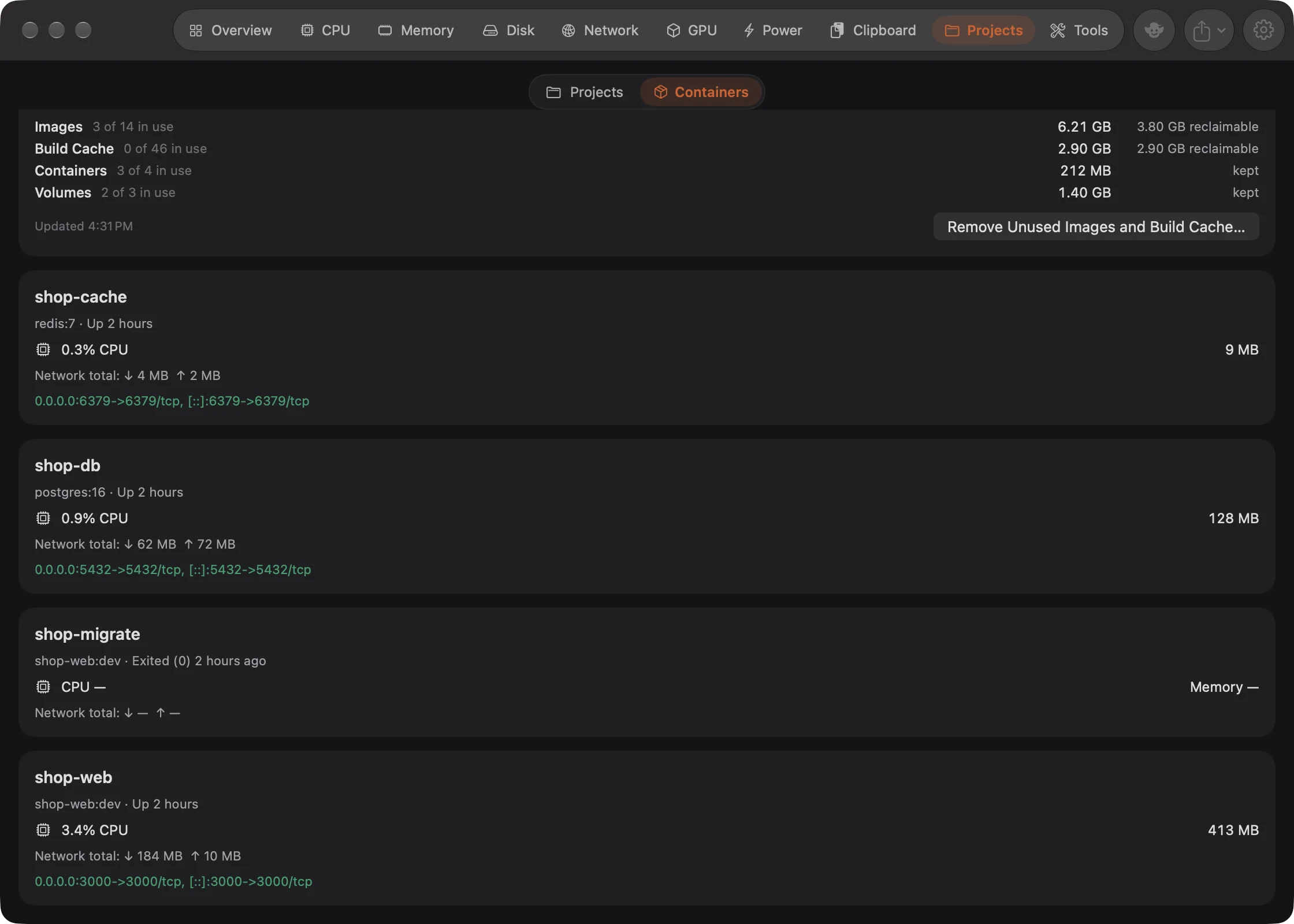
If you use Docker, the Containers page of the Projects tab shows every container at a glance: what it runs, whether it's up, and how much CPU, memory and network it uses. Above the containers, a Docker storage card shows how much space Docker takes and lets you clear what can be rebuilt. The container list is for keeping an eye on them, not for managing them: there are no start, stop or restart buttons. Use Docker Desktop or the docker command for that.
New: Coming in the next update. Containers used to be a tab of its own. It is now the second page of Projects, chosen with the switcher at the top of that tab. Anywhere that remembered the old Containers tab opens this page.
See your Docker containers#
- Click Projects in the tab bar of the main window, or press ⌘9.
- In the switcher at the top, click Containers.
You'll see a card for each container, with the Docker storage card above them. The list updates every 10 seconds while this page is on screen.
If there's no switcher, Goblin can't find the docker command; see When the page appears. The menu bar panel's Projects tab has the same switcher and the same container cards in a smaller space.
When the page appears#
The Containers page only shows when Goblin finds the docker command in one of these places:
/usr/local/bin/docker/opt/homebrew/bin/docker/Applications/Docker.app/Contents/Resources/bin/docker~/.docker/bin/docker
It depends on the command being installed, not on Docker running. Goblin checks again whenever you open the window or the menu bar panel, so the switcher appears soon after you install Docker. If Docker is removed while you're on the Containers page, Goblin goes back to the Projects page.
Docker-compatible tools that put their docker command somewhere else are only found if they also link it into one of those places.
What each container shows#
The window titles the page Docker Containers. Every container in your current Docker context is listed, stopped ones included, sorted by name. Each card shows:
| Line | What it is |
|---|---|
| Name | The container's name. You can select and copy it. |
| Image · status | The image it was made from, and Docker's own status, such as "Up 3 hours" or "Exited (0) 2 days ago". |
| CPU | For example "12.3% CPU". It can go above 100% on a Mac with several cores. |
| Memory | The memory the container is using. |
| Network total | Data received (↓) and sent (↑) since the container started. |
| Ports | Docker's port mappings, such as 0.0.0.0:5432->5432/tcp, when it publishes any. |
Docker only reports figures for running containers, so stopped ones always show "CPU —", "Memory —" and "Network total: ↓ — ↑ —".
The panel's version has the cards but not the title or the Docker storage card.
Free up Docker disk space#
- Open the Containers page (Projects tab, then Containers).
- Look at the Docker storage card. It lists Images, Build Cache, Containers and Volumes, each with how many are in use, its size and how much is reclaimable. Click Refresh for new figures.
- Click Remove Unused Images and Build Cache….
- In the question that appears, click Remove. Cancel leaves everything as it is.
When it worked, the card says "Removed unused images and build cache. Containers and volumes were left alone." and how much space was freed. The removal is also recorded in Goblin's removal history.
Warning: This runs docker image prune --all and docker builder prune --all. It removes every image no container uses and the whole build cache, and that can't be undone. Docker downloads or rebuilds them when you next need them, which can take a while. Containers and volumes hold your running work and your data, so Goblin never removes them: they show as kept.
The button is greyed out when there's nothing reclaimable. The same card appears at the bottom of Disk›Cleanup once a cleanup scan has run; see Cleanup. Goblin reads storage with docker system df; the card says "Docker isn't responding. Start Docker and check the selected Docker context." when Docker isn't running.
How it reads Docker#
For the container list, Goblin runs docker ps --all and then docker stats --no-stream, the same commands you'd type, every 10 seconds, and only while the Containers page is on screen in the window or the panel. The rest of the time it doesn't touch Docker, and the page shows the last figures it read until you come back.
Messages you might see#
| Message | What it means |
|---|---|
| "Checking Docker…" | Goblin is reading Docker for the first time. |
| "Docker isn't responding. Start Docker and check the selected Docker context." | docker ps failed or took longer than 4 seconds. Usually Docker isn't running, or the current context points somewhere unreachable. |
| "No containers in the current Docker context." | Docker answered, and there are none. |
| "Container metrics are temporarily unavailable." | The containers are listed, but docker stats failed or took longer than 5 seconds, so the figures show "—". With many containers this can happen now and then. |
If you switch Docker contexts, the page follows whichever context the docker command uses.