 Goblin
 can keep everything you copy and give it back later. Press ⇧⌘V and a strip slides up from the bottom of the screen with your copies as cards, newest first; press Return on one and it's pasted into the app you were using. This page covers the strip, the cards and pasting. The rest of the section covers the other parts: searching your history and saving searches as smart pinboards, pinboards that keep clips forever and the Trash, the Clipboard page and tab in Goblin's window and menu bar panel, snippets with fill-in fields and typed triggers, Copy Queue, Quick Paste and other paste tools, transforms that change text and colors as you paste, privacy (what's never kept, and presentation mode), locked pinboards, Apple Intelligence, syncing between Macs, importing from another clipboard manager and exporting, and every setting.
Turn on the clipboard#
The clipboard is off until you turn it on. While it's off Goblin doesn't read what you copy, doesn't ask for any permission and doesn't take the ⇧⌘V shortcut. The Clipboard tab in Goblin's window and the Clipboard tab in the menu bar panel show a Clipboard is off card instead.
- Open Goblin's window and click the Clipboard tab, or click Goblin's menu bar item and choose its Clipboard tab.
- Click Turn On Clipboard. (Or open Settings›Clipboard and switch on Clipboard at the top.)
- Goblin asks Turn on Clipboard? It explains that it keeps a history on this Mac, skips passwords from password managers and apps you ignore, and sends nothing anywhere unless you turn on iCloud sync. Click Turn On.
Goblin keeps copies made from then on. Whatever was already on the clipboard when it started isn't added. The first time you paste into another app, Goblin also needs Accessibility.
Turn off the clipboard#
- Press ⇧⌘V to open the strip, then click ⋯ at the right of the top bar.
- Choose Turn Off Clipboard….
- Click Turn Off when Goblin asks "Turn off Clipboard?"
You can also switch Clipboard off at the top of Settings›Clipboard. Your history and pinboards stay where they are and come back when you turn it on again.
What Goblin keeps#
Everything you copy becomes a clip, shown as a card. Goblin keeps every format the app put on the clipboard (plain text, rich text, HTML, images and so on), so pasting it later gives the other app the same choice it had the first time.
- Text, including rich text from web pages and documents.
- Links: a copied web address, or text that is exactly one
http,https,ftporftpsaddress. - Images, from any app or a screenshot copied to the clipboard.
- Files and folders copied in Finder. The card points at the files; see Pinboards for when Goblin keeps its own copy.
- Colors: a color copied from a color picker, or text that is a hex code such as
#FF6B35,#F63orFF6B35. Six plain digits are left as text, since they're more often a verification code than a color. - Anything else an app puts on the clipboard in its own format, shown as Unknown. It pastes back into that app.
- Copies from your iPhone or iPad through Universal Clipboard. They have no app, and their device is shown as iPhone.
- Screenshots you save to the screenshot folder, when Capture screenshots is on in Settings › Clipboard. It's off at first.
Copying something you already have doesn't add a second card: the existing card moves to the front and keeps its title and pinboard. One copy can be up to 250 MB; past that, Goblin drops the largest formats until it fits.
What Goblin skips, and why, is on the Privacy page. In short: anything copied while the clipboard is paused or in presentation mode, anything from apps you've told it to ignore (Keychain Access, Passwords, 1Password and Bitwarden are on that list from the start), anything an app marks as a password or as temporary, and Goblin's own pastes. Passwords, keys, one-time codes and card numbers it recognises are kept hidden and deleted after a short time.
Open the strip#
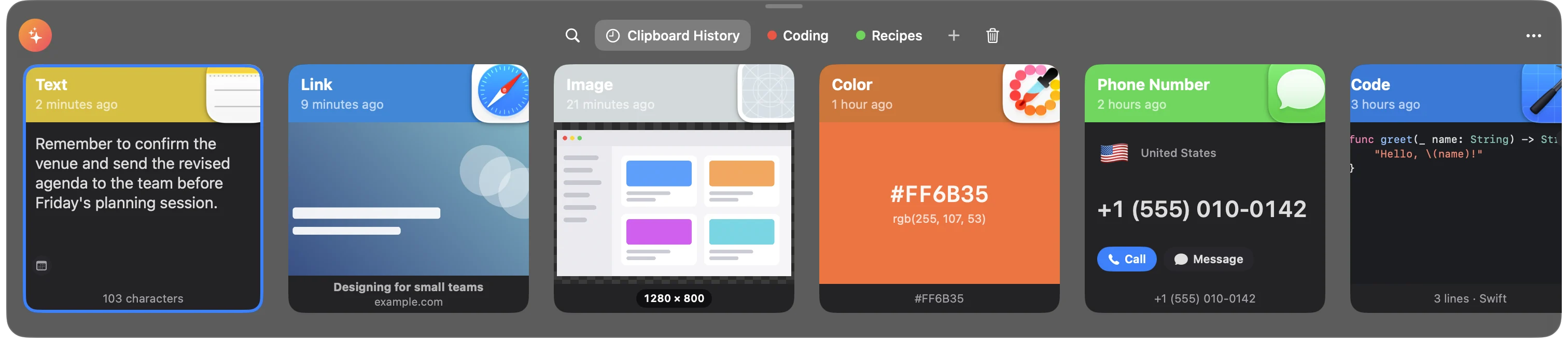
- Press ⇧⌘V anywhere.
- The strip slides up on the screen that has the pointer, across its full width, over full-screen apps too. The app you were in stays in front, so that's where a paste goes.
- Press ⇧⌘V again to hide it.
You can also open it from:
- Open Strip in the header of the Clipboard page in Goblin's window, and the Open Strip icon at the foot of the Clipboard tab in the menu bar panel. Both open it on the list you were looking at. See The Clipboard page and tab.
- The Show Clipboard action in Shortcuts, or the link
goblin://clip/show(add?pinboard=Nameto open a pinboard). See Shortcuts and goblin:// links.
To use a different shortcut, change Show Clipboard in the Shortcuts section of Settings › Clipboard. If another app, such as a second clipboard manager, already uses the combination, Settings tells you.
The strip closes when you press Esc or ⌘W, click anywhere outside it, switch to another app, or paste, copy, open or edit a clip. Each time it opens, the search is cleared. If you've copied something since it was last open, the newest card is selected; otherwise the card you had selected is.
Make it taller or shorter#
- Open the strip and find the small handle (a short grey bar) at its top edge.
- Drag it up for more rows of history, or down for smaller cards.
Goblin remembers the height.
Drag it up past its starting height for more rows of history: two, three or four. The cards stay the same size, and the strip snaps to whole rows, as many as fit in 90% of the screen. With more than one row, history reads left to right, newest first, and scrolls down for more. ↑ and ↓ move a row up or down.
Drag it down and the cards shrink with it, to about a third of the starting height. Below about 60% of its starting height (200 points) the strip switches to Compact Mode: no top bar and no card headers, only the content of each card. The keys all still work, including typing to search.
The top bar#
From left to right:
- Suggestions (the round orange-to-pink button with sparkles) shows the clips Goblin thinks you'll want in the app you're pasting into, and gives the strip an orange glow while it's on. Click it again to go back. See Apple Intelligence.
- Search (the magnifier). Typing anything does the same. See Searching.
- Clipboard History, everything you've copied, pinned clips included. Right-click it to Rename it or for Erase History….
- A tab for each pinboard, with its color. A sparkles badge marks a smart pinboard, a padlock a locked one, a person a shared one. Right-click for the pinboard's menu. See Pinboards.
- + creates a pinboard (⇧⌘N).
- Trash, with a red count when there's something in it. Click it again to return to History.
At the right end:
- Empty Trash… while you're in the Trash, and Edit Search and Pin All to… on a smart pinboard.
- An orange pause symbol while the clipboard is paused. Click it to resume. To pause, press ⌘T or use the ⋯ menu; the steps and the timed pauses are on Privacy.
- ⋯, the More menu.
Cards#
Each card has a colored header, the content, and a footer line.
- The header shows the clip's name and when you last used it: "Just now", "5 minutes ago", "3 days ago". The name is one you gave it, or what Goblin recognised it as ("Phone Number", "Email", "Code", "3 Images"), or the kind ("Text", "Link"). In History the header takes the main color of the app's icon, so clips from the same app are easy to spot. Inside a pinboard it takes the pinboard's color.
- The app's icon sits at the top right. Copies with no app, like Universal Clipboard ones, show a faded symbol of the kind instead.
- The footer gives a short fact, such as the length of a text or the size of an image.
- Hold the Quick Paste key (⌘ unless you've changed it) and the first nine cards show the numbers 1 to 9. See Paste a clip.
A selected card has a blue ring. Clips you've pinned look the same as any other card in History.
Every kind of card#
After each copy Goblin looks at the clip on your Mac and works out what it is. A card can show something more useful than plain text when it recognises it:
| What you copied | The card shows | Footer |
|---|---|---|
| Text | The text, larger when it's short; small badges at the bottom when it contains a phone number, email, address, date, link, path, tracking number or color | "214 characters" |
| Rich text | The text with its own fonts and colors | "214 characters" |
| Link | The page's picture, or its icon on a tinted background, or a globe | The page title and the site |
| Image | The picture on a checkerboard | Its size in pixels, such as "1440 × 900" ("3 images" for a combined clip) |
| Color | A swatch with the hex code and rgb(…) value | The color code; click it to step through formats |
| One file | A picture, PDF page or video frame with the name, or the file's icon and name; "Not found" when it's gone | Type, pixel size and file size, such as "PNG · 1440 × 900 · 567 KB" |
| Several files | A fanned stack with a "+N" badge | "4 files" |
| Phone number | The country flag and name, the formatted number, Call and Message | The number |
| Email address | A circle with the first letter, the address, New Email | The address |
| Postal address | A small map with a pin, or a map pin symbol | The first part of the address |
| Date | A calendar page, the weekday, date and time, Add to Calendar | The date and time |
| Code | Highlighted code, up to 12 lines, with the language | "18 lines · Swift" |
| JSON | Formatted JSON with a green tick | "Valid JSON" |
| File path | The file's icon and path, Show in Finder, or "Not found on this Mac" | The file name |
| Tracking number | The carrier (UPS, FedEx, USPS, DHL, Amazon, postal or a flight) and Track or Track Flight | The carrier |
| Only emoji | The emoji, large | "1 emoji" |
| A number or amount | The number, marked Amount, Percentage, Measurement or Number | The number |
| A person's or company's name | Initials or a building in a circle, and the name | The length |
| The first page and the page count | "12 pages" | |
| Video | A frame, a play symbol and the length | "1:05" |
| Audio | A measured waveform and the length; a music icon if the audio cannot be read | The length |
| A password or key | A padlock, what it is, dots, and Reveal | "Secret · 40 characters" |
New: Coming in the next update. Audio waveforms come from the sound's actual peaks and are cached for later visits. Silent audio has a flat waveform.
The buttons on cards (Call, New Email, Track and the rest) do the same as the matching items in the card menu. Add to Calendar makes a calendar event and hands it to Calendar, which asks you to confirm.
Link pictures, page titles and address maps need Goblin to go online, so they appear only while Generate Link Previews is on in Settings › Clipboard (it's on at first). Everything else is worked out on your Mac. A card for a password or key is never analysed.
A text clip with fill-in fields shows a grey "2 fields" pill: see Snippets.
Preview a clip#
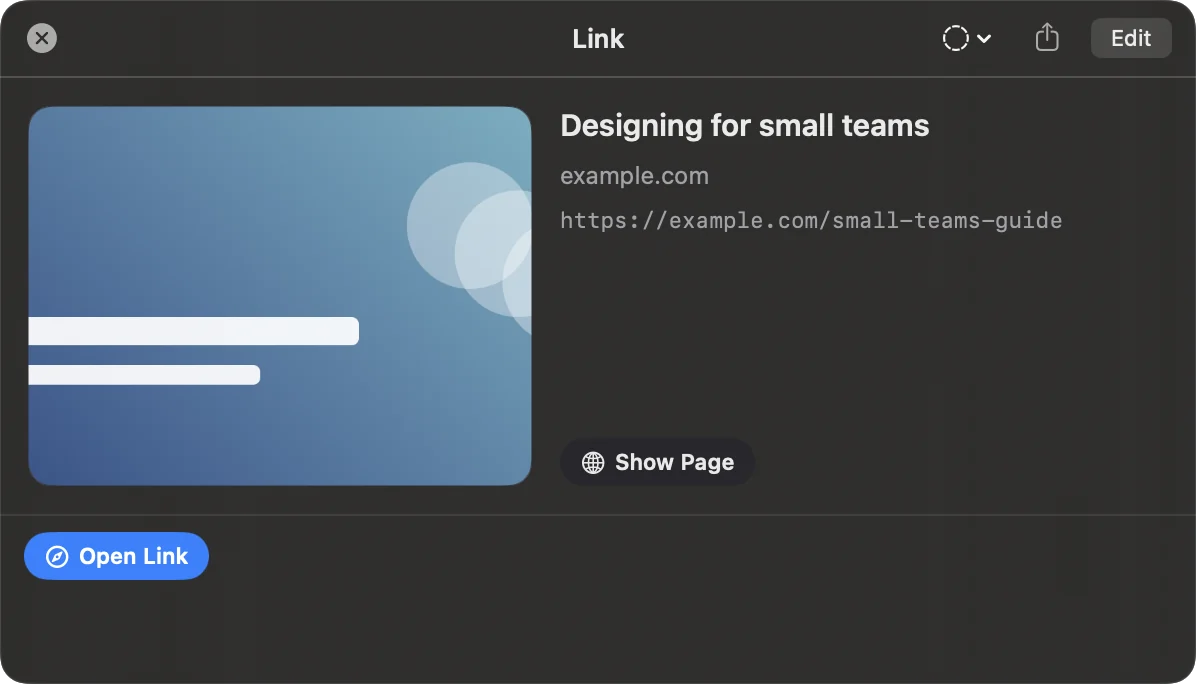
- Select a card with the arrow keys or the pointer.
- Press Space. A larger preview floats above the card.
- Press Space or Esc to close it. With the preview open, the arrow keys move to the next card and the preview follows.
The preview shows the whole clip: full text you can select, an image you can zoom, a link's full address with Show Page to load the page itself (while link previews are on), each file with Quick Look and its details, code with line numbers, JSON with a Pretty / Tree switch, a PDF to page through, a video or audio player, and every format of a color (HEX, RGB, HSL, SwiftUI, NSColor, UIColor) each with its own copy button.
Its title bar has a Writing Tools menu (Apple Intelligence), Share and Edit (Annotate for a picture). Along the bottom it shows actions for what's in the clip, Text in Image with the text Goblin found in a picture and a Copy Text button, and the image's labels.
Paste a clip#
- Open the strip with ⇧⌘V.
- Select the card you want. Typing starts a search if you need to find it.
- Press Return, or double-click the card.
The strip hides, Goblin brings back the app you were in and pastes there, as if you'd pressed ⌘V. The clip moves to the front of History.
- Several clips: select them with ⌘-click, ⇧-click or ⇧→, then press Return. Text clips are joined into one text with a line break between them; images and files paste as separate items.
Paste as plain text#
- Select the card.
- Press ⇧Return, or right-click and choose Paste as Plain Text.
The text arrives without fonts, colors or links. Images and files paste as themselves. To paste everything as plain text, turn on Always paste as Plain Text in Settings › Clipboard.
Paste with a number key#
- Hold ⌘. The first nine cards show the numbers 1 to 9.
- Press the number of the card you want, for example ⌘3 for the third.
Add ⇧ (⇧⌘3) to paste as plain text. This works in the list you're looking at, after any search. More on Quick Paste.
The Quick Paste and plain text keys are ⌘ and ⇧ unless you change them under Shortcuts in Settings › Clipboard.
Paste yourself instead#
If you'd rather paste yourself, open Settings›Clipboard, find Paste Items and choose To clipboard (the other choice is To active app). Then Return puts the clip on the clipboard and hides the strip, and you press ⌘V where you want it.
Let Goblin paste for you#
To paste into another app, Goblin presses ⌘V for you, and macOS only allows that once you turn Goblin on under Accessibility. Until then a paste only copies the clip, and you press ⌘V yourself.
On macOS 27, System Settings calls this permission pane Device Control and Data Access. Earlier macOS versions call it Accessibility.

- Paste a clip with Return. The first time, macOS shows its own alert asking whether Goblin may control your computer. Click Open System Settings.
- In Privacy & Security›Accessibility, turn Goblin on. A small bar from Goblin sits beside the window, reading Drag Goblin into the list. If Goblin isn't in the list, drag the bar itself into the list.
- Goblin notices the change, comes back to the front and closes System Settings. Paste again.
If you dismissed the alert, every paste without the permission opens the Accessibility list and the same bar for you. You can also set it up any time with Allow Accessibility…, which appears under Paste Items in Settings › Clipboard while the permission is missing.
Goblin only sends ⌘V. The two features that watch the keyboard are Copy Queue, which looks for your ⌘V while it's open, and text expansion if you turn it on.
Copy without pasting#
- Select a card.
- Press ⌘C, or right-click and choose Copy.
The clip goes onto the clipboard, moves to the front of History, and the strip hides. Nothing is pasted.
Edit a clip#
- Select a text card.
- Press ⌘E, or right-click and choose Edit. The strip hides and a small editing window opens.
- Change the text, then click Save (⌘Return). Click Cancel (Esc) to leave it as it was.
The bottom line counts characters, words and lines. A Trigger row sits below the text for snippets. Saving keeps only plain text, so an edited clip loses its rich formatting (fonts, colors, links). The text as it was goes to the Trash as a separate clip named "Edited — previous version", so you can get it back.
Clips in the Trash can't be edited.
Edit a picture#
For a picture, ⌘E (or Annotate, as the menu calls it) opens Goblin's annotation editor, where you can add arrows, text, blur and highlights. Saving puts the new picture back in the same clip; Revert to Original in the card menu or the inspector brings back the picture as it was. See Annotate.
For a quick turn or to read its text, right-click the picture and choose Rotate or Copy Text…. The small window has Rotate Left and Rotate Right, Copy Text to copy any text Goblin finds in the picture, and Save. Saving replaces the picture.
A video file clip opens in the video editor with Edit Video.
New Text Item#
- Press ⌘N in the strip, or choose New Text Item from the ⋯ menu.
- Type your text in the editor window and click Save.
Goblin makes an empty text clip (in the pinboard you're looking at, otherwise in History) and opens the editor. If you cancel without typing anything, the empty clip is removed.
Rename a clip#
- Select the card and press ⌘R, or right-click and choose Rename.
- Type a name in the card's header and press Return. Esc cancels.
The name replaces "Text", "Link" and so on in the header, and search finds it. Clear the name to go back to the automatic one.
Drag and drop#
- Drag a card out of the strip into any app, as you would a file or a piece of text.
- Drop cards on a pinboard's tab to pin them there.
- Drag a card onto another card inside a pinboard to change the order, and drag tabs to reorder pinboards. See Pinboards.
Delete and undo#
- Select the clips and press ⌫, or right-click and choose Delete. If any of them is pinned, Goblin asks first.
- To take it back, press ⌘Z.
Deleted clips move to the Trash. ⌘Z puts back what you last deleted, even after you close and reopen the strip, until you quit Goblin. The Trash and how long things stay there are on the Pinboards page.
Every key#
| Key | What it does |
|---|---|
| ← → | Previous or next card |
| ↑ ↓ | The card a row above or below, when the strip shows more than one row |
| ⇧← ⇧→ | Add the previous or next card to the selection |
| ⌘↑ ⌘↓ | First or last card |
| ⌘A | Select every card |
| Return | Paste (in the Trash: put back) |
| ⇧Return | Paste as plain text |
| ⌘1 … ⌘9 | Quick Paste that card; with ⇧, as plain text |
| ⌘C | Copy without pasting |
| Space | Preview |
| ⌘O | Open a link, file or path in its app |
| ⌘R | Rename |
| ⌘E | Edit (Annotate for a picture, Edit Video for a video file) |
| ⌘N | New Text Item |
| ⌫ or ⌘⌫ | Move to the Trash (in the Trash: delete permanently, after asking) |
| ⌘Z | Undo the last move to the Trash |
| ⌘F | Search; press again for the Filters |
| Tab | Move between the search field and the cards while searching |
| ⌘G | Go to where the selected clip lives: its pinboard, or History |
| ⌘← ⌘→ | Previous or next list: History, then each pinboard |
| ⇧⌘N | New pinboard |
| ⌘P | The Pin menu, at the pointer |
| ⌘T | Pause or resume |
| ⌥⌘T | The Transform menu (Transforms) |
| ⌘J | Combine the selected clips into one (Paste tools) |
| ⌘D | Open in a floating window (Paste tools) |
| ⌘, | Settings › Clipboard |
| ⌘W | Close the strip |
| Esc | Close the top thing: the preview, the Filters, the search, the Trash or Suggestions, then the strip |
| Any letter or number | Start a search with it |
Mouse: click selects, ⌘-click adds or removes a card, ⇧-click selects a range, double-click pastes (in the Trash it puts back), and right-click opens the card menu for the card, or for all selected cards if it's one of them.
The card menu#
Right-click a card. Items marked with an asterisk appear only when one card is selected.
- Open* ⌘O, for links, files, and text containing a link or path
- Paste to app name Return (or Paste), Paste as Plain Text ⇧Return, Copy ⌘C
- Edit* ⌘E (text), Annotate* (pictures) or Edit Video* (video files)
- For a picture*: Rotate or Copy Text…, Copy Text, Read Again with Apple Intelligence (on a Mac that supports it), Upload, Revert to Original (after you've annotated it) and Show in Finder (when it has a saved file)
- Rename* ⌘R, Set Trigger…* or Change Trigger…* (Snippets), Delete ⌫
- Pin › each pinboard except smart ones, the clip's own ticked, then Create Pinboard…
- Transform* ⌥⌘T (clips with text) and Copy as* (colors) — see Transforms; Speak* (it reads the text aloud; it becomes Stop Reading Aloud while it speaks) and Translate* for text clips; Open in Floating Window* ⌘D, or with several selected Combine into One Clip ⌘J — see Paste tools
- Actions for what Goblin recognised*: Open Link; Show in Finder and Open for files and paths that exist; Call, Message and Copy Formatted for phone numbers; New Email; Open in Maps; Add to Calendar; Track; Copy as RGB and Copy as HSL for color codes
- Preview Space, Share* › the macOS share menu
In the Trash the menu has only Put Back and Delete Permanently…. A clip in a closed locked pinboard offers Unlock with Touch ID… and Delete.
The More menu#
The ⋯ button at the right of the top bar:
- About Goblin
- New Text Item ⌘N
- Import from iPhone: take a photo, scan a document or sketch with your iPhone and add it. See Import and export
- Settings… ⌘,
- Show Trash, with the count when there's something in it
- Open in Window: the same list on the Clipboard page of Goblin's window
- Pause Clipboard › Pause ⌘T, Pause for 15m, Pause for 30m, Pause for 1h, Pause for 3h, Pause for 8h (while paused: Resume Clipboard ⌘T)
- Presentation Mode (Privacy)
- Turn Off Clipboard…
If new copies don't appear#
Check these in order:
- Is the clipboard on? The Clipboard tab in Goblin's window says Clipboard is off if not.
- Is it paused? Look for the orange pause symbol in the strip's top bar, or Paused at the foot of the menu bar panel's Clipboard tab.
- Is presentation mode on? It stops copies being kept. See Privacy.
- Is the app ignored, or was it a password? Copies from ignored apps and anything marked as a password are never kept. See Privacy.
- Is macOS blocking Goblin? Recent versions of macOS let you decide which apps may read what other apps copy (Paste from Other Apps). If Goblin is set to deny, it can't see your copies, and nothing in Goblin tells you: the strip stops getting new cards. Look for Goblin under System Settings›Privacy & Security and allow it. macOS may also ask you directly whether Goblin can paste from other apps; choose to allow.
Specific items in Goblin AI#
New: Coming in the next update. Goblin AI can find items and use their full IDs for specific changes.
Ask find clipboard items invoice to get matching previews and full item IDs. Secret and locked items are omitted. Use copy clipboard item ID to copy one, or select clipboard item ID to select it in the Clipboard window. Replace ID with the full ID from the result. Item numbers, partial IDs, and an ambiguous description do not choose an item for you.
paste clipboard item ID selects the item for native review. Use Paste there after checking the item and destination. Pasting to another app keeps the normal Accessibility and template prompts.
For saved text, use edit clipboard item ID | replacement text; the old text goes to Clipboard Trash. rename clipboard item ID | new title changes its title. The | separates the target from the text. list clipboard boards gives board IDs, and move clipboard item ITEM_ID | BOARD_ID moves an item into a board. You can also use create clipboard board Work, rename clipboard board BOARD_ID | Projects, or add clipboard text BOARD_ID | text to save. Locked, smart, and read-only boards are not writable destinations for these requests.
Try filter clipboard image or filter clipboard today to review a filtered list. Other choices are text, file, link, color, and all. review clipboard trash opens the Trash without deleting anything. restore clipboard item ID puts back an accessible trashed item.
start clipboard queue opens the native Paste Stack panel. Use add clipboard queue item ID, remove clipboard queue item ID, and clipboard queue status to manage it. stop clipboard queue stops and clears the queue; saved items remain in Clipboard.