 Goblin
 keeps an eye on a handful of things that make a Mac feel unwell: a nearly full disk, memory running out, a processor stuck at full speed, a poor connection, a battery about to run out. When everything is fine, a short line says so, for example "MacBook Pro: Healthy". When something isn't, the line changes and the problem is listed above the Overview. Settings›Health Check is where you turn this on or off, choose where the line shows, and set the numbers each check uses.
What the health line and its problems look like is covered in Health and alerts.
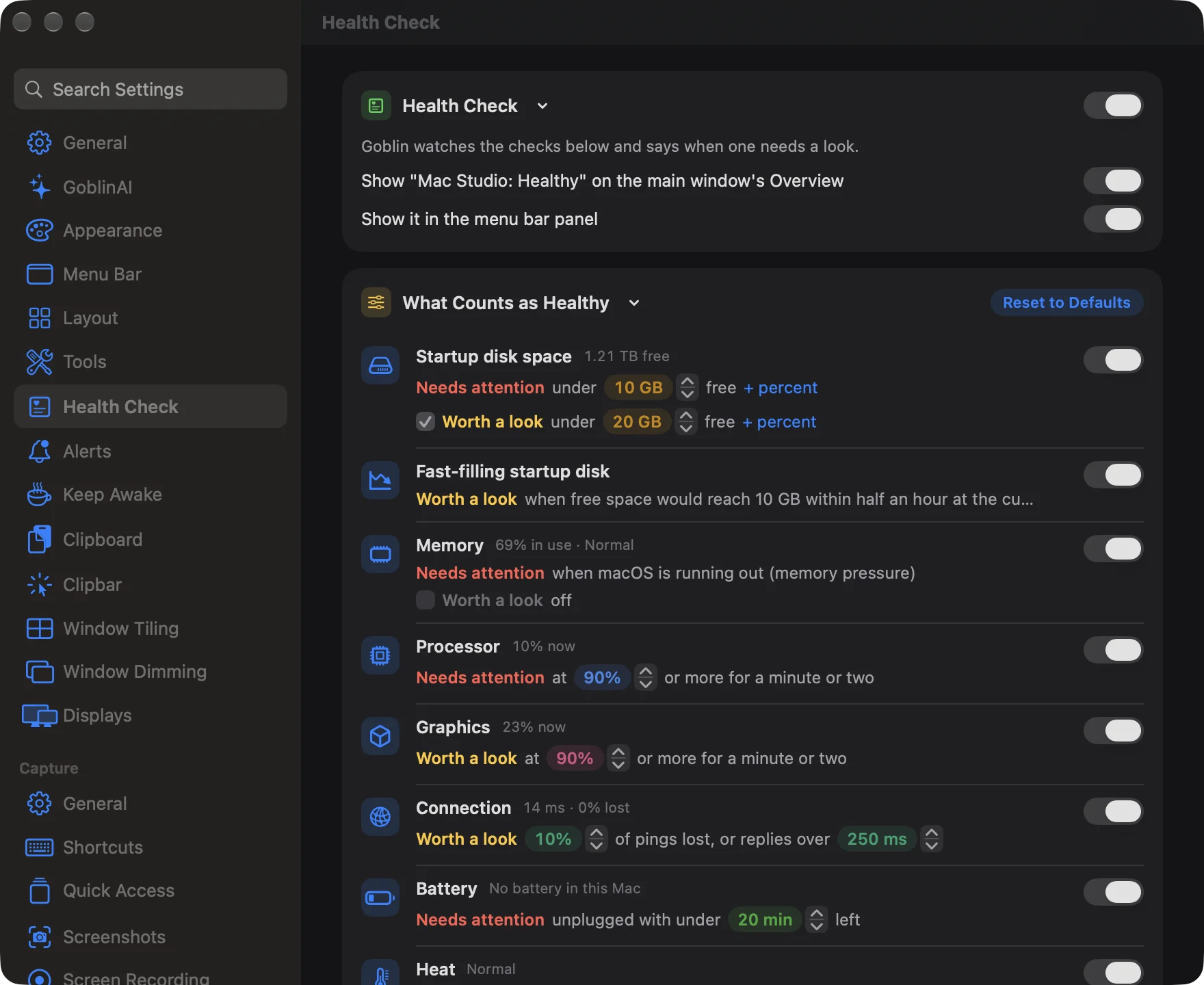
Turn the health check on or off#
- Open Settings›Health Check.
- Use the switch in the header of the Health Check card.
Off, Goblin checks nothing, shows no health line, and lists no problems above the Overview. The two Show… switches are greyed out and the What Counts as Healthy card disappears. Turn the switch back on and everything returns with the numbers you had.
Choose where the health line shows#
- Open Settings›Health Check, with the health check on.
- Switch Show "<your Mac>: Healthy" on the main window's Overview on or off. The name is your Mac's model, such as MacBook Pro.
- Switch Show it in the menu bar panel on or off. This is a compact health line at the top of the panel.
Both start on. You can also hide the line from the layouts: see Layout.
The health line uses three levels: Healthy (green), Worth a look (amber) and Needs attention (red).
Change when a check speaks up#
Each check is a row in What Counts as Healthy with its name, a live reading from your Mac, and the sentence that says when it speaks up.
- Open Settings›Health Check.
- Find the check in What Counts as Healthy, for example Startup disk space.
- Click the colored number in its sentence (for example 10 GB) and use the small arrows to raise or lower it.
- The change applies straight away. The live reading beside the check's name shows what it reads now, so you can judge the number.
| Check | Level and sentence | Default | Range |
|---|---|---|---|
| Startup disk space | Needs attention under [GB] free, or a share you add | 10 GB | 1–500 GB in steps of 5; 1–50% |
| Startup disk space | Worth a look under [GB] free, or a share you add | 20 GB | same |
| Fast-filling startup disk | Worth a look when free space would reach the Needs attention GB figure within half an hour at the current rate | fixed | — |
| Memory | Needs attention when macOS is running out (memory pressure) | fixed | — |
| Memory | Worth a look past [%] in use | Off (90% when you tick it) | 50–99% in steps of 5 |
| Processor | Needs attention at [%] or more for a minute or two | 90% | 50–100% in steps of 5 |
| Graphics | Worth a look at [%] or more for a minute or two | 90% | 50–100% in steps of 5 |
| Connection | Worth a look [%] of pings lost, or replies over [ms] | 10%, 250 ms | 1–50%; 50–2000 ms in steps of 50 |
| Battery | Needs attention unplugged with under [min] left | 20 min | 5–120 min in steps of 5 |
| Heat | Needs attention when macOS slows the Mac to cool it | fixed | — |
| Swap | Worth a look over a quarter of memory parked on disk while memory is short | fixed | — |
| Idle dev servers | Worth a look dev servers that have done nothing for a while | fixed | — |
| App problems and a full Trash | Worth a look an app stuck or misbehaving, or a big Trash | fixed | — |
Count disk space as a percentage too#
Startup disk space counts only gigabytes at first, so a big disk isn't "getting full" with 100 GB left.
- In the Startup disk space row, click + percent at the end of the level you want to change.
- Set the percentage with the arrows. It comes in at 5% for Needs attention and 10% for Worth a look.
- To go back to gigabytes only, click the ⓧ beside the percentage.
With both figures, a level trips when either is crossed, whichever comes first.
Turn off the early disk notice or turn on the memory notice#
- Worth a look under Startup disk space has a checkbox. Untick it and the line reads "off", so only Needs attention speaks.
- Worth a look under Memory is off until you tick its checkbox, because macOS keeps memory busy on purpose. Needs attention always fires when macOS reports memory pressure.
Leave one check out#
Use the switch on the right of a check's row. A check that's switched off is greyed out and never speaks up. The other checks carry on.
Reset the numbers#
Click Reset to Defaults at the top of the What Counts as Healthy card. Every number goes back and every check is turned on again. The two Show… switches stay as they are.
What each check reads#
- Startup disk space and Fast-filling startup disk. The fast-filling check watches how quickly free space has been falling over the last few minutes. It turns to Needs attention when you'd reach the limit in 5 minutes or less.
- Connection only has data when Check connection quality is on in General, and only while a Goblin window or the menu bar panel is on screen, because that's when the pings run. Its reading says No reply when the pings go unanswered.
- Battery shows "No battery in this Mac" on a desktop Mac, and never trips there.
- Idle dev servers uses the idle time from Settings›Projects›Clean Up›A server is idle after. When Clean up servers is set to Off there, no server counts as idle. See Projects settings.
- App problems and a full Trash shows the latest alert from the last 30 minutes, so it follows the alerts you've turned on in Alerts, such as a background app keeping the CPU busy or the Trash getting big. An app that may be stuck, and that you aren't using, shows as Needs attention rather than Worth a look.
Note: The disk thresholds here are separate from the The startup disk is almost full alert in Alerts, which always uses 10 GB.