 Goblin
Global keyboard shortcuts work from any app, so you can check your Mac without reaching for the mouse. Goblin has three kinds here: two main shortcuts for the panel and the window, up to eight extra ones you set up yourself, and one for the Network Monitor. The clipboard has its own set, described below, and Capture, Measure and the other tools have theirs on their own pages.
None of them are on until you turn them on. The combinations below are what each starts with when you do.
Goblin's shortcuts don't need Accessibility or Input Monitoring permission. Goblin asks macOS only for the exact combinations you choose.
How combinations work#
Every shortcut in these three kinds is a letter from A to Z with one of these modifier sets:
| Modifiers | Keys to hold |
|---|---|
| ⌥⌘ | Option and Command |
| ⌃⌘ | Control and Command |
| ⌃⌥⌘ | Control, Option and Command |
| ⌥⇧⌘ | Option, Shift and Command |
The last set is listed as "⌥⇧⌘" in some of Goblin's pickers. It's the same combination.
If another app already uses a combination, macOS won't let Goblin have it. Goblin shows "This shortcut is in use. Choose another combination." in red, and that shortcut doesn't work until you pick another.
Open the panel or the window#
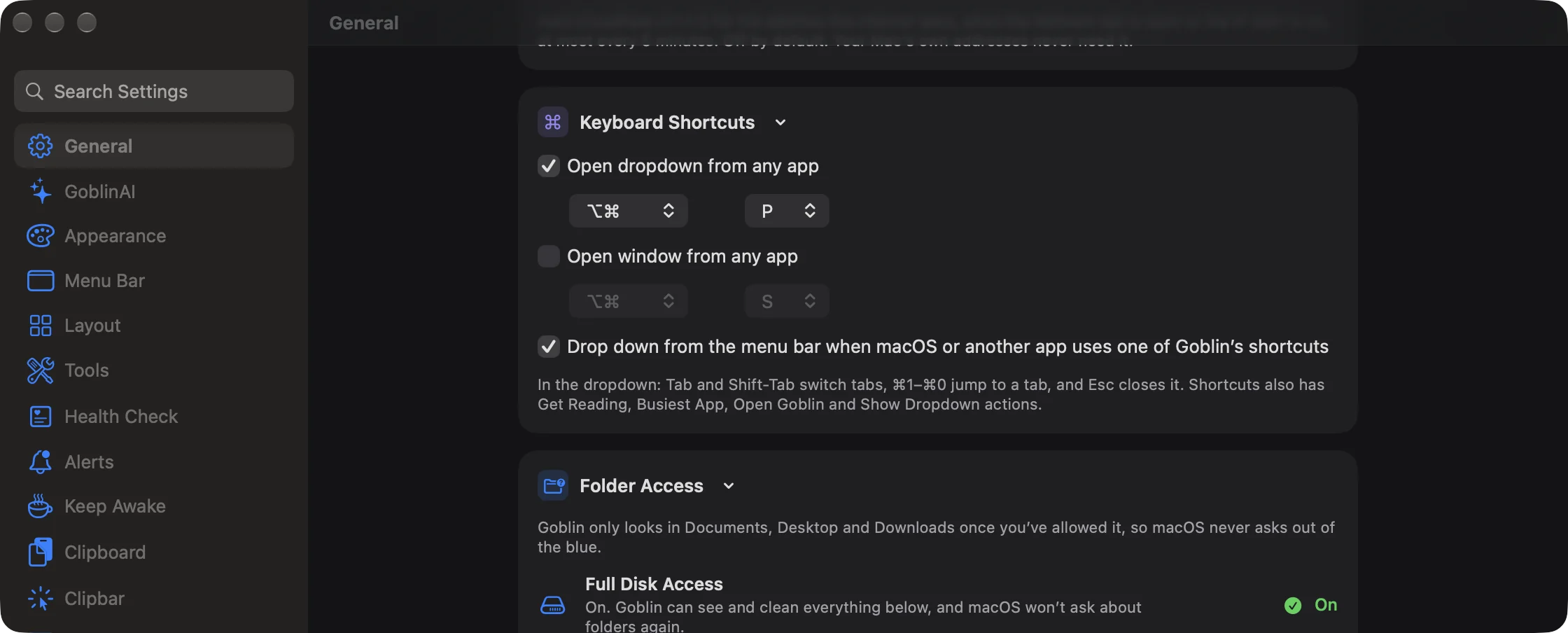
- Click Goblin's item, then the gear. Or right-click the item and choose Settings… (⌘,).
- Click General, and scroll to the Keyboard Shortcuts card.
- Turn on Open dropdown from any app, Open window from any app, or both.
- Next to each, pick the modifiers (for example ⌥⌘) and the letter.
- Try it: press the combination in any app. The panel or window opens.
| Setting | What it does | Default |
|---|---|---|
| Open dropdown from any app | Opens or closes the menu bar panel, as if you clicked Goblin's item. | Off, ⌥⌘P |
| Open window from any app | Opens Goblin's window. | Off, ⌥⌘S |
The pickers are greyed out while the setting is off. These are the best way in when Goblin's item is hidden (see My menu bar item is hidden). If Goblin's item has been taken out of the menu bar altogether, the dropdown shortcut opens Goblin's window on the panel's tab instead.
Don't give both shortcuts the same combination: the second one won't register.
Add an extra shortcut#
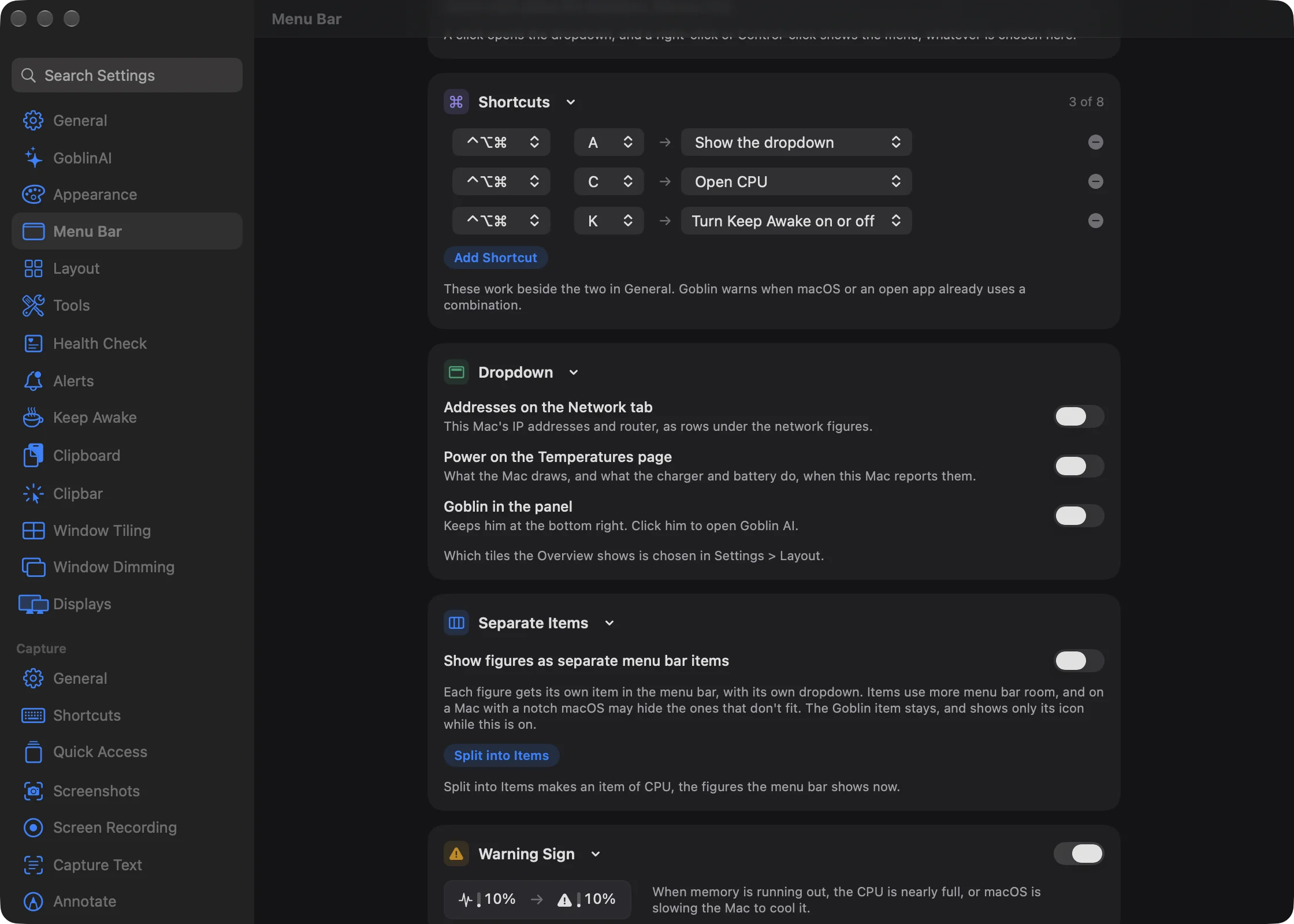
The Shortcuts card in Settings›Menu Bar holds up to 8 more shortcuts, each with its own action. Use them to jump straight to the tab you check most, such as Memory or Projects.
- Open Settings›Menu Bar and scroll to the Shortcuts card.
- Click Add Shortcut. Goblin adds a row with the first free combination, usually ⌃⌥⌘A, set to Show the dropdown.
- Pick the modifiers and the letter.
- After the arrow, pick what it does.
- Press the combination in another app to try it.
| Action | What it does |
|---|---|
| Show the dropdown | Opens or closes the menu bar panel. |
| Turn Keep Awake on or off | Starts a Keep Awake session that lasts until you end it, with your default options, or ends the session that's running. |
| Open Overview, Open CPU, Open Memory, Open Disk, Open Network, Open GPU, Open Power, Open Clipboard, Open Projects, Open Tools | Opens Goblin's window on that tab. |
| Capture Area, Record Screen and the other capture actions, and Pick Color | Starts that capture or opens the color picker. See Capture shortcuts. |
New in 1.1: The Turn Keep Awake on or off action. See Keep Awake basics.
The header counts them, for example "3 of 8". At 8, Add Shortcut is greyed out with the note "That is the most."
Remove an extra shortcut#
Click the remove button (−) at the end of the shortcut's row.
Extra shortcuts can't share a combination with the main shortcuts or with each other. A row with a clash says why in red, and doesn't work until you change it:
- "Already used for the dropdown shortcut. Choose another combination." (or the window shortcut, or the Network Monitor shortcut). This only counts while that shortcut is turned on. A combination one of Goblin's capture shortcuts holds gets a similar message.
- "Another shortcut here uses this combination." The row higher in the list keeps it.
- "This shortcut is in use. Choose another combination." Another app has it.
When another app uses the same keys#
Two apps on the same keys is a quiet problem: one of them stops working. Goblin checks each shortcut it holds against the shortcuts macOS and your open apps use, and tells you in several places:
- A warning under the shortcut, in amber, in Settings. For example "macOS uses this for “…”, so Goblin won’t get it. Choose another, or turn that off in System Settings › Keyboard › Keyboard Shortcuts." or "Paste also uses this. Only one of them will get it."
- A warning sign beside the pane's name in the Settings sidebar, with a banner at the top of the pane. On General the banner lists every clash in Goblin.
- A Shortcut clash dropdown from Goblin's menu bar item, once for each new clash. See Alert dropdowns.
To fix a clash:
- Open the pane that has the warning sign, or click Change in the dropdown.
- Choose another combination for Goblin's shortcut. Or change or turn off the other one: for macOS, in System Settings›Keyboard›Keyboard Shortcuts; for another app, in that app.
Goblin checks again when apps open or quit, and every minute. To stop the dropdown, turn off Drop down from the menu bar when macOS or another app uses one of Goblin’s shortcuts in Settings›General›Keyboard Shortcuts. The warnings in Settings stay.
Open the Network Monitor#
When the firewall is part of your Goblin, the Status Menu tab of Settings›Firewall has a Keyboard Shortcut card:
| Setting | What it does | Default |
|---|---|---|
| Open the Network Monitor from any app | Opens Goblin's window on Network›Connections. | Off, ⌃⌥⌘M |
It uses the same modifier and letter pickers, with a readout of the full combination beside them. More on that pane in Firewall settings, and on the list it opens in Connections.
Clipboard shortcuts#
New in 1.1: Global shortcuts for the clipboard.
The clipboard's shortcuts are set in Settings › Clipboard, under Shortcuts and Capture. Unlike the ones above, all but Float Last Clip are on as soon as you turn Clipboard on, and Goblin takes them only while Clipboard is on.
| Shortcut | What it does | Default |
|---|---|---|
| Show Clipboard | Shows or hides the clipboard strip. | ⇧⌘V |
| Activate Copy Queue | Starts Copy Queue: every copy joins the queue, and each ⌘V pastes the next one. | ⇧⌘C |
| Pick Color | Click a color anywhere on screen to save it as a color clip. | ⌃⇧C |
| Screenshot to History | Select an area or a window to save it as a clip, with its text read. | ⌃⇧5 |
| Paste Next from Queue | Pastes the next clip in Copy Queue without waiting for ⌘V. | ⌥⇧⌘V |
| Float Last Clip | Floats the newest clip in a small window above your apps. | None |
If another app holds a combination, such as Paste with ⇧⌘V, Settings › Clipboard says so. What each one does is described in The clipboard strip and Paste tools.
Keys inside Goblin#
These work only while Goblin is in front. You can't change them.
| Where | Key | What it does |
|---|---|---|
| Menu bar panel | Esc | Closes the panel. On the Clipboard tab it first closes a preview and clears the search |
| Menu bar panel | Tab / ⇧Tab | Next tab / previous tab |
| Menu bar panel | ⌘1 … ⌘0 | Jumps to the first to tenth tab, in the order of the tab bar (you can change it in Settings › Layout). On the Clipboard tab, ⌘1 … ⌘9 paste the first nine clips instead |
| Menu bar panel | Return | In a dev server's details, opens it in the browser |
| Goblin's window | ⌘1 … ⌘0 | Switches to the first to tenth tab, on the Clipboard page too |
| Right-click menu on the item | ⌘, | Settings… |
| Right-click menu on the item | ⌘Q | Quit Goblin |
| Settings › Menu Bar › Order | ⌘← / ⌘→ | Moves the focused figure earlier or later |
| Settings › Menu Bar › Items | ⌘↑ / ⌘↓ | Moves the focused item up or down |
The panel's keys are described in The menu bar panel.
Shortcuts app and Siri#
Goblin also adds actions to Apple's Shortcuts app, such as Get Goblin Reading and Show Goblin Dropdown, which you can run from Siri, a Shortcut or a key you assign in Shortcuts. They're described in Shortcuts.