 Goblin
On a Mac with Apple Intelligence, Goblin's clipboard uses Apple's on-device model to describe images and long text, turn a search written in plain words into filters, rewrite or translate a clip, and suggest what you're about to paste. With Allow Screen Access on, suggestions can also take into account what's in the window you're pasting into. Everything on this page runs on your Mac: Goblin sends nothing anywhere for it.
What you need#
- macOS 26 or later, on a Mac that supports Apple Intelligence.
- Apple Intelligence turned on in System Settings, with macOS reporting its on-device model is ready.
- The Clipboard switch on in Settings›Clipboard.
There's no separate Apple Intelligence switch in Goblin. Descriptions, plain-language search and writing actions work whenever Apple Intelligence is available. Only Suggestions has a switch of its own, Intelligent Clipboard.
Goblin's clipboard works on macOS 15 and later. Without Apple Intelligence, these features don't appear or do nothing, and everything else works as usual.
None of them ever touch a secret, a clip in the Trash, or a clip in a locked pinboard.
Descriptions#
Goblin writes a one-line description, at most 90 characters, for each image whose text or contents it has read, and for each text clip longer than 280 characters. It works in the background, one clip at a time. When Goblin starts, it also describes the 20 newest clips that don't have one yet.
Descriptions are saved with the clip. They're searchable, so you can find a screenshot by what it shows, and the menu bar panel uses an image's description as its title. You see one in the inspector on the Clipboard page, under Description. They sync with the clip if you use Sync.
Search in plain words#
- Press ⇧⌘V and start typing, or press ⌘F.
- Type what you're looking for in a sentence of four words or more, such as "screenshots from Slack last week".
- Pause. After a moment the words turn into filter chips and the rest stays in the search box.
The model picks a kind (image, link, text, file or color), a detail such as a phone number or a code, a date (Today, Yesterday, This week, Last week or Last 30 days), one of your apps, or one of your pinboards by its exact name. Apps and pinboards you don't have are dropped rather than guessed. See Search for the chips and filters themselves.
Suggestions#
Suggestions shows the clips you're most likely to paste into the app you're about to paste into.
Turn on suggestions#
- Open Settings›Clipboard and find the Intelligence section.
- Switch on Intelligent Clipboard.
| Setting | What it does | Default |
|---|---|---|
| Intelligent Clipboard | Turns on Suggestions. | Off |
You can also turn it on from Suggestions itself: if Apple Intelligence is available but Intelligent Clipboard is off, Suggestions explains what it is and offers Turn On… in the strip (or Turn On in Goblin's window). Turn Off… switches it off at once and goes back to History. If Apple Intelligence isn't available, Suggestions says so instead.
Use suggestions#
- Click into the app you want to paste into.
- Press ⇧⌘V to open the strip.
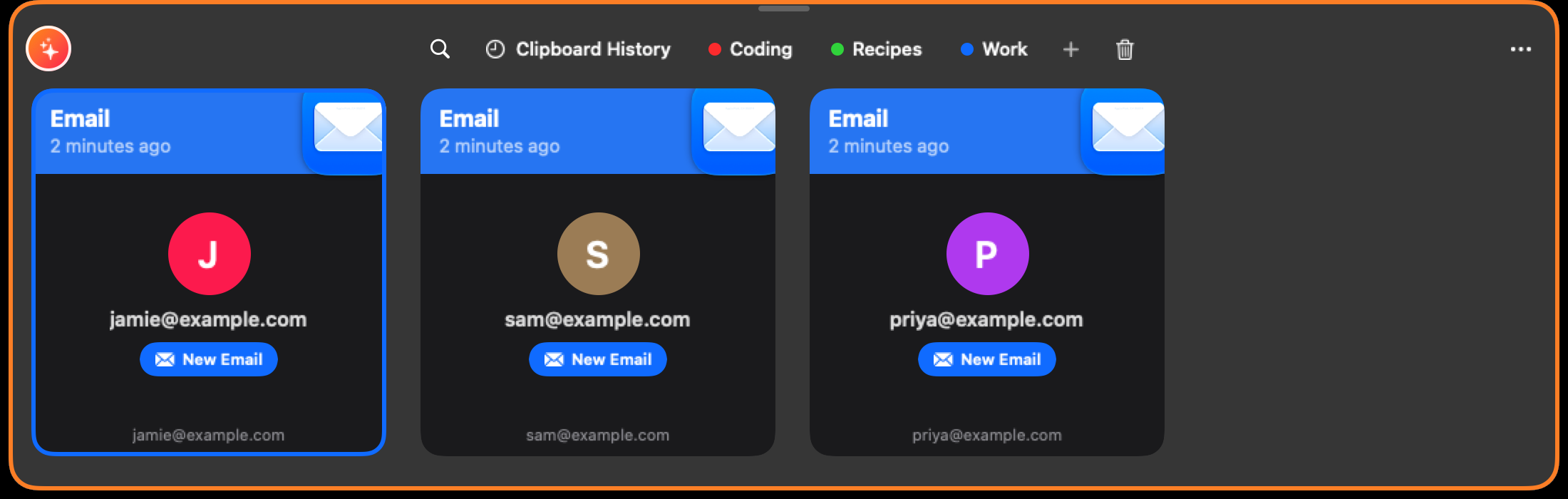
- Click the round orange-to-pink sparkles button at the far left. (On the Clipboard page, click Suggestions in the sidebar, which appears when Apple Intelligence is available.)
- Press Return on the clip you want.
Click the button again to go back to the list you were on. The menu bar panel doesn't have Suggestions. With nothing to go on yet, Suggestions says "No suggestions yet" and "Paste a few things and Goblin learns what you use where."
How Goblin picks#
Goblin scores the 500 newest clips in your history for the app you're pasting into:
- What you've pasted there before. A clip you pasted into this app counts most, more so if it was recent.
- What kind of thing you paste there. If most of what you paste into Terminal is code and file paths, those kinds rank higher.
- Sensible starting points for apps it hasn't learned yet: code, JSON, paths and links in code editors and terminals; links, email addresses, phone numbers and addresses in browsers and mail apps; the same plus images in chat apps; images and colors in design apps such as Figma and Sketch. These fade as you paste into the app, and count half as much after about 20 pastes there.
- How recent and how often used each clip is.
- The window you're in, when Allow Screen Access is on.
To learn, Goblin keeps a log of each paste you make from Goblin: which clip, from which app, into which app, and when. It keeps the newest 20,000, holds no clip content, and records it even while Intelligent Clipboard is off.
Writing actions#
Use a writing action#
- Select a text clip in the strip and press Space to open its preview.
- Click the Writing Tools menu in the preview's title bar.
- Choose Fix Grammar, Rewrite, Summarise or Translate.
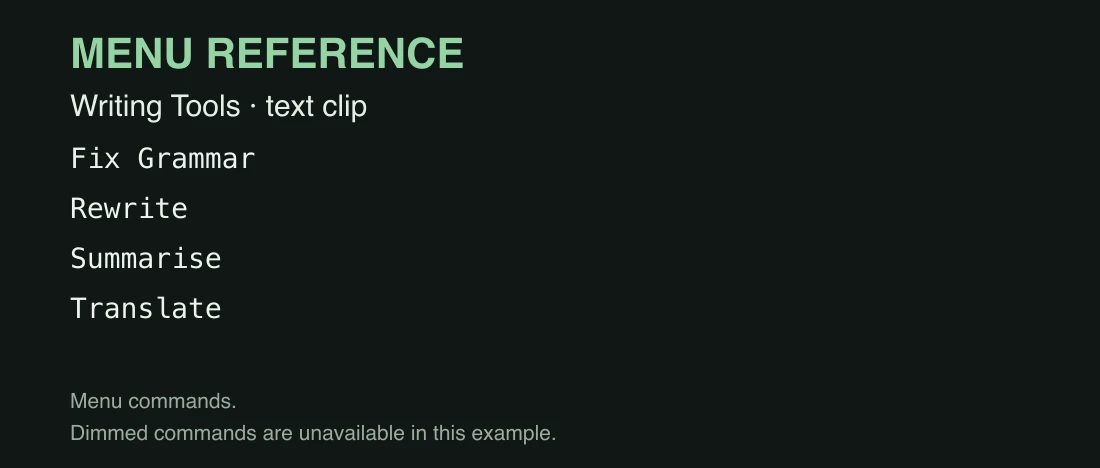
| Action | What it makes |
|---|---|
| Fix Grammar | A copy with spelling and grammar corrected. |
| Rewrite | A reworded copy. |
| Summarise | A short summary of the first 6,000 characters. |
| Translate | Opens the macOS translation popover for the clip’s text. |
Fix Grammar, Rewrite and Summarise make a new text clip, in the same pinboard as the original or in history, and leave the original alone. Fix Grammar and Rewrite work on clips up to 4,000 characters. If the result is the same as the original, or the model can't do it, nothing is added and there's no message. Without Apple Intelligence the menu says "Needs Apple Intelligence"; for a clip without text it says "Writing Tools work on text". Translate opens the macOS translation popover and does not create a clip automatically.
Read the window you're pasting into#
With Allow Screen Access on, Suggestions also looks at the window you're about to paste into. If you're filling in a form with an Email field, email addresses rise to the top; if the window is full of code, code clips do.
| Setting | What it does | Default |
|---|---|---|
| Allow Screen Access | Lets Intelligent Clipboard read the window you're pasting into when you open Suggestions. Needs Screen Recording permission. This Mac only. | Off |
Allow Screen Access#
- Turn on Intelligent Clipboard (see above), then open Suggestions. It asks "Get suggestions for what you’re about to paste". Click Allow Screen Access…. (You can also switch on Allow Screen Access in Settings›Clipboard.)
- If Goblin can't read windows yet, macOS shows its own alert. Click Open System Settings.
- In Privacy & Security›Screen Recording, turn Goblin on. A small bar from Goblin sits beside the window, reading Drag Goblin into the list; if Goblin isn't in the list, drag the bar itself into it.
- If macOS offers Quit & Reopen, choose it (the bar also has a Quit & Reopen button once it notices). Goblin comes straight back.

The other choices on that first question are Not Now, which keeps the question away (Suggestions then ranks from your apps and history alone), and Turn Off…, which turns Intelligent Clipboard off altogether.
If Allow Screen Access is on but Screen Recording isn't, Settings shows a red ! beside it and "Goblin can’t read windows until Screen Recording is on.", with Set Up… to start the steps again. More about this permission in Permissions.
What's read#
Only when the strip or Goblin's window shows Suggestions, and only if Intelligent Clipboard, Allow Screen Access and Screen Recording are all on:
- Goblin takes one picture of the front window of the app you're pasting into, without the pointer.
- macOS's text recognition reads the words in it, on your Mac. The picture is thrown away straight after.
- If Goblin has Accessibility access (which it uses for pasting), it notes where your text cursor is.
- Apple Intelligence writes a one-line summary of what you seem to be working on.
What it read is held in memory only. Goblin forgets it when the strip closes or you leave Suggestions in its window, and reads again if Suggestions reloads more than a minute later. Nothing is saved or sent.
Goblin never reads its own windows or an app set to Don't save in the Apps list. It doesn't skip password fields, so set any app you don't want read to Don't save.
How it changes the ranking#
- Clips that share words with the window, or with the model's summary of it, move up.
- A field label near your text cursor, such as Email, Phone, Address, Tracking number, URL or Subject, moves up clips of that kind: email addresses, phone numbers, addresses, tracking numbers, links, or short one-line text.
- A window that reads like code moves up code, JSON and file paths.
Stop Goblin reading windows#
Any of these stops it:
- turn off Allow Screen Access in Settings›Clipboard;
- turn off Goblin under Privacy & Security›Screen Recording in System Settings;
- turn off Intelligent Clipboard, which turns Suggestions off as well.
Screen Recording permission also helps presentation mode notice when you share your screen in a video call, because it lets Goblin read the titles of share bars.
Find clips in Spotlight#
Not an Apple Intelligence feature, but in the same part of Settings: Find clips in Spotlight adds each clip's title, the first 300 characters of its text, its kind and its app to Spotlight, on this Mac only. See Clipboard settings.
Goblin AI and Siri#
Goblin AI and Siri can list the actions that are available on a clip, ask for your confirmation, and then run one: List Clipboard Detected Actions (from a clip's full item ID), Review Clipboard Detected Action (the ID, then the exact title, such as Call or Add to Calendar), Review Open Clipboard Item and Review Share Clipboard Item. Phone, email, address and date actions still open the app that handles them, and Goblin can't tell whether the call, message or event then happened. For a share, the macOS sharing menu opens and you pick the service and the person. Read Clipboard Native Action Review and Cancel Clipboard Native Action Review report on or close a pending confirmation. Enable Clipboard Spotlight Index, Disable Clipboard Spotlight Index and Read Clipboard Spotlight Index turn the Spotlight setting on or off and report on it; turning it on asks you first. The full list is in Siri phrases.