 Goblin
 is a Mac app that lives in your menu bar. It shows what your Mac is doing in plain words, tells you when something's wrong, and helps you fix it: it watches the processor, memory, disk, network, temperatures and battery, cleans up and uninstalls apps, and can act as a firewall if you turn that on. It can also keep your Mac awake and keep a history of everything you copy. A small animated goblin looks after the dashboard while you're there.
This page is a map, with the first steps for finding your way around. Each part below links to the pages that explain it in full.
Open the panel#
- Click Goblin's item in the menu bar at the top right of your screen.
- The panel drops down. Click a tab icon along its top to switch tabs.
- Click anywhere else, or press Esc, to close it.
Open the main window#
- Click Goblin's item to open the panel.
- Click Open Goblin at the bottom. The main window opens on the tab you were looking at.
You can also open Goblin from Applications or Launchpad. Closing the window doesn't quit Goblin; it carries on in the menu bar.
Switch tabs#
Click a tab in the main window's toolbar, or press ⌘1 to ⌘9 and ⌘0 for the first ten, in order. The View menu lists them too.
Open Settings#
- Press ⌘, while Goblin is in front. Or right-click Goblin's menu bar item and choose Settings…. Or click the gear in the main window's toolbar or at the bottom of the panel.
- Pick a pane from the sidebar.
Settings opens on the pane you used last.
The menu bar item#
Goblin's item sits in the menu bar at the top right of your screen. Out of the box it shows a figure such as CPU use; you can change it to an icon, a small graph or a stack of figures, or split it into one item per figure. Extra figures join on their own while something is unusual, such as a big download or memory running short.
- Click it to open the panel.
- Right-click or Control-click it for a menu: capture actions, submenus for Keep Awake, Network and Windows, then Settings… (⌘,), What's New and Quit Goblin (⌘Q). With the firewall on, the Network submenu carries its switches and recent activity.
- Option-click does whatever you choose in Settings›Menu Bar (by default the same as a click).
See The menu bar item, Separate items and Automatic figures.
The panel#
The panel drops down from the menu bar item. A row of icons across the top switches between its tabs, the same ones as the main window: Overview, CPU, Memory, Disk, Network, GPU, Power, Clipboard, Projects and Tools. At the bottom:
- Open Goblin closes the panel and opens the main window on the same tab.
- The gear opens Settings.
- Quit quits Goblin straight away.
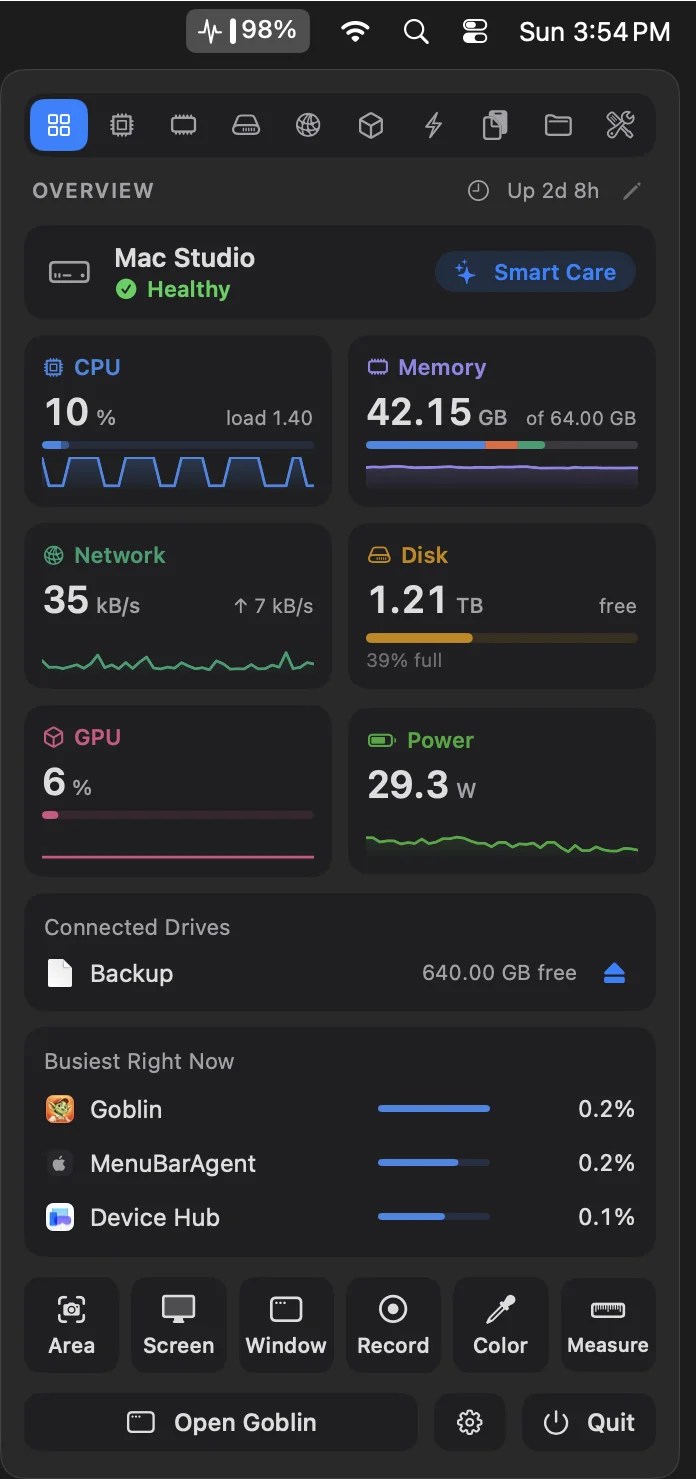
See The menu bar panel. You can also open it from any app with a keyboard shortcut; see Keyboard shortcuts.
The main window#
The tabs run across the toolbar, and ⌘1 to ⌘0 jump to the first ten.
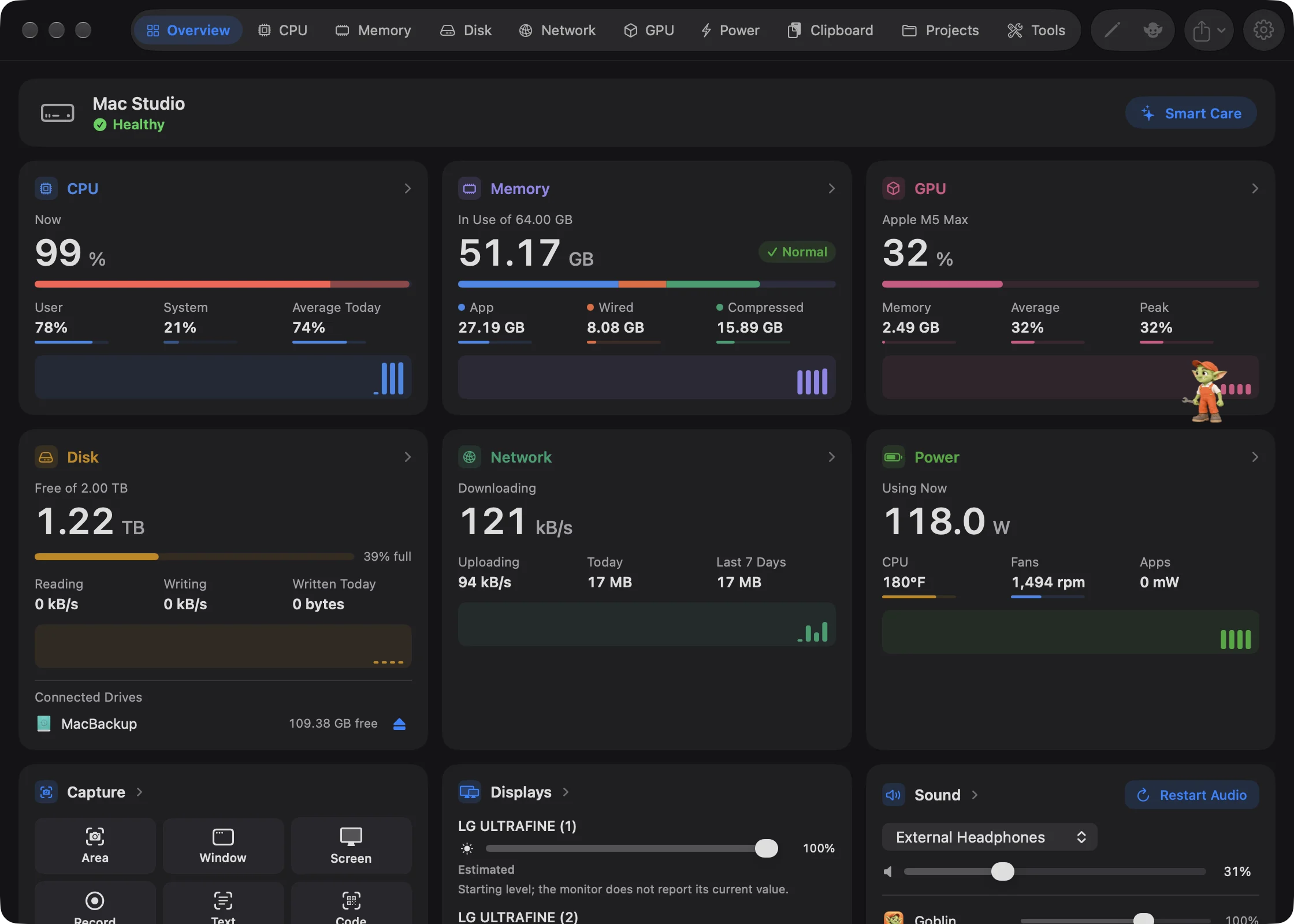
| Tab | What it's for |
|---|---|
| Overview | The dashboard: the status banner, cards for every part of the Mac, and anything worth a look. See Overview and Health and alerts. |
| CPU | Processor use and the apps using it. See CPU. |
| Memory | Memory use, pressure and the apps holding it. See Memory. |
| Disk | Smart Care, Storage Explorer, cleanup, the uninstaller and other disk tools, in a sidebar. See The Disk tab. |
| Network | Speed and connection quality, every connection your apps make, and the firewall's rules. See Network activity and Connections. |
| GPU | Graphics processor use. See GPU. |
| Power | Three pages: Battery (charge, health and what's using power; on a Mac without a battery it shows power use instead), Temperatures & Fans, and Keep Awake. See Battery and Thermals. |
| Clipboard | Your clipboard history and pinboards. Until you turn Clipboard on it shows a card that explains it, with Turn On Clipboard. See The Clipboard tab. |
| Projects | Dev servers running on your Mac, and Docker containers on a second page when Docker is installed. See Projects and Containers. |
| Tools | One-click helpers on cards: capture, displays, sound, window tools, file tools, writing help and fix-its. See The Tools tab. |
New: Coming in the next update. The tab bar went from thirteen tabs to ten. Battery and Thermals became Power, Containers became a page of Projects, and Sound and Displays moved into Tools.
The View menu lists the same tabs. ⌘1 to ⌘9 and ⌘0 jump to them in order, so Tools is ⌘0.
The Disk tab's sidebar#
The Disk tab has its own sidebar, grouped like this:
- Overview: Smart Care (one scan for everything) and Activity (live disk use).
- Storage: Storage Explorer, Files, Duplicates, Cleanup and Trash.
- Apps: Applications, Updates and Startup Items.
- System: Maintenance, Permissions and Privacy.
The Network tab's sections#
The Network tab has Activity (speed and quality), Connections (apps and where they connect) and, while the firewall is on, Rules. The firewall is optional and off until you turn it on. See The firewall.
Keep Awake#
New in 1.1: Keep Awake stops your Mac from sleeping for as long as you need.
Keep Awake has its own page in the Power tab, a card on the Tools tab and in the panel, and its own pane in Settings. See Keep Awake basics.
Clipboard#
New in 1.1: Goblin can keep a history of what you copy, with pinboards, snippets and sync between your Macs.
Clipboard is off until you turn it on: on its page when you first open Goblin, in Settings›Clipboard or with Turn On Clipboard on the Clipboard tab. Then ⇧⌘V opens the clipboard strip along the bottom of the screen, and the Clipboard tab in the panel and the main window shows the same history. See The clipboard strip.
Settings#
Settings has one pane for each part of Goblin, listed down the left. The list is in this order, and Settings › General describes how to open and search it.
| Pane | What's in it |
|---|---|
| General | Updates, opening at login, the Dock icon, units, connection checks, shortcuts. See General. |
| GoblinAI | The animated Goblin, his name, outfit and personality, and the conversation's options. See Meet the Goblin. |
| Appearance | Theme, colors, text size and the app icon. See Appearance. |
| Menu Bar | Everything about the menu bar item. See Other panes. |
| Layout | Which cards the Overview shows, in the window and the panel. See Layout. |
| Health Check and Alerts | What counts as healthy, what Goblin watches for and when it notifies you. See Health Check and Alerts. |
| Keep Awake, Clipboard, Clipbar | The options for those features. See Keep Awake settings and Clipboard settings. |
| Window Tiling, Window Dimming, Displays | The window and display tools. |
| Capture group and Measure | Screenshots, recording, the editor and the on-screen ruler. See Capture. |
| iCloud Sync | Syncing clips, pinboards and the settings you choose between your Macs. See iCloud Sync. |
| Firewall | The optional firewall, listed when your copy of Goblin includes it. See Firewall settings. |
| Projects | Dev server options, the goblin command and AI assistants. See Projects. |
| History, Help & Feedback | The 30-day history and per-app volumes; support, What's New and details about your Mac. See History and Help & Feedback. |
If Settings is already open and another part of Goblin asks for a pane, such as Preferences… in Keep Awake's menu, the open window switches to it.
Automation#
Goblin can be driven from outside the app: the goblin command in Terminal (including goblin clip for the clipboard history), goblin:// links, actions in the Shortcuts app, AppleScript for Keep Awake, and an MCP server that lets AI assistants such as Claude ask how your Mac is doing. See The goblin command, goblin:// links, Shortcuts and AI assistants.
Where to go next#
- New to Goblin? Start with Installing Goblin and Permissions.
- Curious about the little mechanic, or want to ask him what is using your memory? See Meet the Goblin.
- Something not right? See Troubleshooting and Common questions.