 Goblin
A rule tells Goblin's firewall what to do with connections that match it: allow them, deny them, ask you, or only notify, play a sound or hide them. Most rules get made for you when you answer a connection alert or flip a switch in Connections. The editor is for writing one by hand, or for changing one later.
Make a rule#
- Open the Network tab, click Rules, and click New Rule… (+) above the list. Or choose File›New Rule… or press ⌘N.
- At the top of the New Rule sheet, click the large process button and choose the program: Choose Application…, Running Applications, Choose System Process… or Any Process. See Process.
- Choose the Action: (Allow, Deny, Ask, Hide, Show Notification or Play Sound) and the Direction:.
- Under To:, choose where the connection goes, such as Any Server or Domains, and type the destinations if the choice has a box.
- Optionally, set Expires:, Profile:, Priority: and Notes:.
- Click Create Rule. If a red line at the bottom says what's missing, fix it first.
When it worked, the sheet closes and the rule appears in the list with a state of Pending and then Enforced.
Other ways in:
- Start from a connection: choose Create Rule… in the Connections inspector, which fills the sheet in. See Connections.
- File›New Rule for Selection… starts a rule for the same app as the selected rule, and Duplicate… ⌘D starts from a copy.
- Drop an app or a program from the Finder or the Dock onto the Rules screen.
Edit a rule#
- In the Rules list, double-click the rule. Or select it and click Edit…, or right-click and choose Edit…. In the Connections inspector, click Edit beside a matching rule.
- Change the fields you need.
- Click Save.
A rule from a factory or subscribed group opens read-only; the only thing you can change is Rule is on. Turn a rule off without deleting it by unticking Rule is on.
Block an app from the internet#
- Open the Network tab, click Rules, and click New Rule….
- Click the process button, choose Choose Application…, pick the app, and click Choose.
- Set Action: to Deny (the default), Direction: to Outgoing, and To: to Any Server.
- Click Create Rule.
When it worked, the app is listed under its name with a red ✕ Deny, and its connections show red in Connections. Connections the app already had open keep going until they close. To undo this, turn the rule off or delete it.
Allow an app to one site only#
An allow rule for one domain beats a deny rule for everything, because the more specific rule wins.
- Make the first rule as in "Block an app from the internet", with Deny to Any Server.
- Click New Rule… again and choose the same app.
- Set Action: to Allow, Direction: to Outgoing, and To: to Domains.
- Type the domain, such as
example.com, and click Create Rule.
The app can now reach example.com and its subdomains, and nothing else. Apps often use other servers than the one you expect, so watch Connections to see what else it needs.
Make a temporary rule#
- In the rule editor, open the Expires: menu.
- Choose how long the rule should last: Until <App> quits, Until Logout, Until Restart, or For 1 Minute up to For 30 Days.
- Click Create Rule (or Save).
The rule ends by itself and moves to Expired and Suggestions for an hour, where Make Permanent keeps it.
Get asked every time an app connects#
- In the rule editor, choose the app.
- Set Action: to Ask.
- Click Create Rule.
Each matching connection now opens a connection alert, whatever the operation mode.
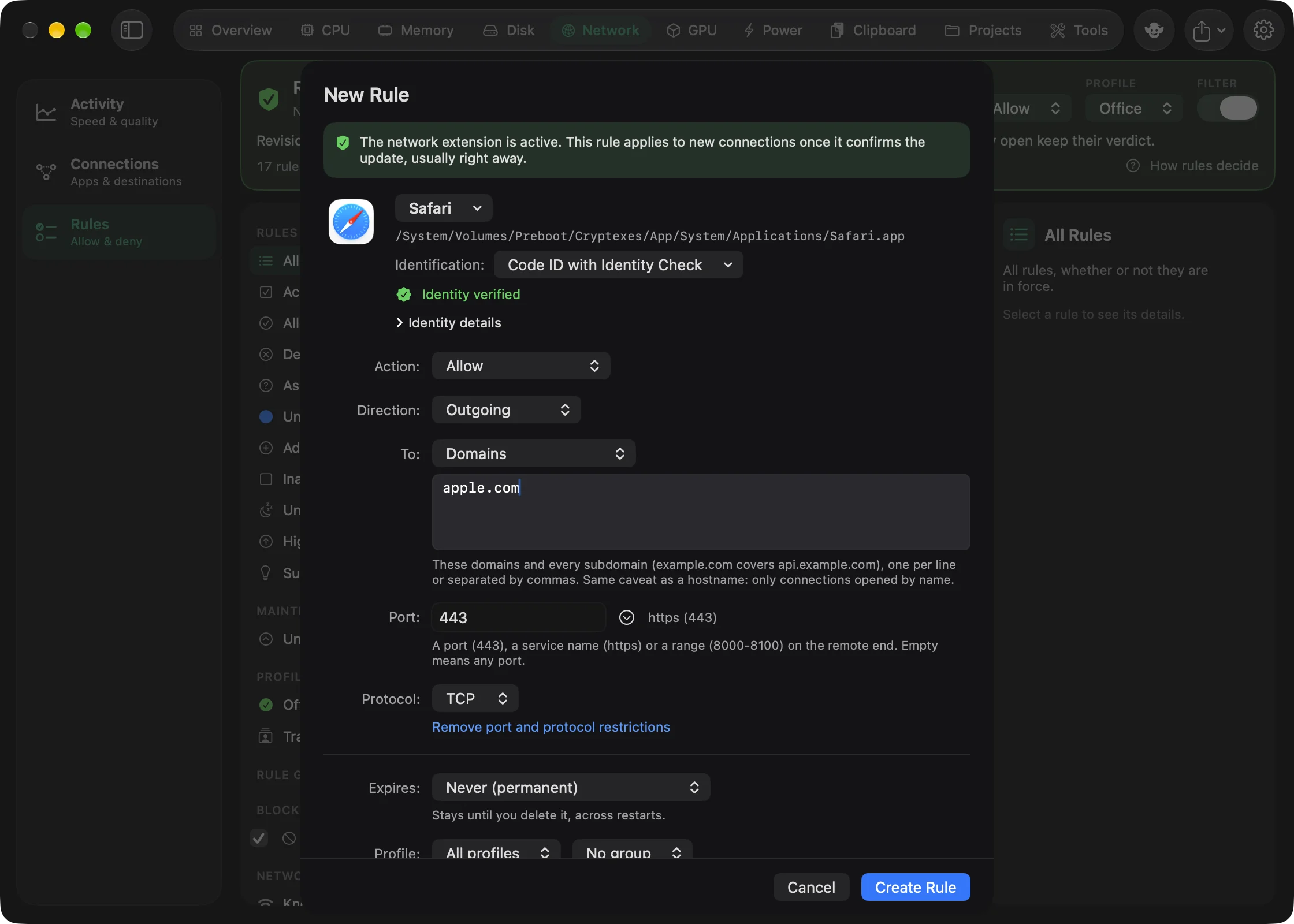
The sheet is titled New Rule or Edit Rule. A line at the top says whether the rule will take effect: right away once the network extension confirms it, or later, when the extension is active again. A rule from a factory or subscribed group opens read-only; the only thing you can change is Rule is on.
Process#
The large button at the top names the program the rule is for, with its path underneath. Click it to choose:
- Any Process: every app and program on the Mac.
- Choose Application…: pick an app or a command-line tool on disk.
- Choose System Process…: pick from the system programs and command-line tools running now (in
/System,/usr,/bin,/sbinand the Homebrew folders), with a search field. Other… picks one that isn't running. - Running Applications: pick an app that's open right now.
- Copy Process Path and Show in Finder.
You can also drop an app or a tool onto this part of the sheet.
Identification#
Identification decides how Goblin recognises the program. The difference matters when a program is updated, moved, or replaced by something pretending to be it.
| Choice | Matches | When the program changes |
|---|---|---|
| Code ID | The program's signing identity: its identifier, signed by Apple or by its developer's team. | A new version still matches while it's signed the same way. |
| Code ID with Identity Check | The signing identity, plus the exact signature requirement recorded when you save. | If the program is modified or signed by someone else, the rule stops applying to it and you're asked about its connections (or they're denied). |
| Code ID and Path | Both the signing identity and the executable's path. | Moving the program stops the rule matching. |
| Path (No Identity Check) | Only the executable's path. | Anything at that path matches. |
| Path with Identity Check | The path, plus the recorded signature requirement. | As for Code ID with Identity Check. |
Choosing a signed app picks Code ID with Identity Check. Unsigned and ad-hoc signed programs say nothing reliable about who made them, so they can only be matched by path; choices the program's signature can't support are greyed out.
Under the menu, a rule with an identity check shows Identity verified, or Program Modified / Identity Mismatch with two ways out: Accept Modification (trust the program as it is now) and Disable Identity Check. If the program isn't where the rule says, it reads Identity can't be checked. What happens to a changed program's connections is set by When a program's identity changed in Settings › Firewall › Security.
Identity details opens the raw fields: Signing identifier, Team ID (left empty for software signed by Apple), Executable path, and the recorded Identity check. You can type a signing identifier or a path yourself for a program that isn't on this Mac. Fill in both to require both.
Action#
| Action | What it does |
|---|---|
| Allow | Lets matching connections through. |
| Deny | Blocks them. The default for a new rule. |
| Ask | Holds each matching connection and asks you in a connection alert, whatever the operation mode. |
| Hide | Leaves the verdict alone and hides matching connections from Connections. |
| Show Notification | Posts a notification when a matching connection is decided. Doesn't change the verdict. |
| Play Sound | Plays a sound when a matching connection is decided. Doesn't change the verdict. |
Show Notification and Play Sound add a When menu: Allowed or Denied Connections, Allowed Connections or Denied Connections. Play Sound also adds a sound menu (the macOS system sounds, Glass at first) and a ▶ button to hear it.
Allow, Deny and Ask rules are enforced by the network extension, even while Goblin isn't running. Hide, notification and sound rules are applied by Goblin itself, so they only work while it's open. Two switches in Settings › Firewall › Notifications silence every notification or sound rule at once.
Direction#
Outgoing (the default) is this Mac connecting to somewhere. Incoming is another device connecting to a service on this Mac, such as file sharing or a development server. Any Direction covers both.
Destination#
To chooses where the connection goes.
| Choice | Matches |
|---|---|
| Any Server | Every destination. |
| Domains | These domains and every subdomain: example.com covers api.example.com. *.example.com is accepted too. |
| Hostnames | Exactly these names, nothing below them. |
| IP Addresses | Addresses, or ranges in CIDR form like 203.0.113.0/24 or 2001:db8::/32. |
| Local Network | Private and link-local addresses (10/8, 172.16/12, 192.168/16, 169.254/16, fc00::/7, fe80::/10), .local names, and any extra ranges from Settings › Firewall › Advanced. |
| Multicast Addresses | Multicast and broadcast addresses: Bonjour, SSDP, DHCP and the like. |
| Bonjour Addresses | The addresses Bonjour uses, 224.0.0.251 and ff02::fb. The rule lists both. |
| Broadcast Addresses | 255.255.255.255. |
Domains, Hostnames and IP Addresses take a box where you can enter several at once, one per line or separated by commas, semicolons or spaces. They stay one rule with several destinations; the sheet counts them ("3 destinations in this rule").
Note: Domain and hostname rules only match connections an app opened by name. A connection straight to an IP address isn't caught by them, even if that address belongs to the domain. Use IP Addresses for those.
When you edit a rule that has destinations of another kind as well (say, a domain and an address range), they're listed under Also:, each with Remove.
Port and protocol#
Click Add port and protocol restrictions to narrow the rule further.
- Port: a number (
443), a service name (https) or a range (8000-8100). Empty means any port. The ⌄ menu offers Any and common ports: 80, 443, 53, 22, 25, 587, 993, 143, 123, 5353, 445 and 3389. For outgoing rules it's the port on the remote end; for incoming rules it's the port on this Mac. - Protocol: any, TCP or UDP.
Remove port and protocol restrictions clears both.
Expires#
| Choice | When the rule ends |
|---|---|
| Never (permanent) | It stays until you delete it, across restarts. The default. |
| Until <App> quits | When this one running copy of the app quits, even if you open the app again. Only offered while the app is running. |
| Until Logout | When you log out. |
| Until Restart | When the Mac restarts. |
| For 1 Minute, For 10 Minutes, For 2 Hours, For 1 Day, For 7 Days, For 30 Days | That long after you save. |
Editing a temporary rule shows Unchanged: … with its current end, so saving doesn't restart the clock; pick another choice to renew it. An ended rule stays under Expired for an hour and is offered under Suggestions to make permanent.
Profile and group#
Profile is All profiles (the rule always applies) or one profile (it applies only while that profile is active; see Profiles). Group is No group or one of your own rule groups. A new rule starts in the profile or group you're viewing on the Rules screen. Starting from the Ask, Allow, Show Notification, Play Sound, Hide or Incoming filter presets that action or direction.
Priority#
High priority: beats more specific rules and blocklists moves the rule ahead of every normal rule and every blocklist. Use it sparingly: a high-priority "allow" for an app overrides your other rules for that app, too. The Rules screen lists high-priority rules that gain nothing from it under Unnecessary Priority.
Notes and Rule is on#
Notes is free text saved with the rule; it shows under the rule in the list and can be searched. Rule is on turns the rule off without deleting it.
Saving#
Create Rule or Save (Return) saves; Cancel (Esc) doesn't. A red line in the footer says what's missing, for example a program, a valid hostname or a sound. Goblin refuses a rule that denies every process everywhere, since it would cut off all networking.
If another rule already does exactly the same, Goblin asks: Merge Rules keeps the one you're saving and removes the other, Keep Both keeps both.
How rules decide#
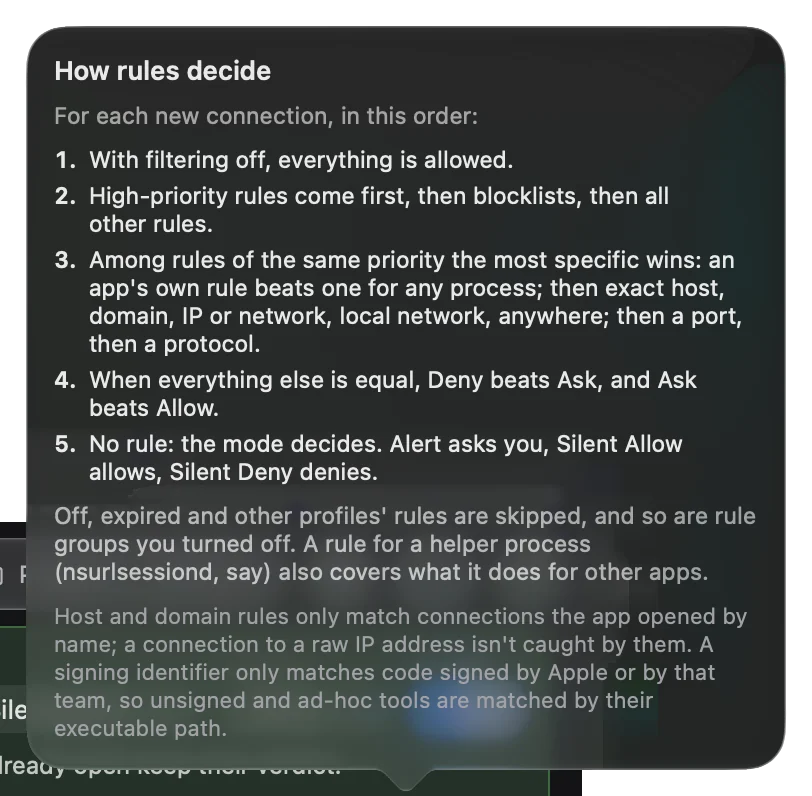
Every connection gets exactly one verdict. Goblin works through these steps and stops at the first one that decides:
- Filtering off: everything is allowed.
- High-priority rules, most specific first.
- Blocklists: an outgoing connection to a listed destination is denied.
- Normal rules, most specific first.
- No rule: the operation mode decides. Alert asks you, Silent Allow allows, Silent Deny denies.
Rules that are turned off, expired, in another profile or in a group that's turned off are skipped. So are notification, sound and hide rules, which never decide anything.
Most specific wins#
Among rules of the same priority, Goblin compares them in this order and the first difference settles it:
- The program. A rule for a particular app beats a rule for Any Process, whatever their destinations. A rule that names both a code ID and a path beats one that names only one of them.
- The destination. Exact hostname, then domain, then IP address or range, then local network or multicast, then any server. Within the same kind, the narrower one wins:
a.b.example.comoverexample.com, a/32over a/24. A rule with several destinations ranks by its most specific one. - The port. A rule with a port beats one without; a narrower range beats a wider one.
- The protocol. A rule with a protocol beats one without.
- The direction. A one-way rule beats an Any Direction rule.
- The action. When everything else is equal, Deny beats Ask, and Ask beats Allow.
A worked example#
Say the firewall is in Silent Allow, with one blocklist that lists tracker.net, and these rules:
| Rule | Program | Action | To |
|---|---|---|---|
| A | Any Process | Deny | domain example.com |
| B | Safari | Allow | any server |
| C | Safari | Deny | hostname ads.example.com |
- Safari connects to
cdn.example.com. A and B match. B is Safari's own rule and A is for any process, so B wins: allowed. The app always comes first, even though A's destination is more specific. - Safari connects to
ads.example.com. A, B and C match. B and C are both Safari's; C names an exact host and B covers any server, so C wins: denied. - Mail connects to
cdn.example.com. Only A matches: denied. - Safari connects to
pixel.tracker.net. B matches, but blocklists come before normal rules: denied by the blocklist. - Mail connects to
news.org. No rule matches, so the mode decides: allowed by Silent Allow, and listed under Suggestions.
Now make B high priority. Safari to pixel.tracker.net is allowed, because high-priority rules come before blocklists. But Safari to ads.example.com is allowed too: B now comes before C, however specific C is. To let Safari past the blocklist without that side effect, add a separate high-priority rule for Safari to tracker.net instead, which is what Allow for Safari Only in Connections makes.
Things that catch people out#
- Helper programs. A rule naming a helper or tool also covers what it does for other apps: a rule for
nsurlsessiondcovers its downloads for any app, and a rule for/usr/bin/curlmatches "claude via curl". A rule for the app (claude) matches that connection too. - Unsigned tools acting for an app. An app's own Allow or Ask rule doesn't vouch for an unsigned or ad-hoc signed tool that connects on its behalf. Only a rule that names the tool, a rule for any process, or a Deny rule applies to it; otherwise Goblin asks you, or denies, as Settings › Firewall › Security says.
- Code IDs and signatures. A signing identifier only matches code validly signed by Apple or by that team, so a copy signed by someone else can't pass for it.
- Open connections. A new or changed rule applies to new connections. Ones already open keep their verdict.