 Goblin
Over time you allow many apps to use your camera, microphone, screen or files, and the answers are spread across System Settings. Permissions lists every app's access in one place, and lets you reset access you no longer want to give. Resetting doesn't delete anything: macOS asks the app again the next time it needs that access.
It needs Full Disk Access, because macOS keeps these records in a protected database. Goblin only reads it; it never changes it.
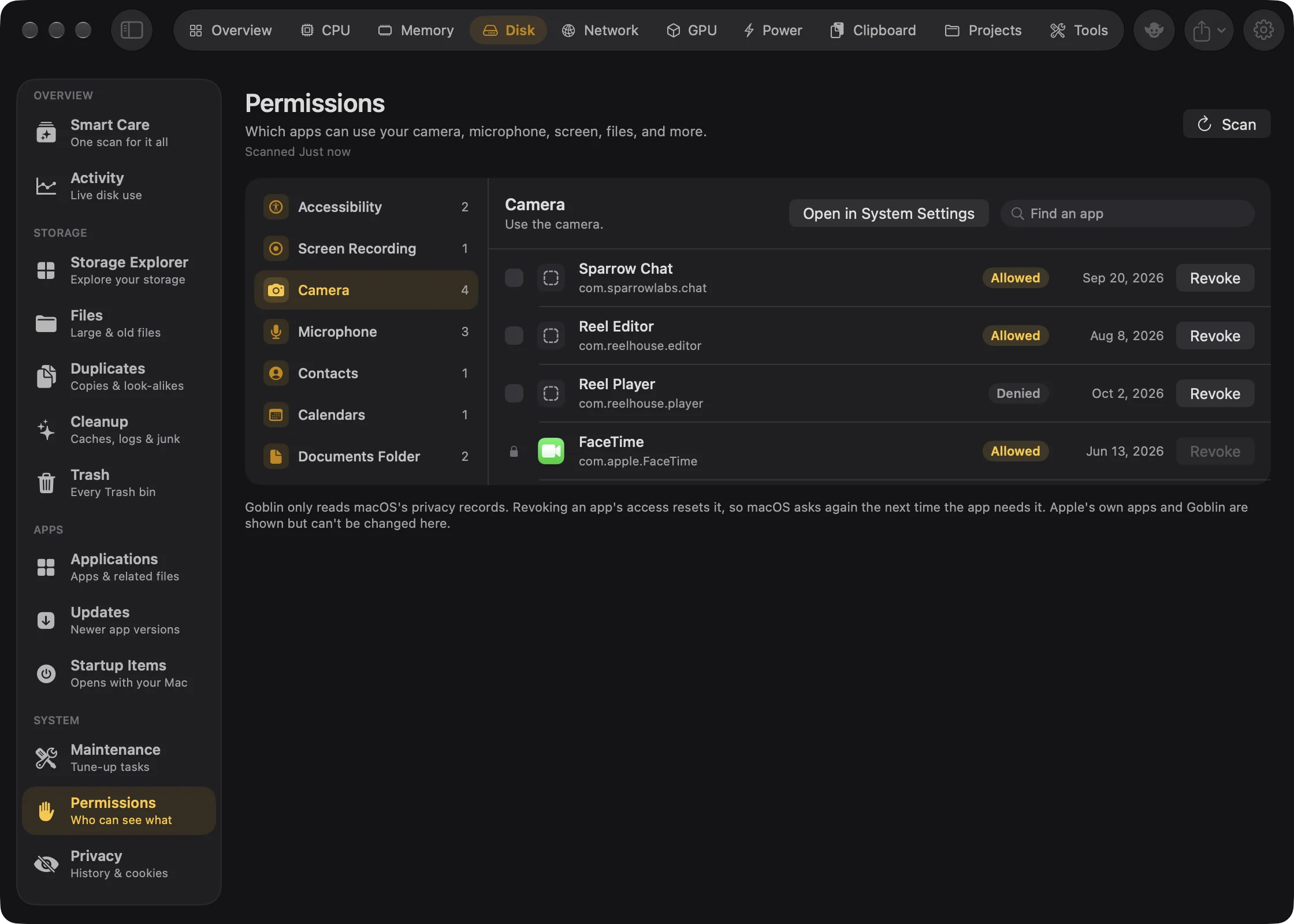
See which apps have access#
- Open the Disk tab in the main window.
- In the sidebar, under System, choose Permissions. The first time you open it, Goblin reads the records on its own. Press Scan to read them again.
- In the list on the left, choose a service, such as Camera or Screen Recording. Only services that have apps on record are listed, each with a count.
- Read the list on the right. Each row has the app's name, the badge (Allowed, Denied or Limited) and the date it last changed.
- To find one app, type in Find an app. It searches the name, the identifier, and the app being controlled.
Right-click a row and choose Show in Finder to see where the app lives. Open in System Settings, above the list, opens the matching Privacy & Security pane.
Apps that haven't been asked yet aren't listed, because an undecided request grants nothing.
The services#
| Service | Lets an app |
|---|---|
| Accessibility | Control your Mac and see what is on screen. |
| Full Disk Access | Read protected files, including Mail, Messages and other apps' data. |
| Input Monitoring | See what you type and click in any app. |
| Screen Recording | Record or capture what is on your screen. |
| Camera | Use the camera. |
| Microphone | Record sound from the microphone. |
| Contacts, Calendars, Reminders | Read and change your contacts, calendar events or reminders. |
| Photos | Read and change your Photos library. |
| Photos (add only) | Add pictures to your Photos library without reading it. |
| Automation | Send commands to another app and control it. |
| Desktop Folder, Documents Folder, Downloads Folder | Read files in that folder. |
| Removable Volumes | Read files on USB drives and other removable disks. |
| Network Volumes | Read files on shared network folders. |
| App Management | Change or delete other apps. |
| Bluetooth | Connect to Bluetooth devices. |
| Media & Apple Music | Read your music and Apple Music library. |
| Speech Recognition | Send speech to Apple for transcription. |
| Developer Tools | Run software that doesn't meet Gatekeeper's checks. |
An app row also shows its identifier or path, or "Controls <app>" for Automation.
Revoke access from an app#
- Choose the service on the left, such as Microphone.
- On the app's row, press Revoke.
- In the question "Revoke <service> for <app>?", press Revoke again. Cancel backs out.
- Read the message at the top: "Revoked 1 permission. The app will ask again when it needs it."
macOS will ask again the next time the app needs this access. Nothing is deleted from the app itself.
For Automation, revoking clears the app's access to every app it controls, not only the one shown.
Goblin first resets each permission as you. Access recorded for the whole Mac rather than your account may still be there afterwards. Goblin then retries those together, asking for your password once ("Goblin needs your password to reset these privacy permissions."). The result says how many were revoked. If macOS kept some, it names them: turn those off in System Settings instead.
New in 1.1: With Goblin's helper allowed under System Tasks in Settings › General, the second step runs without the password prompt.
Revoke several permissions at once#
- Tick the box at the left of each row. A footer appears with "N selected".
- Press Revoke Selected.
- In "Revoke N permissions?", press Revoke.
You can tick rows from one service at a time. Changing service keeps your ticks until the revoke finishes.
What can't be changed here#
Some rows show a lock instead of a checkbox, and their Revoke button is dimmed. Hover the lock to see why:
- Apple's own apps and tools: "Part of macOS. Goblin leaves Apple's own access alone."
- Goblin itself: "This is Goblin's own access. Change it in System Settings."
- Command-line tools: macOS can only reset access for apps, so use System Settings for these.
Let Goblin read the permissions#
If the page says Permissions can't be read yet and shows a card titled "Goblin needs Full Disk Access to read this":
- Follow the card: open the Full Disk Access pane, and turn Goblin on. The card has a tile you can drag into the list.
- If macOS asks you to quit Goblin, do so and reopen it.
- Press Scan again on the card (or Scan at the top).
See Full Disk Access. If instead it says No permissions found, macOS has nothing on record for this account.
For the permissions Goblin itself asks for, and why, see Permissions.