 Goblin
With iCloud sync on, everything Goblin keeps of your clipboard follows you between your Macs: what you copy on one shows up in the strip on the others, and a pinboard you tidy on your laptop is tidy on your desktop too. You can also share a single pinboard with other people, so a team can paste from the same set of replies, links or snippets.
Turning it on#
On each Mac you want to keep in step:
- Turn on Clipboard in Settings›Clipboard, if it isn't already. Sync only runs while Clipboard is on.
- Turn on iCloud sync in the General section of the same pane. Goblin asks Turn on iCloud sync? first and explains what it means; click Turn On. The same switch is in Settings›iCloud Sync as Sync clipboard history and pinboards, where it turns on without asking.
- Repeat on your other Macs, signed in to the same Apple ID.
That's all. Goblin needs the Mac to be signed in to iCloud in System Settings, with the same Apple ID on every Mac, and nothing else: no passphrase, no separate account, no extra permission. If you aren't signed in, the status line says Sign in to iCloud in System Settings. Your clips are stored in your own iCloud storage, so they count towards your iCloud plan.
Check whether sync is working#
Open Settings›Clipboard and read the line under iCloud sync, or look at Settings›iCloud Sync. It says Synced just now or Synced 2 minutes ago, Syncing 12 items, Waiting for the network, iCloud storage is full, or Sync problem: with a reason. It updates every few seconds. When the Mac is offline, changes wait and go up once it's back. The menu bar panel's footer shows the same line.
Turning it off#
- Open Settings›Clipboard.
- Turn off iCloud sync. It happens at once, with no question.
That stops syncing on this Mac. It doesn't delete anything, here or in iCloud, and your other Macs keep syncing.
End-to-end encryption#
Everything about a clip (its text, images, title, the app it came from, recognised text and descriptions) is end-to-end encrypted. Only devices signed in to your Apple ID can read it; Apple can't. You don't set up any keys: iCloud keeps them with your account. On top of that, Goblin seals each clip's data with a key of its own before it leaves the Mac.
What iCloud can see is only what it needs to move things around: when a record was created and changed, how big it is, and the order of your pinboards.
What syncs#
- Your history: every kind of clip, with its full content, its title and any edits, the app it was copied from (and that app's icon, so a card from another Mac looks right even if the app isn't installed here), and the Mac it was copied on.
- What Goblin has worked out about a clip, such as a link's title and preview, text read from an image, and descriptions, so another Mac doesn't have to do it again.
- Pinboards, with their names, colors, order and clips, including smart pinboards.
- Locked pinboards. They arrive locked, and the key to open them travels end-to-end encrypted, so you unlock them on each Mac as usual. See Locked pinboards.
- The Trash: deleting a clip and putting it back both sync.
- A snippet's trigger travels with its clip. See Snippets.
What doesn't sync#
- Secrets. One-time codes, card numbers, passwords and keys that Goblin recognises never leave the Mac they were copied on. If Goblin recognises a clip as a secret after it has already synced, it removes it from iCloud. See Clipboard privacy.
- Large history clips. A history clip over 25 MB stays on the Mac it was copied on. Pinned clips sync whatever their size, so pin a big clip if you want it everywhere.
- Old history. A Mac doesn't download history older than its own Keep History setting, since it would only delete it again. Pinned clips and the Trash always come down.
- Goblin's settings, unless you turn them on separately in Settings › iCloud Sync.
Clips that arrive from another Mac go into the strip only. They never replace what's on this Mac's clipboard.
Clips still sync when Encrypt clipboard history on this Mac is on: that setting covers the files on your Mac, and iCloud encrypts the copies it holds itself.
When two Macs disagree#
Most of the time sync is invisible. These are the cases you might notice:
- Editing the same clip on two Macs. The later change wins: its title, text, which pinboard it's in, its place in the pinboard, and whether it's in the Trash.
- Copying the same thing on two Macs. It becomes one card, not two.
- How often and how recently you used a clip keep the higher value from either Mac, and a clip keeps the earliest date it was copied.
- Deleting. Moving a clip to the Trash moves it to the Trash on every Mac, and Put Back brings it back everywhere. Emptying the Trash removes clips for good on every Mac.
- Ageing out. When a history clip ages out under Keep History on one Mac, it goes from iCloud and from your other Macs too. If your Macs have different Keep History settings, the shortest one decides for history clips.
- A clip deleted elsewhere that you've changed here since. Your change wins: the clip is sent up again instead of being deleted.
- A pinned clip or a pinboard deleted on another Mac goes to this Mac's Trash rather than disappearing, so you can put it back.
- Lots of clips vanishing at once. If a Mac's history suddenly loses many clips without them going through the Trash (more than 20, and more than half of what it had), Goblin treats that as a lost history, not as deletions. It keeps iCloud's copies and brings them back down.
New: Coming in the next update. Choose whether timed per-app deletions and permanent quit clearing reach your other Macs.
Clear history when Goblin quits is configured per Mac. Move to the Trash also moves clips on your other Macs. For Delete for good, choose This Mac Only (the default) or All My Macs while clipboard sync is on. Timed per-app retention rules offer the same scope choice. All-Macs deletions are retained offline and sent on reconnect; pinned clips stay. See Clipboard privacy.
Cards from other Macs and from an iPhone#
A clip copied on another Mac looks like any other card, with the icon of the app it came from. In the Clipboard tab of Goblin's window its line reads, for example, "Safari · Studio Mac · 5 minutes ago", and the inspector's Device row names the Mac (or says This Mac). To see only what came from one Mac, search for device: followed by its name; see Searching the clipboard.
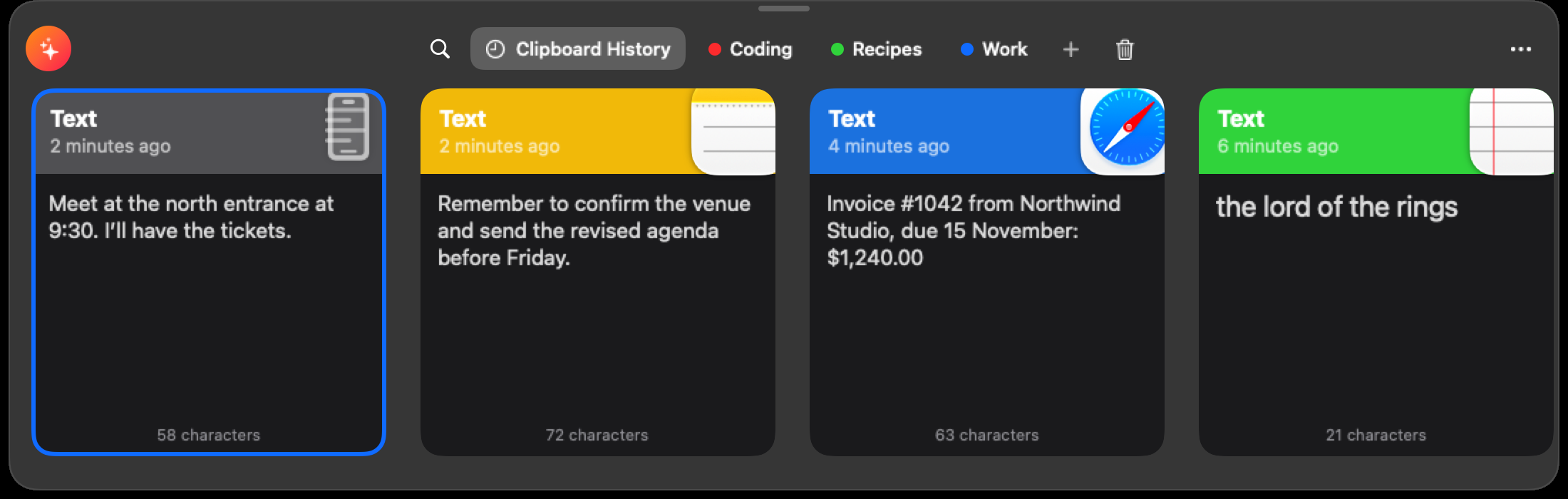
Copies that reach this Mac through Universal Clipboard, Apple's Handoff feature, have no app on this Mac. Goblin draws an iPhone symbol where the app icon would be. This works whether or not iCloud sync is on, since the copy comes through macOS itself. Goblin waits a second before reading one. macOS doesn't say which device a Universal Clipboard copy came from, so Goblin labels every one "iPhone", even one copied on an iPad or another Mac.
Changing iCloud accounts#
If a Mac signs in to a different Apple ID, Goblin stops syncing so that your clips aren't mixed into the other account's, and the status shows a message saying the account changed. Signing back in to the original account picks up where it left off. Signing out of iCloud pauses sync until you sign in again.
To start syncing with the new account instead:
- Open Settings›iCloud Sync.
- In the Reset card, use Reset iCloud Data… as described below. It makes the new account's copy match this Mac.
Reset iCloud Data#
Use this when another Mac's copy looks wrong, after you've reset your iCloud end-to-end encrypted data, or to move to a new Apple ID.
- Open Settings›iCloud Sync. Make sure Sync clipboard history and pinboards is on; Reset is available only then.
- In the Reset card, click Reset iCloud Data….
- Goblin asks Reset iCloud data? Click Reset iCloud Data.
Goblin deletes its copy in iCloud, then uploads everything from this Mac again, settings included. Your other Macs fill back in from it. Reset never deletes anything on this Mac.
If iCloud's copy disappears for any other reason (for example after an end-to-end encrypted data reset), Goblin never treats the empty iCloud as "delete everything". Each Mac keeps its own clips and uploads them again.
Shared pinboards#
You can share a pinboard with other people. Everyone sees the same clips, and you decide whether each person can only view and paste from it, or also add and delete. The people you invite need Goblin, with Clipboard and iCloud sync on.
Sharing needs iCloud sync on, on your Mac and theirs. A pinboard can't be shared while it's in the Trash or someone else's.
Sharing a pinboard#
- In the strip, open the pinboard tab's menu and choose Share Pinboard….
- In the Share Pinboard window, click Invite People… and choose how to send the invitation: Messages, Mail, or a link you send yourself.
- macOS's sharing options let you choose whether they can only view or also make changes. Send the invitation, and the window lists the people you invited.
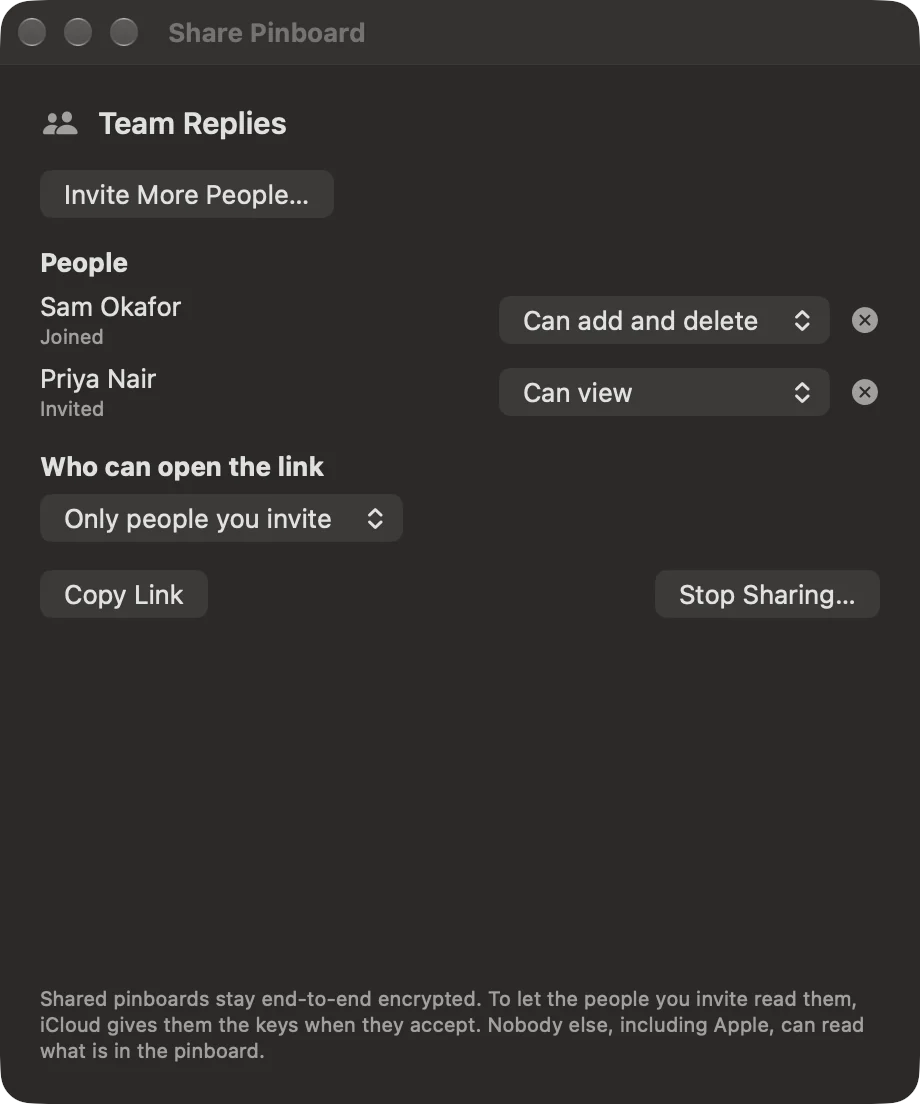
For a pinboard you've shared, the tab menu says Manage Sharing…, which opens the same window:
| Control | What it does |
|---|---|
| Invite More People… | Sends another invitation. |
| People | Everyone invited, with Joined or Invited under their name. Before anyone accepts it says No one has accepted yet. |
| Permission picker | Can view or Can add and delete, for each person. |
| × | Removes that person. The pinboard is taken off their Macs. |
| Who can open the link | Only people you invite, or Anyone with the link. With Anyone with the link, They can sets what those people can do. |
| Copy Link | Copies the pinboard's invitation link. |
| Stop Sharing… | Ends sharing. Goblin asks Stop sharing “name”? first. Everyone you shared with loses the pinboard; you keep it and everything in it. |
A locked pinboard can't be shared. Choosing Share Pinboard… on one offers Remove Lock and Share, which removes the lock so the people you invite can read it. If the pinboard is new and hasn't reached iCloud yet, the window says to wait for sync to finish and try again.
New: Coming in the next update. Invitations use the shared pinboard's name.
Shared pinboards stay end-to-end encrypted. When someone accepts, iCloud gives them the keys to that pinboard only. The invitation uses the pinboard's name, or "Goblin pinboard" when unnamed. The invitation name can appear in link previews and CloudKit can read it; the pinboard's clips stay encrypted.
A shared tab carries a small people symbol: two people on a pinboard you shared, one person on a pinboard someone shared with you.
Accepting an invitation#
- Make sure Clipboard and iCloud sync are on in Settings›Clipboard.
- Open the link you were sent.
- Goblin fetches the pinboard. It appears as a tab in the strip, on every Mac signed in to your Apple ID.
If Clipboard or iCloud sync is off, Goblin says the pinboard is yours to open once they are on, and it appears when you turn them on.
What you can do in someone else's pinboard#
Choose Sharing Info… from the tab's menu to see who shared it and what you can do.
- View only: you can look at the clips and paste from them, but not change them. Trying to shows This pinboard is view only.
- Add and delete: you can add and delete clips. A clip you delete goes to the owner's Trash, where they can put it back.
- Either way, only the owner can rename, recolor or delete the pinboard. Your tab order is your own.
- Pasting from it is private: how often you paste a clip stays on your Mac.
- Pinning a clip into a shared pinboard puts a copy there, and the original stays where it was. Pinning a clip out of one also makes a copy. Snippet triggers aren't shared.
- Secrets and clips from your locked pinboards are never sent to a shared pinboard.
If the owner changes you to view only while you have a change waiting to sync, that change is dropped and you're told “name” is view only now. Your last change wasn't saved.
Change what someone can do#
You must be the owner.
- Right-click the shared pinboard's tab in the strip and choose Manage Sharing….
- In the People list, open the permission picker beside the person and choose Can view or Can add and delete. It saves at once.
- To take someone off the pinboard, click the × beside their name. It leaves their Macs.
To change who can open the link, use Who can open the link in the same window: Only people you invite or Anyone with the link. Copy Link copies the link to send it again.
Leaving or ending#
To leave a pinboard someone else shared with you:
- Right-click its tab in the strip and choose Leave Pinboard….
- Click Leave Pinboard. It is removed from your Macs; the owner keeps it and can invite you again.
You can also click Leave beside it in Settings›Clipboard›Shared pinboards. That leaves straight away, without asking.
Stop sharing a pinboard#
You must be the owner.
- Right-click the pinboard's tab and choose Manage Sharing….
- Click Stop Sharing…, then Stop Sharing in the question that follows.
Everyone you shared it with loses it. You keep the pinboard and everything in it.
Deleting a shared pinboard does the same: Goblin warns “name” is shared. and offers Stop Sharing and Delete. Everyone else loses it; the owner keeps its clips in the Trash.
If you leave while offline or with iCloud sync off, the pinboard goes from your Mac at once, but iCloud only hears about it when you're back online with sync on. Until then the pinboard can come back, and you can leave it again. The Share Pinboard window shows Goblin couldn't reach iCloud. Try again when the Mac is online. if you try to change sharing offline.
Notices#
Goblin tells you when something changes about a pinboard shared with you, with a notification titled Shared pinboard: when one is shared with you, when it's no longer shared with you and was taken off this Mac, when your permission changes, or when the owner's iCloud data was reset so it can't be read any more. The last three notices also show in Settings›Clipboard›Shared pinboards, which lists every shared pinboard with Shared by you, or who shared it and whether you can add and delete. See Clipboard settings.
Ask the Goblin about sync#
Click Talk to Goblin in the main window toolbar and type:
Read Clipboard Privacy Settingsto hear whether iCloud sync is on and what state it is in.Review Clipboard iCloud Sync on(oroff) to prepare the same change as the switch.Review Reset Goblin iCloud Datato prepare Reset iCloud Data.
Each Review request opens a review window in Goblin that lists what will change. Nothing happens until you confirm it there. Turning sync on this way saves the setting, but that doesn't mean sync has finished; ask for the settings again to see its state. Reset uploads in the background and can't be undone. Shared pinboards have their own requests, listed in Manage shared pinboards with the Goblin.