 Goblin
A full menu bar is tiring to read. Automatic figures let you keep Goblin's item small and still be told when something needs a look. A figure set to Auto stays out of the menu bar while things are normal. When something about it is unusual, such as the processor flat out for a minute or a big download running, it joins the item on its own, and it leaves again once things settle.
Automatic figures appear after your own figures and are always drawn as a small label over the value, like the Stacked style. They work in every style, including Icon.
Choose which figures can join#
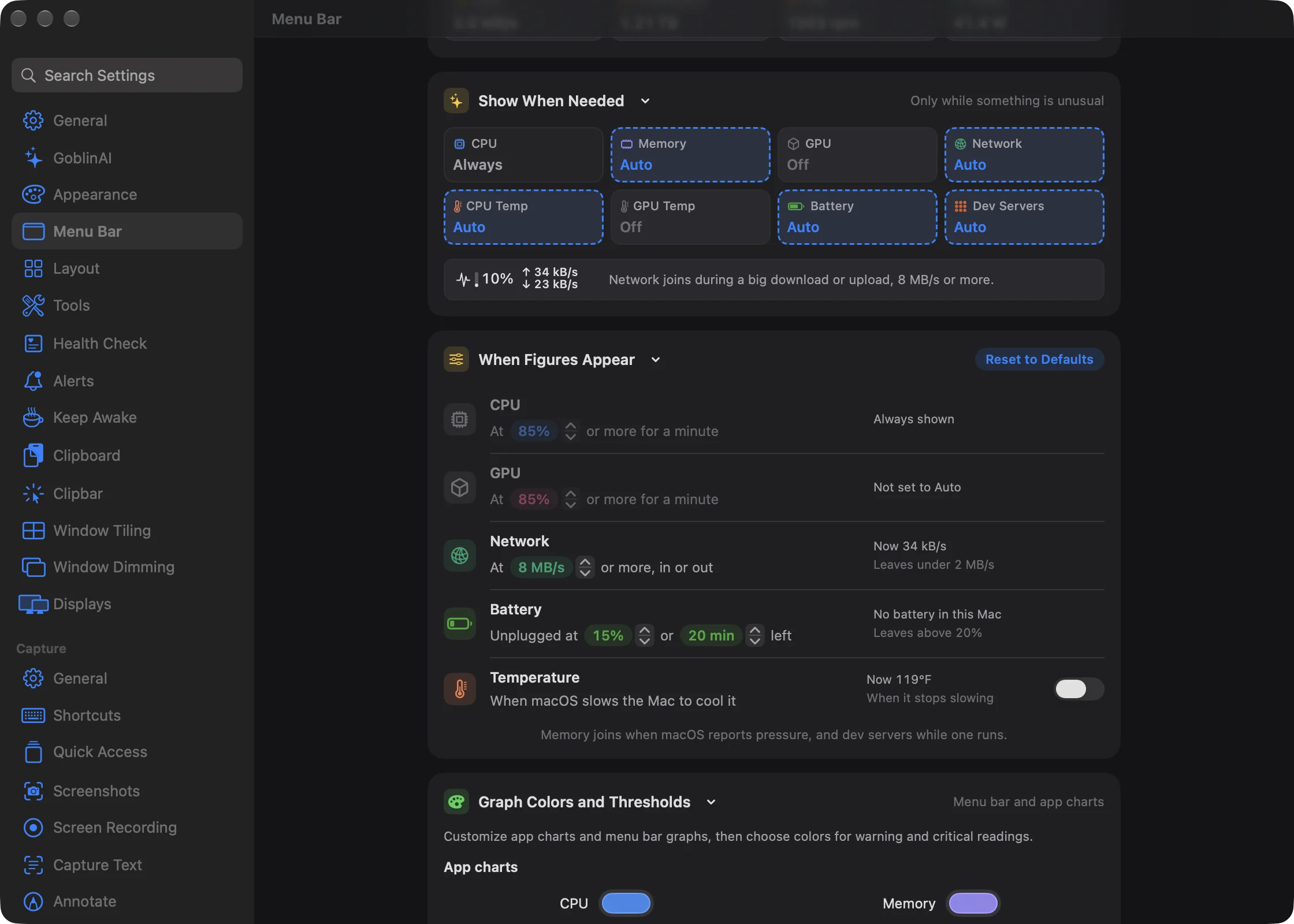
- Open Settings›Menu Bar and find the Show When Needed card.
- Click a chip to switch that figure between Auto and Off.
- Hover a chip to see when it would join. The example box under the chips shows your item with that figure added, and says why it would join.
The card has a chip for each figure that can join by itself: CPU, Memory, GPU, Network, CPU Temp, GPU Temp, Battery and Dev Servers.
- Auto: joins while something is unusual. The chip has a dashed outline.
- Off: never joins by itself.
A chip reads Always, and can't be changed, when your style already shows that figure all the time.
By default Memory, Network, CPU Temp, Battery and Dev Servers are set to Auto.
Disk, Free Space, Fan and Power never join by themselves. They appear only when you pick them as figures.
Keep the menu bar quiet#
To keep Goblin's item as small as it can be and still hear about trouble:
- Open Settings›Menu Bar.
- In the Style card, click Icon.
- In the Show When Needed card, make sure the figures you care about read Auto.
The built-in Quiet preset does this in one click: the icon alone, with every figure ready to join.
When each figure joins and leaves#
Each figure has a "join" threshold and a lower "back to normal" one, so a figure hovering near the line doesn't blink in and out. A figure that has joined also stays for a minimum time, and some rest for 5 minutes after leaving before they can come back.
| Figure | Joins when | Leaves when | Stays at least | Rests after |
|---|---|---|---|---|
| CPU | The processor averages 85% or more over a minute | It averages under 60% for 20 seconds | 30 s | 5 min |
| GPU | Graphics average 85% or more over a minute | They average under 50% for 20 seconds | 30 s | 5 min |
| Memory | macOS reports memory pressure (Warning or Critical) for a minute | Pressure is back to normal for a minute | 60 s | 5 min |
| Network | Download or upload averages 8 MB/s or more over 30 seconds | Both average under 2 MB/s for 10 seconds | 20 s | 5 min |
| CPU Temp, GPU Temp | For 30 seconds, macOS has been slowing the Mac down to cool it, or (if you set one) the chip has been at or above your temperature | Neither is true for a minute | 60 s | None |
| Battery | On battery, with 15% or less, or 20 minutes or less left | You plug in, or the charge rises above 20% | None | None |
| Dev Servers | Any dev server is running, showing how many | None are running | None | None |
Some details:
- Averages need readings across at least 60% of their time span, so a figure doesn't join on a single reading.
- Network counts a megabyte as 1,000,000 bytes, and looks at whichever direction is faster.
- If both CPU Temp and GPU Temp are set to Auto, only CPU Temp joins. Both mean the same thing when the Mac is slowing down to cool off, and one is enough.
- Dev servers are checked about once a minute while no Goblin window is open, so the Dev Servers figure can take up to a minute to appear or go.
At most two at once#
No more than 2 automatic figures show at the same time. When more than two are unusual, the most pressing come first, in this order: Memory, CPU Temp, GPU Temp, Battery, Dev Servers, CPU, GPU, Network. A third waits until one of the first two leaves.
When they don't appear#
- A figure your style already shows all the time is never added a second time.
- With separate items on, automatic figures don't show anywhere: not in the Goblin item and not in your items.
Change the thresholds#
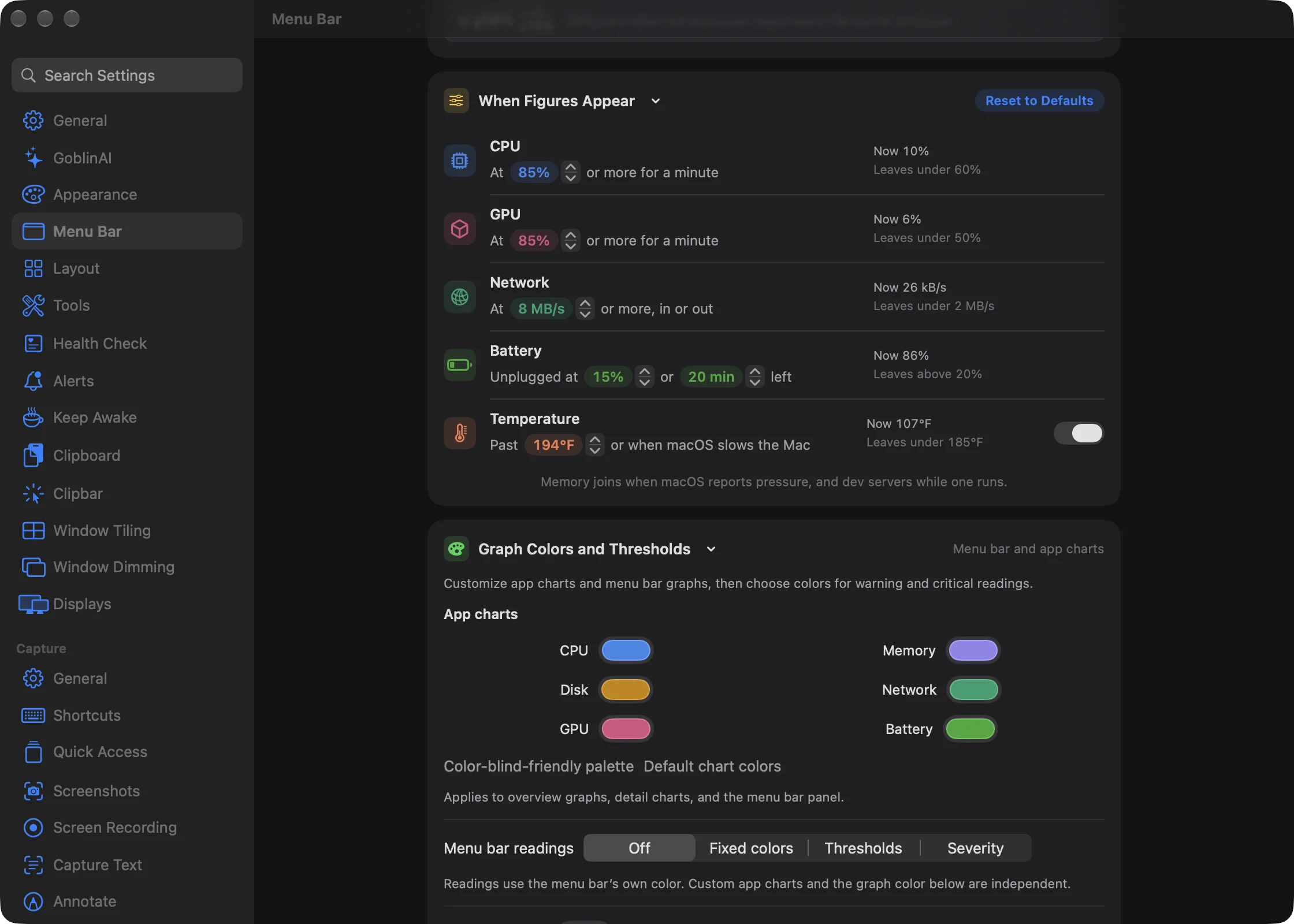
- Open Settings›Menu Bar and find the When Figures Appear card.
- Find the figure's row. Use the small arrows beside its number to raise or lower the level where it joins.
- For Temperature, switch the row on first. Without it, the temperature figures join only when macOS is slowing the Mac down to cool it.
- To put every threshold back, click Reset to Defaults in the card's header. It's greyed out when nothing has changed, and it doesn't change which figures are set to Auto.
A row works only while its figure is set to Auto; otherwise it's dimmed and reads "Always shown" or "Not set to Auto". For a figure on Auto, the right side shows the live value ("Now …") and when it would leave, such as "Leaves under 60%".
| Row | What you set | Range | Default |
|---|---|---|---|
| CPU | "At [85%] or more for a minute" | 50–100%, in steps of 5 | 85% |
| GPU | "At [85%] or more for a minute" | 50–100%, in steps of 5 | 85% |
| Network | "At [8 MB/s] or more, in or out" | 1–100 MB/s, in steps of 1 | 8 MB/s |
| Battery | "Unplugged at [15%] or [20 min] left" | 5–50% and 5–60 minutes, in steps of 5 | 15%, 20 min |
| Temperature | A switch, then "Past [90°] or when macOS slows the Mac" | 70–105 °C, in steps of 5 | Off |
When you change a threshold, the "back to normal" level moves with it:
- CPU leaves at 25 points below your threshold, or half of it, whichever is higher. At 85% that's 60%.
- GPU leaves at 35 points below your threshold, or half of it, whichever is higher. At 85% that's 50%.
- Network leaves at a quarter of your threshold. At 8 MB/s that's 2 MB/s.
- Battery leaves at 5 points above your percentage. At 15% that's 20%.
- Temperature leaves 5 °C below your temperature, once macOS has also stopped slowing the Mac.
The Temperature row covers both CPU Temp and GPU Temp, and works while either is on Auto. With its switch off, the temperature figures join only when macOS slows the Mac to cool it. Turn the switch on to have them also join past a temperature you choose; it starts at 90 °C. The temperature is shown in your chosen unit.
Memory and Dev Servers have no thresholds. Memory joins when macOS itself reports memory pressure, and Dev Servers while one runs. How long each figure waits before joining and leaving is fixed.
Why it keeps Goblin light#
Goblin measures your graphics processor and network in the background only when they're in the menu bar or set to Auto. Turning off figures you don't care about means less work while Goblin sits in the menu bar. See How light Goblin is.